
V-41For the VocationalLMS Super Admin
Take payments by PayPal
Type your PayPal details once, decide whether schools pay a service fee on PayPal payments, test in Sandbox with a test school, switch to Live, and see every PayPal payment. Requests paid with PayPal approve themselves.
How-to video V-41 · 2:20
Read the words of this video
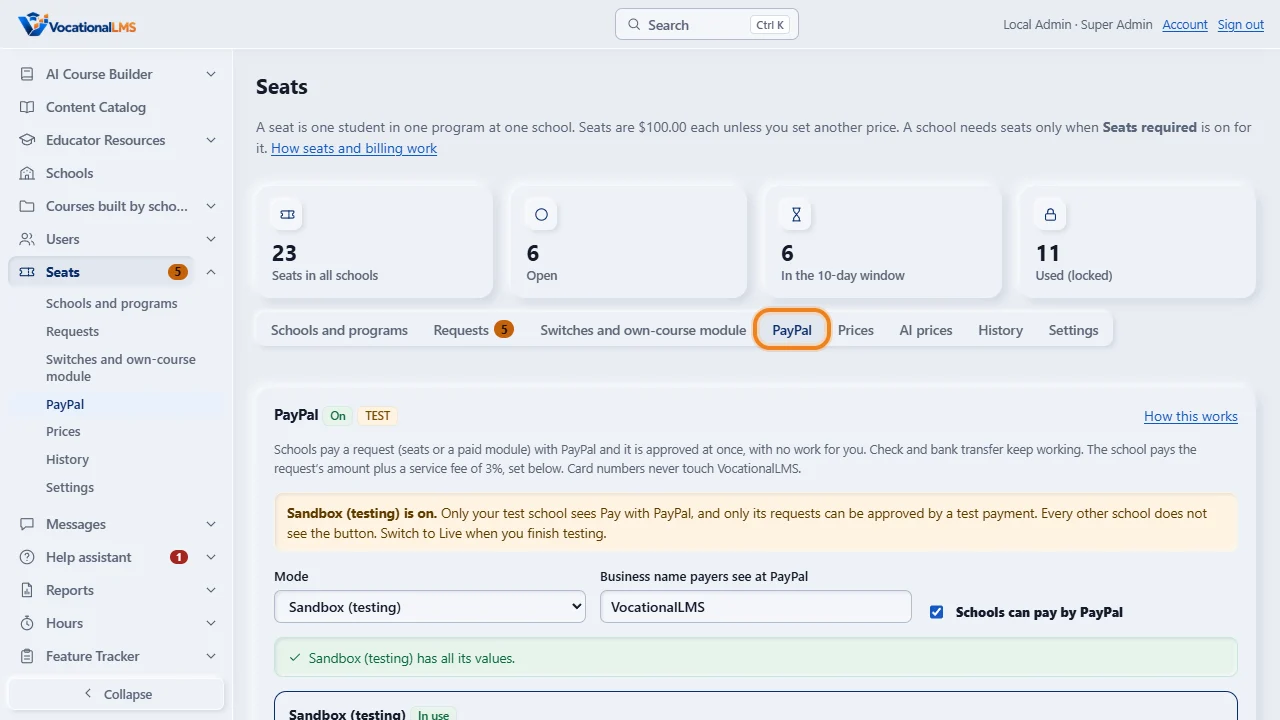
With PayPal, a school pays a request for seats or a paid module, and it is approved at once, with no work for you. To set it up, click Seats, then PayPal.
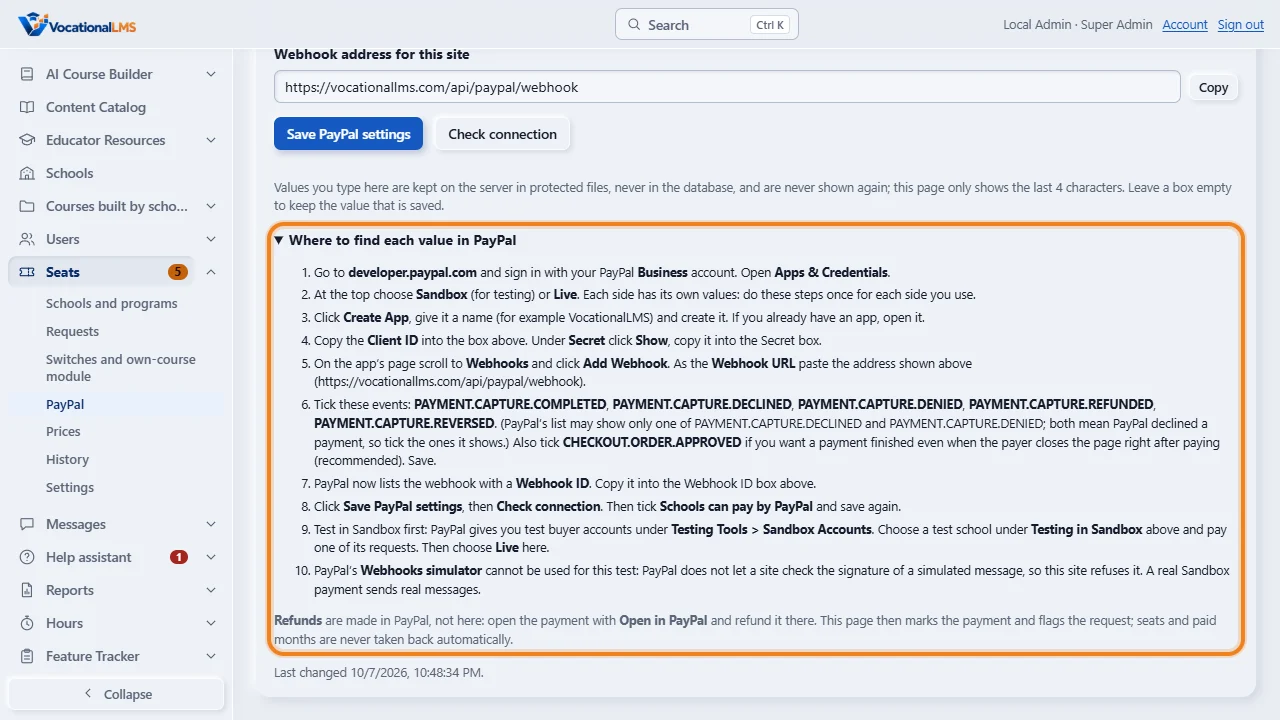
First get three values from PayPal. The steps are on the page. At developer dot paypal dot com, create an app and copy its Client I D and Secret. Then add a webhook with the address shown here, and copy the Webhook I D.
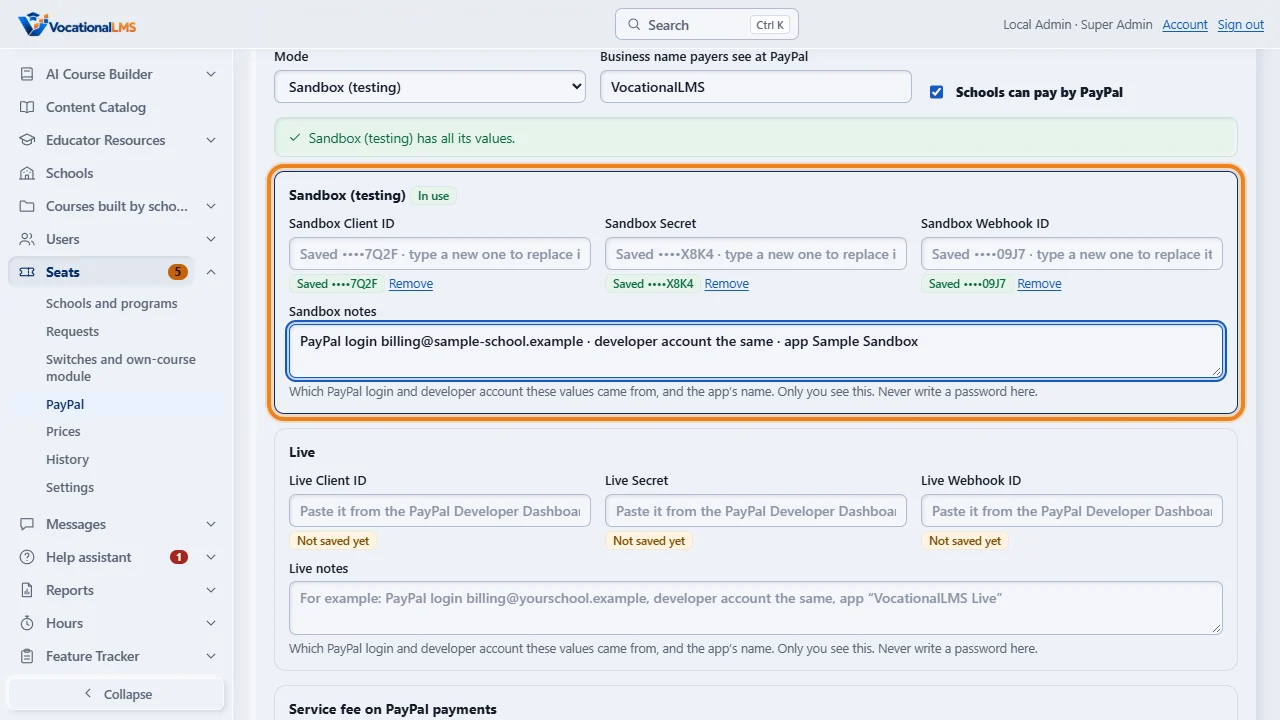
Choose the mode: Sandbox, for testing, first. Paste the three values into the boxes of that mode and click Save PayPal settings. Each value then shows only as Saved, with its last four characters. In the notes box under each side, write which PayPal login and developer account the values came from, and the app's name, never a password. Only you see it, and the same Save button keeps it.
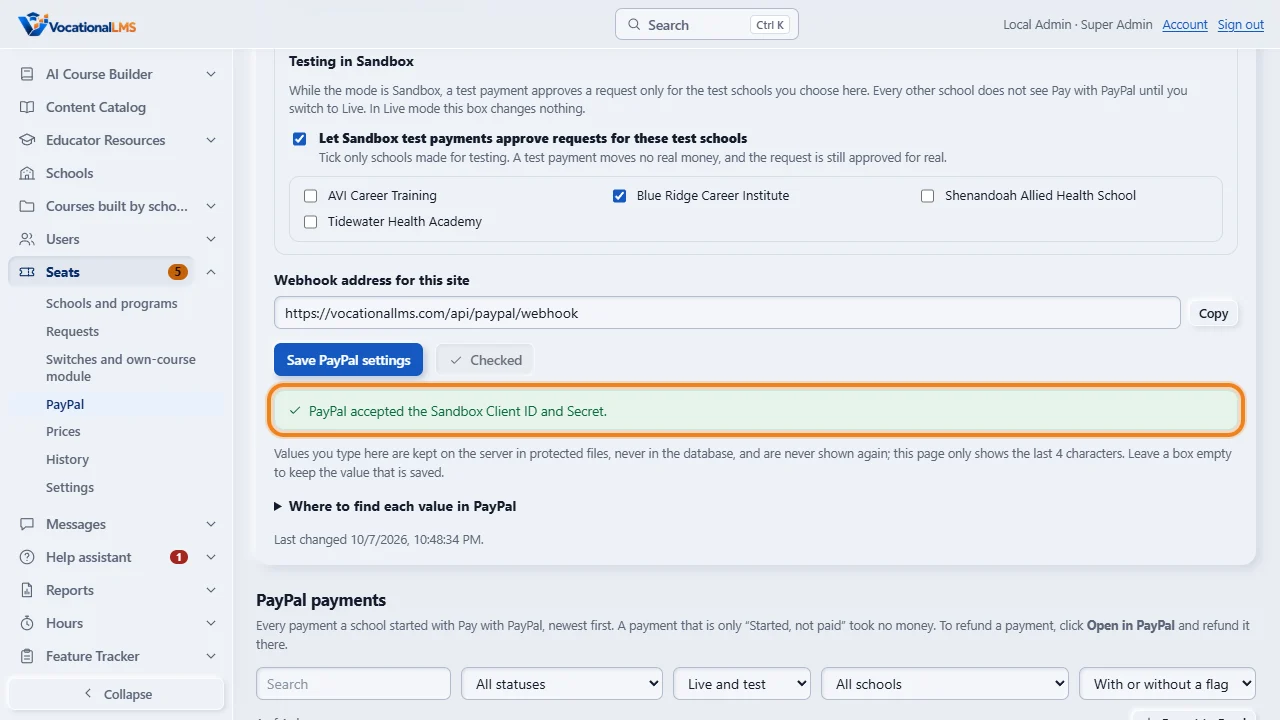
Click Check connection to ask PayPal to accept them. Then tick Schools can pay by PayPal and save again.
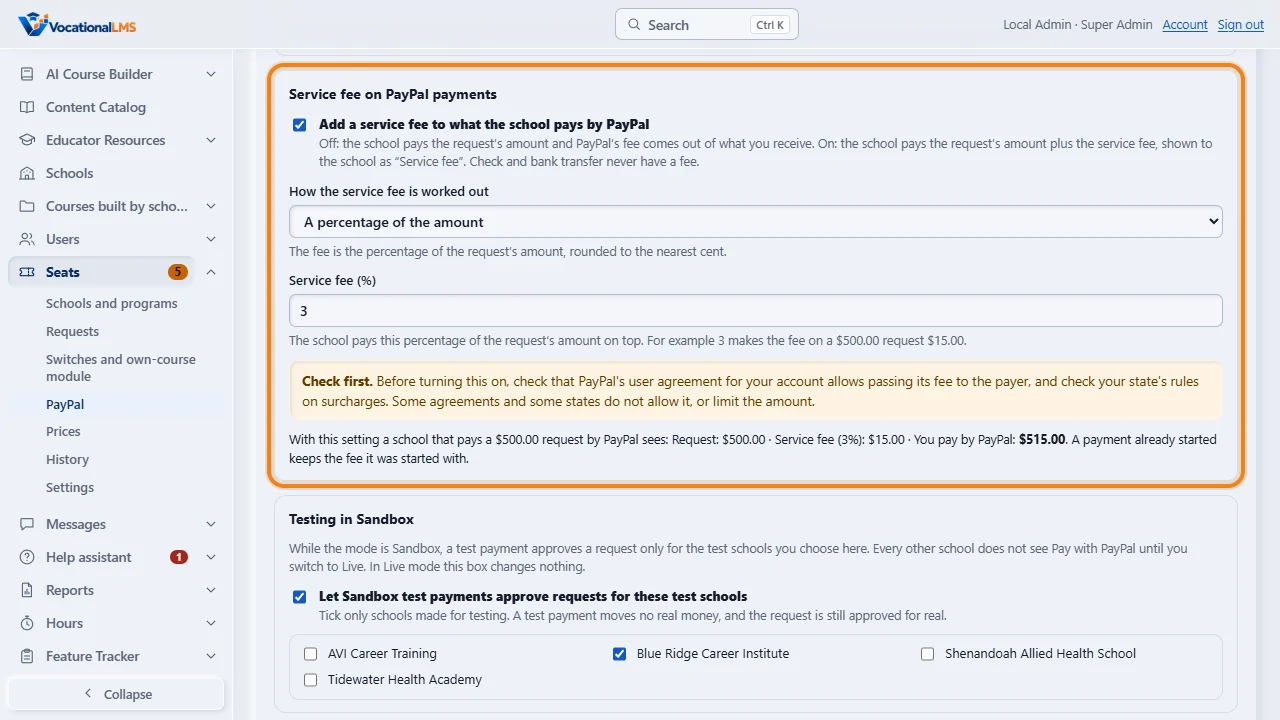
You can add a service fee to what a school pays by PayPal. Choose A percentage of the amount, type the percentage, for example three, tick Add a service fee to what the school pays by PayPal, and save. The page then shows what a five hundred dollar request costs: a service fee of fifteen dollars, so the school pays five hundred and fifteen dollars. Before turning this on, check that PayPal's user agreement for your account allows passing its fee to the payer, and check your state's rules on surcharges. Some agreements and some states do not allow it, or limit the amount.
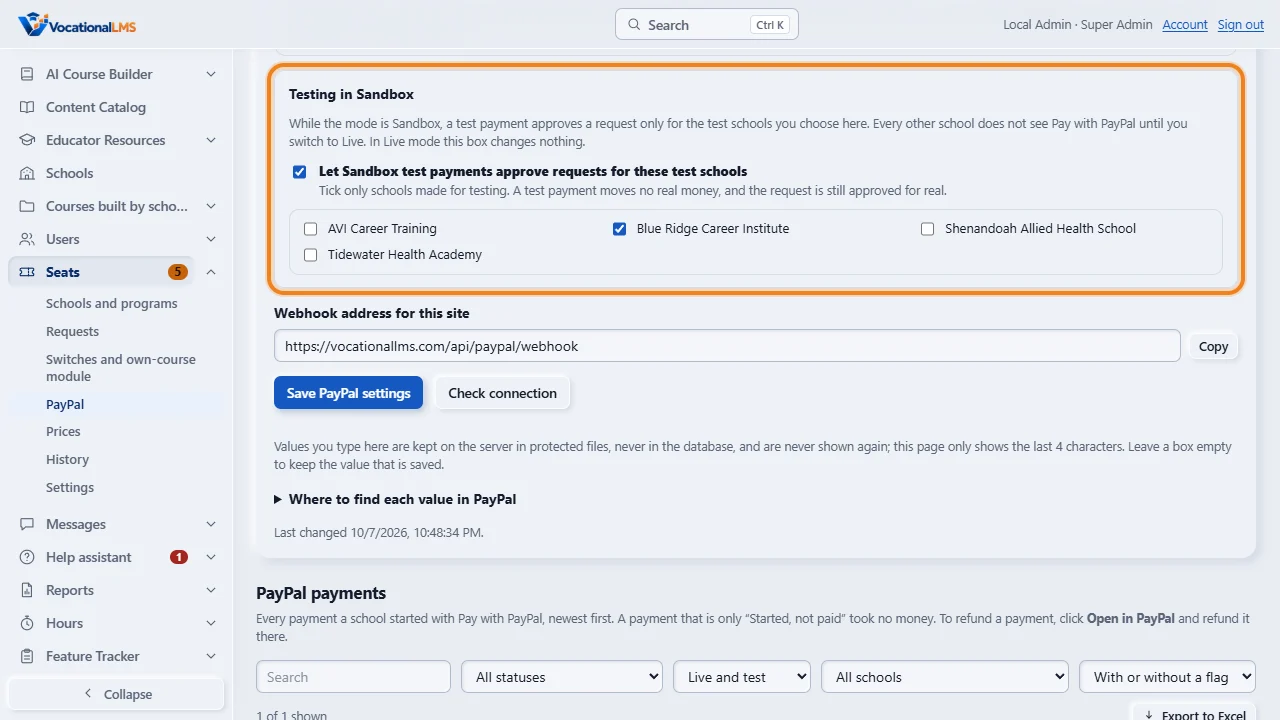
While the mode is Sandbox, a test payment approves a request only for the test schools you choose. Tick Let Sandbox test payments approve requests for these test schools, tick a school made for testing, and save. Every other school does not see Pay with PayPal until you switch to Live.
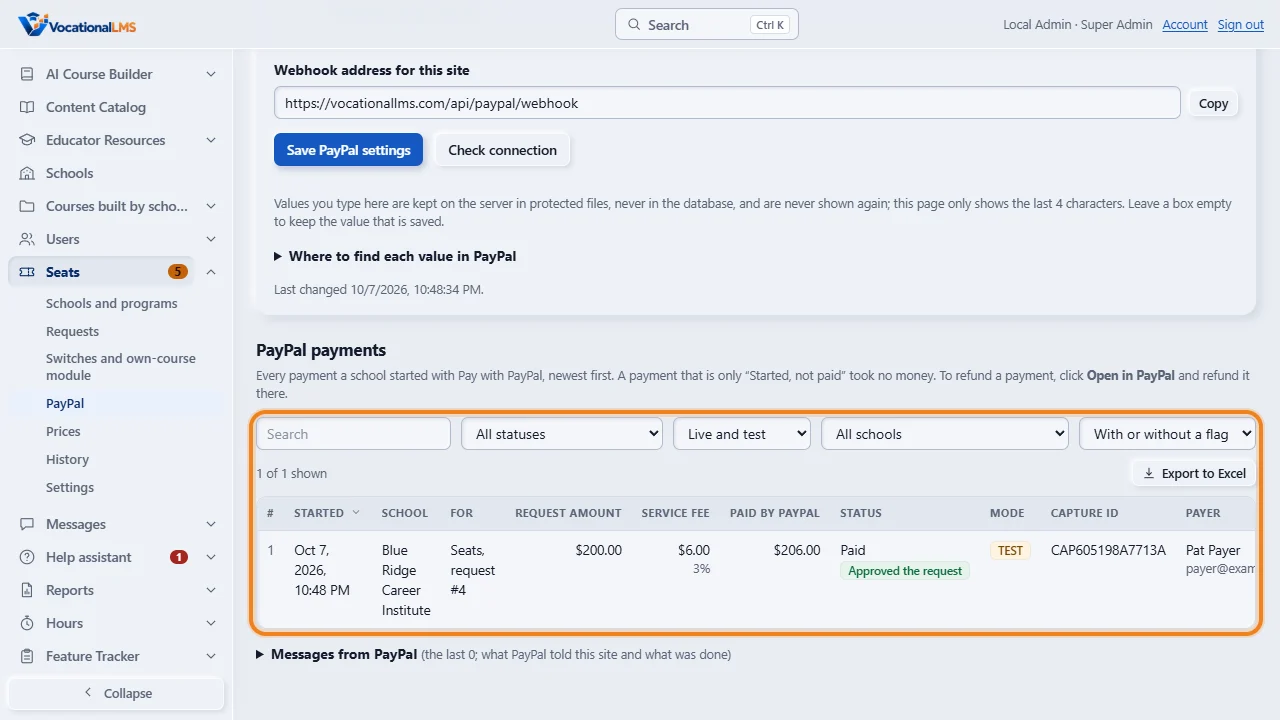
PayPal payments lists every payment with its school, the request amount, the service fee, what was paid by PayPal, the status, the capture I D and the payer. A Sandbox payment is marked TEST. When your test works, type your Live values and choose the mode Live. Refunds are made in PayPal.
Open this in VocationalLMSSeats > PayPal
What it is for
Schools can pay a request (seats or a paid module) with PayPal. When PayPal confirms the payment, VocationalLMS records it and approves the request exactly as you do by hand with Payment received and Approve: the seats are added or the paid-through date moves, and the school is told. Check and bank transfer keep working. PayPal's fee comes out of what you receive, or, with the setting Add a service fee to what the school pays by PayPal, the school pays a service fee on top of the request's amount, for example 3 percent. Card numbers never touch VocationalLMS.
Steps
Get your values from PayPal (once for Sandbox, once for Live)
- Go to developer.paypal.com and sign in with your PayPal Business account. Open Apps & Credentials.
- At the top choose Sandbox (testing, no real money) or Live. Each side has its own three values.
- Click Create App, give it a name such as VocationalLMS, and create it. If you already have an app, open it.
- Copy the Client ID. Under Secret click Show and copy the Secret.
- On the app's page scroll to Webhooks and click Add Webhook. As the Webhook URL paste the address shown on our page under Webhook address for this site (click Copy). For vocationallms.com it is https://vocationallms.com/api/paypal/webhook.
- Tick these events: PAYMENT.CAPTURE.COMPLETED, PAYMENT.CAPTURE.DECLINED, PAYMENT.CAPTURE.DENIED, PAYMENT.CAPTURE.REFUNDED, PAYMENT.CAPTURE.REVERSED. PayPal's list may show only one of DECLINED and DENIED; both mean PayPal declined a payment, so tick the ones it shows. Also tick CHECKOUT.ORDER.APPROVED (recommended): it finishes a payment when the payer closes the page right after paying. Save.
- PayPal lists the webhook with a Webhook ID. Copy it.
Type them into VocationalLMS
- Click Seats, then PayPal.
- Choose the Mode: Sandbox (testing) first.
- Paste the Client ID, the Secret and the Webhook ID into the boxes of that mode. Type the Business name payers see at PayPal.
- In the notes box under each side (Sandbox notes, Live notes), write which PayPal login and developer account the values came from and the app's name, for example PayPal login billing@sample-school.example · developer account the same · app Sample Sandbox. Never write a password there. Only you see the notes (up to 500 characters each); they are saved with the same Save PayPal settings button, so click Save.
- Click Save PayPal settings. Each value now shows as Saved with its last 4 characters. The values are kept in protected files on the server, never in the database, and are never shown again. An empty box keeps the saved value.
- Click Check connection. It asks PayPal to accept the Client ID and Secret and says so, or gives PayPal's reason.
- Tick Schools can pay by PayPal and click Save PayPal settings again. The switch turns on only when the chosen mode has all three values.
Add a service fee to PayPal payments
- Leave Add a service fee to what the school pays by PayPal unticked, and the school pays the request's amount; PayPal's fee comes out of what you receive.
- Before turning this on, check that PayPal's user agreement for your account allows passing its fee to the payer, and check your state's rules on surcharges. Some agreements and some states do not allow it, or limit the amount. The same words stand beside the switch.
- To add a service fee: under How the service fee is worked out choose A percentage of the amount, and type the percentage in Service fee (%), for example 3.
- Tick Add a service fee to what the school pays by PayPal and click Save PayPal settings. The line under the caution shows what a $500.00 request then costs: Request: $500.00 · Service fee (3%): $15.00 · You pay by PayPal: $515.00.
- How the amount is worked out: the service fee is the request's amount times the percentage, rounded to the nearest cent. 3 percent of $500.00 is $15.00; 3 percent of $95.00 is $2.85.
- The school sees the three amounts beside the button before it goes to PayPal (A-61), with the words Service fee (3%), and is told that a check or bank transfer has no fee. The request is approved for its own amount; the service fee is recorded beside it.
- The other choice, So that you receive the full amount after PayPal's fee, is for when the school should cover exactly what PayPal charges you. Type the Percentage PayPal charges you and the Fixed amount PayPal charges for each payment from your own PayPal fee schedule; rates differ by account and change, so VocationalLMS never fills them in for you. The total is (request amount + fixed amount) divided by (1 minus the percentage), rounded up to the cent: with the example numbers 3.49 percent and $0.49, a $500.00 request is paid as $518.59. The school then reads Service fee with no percentage.
- Changing the method or the numbers, or turning the setting off, never changes a payment that was already started: it keeps the fee it was started with.
Test in Sandbox with a test school, then go Live
- While the Mode is Sandbox, a test payment approves a request only for a test school. Every other school does not see Pay with PayPal at all, so no real school can get seats with test money.
- Under Testing in Sandbox tick Let Sandbox test payments approve requests for these test schools, tick one or more schools made for testing, and click Save PayPal settings. Do not tick a real school: a test payment moves no real money, and the request is still approved for real.
- In PayPal open Testing Tools, then Sandbox Accounts: PayPal gives you a test buyer.
- Open the test school as its admin, send a request and click Pay with PayPal (A-61). Pay with the test buyer. The request is approved and everything about it is marked TEST.
- PayPal's Webhooks simulator cannot be used for this test: PayPal does not let a site check the signature of a simulated message, so VocationalLMS refuses it. A real Sandbox payment sends real messages.
- When it works, do the first two parts again for Live, choose the Mode Live and save. In Live mode every school sees Pay with PayPal, the test schools box changes nothing, and Sandbox payments approve nothing.
See the payments
- On Seats, then PayPal, the list PayPal payments has every payment with its school, the Request amount, the Service fee, what was Paid by PayPal (the two together), status, capture ID, payer, what PayPal kept, and Live or TEST. Filter by status, mode, school or flag, and click Export to Excel for a CSV file.
- On Seats, then Requests, a request paid with PayPal shows the capture ID and the payer under Payment.
- The report Payments received (Reports, topic Billing) lists the payments of every method: check, bank transfer, card, cash and PayPal, with the amount of the request, the service fee and the total paid. Test payments are marked and left out of the totals.
What happens next
If anything about a payment does not match (the amount, which must be the request's amount plus the service fee the payment was started with; the currency; the request; or the request is no longer waiting), nothing is approved and the request is flagged PayPal payment needs a look with the reason; you also get a message and an email. Look at it, approve the request by hand or refund the payment in PayPal, then click Mark as looked at (twice). Refunds are not automated in this version: click Open in PayPal on the payment and refund it there. When PayPal reports a refund, a declined payment or a reversal (a dispute), the payment is marked and the request is flagged; seats and paid months are never taken back automatically. Take open seats back yourself on Schools and programs if you need to. A school can start at most 10 PayPal payments a minute.
Common problems
| # | Problem | What to do |
|---|---|---|
| 1 | Check connection says PayPal did not accept the Client ID and Secret. | Copy both again from the same app, and from the same side (Sandbox or Live) as the Mode you chose. |
| 2 | The switch will not turn on. | The line under the switch says which value of the chosen mode is still missing. |
| 3 | A school paid but the request is still waiting. | Open Seats, then PayPal. If the payment is “Started, not paid”, the school did not finish at PayPal. If it has a flag, read the reason. Under Messages from PayPal, a count of ignored messages means the Webhook ID is not the one of this webhook. |
| 4 | Sandbox is on and the page shows a warning. | In Sandbox only your test schools see Pay with PayPal, and a test payment approves a request for real. Use Sandbox only while you test, with schools made for testing, then switch to Live. |
| 5 | A school does not see Pay with PayPal. | The switch Schools can pay by PayPal is off, or the Mode is Sandbox and the school is not one of your test schools. Real schools see the button when the Mode is Live. |
| 6 | A payment is flagged: a Sandbox (TEST) payment was made for a school that is not one of the test schools. | It approved nothing and no real money moved. If that school should test, tick it under Testing in Sandbox. Then click Mark as looked at. |
| 7 | The service fee switch will not turn on. | Type the percentage first. With 0 there is no fee to add. The percentage must be between 0 and 15. With the method So that you receive the full amount after PayPal's fee, the fixed amount must be between $0.00 and $10.00. |
| 8 | The service fee is a cent more or less than you worked out. | With a percentage of the amount, the fee is rounded to the nearest cent. With the method So that you receive the full amount after PayPal's fee, the total is rounded up to the cent, so that after PayPal's fee you never receive less than the request's amount. |
| 9 | You need to change a key. | Type the new value in its box and save. To stop PayPal completely, untick Schools can pay by PayPal, or click Remove on a value (twice). |