
V-45For the VocationalLMS Super Admin
Find anything: search the site (Super Admin)
The Search box for the Super Admin: every platform page and setting, from PayPal and Twilio to seat prices, and how the list is kept complete.
How-to video V-45 · 1:48
Read the words of this video
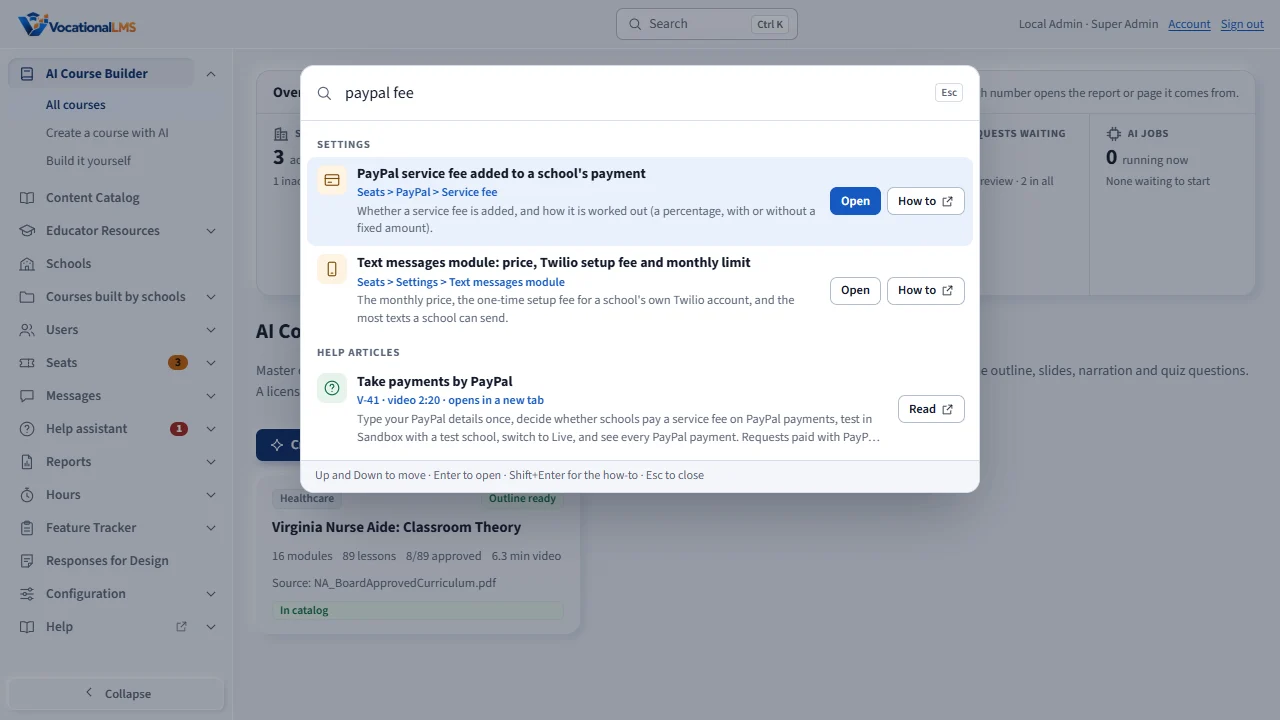
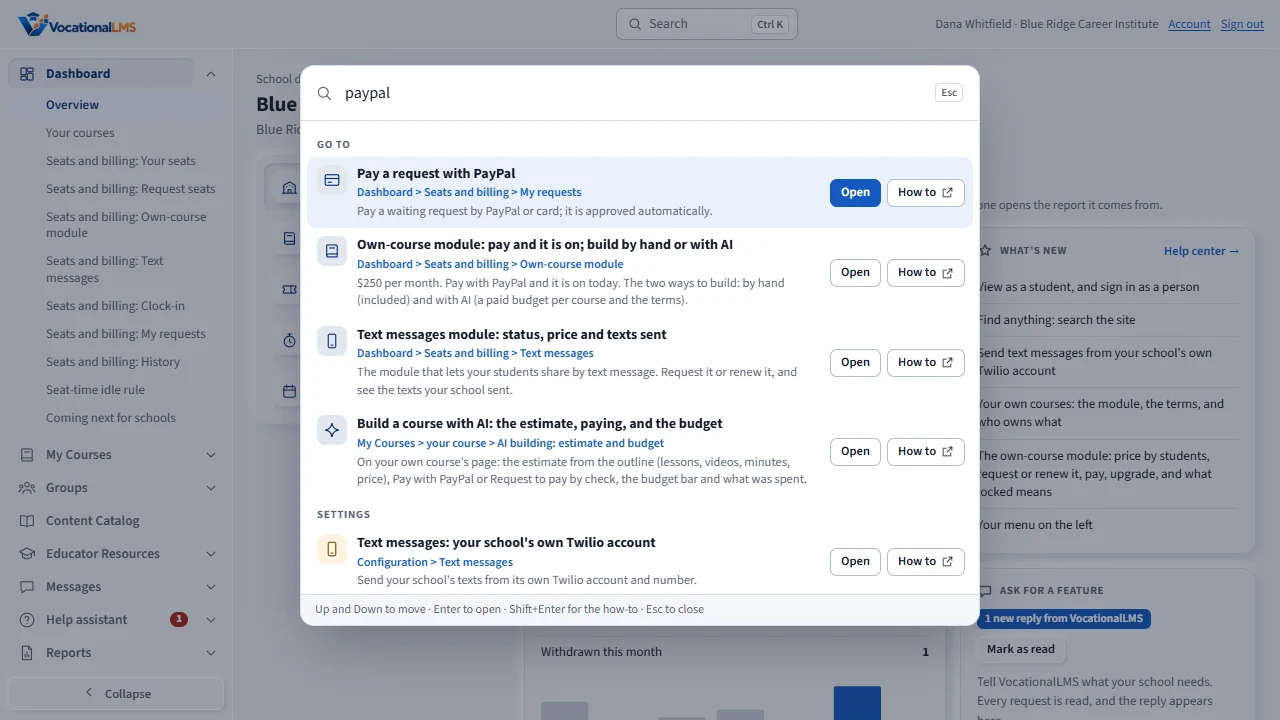
The Search box at the top of every page finds every page and setting of VocationalLMS. Click it, or press Control and K. As the Super Admin you also get the platform's pages: schools, seats, PayPal, the Twilio keys and Configuration.
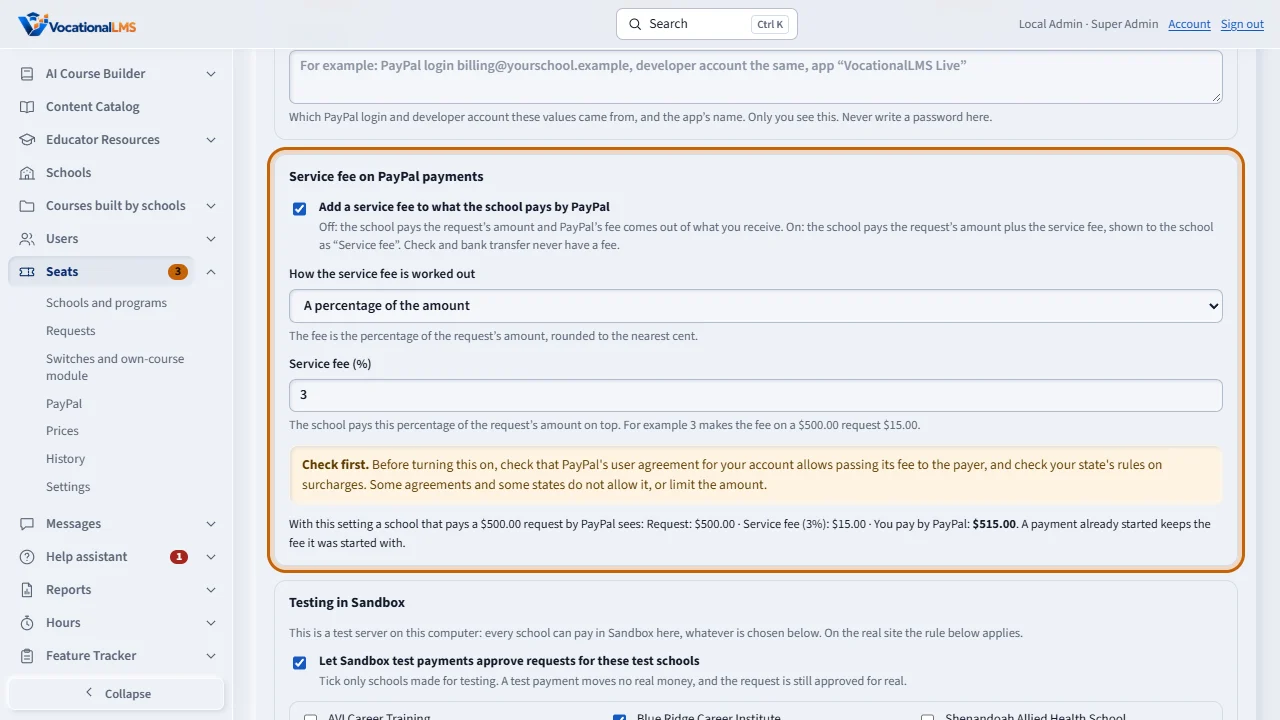
Press Enter, or click Open. The exact tab opens, and the setting is marked with an orange outline. Here it is the PayPal service fee, on the Seats page.
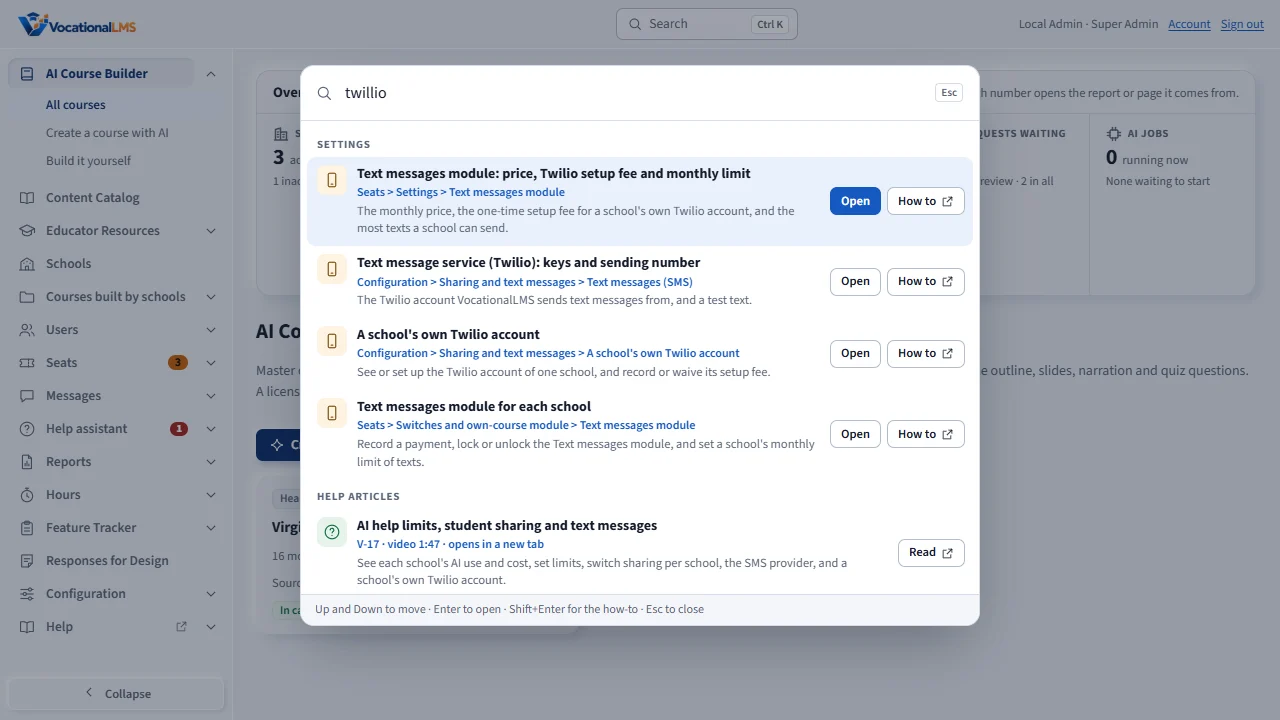
Spelling mistakes are fine, and so are other words for the same thing. Typing Twilio, text, or S M S finds the text message service.
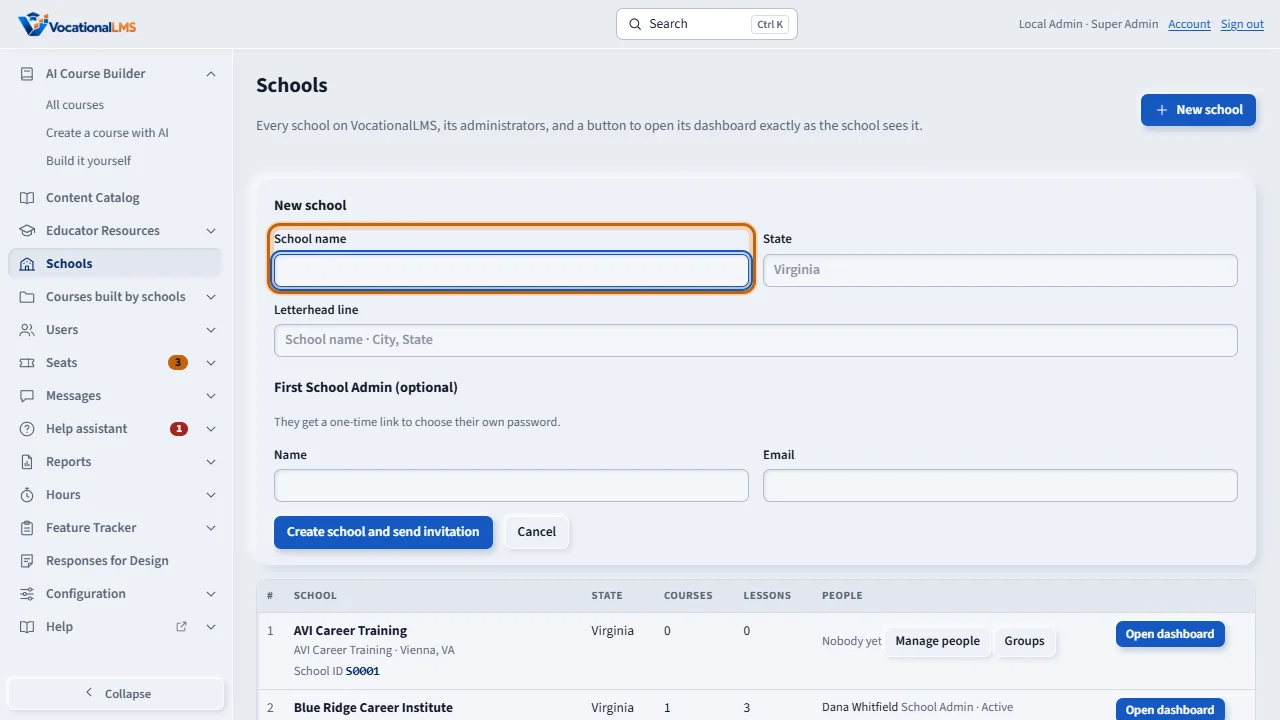
When a form has to be opened first, the search opens it. Create a school opens the New school form, with the first box marked.
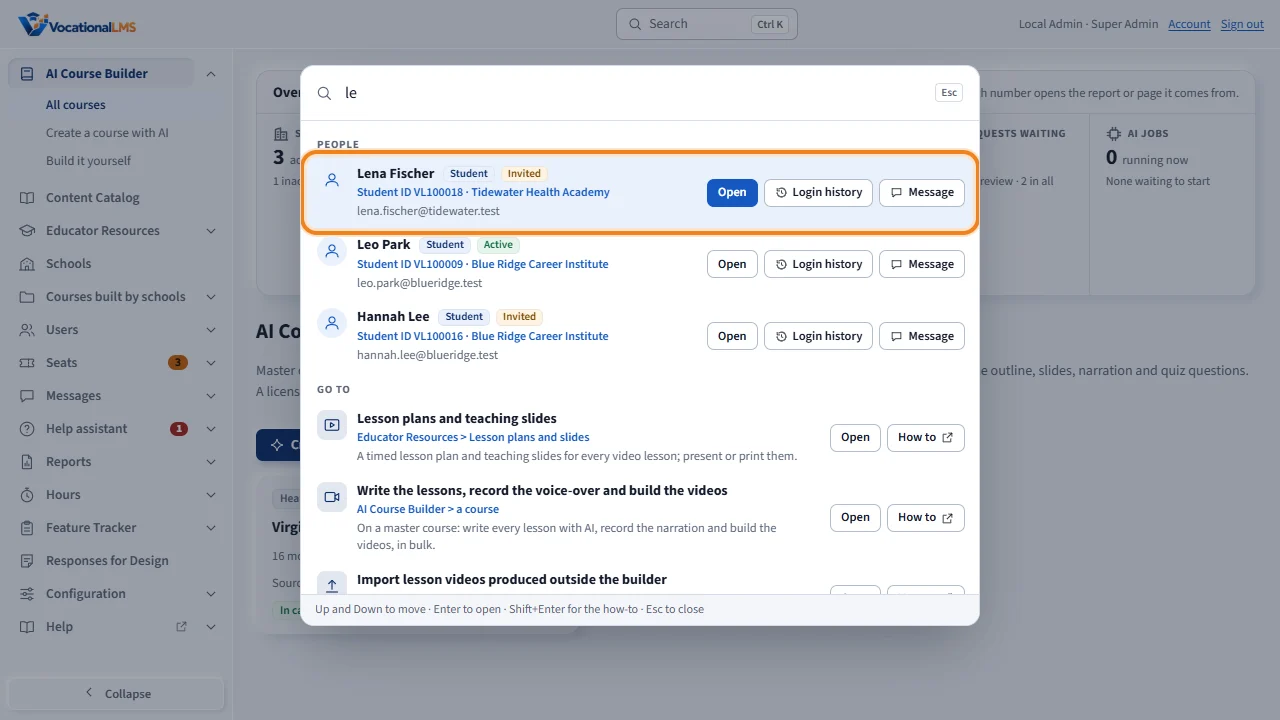
Type a name, an email address, a Student ID or a User ID, and the matching people come first, with their role, their ID and their school. While you view a school, you find only that school's people, exactly as its School Admin does.
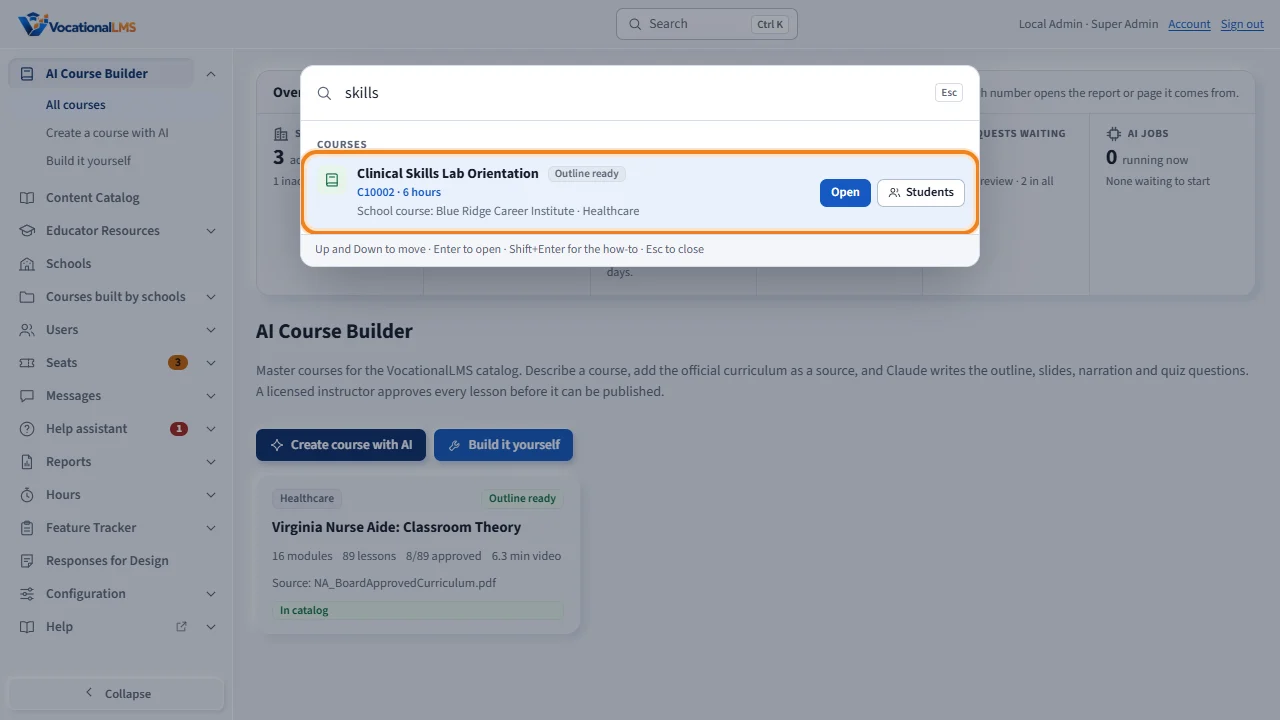
Type a course's name or its course ID, and the Courses group lists every matching course of the platform. A catalog course says VocationalLMS course; a course a school built says School course and the school's name. Open goes to the course page, and Students opens it at the Students panel.
A school never sees your pages. Each person's list is made on the server, from their role, their school, and what the school has switched on. A new feature adds one entry to the registry, and a check fails if a menu or a help article has no entry.
Who can do this: The VocationalLMS Super Admin. While you view a school with Open dashboard, the search shows that school's list, exactly as its School Admin sees it.
What it is for
The Search box at the top of every page finds every page and setting of VocationalLMS. As the Super Admin you get the platform's pages: Schools, Seats, PayPal, the Twilio keys, Configuration, the Feature Tracker and the rest. Clicking a result opens the exact tab and marks the setting. A school never sees a Super Admin page in its results: each person's list is made on the server from their role, their school and what the school has switched on. Typing a person's name, email, Student ID or User ID finds people on every school, with the school's name beside each; while you view a school, only that school's people. Typing a course's name or course ID finds every course of the platform, the catalog's and the ones schools built (each with its school's name); while you view a school, only that school's courses.
Steps
Search
- Click Search at the top, or press Ctrl and K, or the / key.
- Type what you want, for example paypal fee, twilio, seat price or invitation link. A spelling mistake is fine.
- Click a result or press Enter. The exact tab opens and the setting has an orange outline for a few seconds.
- A result such as Create a school opens the form for you.
- Type a name, email, Student ID or User ID to find a person. The People group comes first, with each person's role, ID, account status and school; Open goes to their page, and See all in Users opens the Users page with the search typed in.
- Type a course's name or its course ID (such as C10009) to find a course. The Courses group lists every matching course of the platform: a catalog course says VocationalLMS course, a course a school built says School course and the school's name; each with its status, ID and hours. Open goes to the course page; Students opens it at the Students panel. Groups are not searched by name.
See what a school sees
- Open Schools and click Open dashboard for a school.
- Open Search. The list is now that school's list: its own settings, and only the modules it has.
- Click Return to Super Admin to get your own list again.
Keep the list complete
- Every destination is one entry in one file, vlms/search_registry.py, with its words, its link, who may see it and its help article.
- A new feature adds its entry there. The check py tools/check_search_registry.py fails when a menu, a tab, a feature or a help article has no entry.
What happens next
Each help article also has the button Open this in VocationalLMS, which opens the same place. The search finds pages, settings, help articles, people and courses; people are found live on the server by the Users page's rules (a school's staff find their school's people, an instructor only their own students, you everyone, or one school's people while you view that school), and courses by the rule of each person's course list (a school's staff the courses on My Courses, a reviewer the courses given to them, a student their own programs, you every course). Groups are not searched by name.
Common problems
| # | Problem | What to do |
|---|---|---|
| 1 | A school says a page is missing from its search. | Open its dashboard from Schools and search there. If the page belongs to a module, check the module on Seats > Switches and own-course module. |
| 2 | A new page is not found. | Its entry is missing from the registry. Run the check; it names what is missing. |
| 3 | Hours pages open but nothing is marked. | Choose a school first. The page marks the School box for you. |