
V-40For the VocationalLMS Super Admin
Requests from schools
Read what schools asked for from their dashboard, set a status, reply, and link a request to a feature number.
How-to video V-40 · 1:03
Read the words of this video
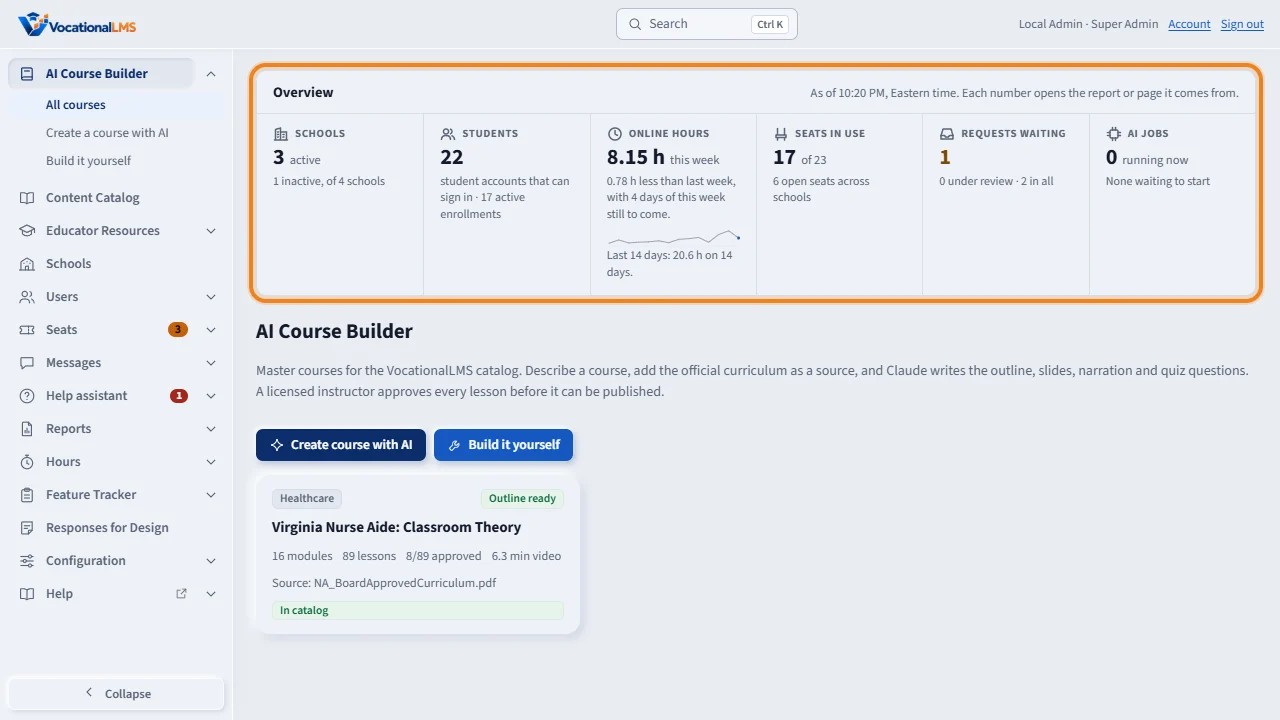
Your first page has an Overview strip with the platform's numbers: schools, students, online hours, seats in use, requests waiting, and A I jobs. Click Requests waiting to see what schools have asked for.
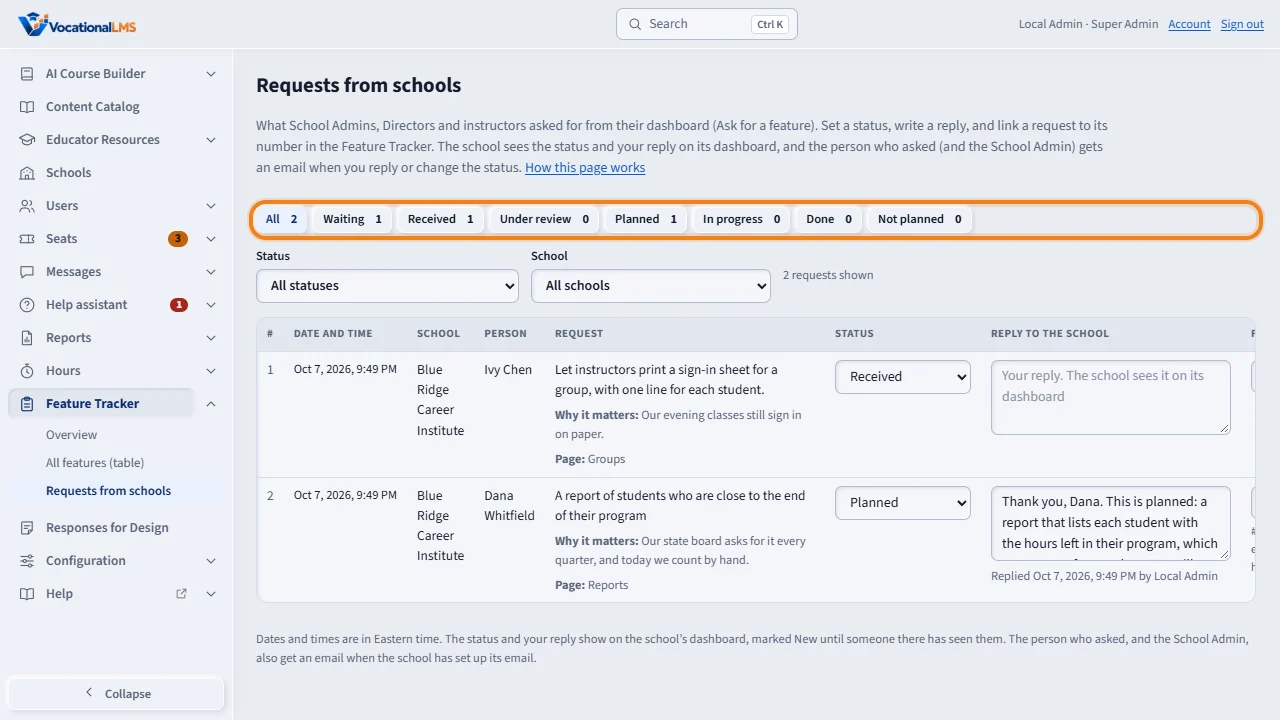
Requests from schools is also under Feature Tracker in the menu on the left. The buttons at the top show how many requests have each status. Each row shows the date, the school, the person and the request.
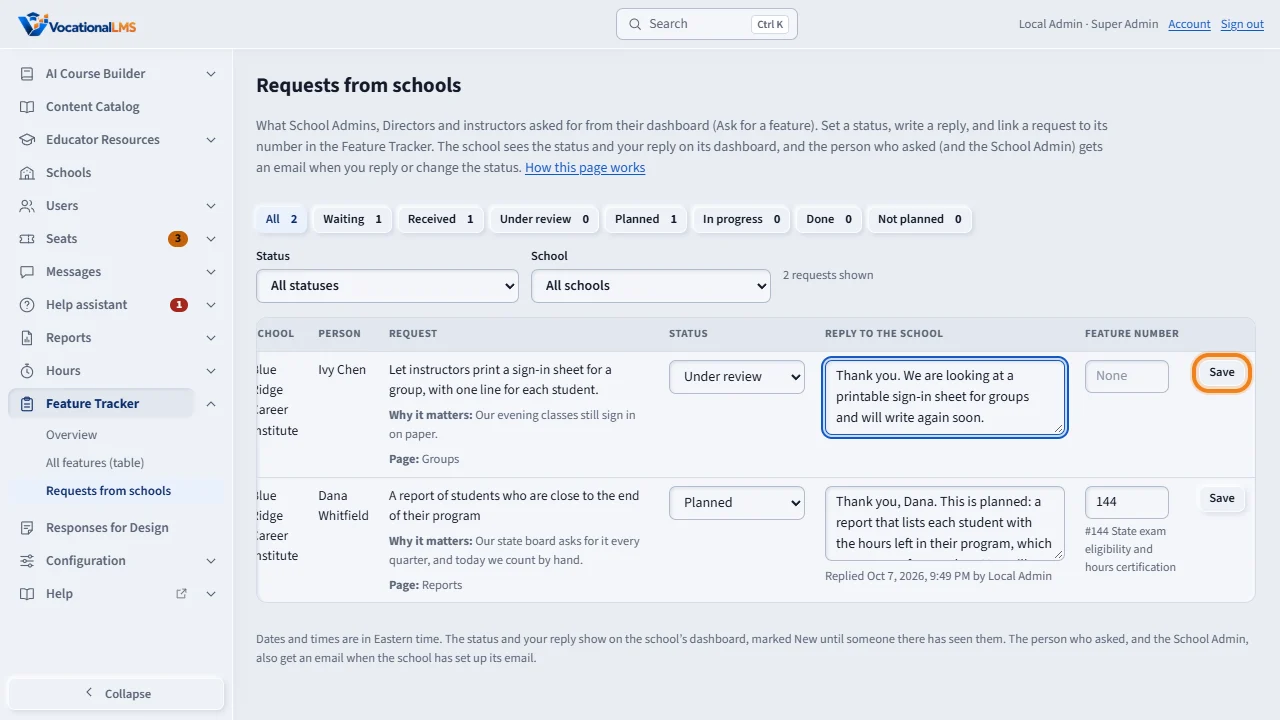
To answer, choose the status: Received, Under review, Planned, In progress, Done or Not planned. Type your reply to the school in plain text. If the request matches a feature, type its feature number. Then click Save on that row.
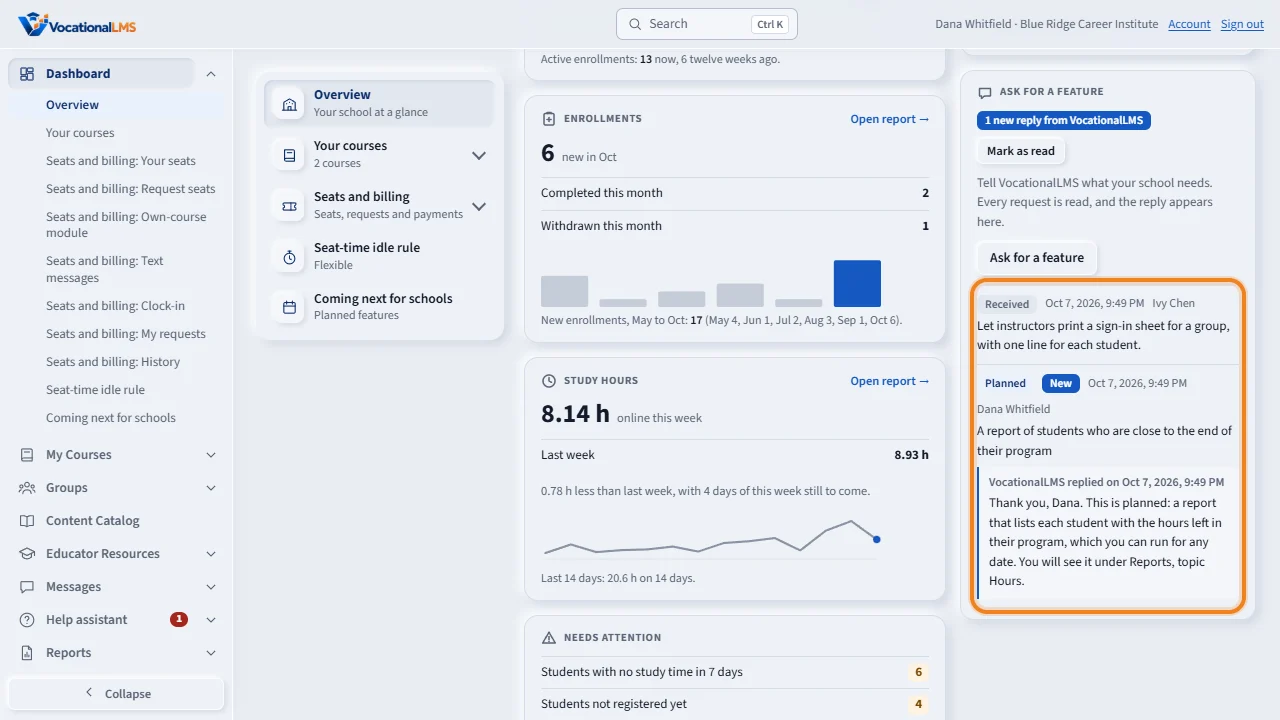
The school sees the status and your reply on its dashboard tile, marked New. The person who sent the request gets an email, and so does the School Admin, if the school has set up its email.
Open this in VocationalLMSAI Course Builder > Overview
What it is for
Requests from schools lists every request a School Admin, a Director or an instructor sent from the Ask for a feature tile on their dashboard (A-60). You set a status, write a reply, and may link the request to its number in the Feature Tracker. Your first page also has an Overview strip with the platform's numbers.
Steps
Answer a request
- In the menu on the left, click the arrow beside Feature Tracker and choose Requests from schools. Or click Requests waiting in the Overview strip on your first page.
- The buttons at the top show how many requests have each status. Click one to see only those, or use Status and School to filter.
- Each row shows the date and time, the school, the person, the request, and Why it matters and the page if the school filled them in.
- Choose the Status: Received, Under review, Planned, In progress, Done or Not planned.
- Type your answer under Reply to the school, in plain text.
- If the request matches a feature, type its number under Feature number. The feature's name appears under the box after you save.
- Click Save on that row. The school sees the status and your reply on its dashboard, marked New. The person who sent the request, and the School Admin if that is somebody else, get an email; a short line tells you who was emailed.
Read the Overview strip
- Open AI Course Builder (your first page). The Overview strip above the course list shows six numbers.
- Schools: active and inactive, by the same rule as the report Schools: active and inactive (a sign-in or study time in the last 30 days). Students: student accounts that can sign in, and active enrollments.
- Online hours: this week (Monday to today) against last week, with the last 14 days. Seats in use: of all seats schools own.
- Requests waiting: requests with the status Received or Under review. Clicking it opens the Waiting filter. AI jobs: AI work running on the server now.
- Click a number to open the report or page it comes from, with the same filters.
What happens next
The email is plain text, goes out through that school's own email settings and links to the school's dashboard. It is sent only when the status or the reply really changed. If the school has no email set up, nothing is sent and the line says so; the reply still shows on the school's tile. Requests are plain text; nothing a school types is run as code. A school can send 10 requests a day, 2,000 characters each. The numbers in the Overview strip are worked out again every minute and always equal their reports. While you are viewing a school as its admin you see that school's dashboard and cannot answer requests; click Return to Super Admin first.
Common problems
| # | Problem | What to do |
|---|---|---|
| 1 | “There is no feature number … in the Feature Register.” | Type a number that exists in the Feature Tracker, or leave the box empty. |
| 2 | “Only the VocationalLMS Super Admin can answer a request.” | You are viewing a school. Click Return to Super Admin in the banner. |
| 3 | Requests waiting does not go down after a reply. | It counts requests with the status Received or Under review. Set Planned, In progress, Done or Not planned when you have answered. |
| 4 | “Email is not set up for this school, so no email was sent.” | The school has not set up its email yet. Your reply shows on its dashboard tile. |
| 5 | The Overview strip does not show a school you just created. | The numbers are worked out again every minute. |