
V-31For the VocationalLMS Super Admin
The Clock-in module for a school: payments, lock and unlock
Approve a school's Clock-in request, record a payment, lock or unlock the module, and set its price.
How-to video V-31 · 1:13
Read the words of this video
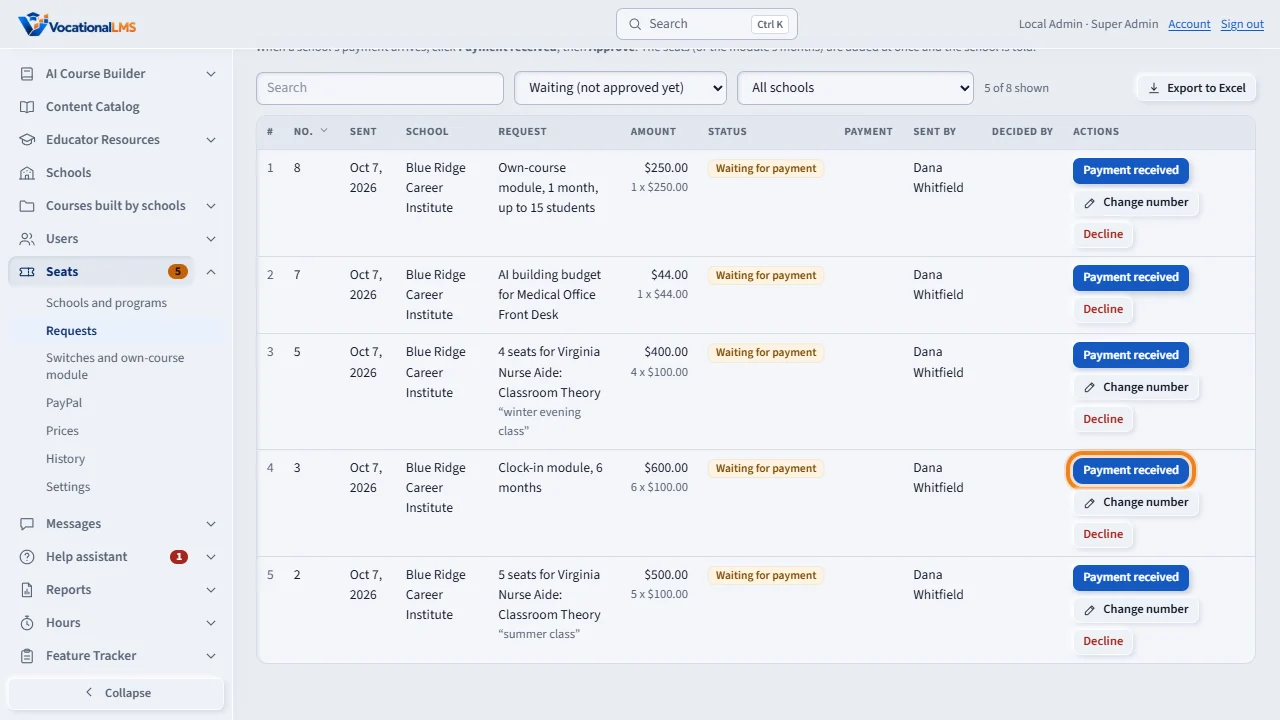
A school requests the Clock-in module by the month. Click Seats, then Requests. Paid with PayPal, the request is approved and the paid-through date moves by itself. When a check or bank transfer arrives, click Payment received, choose how it was paid, and approve.
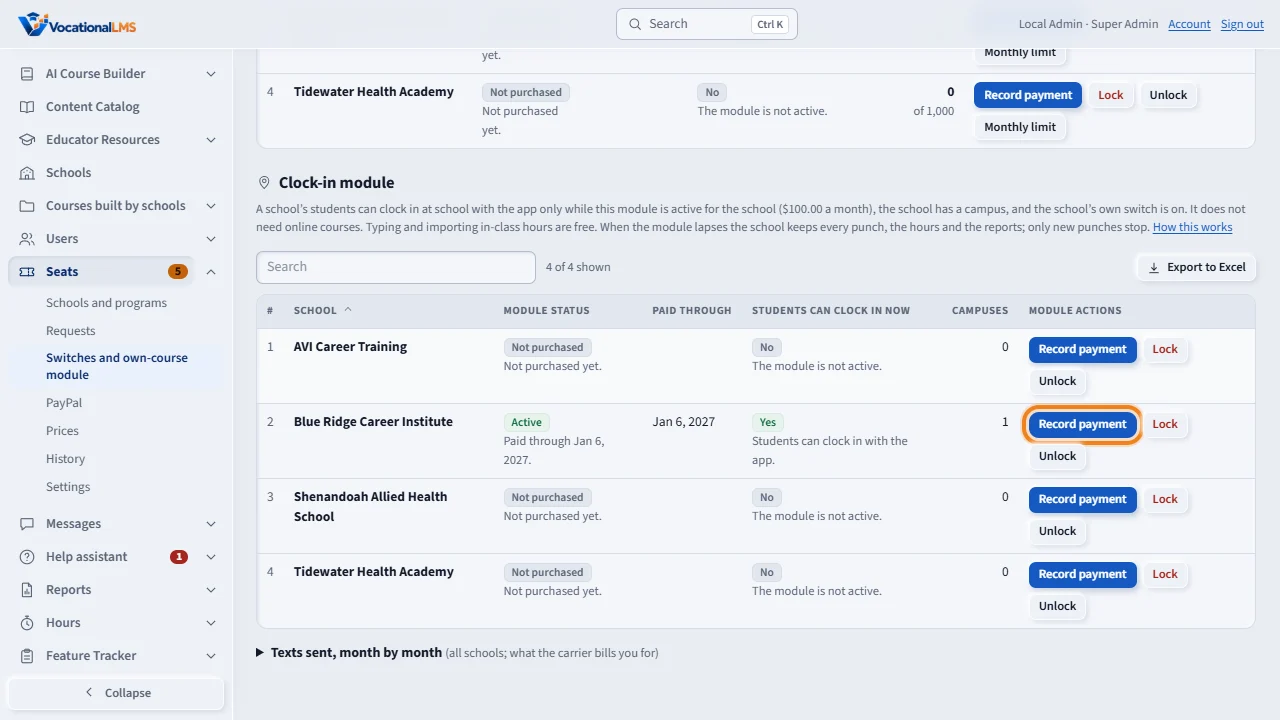
Under Switches and own-course module, scroll to Clock-in module. Each school has one line: its status, the paid-through date, and whether students can clock in now.
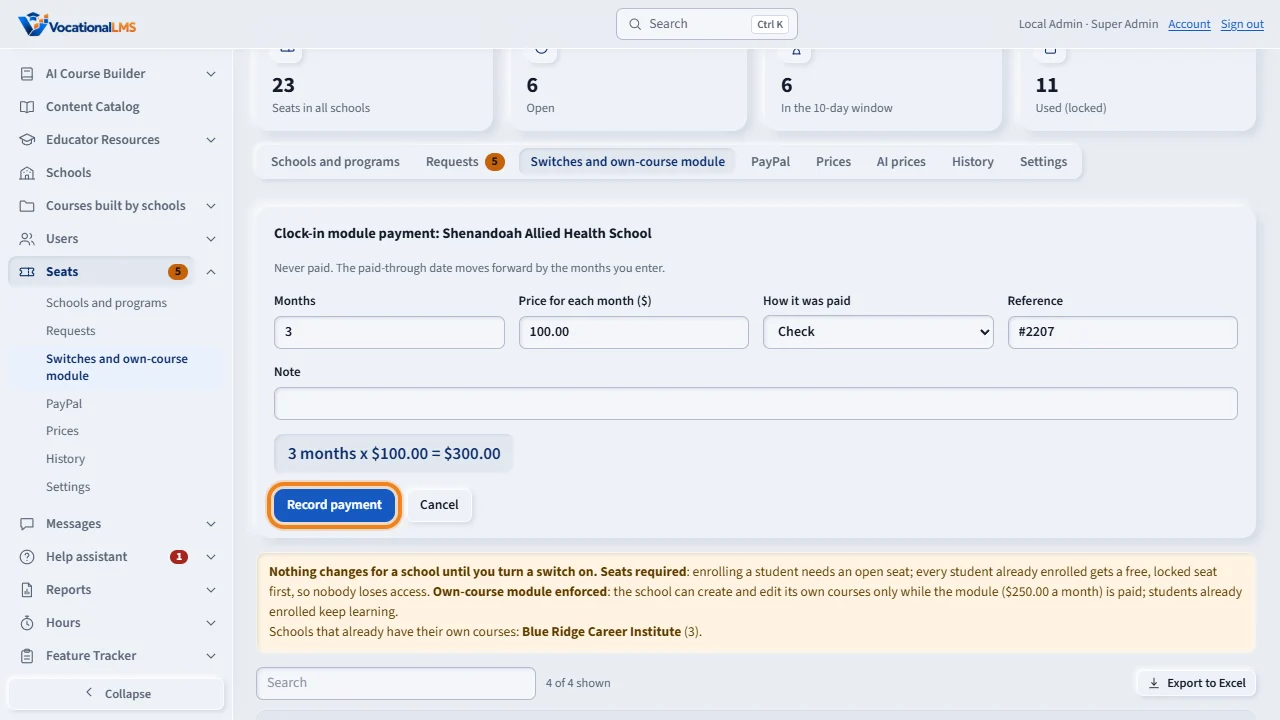
Record payment records a payment directly. Type the months, how it was paid and the reference. The paid-through date moves forward, and the school is told.
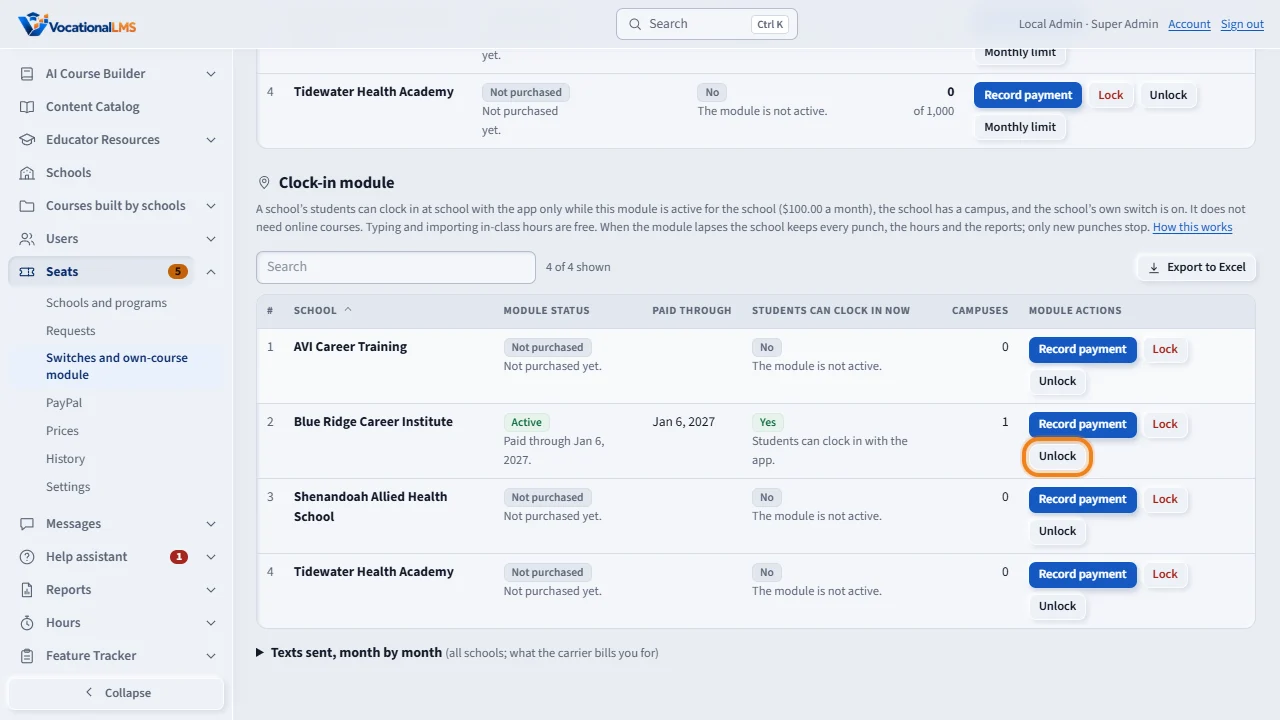
Unlock switches the module on at no charge, with no end date. Lock, clicked twice, switches it off whatever the date says. Follow the date ends a lock or unlock made by hand.
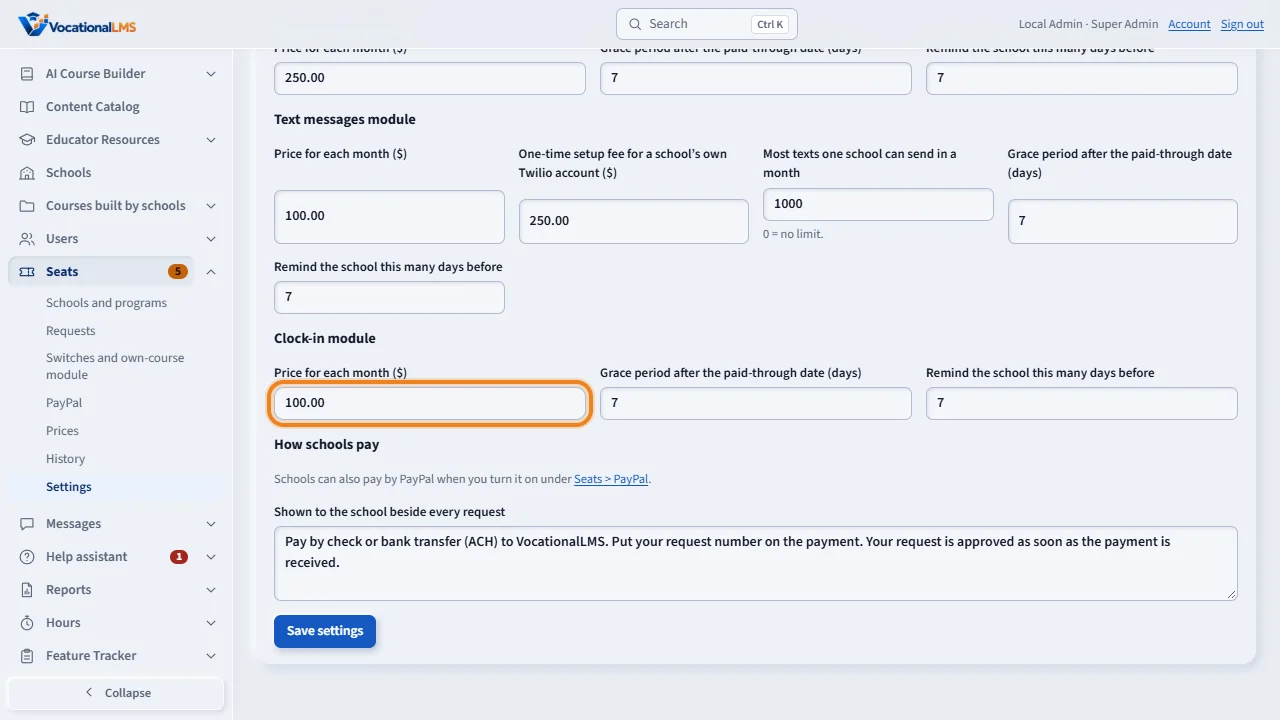
To set the price, click Settings. Under Clock-in module, set the price for each month, the grace period, and the reminder. Then click Save settings.
Open this in VocationalLMSSeats > Switches and own-course module > Clock-in module
What it is for
The Clock-in module ($100.00 a month by default) lets a school's students clock in at school with the app. It works like the Text messages module: a school requests months and pays; a PayPal payment approves the request and moves the paid-through date by itself (V-41); a check or bank transfer you record and approve, and the paid-through date moves forward. A school's students can punch only while the module is active, the school has a campus, and the school's own switch is on. Typing and importing in-class hours are free for every school.
Steps
Approve a request
- Click Seats, then Requests. A Clock-in request says Clock-in module and the number of months.
- Paid with PayPal, the request is already approved and the paid-through date has moved by itself. When a check or bank transfer arrives click Payment received, choose how it was paid, and approve. The school is told, with what it still has to set up.
Record a payment, lock or unlock
- Click Seats, then Switches and own-course module. Scroll to Clock-in module: one line for each school with its status, paid-through date, whether students can clock in now, and its number of campuses.
- Record payment records months x price directly. Unlock switches the module on at no charge with no end date. Lock (click twice) switches it off whatever the date says. Follow the date ends a lock or unlock made by hand.
Set the price
- Click Seats, then Settings. Under Clock-in module set the price for each month, the grace period in days and how many days before the paid-through date the school is reminded. Click Save settings.
What happens next
States: Not purchased, Active (paid), Payment due (inside the grace period, still on), Off (lapsed or locked by hand), and Active at no charge (unlocked by hand). When a module lapses the school keeps every punch, the hours and the reports; only new punches stop. Under Hours you can choose a school and read its campuses, punches and phones; you change nothing there. Every payment, lock and reminder is in the seat History.
Common problems
| # | Problem | What to do |
|---|---|---|
| 1 | The module is paid but the school's students cannot clock in. | The school has no campus yet, or its own switch is off. The line says which. The school sets both under Hours, then Campuses and clock-in. |
| 2 | A school with no online courses wants clock-in. | It can buy and use the module. Hours of students who are in no program are listed under “No program”. |