
V-22For the VocationalLMS Super Admin
The Advisory Board page: add members, photographs and their order
Add each board member's name, description and photograph, hide or show them, and drag them into order.
How-to video V-22 · 1:12
Read the words of this video
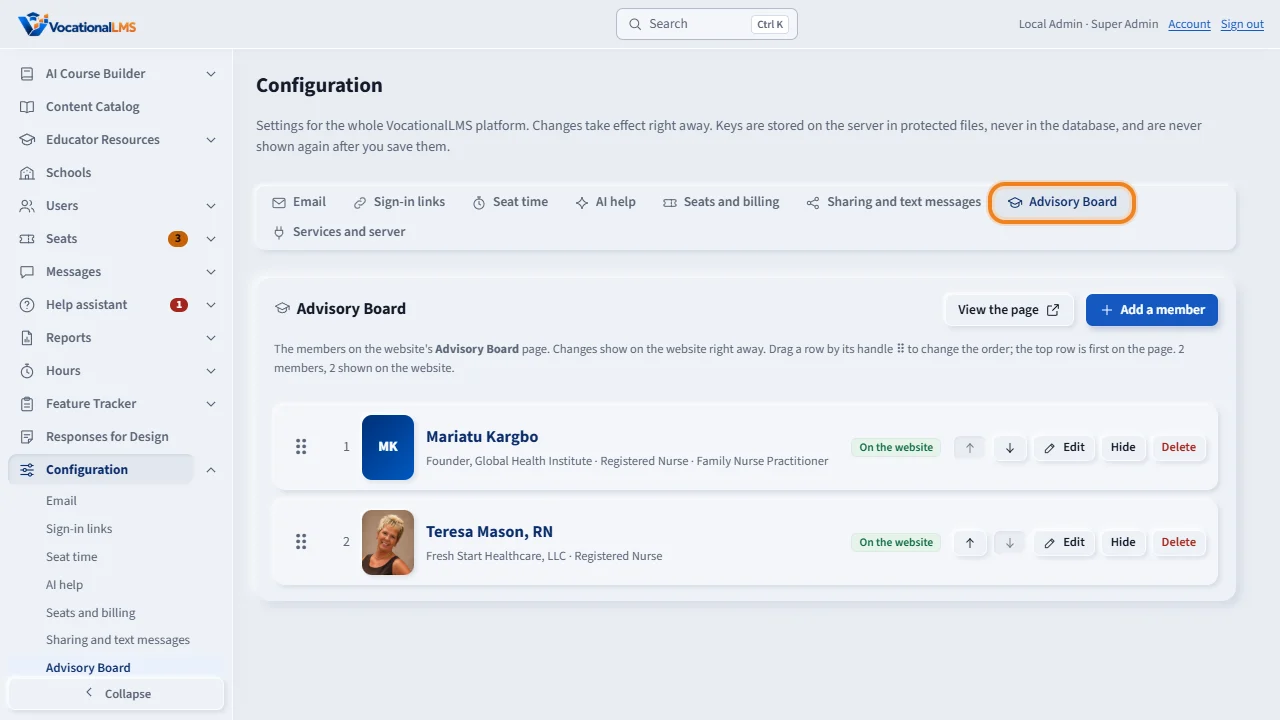
The website has an Advisory Board page. You manage its members yourself. Click Configuration, then the Advisory Board tab. Each row is one member, in the order they appear on the website.
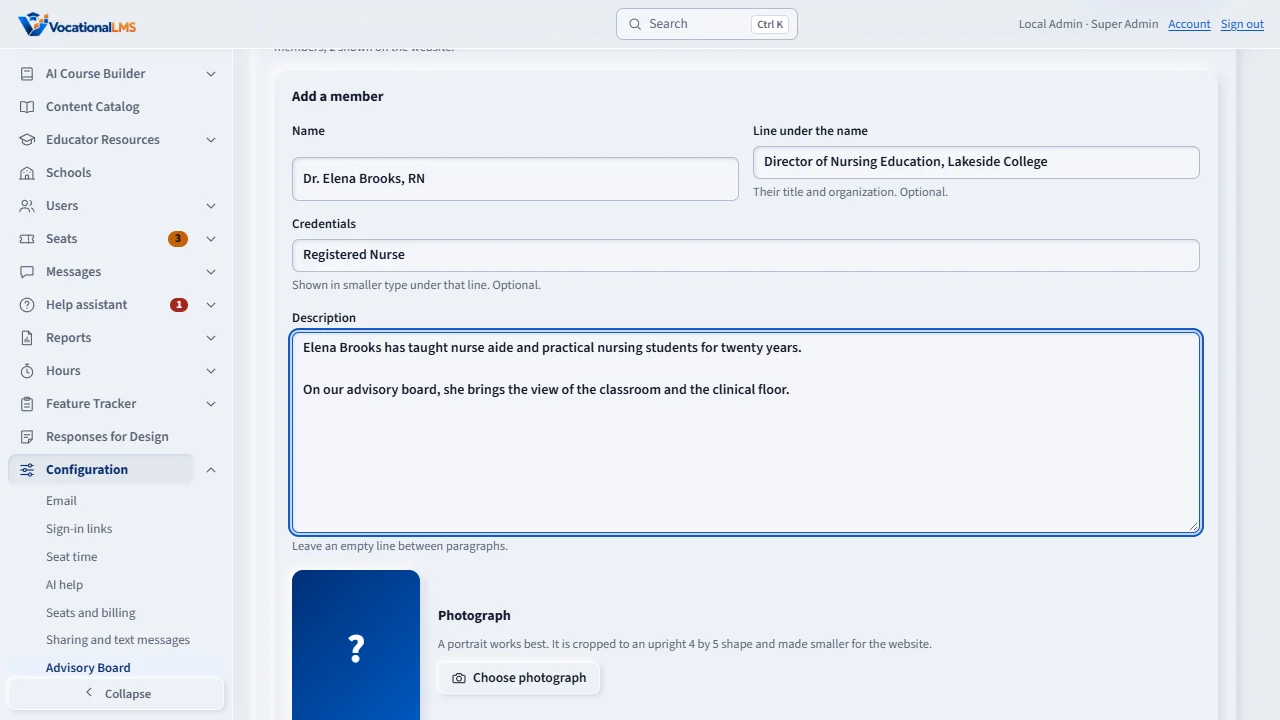
Click Add a member. Type the name, the line under the name, which is their title and organization, their credentials, and the description. Leave an empty line between paragraphs.
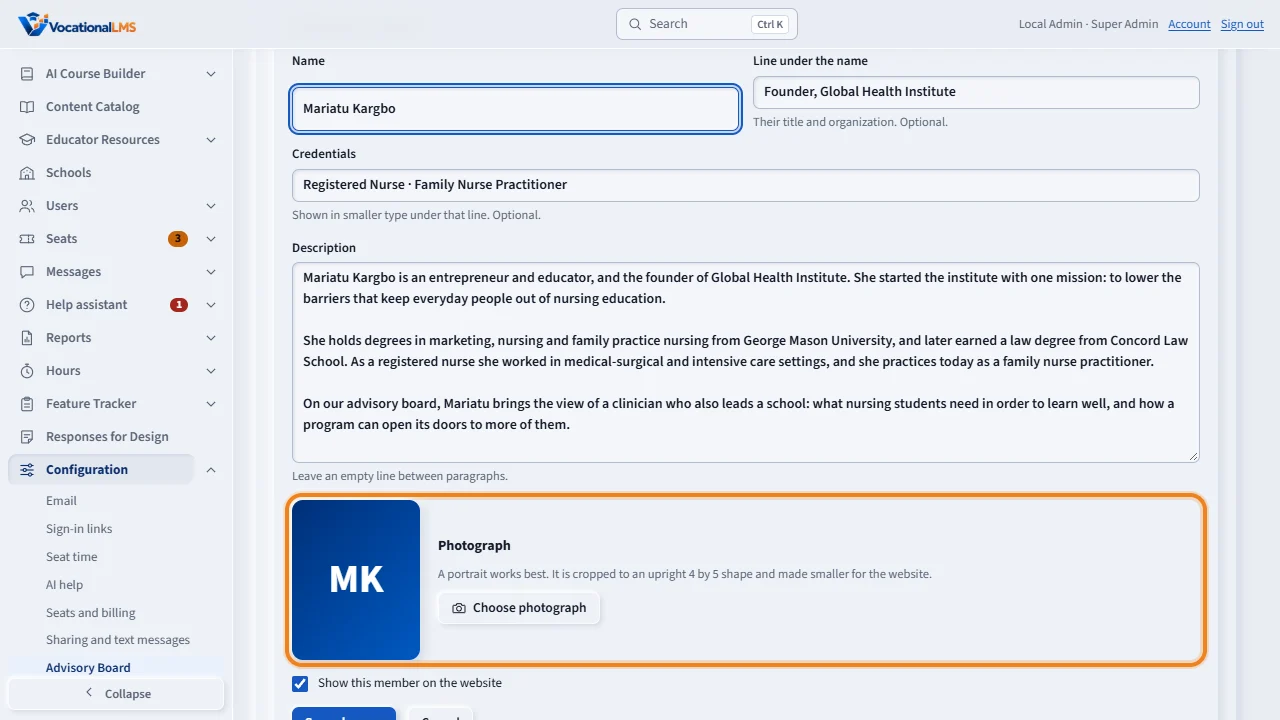
Click Choose photograph and pick a portrait from your computer. It is cropped to an upright shape and made smaller for the website, and you see it before you save. Untick Show this member on the website to keep a profile hidden until it is ready.
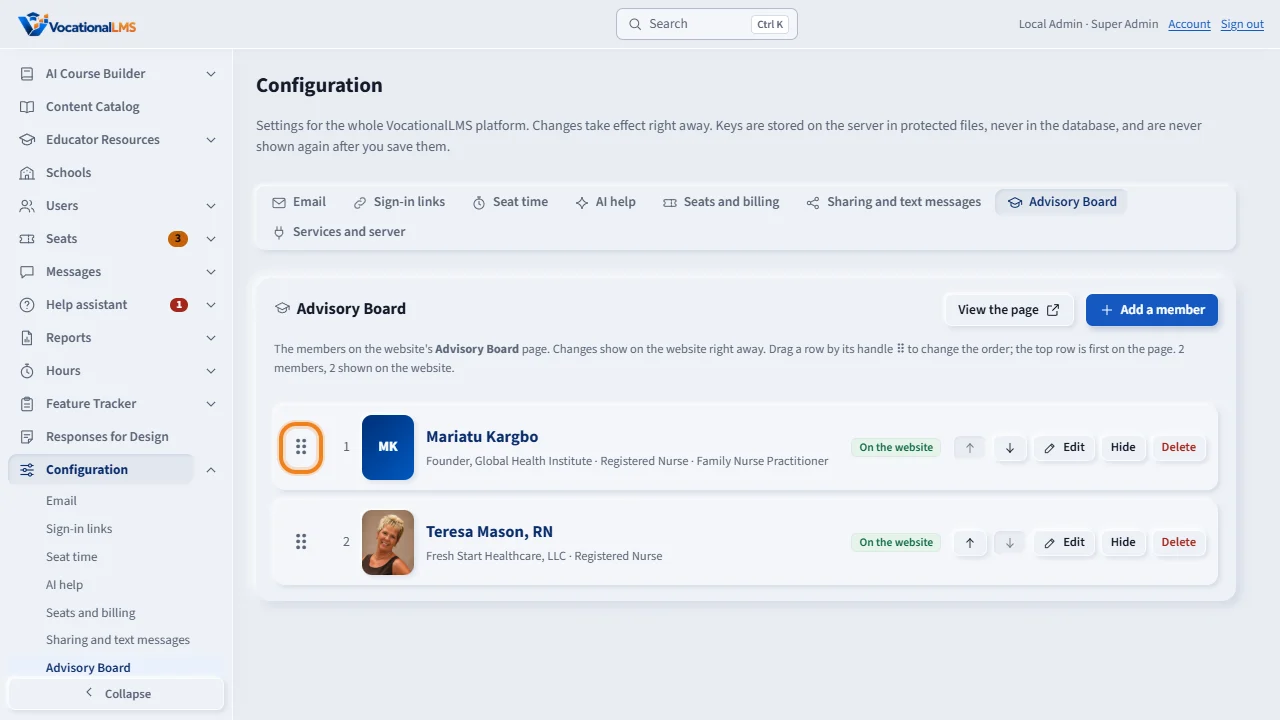
To change the order, drag a row by the handle at its left, up or down. The top row is first on the page. The arrow buttons move a member one place at a time. Edit changes a member, Hide takes them off the page, and Delete removes them for good.
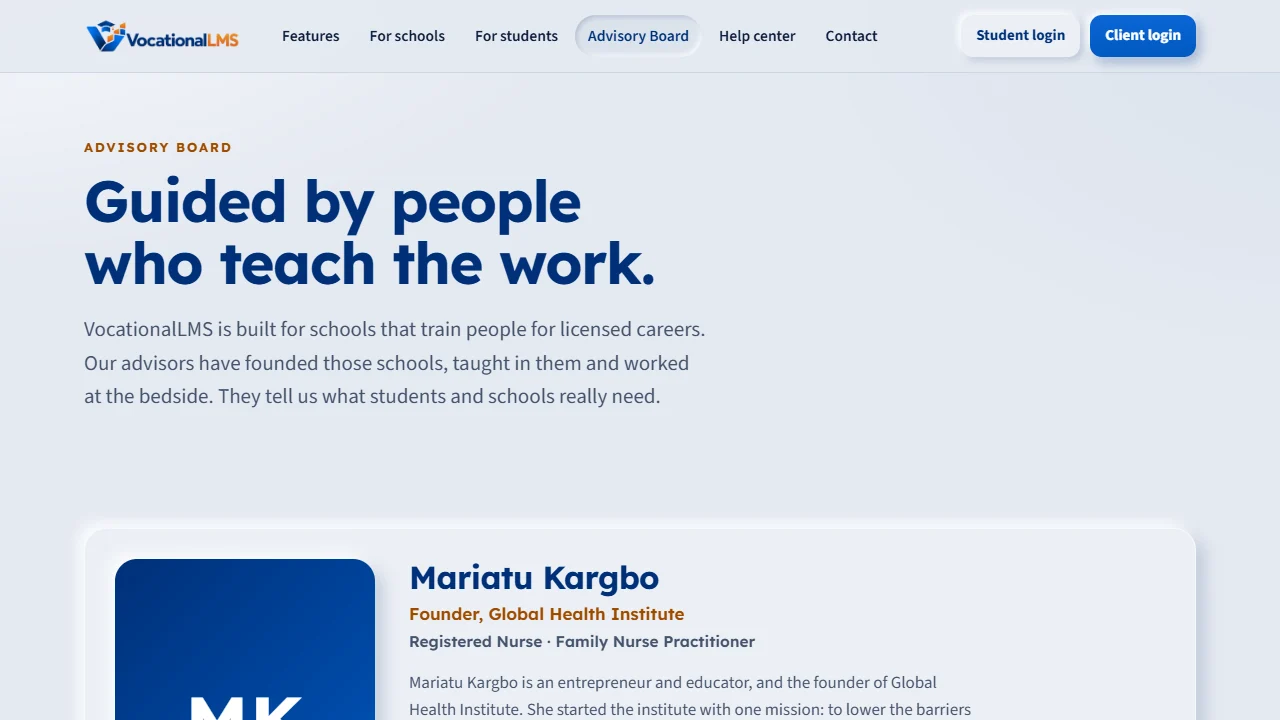
Every change shows on the website right away. Click View the page to see it. A member with no photograph is shown with their initials.
Open this in VocationalLMSConfiguration > Advisory Board
What it is for
The website has an Advisory Board page (in the top menu and at /advisory-board). You manage its members yourself on the Configuration page: each member's name, the line under the name, credentials, description and photograph, whether they are shown, and the order they appear in.
Steps
- Click Configuration, then the Advisory Board tab.
- Click Add a member. Type the Name, the Line under the name (title and organization), Credentials and the Description. Leave an empty line between paragraphs.
- Click Choose photograph and pick a portrait. It is cropped to an upright shape and made smaller for the website; you see it before you save.
- Leave Show this member on the website ticked, or untick it to keep the profile hidden until it is ready. Click Add member.
- To change the order, drag a row by its handle ⠿ up or down. The top row is first on the page. The ↑ and ↓ buttons do the same one place at a time.
- Edit changes a member; Hide / Show takes them off or puts them on the page; Delete (click twice) removes the member and the photograph for good.
- Click View the page to see the website page.
What happens next
Every change shows on the website right away; nothing needs to be rebuilt. A member without a photograph is shown with their initials. Only the Super Admin can open this tab.
Common problems
| # | Problem | What to do |
|---|---|---|
| 1 | “Choose a photograph: a JPEG, PNG or WebP picture.” | The file is not a picture the website can use. Save it as JPEG or PNG and choose it again. |
| 2 | The face is cut off. | The picture is cropped to an upright 4 by 5 shape, keeping more of the top. Use a portrait with some space around the head. |
| 3 | Dragging does nothing. | Close the open Add or Edit form first (Save or Cancel), then drag by the handle at the left of the row. |
| 4 | You are not sure a profile is ready. | Untick Show this member on the website. The profile stays here and is not on the page. |