
V-17For the VocationalLMS Super Admin
AI help limits, student sharing and text messages
See each school's AI use and cost, set limits, switch sharing per school, the SMS provider, and a school's own Twilio account.
How-to video V-17 · 1:47
Read the words of this video
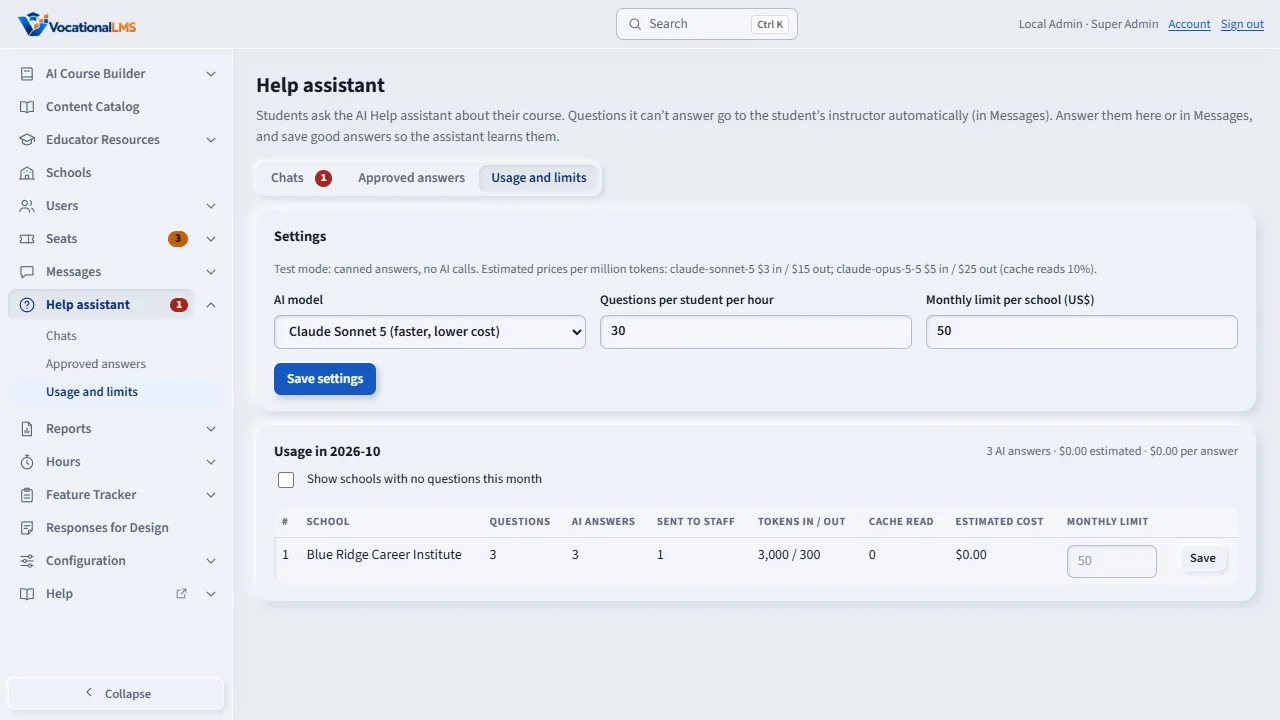
The Help assistant and the writing help use Anthropic Claude, and each use costs a little. Open Help assistant, then Usage and limits. Choose the AI model, the questions each student may ask in an hour, and the monthly limit for each school. Then click Save settings.
The usage table shows, for this month and each school, the questions, the AI answers, the questions sent to staff, and the estimated cost. Type a different limit for one school and click Save on its row. When a school reaches its limit, questions go straight to the instructor.
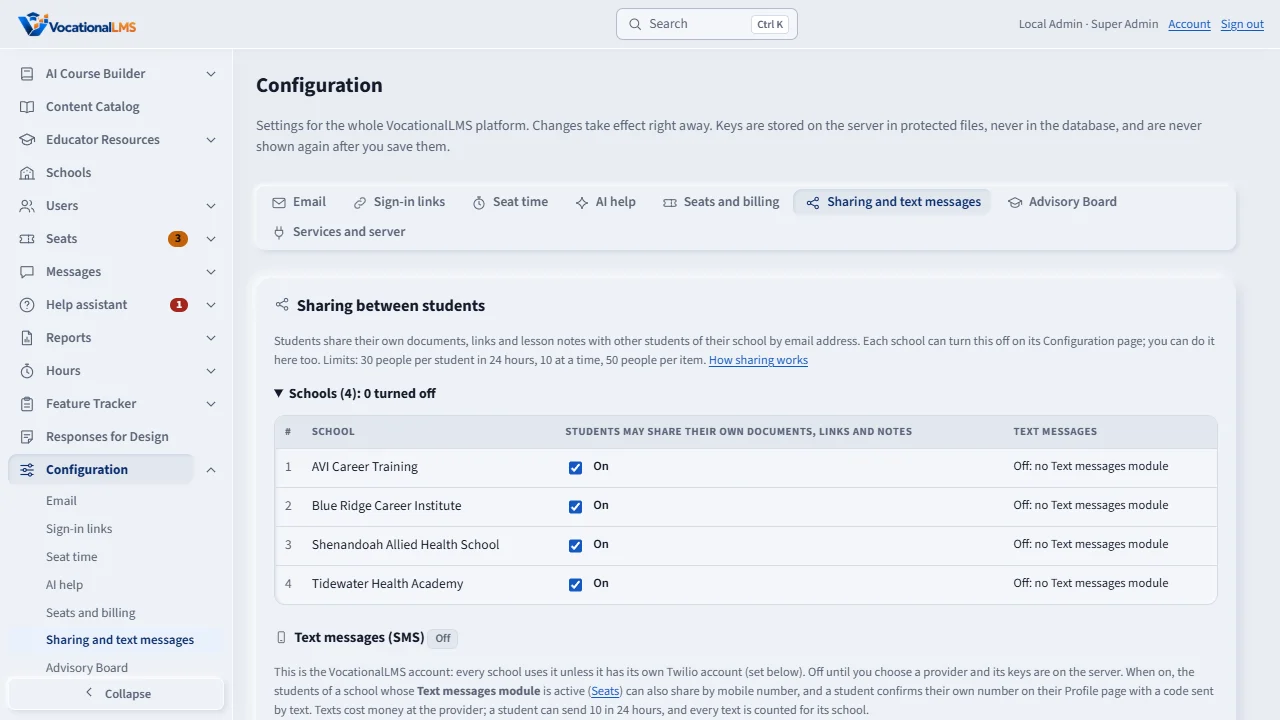
On the Configuration page, Sharing and text messages lists every school. Here you can turn student sharing off or on for a school. A school can also change this on its own Settings page.
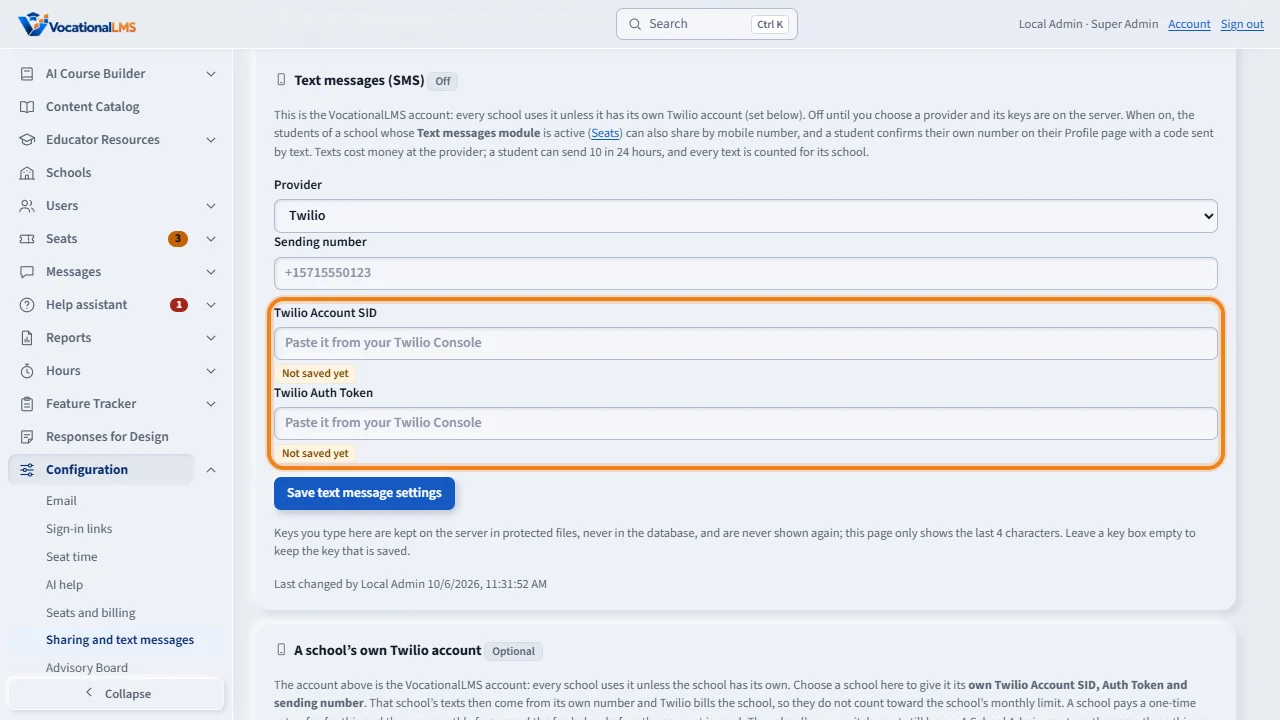
Text messages stay off until the text service is set up here. Choose the provider and type the sending number. For Twilio, paste the Account S I D and the Auth Token from your Twilio Console, and click Save text message settings. The keys are kept on the server in protected files. The page never shows them again, only their last four characters. Then send a test text to check it works.
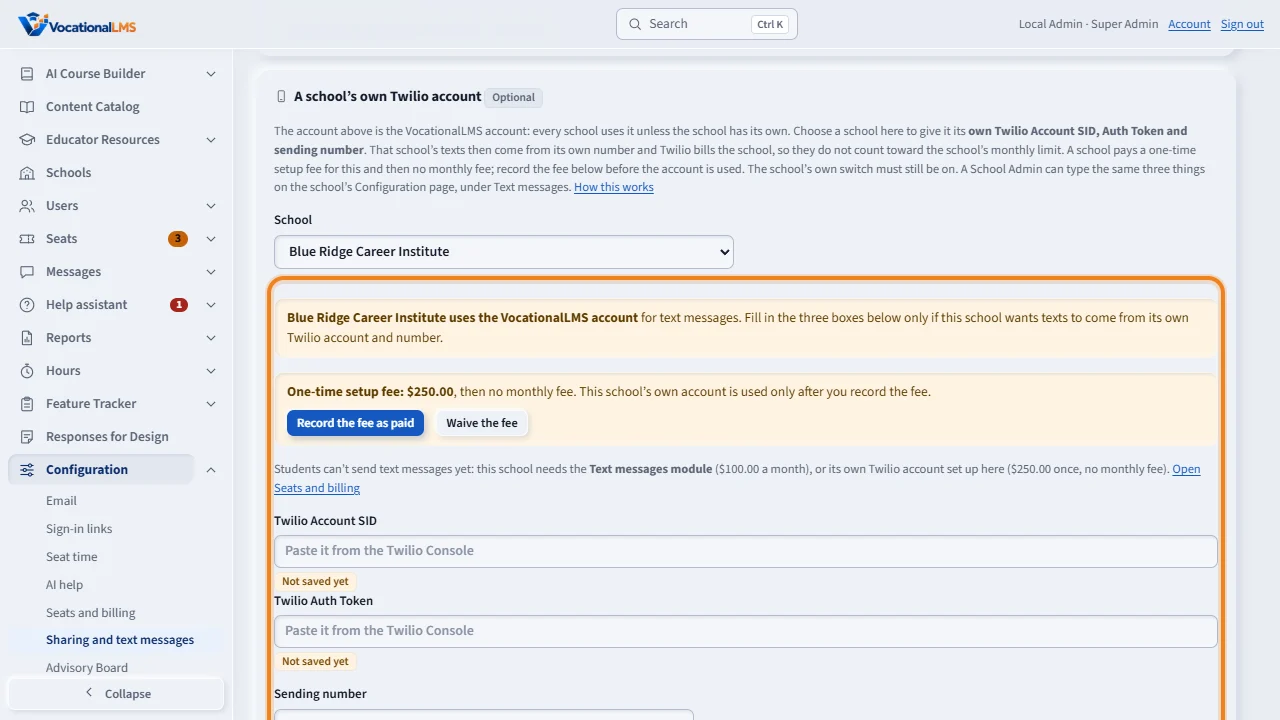
A school can use its own Twilio account instead. Under A school's own Twilio account, choose the school. Paste its Account S I D and Auth Token, type its sending number, and click Save this Twilio account. That school's texts then come from its own number, and Twilio bills the school. Every other school keeps using the VocationalLMS account. The list below shows which schools have their own account.
Open this in VocationalLMSConfiguration > AI help
What it is for
The Help assistant and the writing help use Anthropic Claude and cost a little for each use. You set the model and the limits, and see this month's use by school. On the sharing tab you control student sharing and the text-message service.
Steps
- Open Help assistant > Usage and limits (or Configuration > AI help).
- Choose the AI model: Claude Sonnet 5 is faster and lower cost; Claude Opus 5.5 can be chosen.
- Set Questions per student per hour (30) and the Monthly limit per school in dollars (50; 0 = no limit). Click Save settings.
- In the usage table, type a different limit for one school and click Save on its row.
- Open Configuration > Sharing and text messages. Under Schools, turn student sharing off or on for a school.
- Text messages (SMS): choose the Provider (Twilio or Telnyx) and type the Sending number. For Twilio, paste the Twilio Account SID and the Twilio Auth Token from your Twilio Console into their boxes and click Save text message settings. The page then says Text messages are ready.
- A saved key shows only as Saved •••• and its last 4 characters. To change one, paste the new key and save; leave a box empty to keep the saved key. Remove (click twice) deletes a key.
- Type a mobile number beside Send a test text and click it to check everything works.
- A school's own Twilio account (optional): below, under A school's own Twilio account, choose the school in the School list. Paste that school's Twilio Account SID and Twilio Auth Token, type its Sending number, and click Save this Twilio account.
- A school pays a one-time setup fee ($250.00; you can change it under Seats > Settings) for its own account, and then no monthly fee. When the school has paid, click Record the fee as paid, or click Waive the fee. Only then is the school's own account used, and the green line says the school uses its own Twilio account. A school that asked for the setup shows Asked for setup in the list.
- Type a mobile number and click Send a test text in that part to send one text through the school's own account. The list Schools with their own account shows every such school; click Open on a row to see it.
What happens next
When a school reaches its monthly limit, students' questions go straight to their instructor and the student is told politely. If the Anthropic key is missing, the assistant says so and sends every question to the instructor. A school with its own complete Twilio account sends every text from its own number and Twilio bills the school; those texts do not count toward the school's monthly limit of texts. Every other school uses the VocationalLMS account. Such a school pays the one-time setup fee and no monthly fee: it does not need the Text messages module, only its own switch on. Lock on the Seats page still stops a school's texts. A School Admin can type the same three things on the school's Configuration page (A-30).
Common problems
| # | Problem | What to do |
|---|---|---|
| 1 | A school's cost is high. | Lower its limit, or check the Thumbs down chats for questions the course should answer. |
| 2 | Students ask for sharing by text. | Set up the text service here, then each school needs the Text messages module (V-25) and its own switch on. |
| 3 | “A Twilio Account SID starts with AC and has 34 characters.” | Copy the Account SID again from the Twilio Console; it is not the phone number or the Messaging Service SID. |
| 4 | “A Twilio Auth Token has 32 characters.” | In the Twilio Console click Show beside Auth Token, then copy all of it. |
| 5 | It still says Not ready yet. | The line under the button names what is missing: a key or the sending number. |
| 6 | A school “uses the VocationalLMS account for now”. | Its own account is not complete. The line names what is still needed: the Account SID, the Auth Token or the sending number. |
| 7 | A school wants to stop using its own account. | Choose the school, click Remove beside a saved key, then click again. Its texts go through the VocationalLMS account again. |