
I-11For instructors
Answer questions the Help assistant could not, and teach it
The Waiting for staff list, replying to a student, and saving an approved answer.
How-to video I-11 · 0:58
Read the words of this video
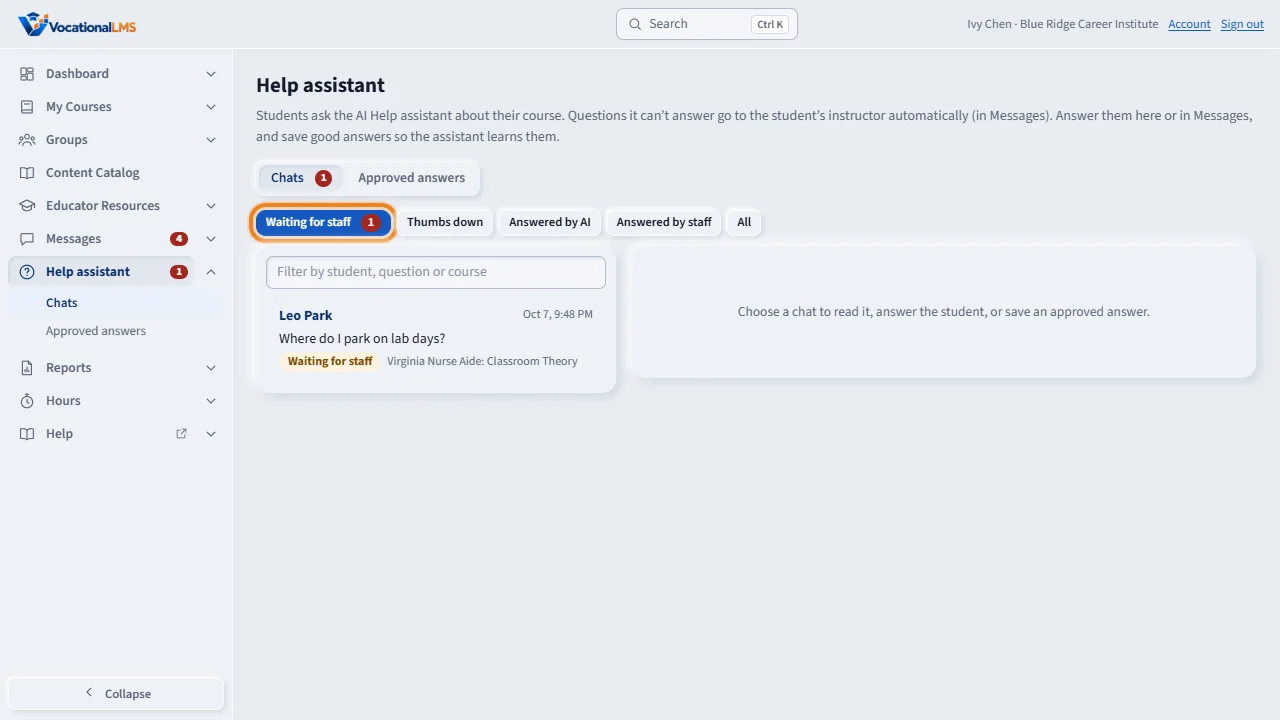
Students ask the Help assistant about their course. When it cannot answer, or a student presses Ask my instructor, the question comes to you. Click Help assistant in the menu on the left. Waiting for staff lists the questions that need a person.
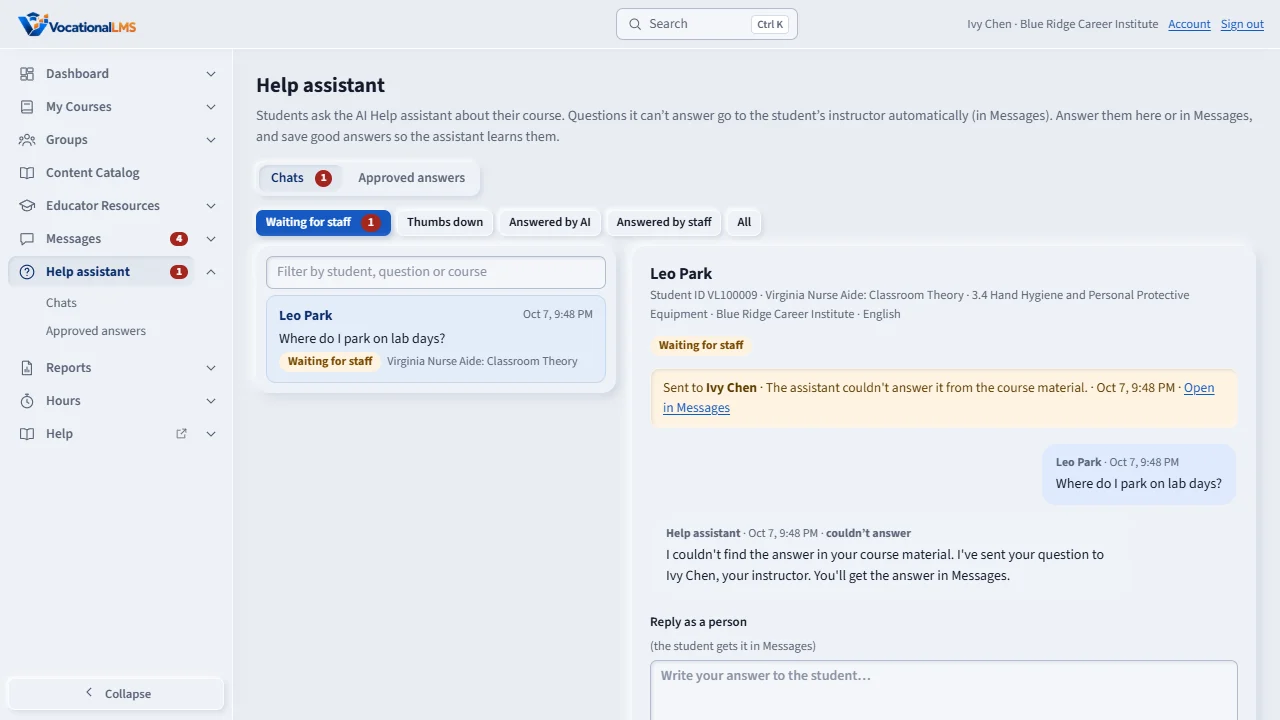
Click a chat to read it. You see the student, the lesson, the whole chat, and why it was sent to you.
Type your answer in Reply as a person and click Send reply. The student gets it in Messages, and the chat shows Answered by staff.
If other students will ask the same thing, click Save as approved answer. Write the question the way students ask it, and the answer in plain words.
The Approved answers tab lists them by course. The assistant uses them from then on, for your school's students. Remove stops the assistant from using one.
Open this in VocationalLMSHelp assistant > Chats
What it is for
Students ask the AI Help assistant about their course. When it cannot answer from the course, or the student presses Ask my instructor, the question comes to you. You answer once, and you can save the answer so the assistant uses it next time.
Steps
- Click Help assistant in the menu on the left. The red number is how many questions wait for a person.
- Waiting for staff is open. Click a chat to read it: the whole chat, the lesson it came from, and why it was sent to you.
- Type in Reply as a person and click Send reply. The student gets it in Messages, and the chat shows Answered by staff.
- If other students will ask the same thing, click Save as approved answer, write the question the way students ask it and the answer in plain words, and save.
- Click Mark as handled to take a chat out of the list without a reply, for example after a thumbs down that needs no change.
What happens next
From then on the assistant uses your approved answer for that course, for your school's students. The Approved answers tab lists them; Remove stops the assistant from using one. You can also answer in Messages: replies there show in the chat too.
Common problems
| # | Problem | What to do |
|---|---|---|
| 1 | You do not see a student's chat. | Instructors see the chats of their own classes and students. |
| 2 | The assistant gave a wrong answer. | Open Thumbs down, reply to the student, and save an approved answer with the right information. |