
I-20For instructors
Your groups
The groups (cohorts) you teach, their students, their class schedule and their progress.
How-to video I-20 · 1:13
Read the words of this video
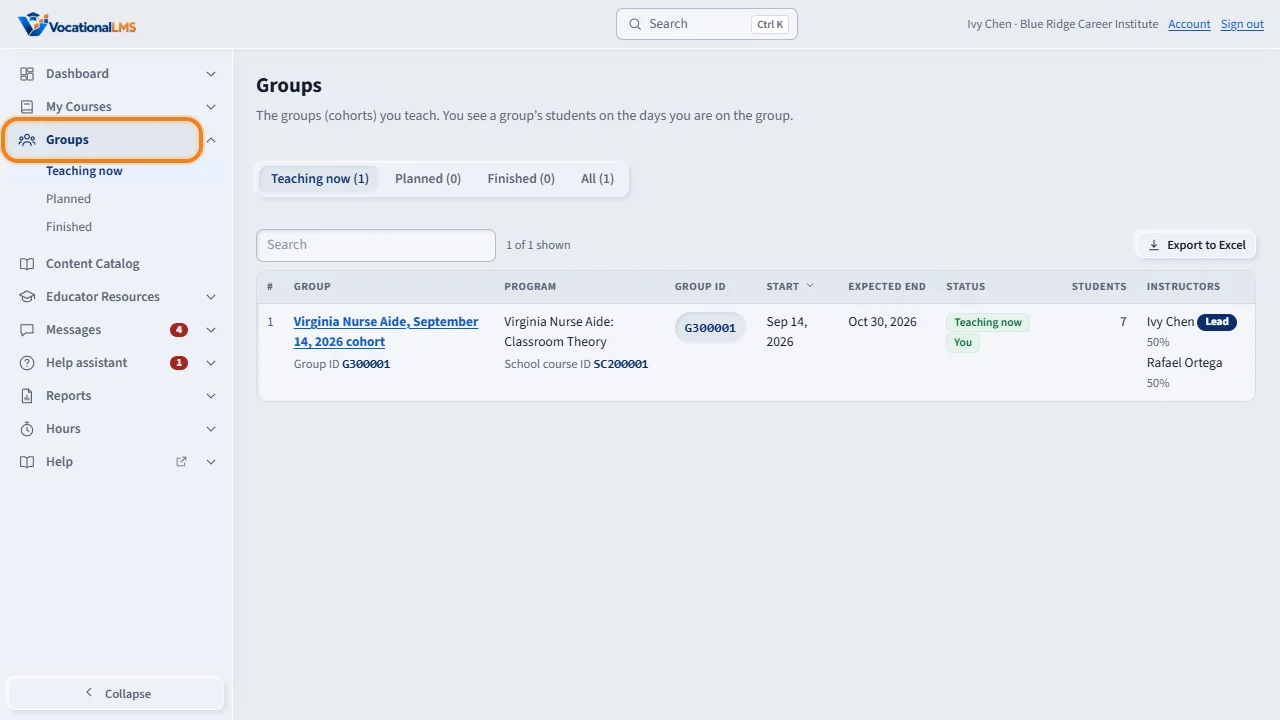
Your school can put you on a group: the students who take a program together. Click Groups in the menu on the left. Teaching now lists the groups you are teaching. Click a group's name to open it.
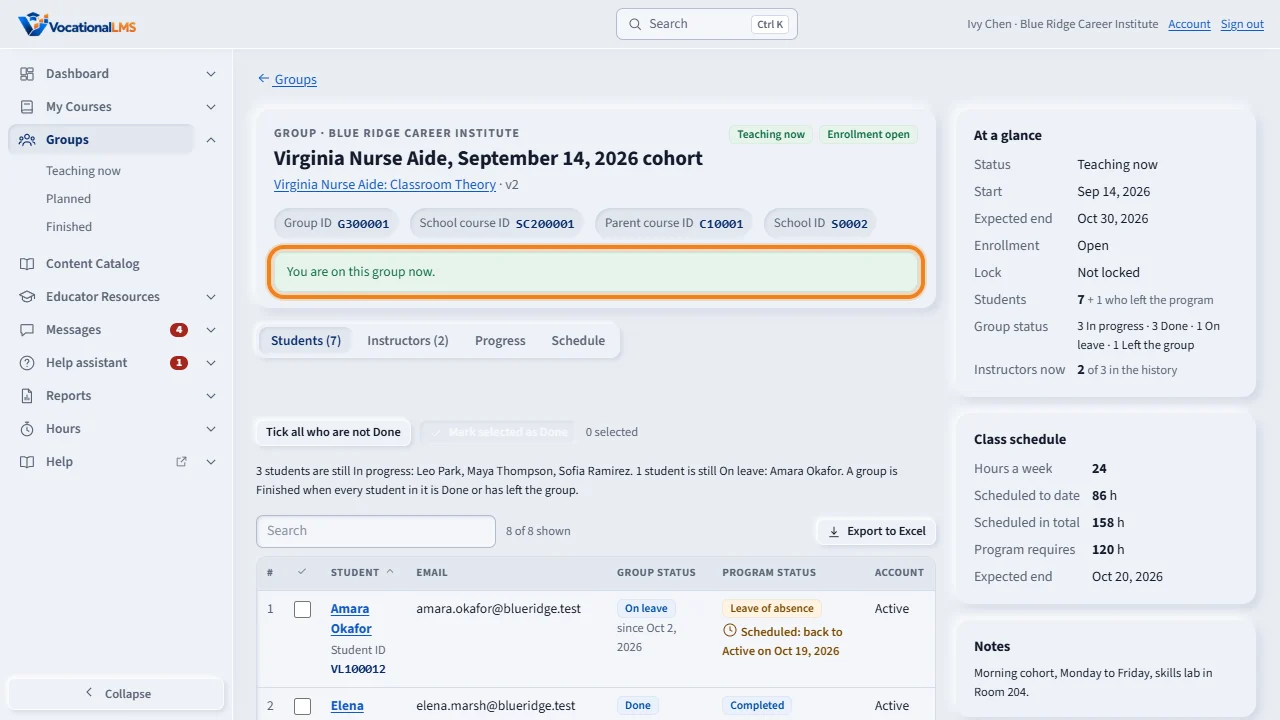
A green line says you are on this group now. The Students tab lists the group's students, and the Group status column shows where each one stands: In progress, Done, On leave or Left the group. Click a name to open that student's record.
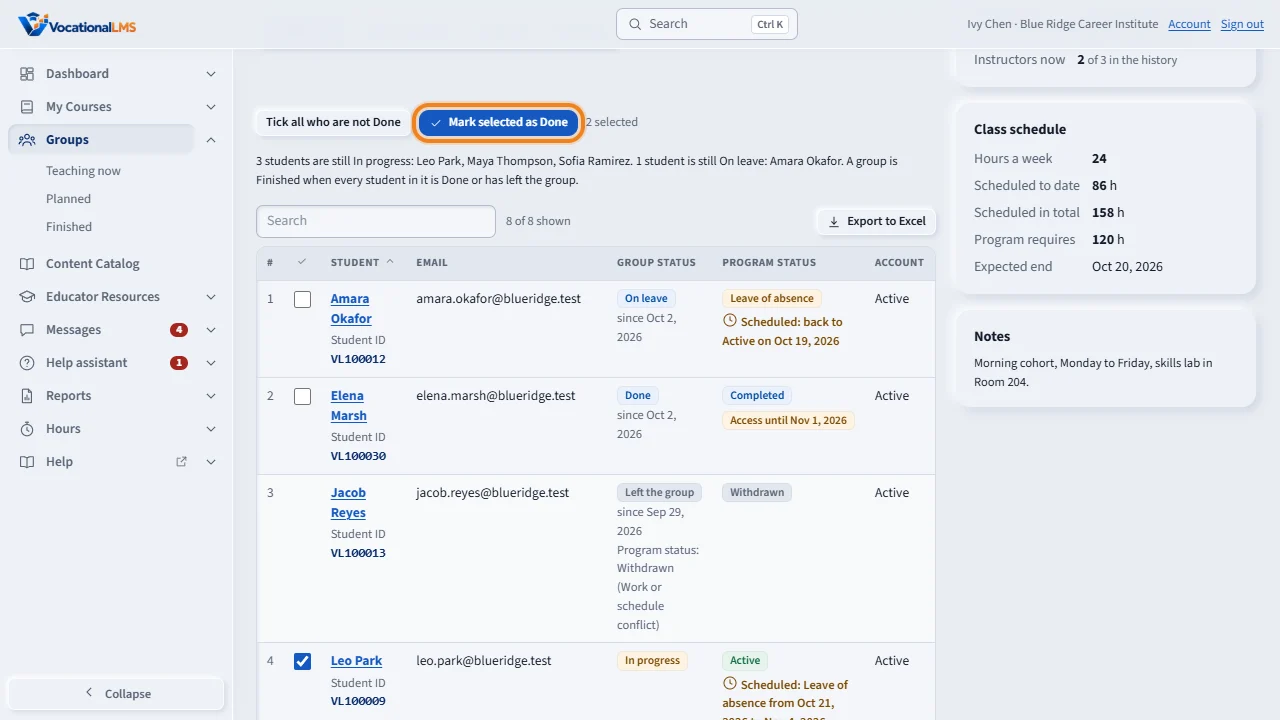
If you are the group's Lead instructor, you can mark students Done. Tick them and click Mark selected as Done. This does not change the student's program status.
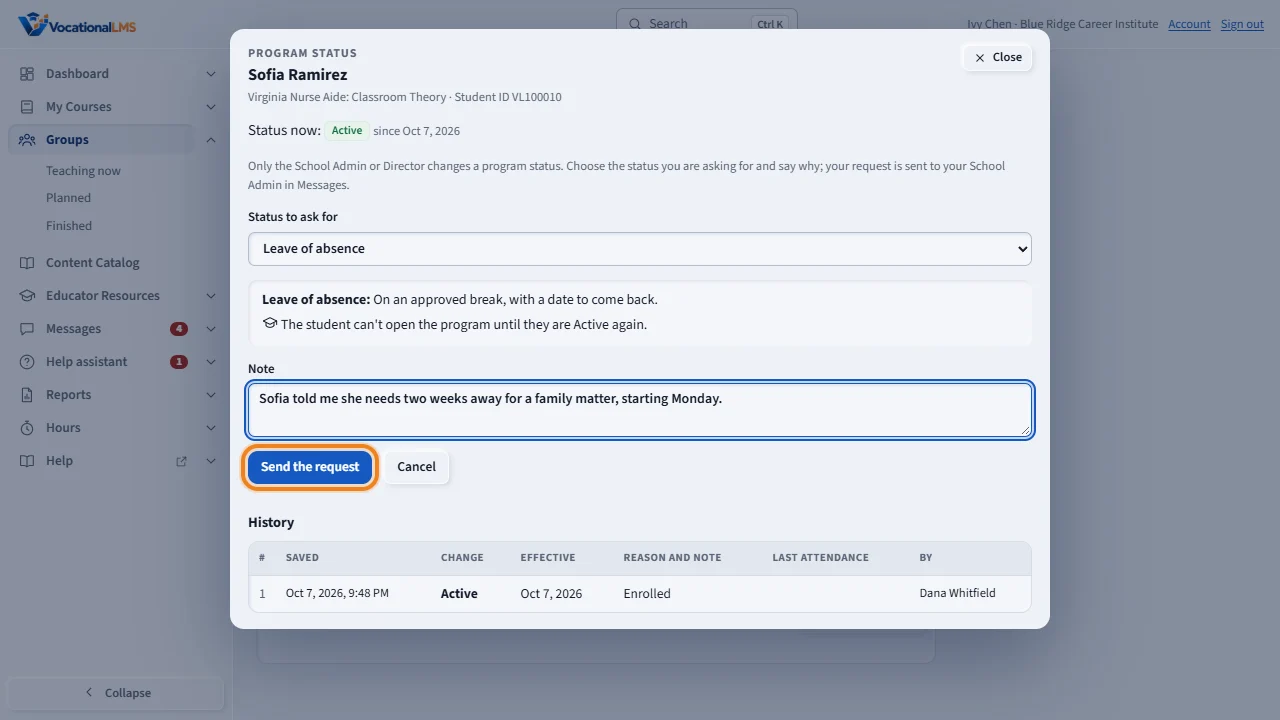
If a student stopped attending or should be on leave, click Ask to change status on their row. Choose the status and say why, then click Send the request. Your School Admin gets it in Messages.
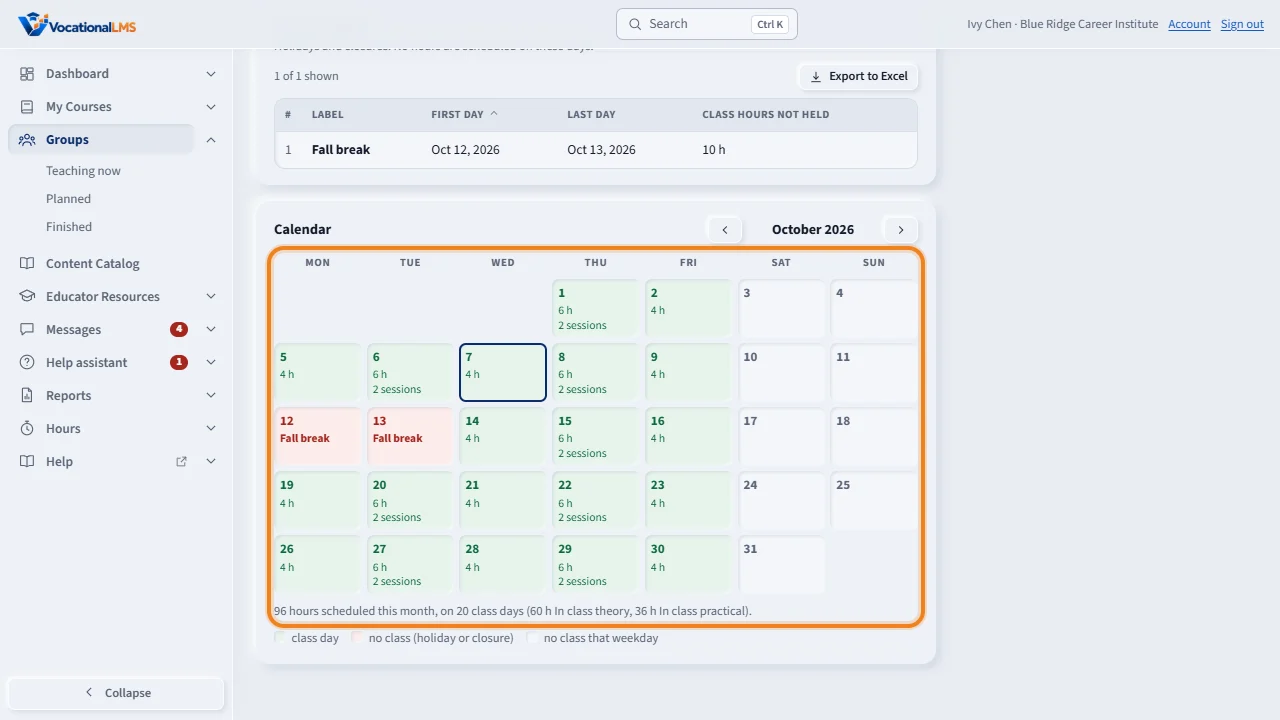
The Schedule tab shows the days and hours of class, the no-class days and a calendar. The Progress tab shows each student's lessons done, hours and average score. You can look, and your School Admin or Director makes the changes.
Open this in VocationalLMSGroups > a group > Progress
What it is for
Your school can put you on a group: the students who take a program together. Groups in the menu on the left lists your groups. You see a group's students on the days you are on the group.
Steps
- Click Groups in the menu on the left. Teaching now lists the groups you are teaching. Planned and Finished list the others.
- Click a group's name to open it. A green line says You are on this group now.
- The Students tab lists the group's students. Click a name to open that student's record.
- The Instructors tab shows who else is on the group, who is the Lead, and each person's dates and chapters.
- The Progress tab shows each student's lessons done, online hours, scheduled hours and average score. Export to Excel downloads the list.
- The Schedule tab shows the days and hours of class, the no-class days and a calendar. You can look; your School Admin or Director changes it.
- The Group status column shows each student's status in the group: In progress, Done, On leave or Left the group.
- If you are the group's Lead instructor, you can mark students Done: tick them and click Mark selected as Done, or click Group status on one row. This does not change the student's program status.
- If a student stopped attending or should be on leave, click Ask to change status on their row, choose the status and say why. Your School Admin gets the request in Messages.
What happens next
Your School Admin or Director adds and removes students and instructors; you can look but not change. Students' questions about a lesson come to you if you were given that chapter, otherwise to the group's Lead. Your students in Messages, Notes and module access are the students of your groups, plus any students your school gave you outside a group.
Common problems
| # | Problem | What to do |
|---|---|---|
| 1 | The list is empty. | You have not been put on a group yet. Ask your School Admin or Director. |
| 2 | “Your time on this group starts on …” | You will see the group's students from that day. |
| 3 | “Your time on this group ended …” | The group's students are no longer shown to you. If that is wrong, ask your School Admin. |
| 4 | A student is missing. | The student may have been moved to another group, or their program status changed. |
| 5 | There is no Mark selected as Done button. | Only the group's Lead instructor has it. A co-instructor or substitute asks the Lead or the School Admin. |
| 6 | A line under a student says “Scheduled: …”. | Your School Admin saved a program status change for a later day. It is made on that day. |