
I-04For instructors
Notes about a student, and the student's own documents
Keep dated staff notes, and open the files and links the student saved or shared.
How-to video I-04 · 0:54
Read the words of this video
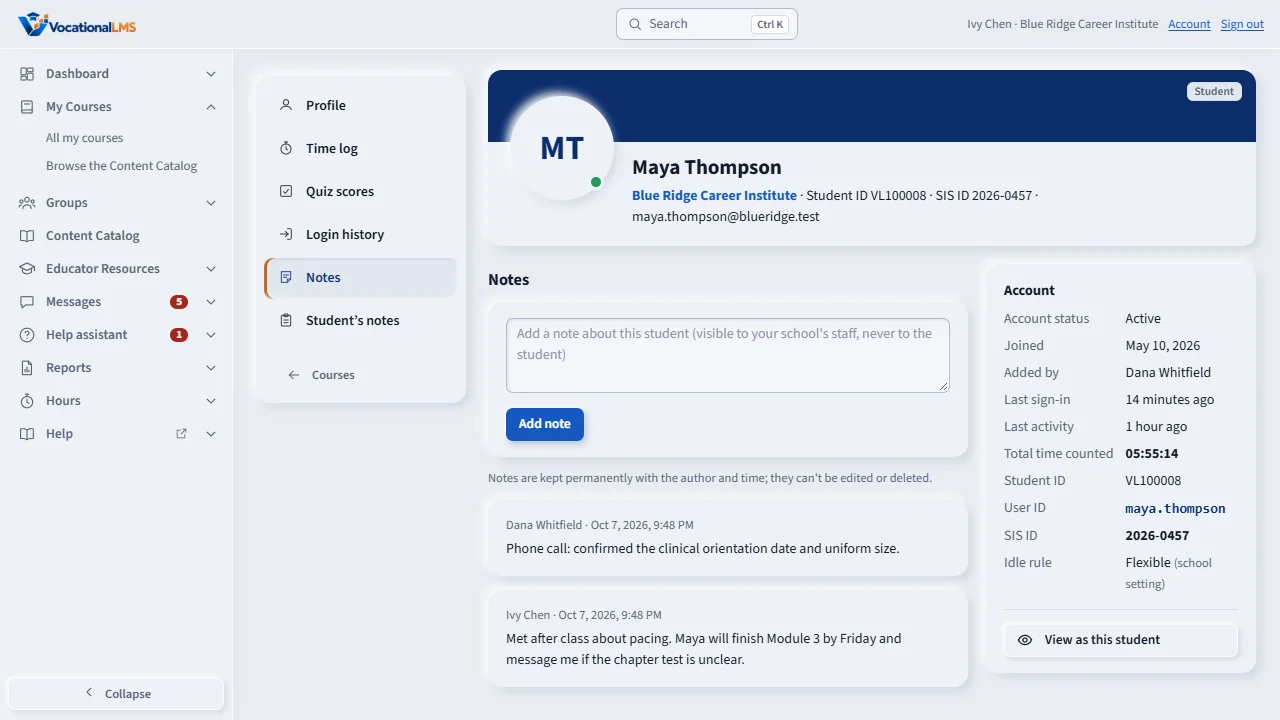
Notes are your school's advising log for a student: calls, meetings and warnings. Open the student's profile and click Notes. Students never see these notes.
Type the note and click Add note. It is kept permanently with your name and the time, and it cannot be edited or deleted. To correct a note, add another one.
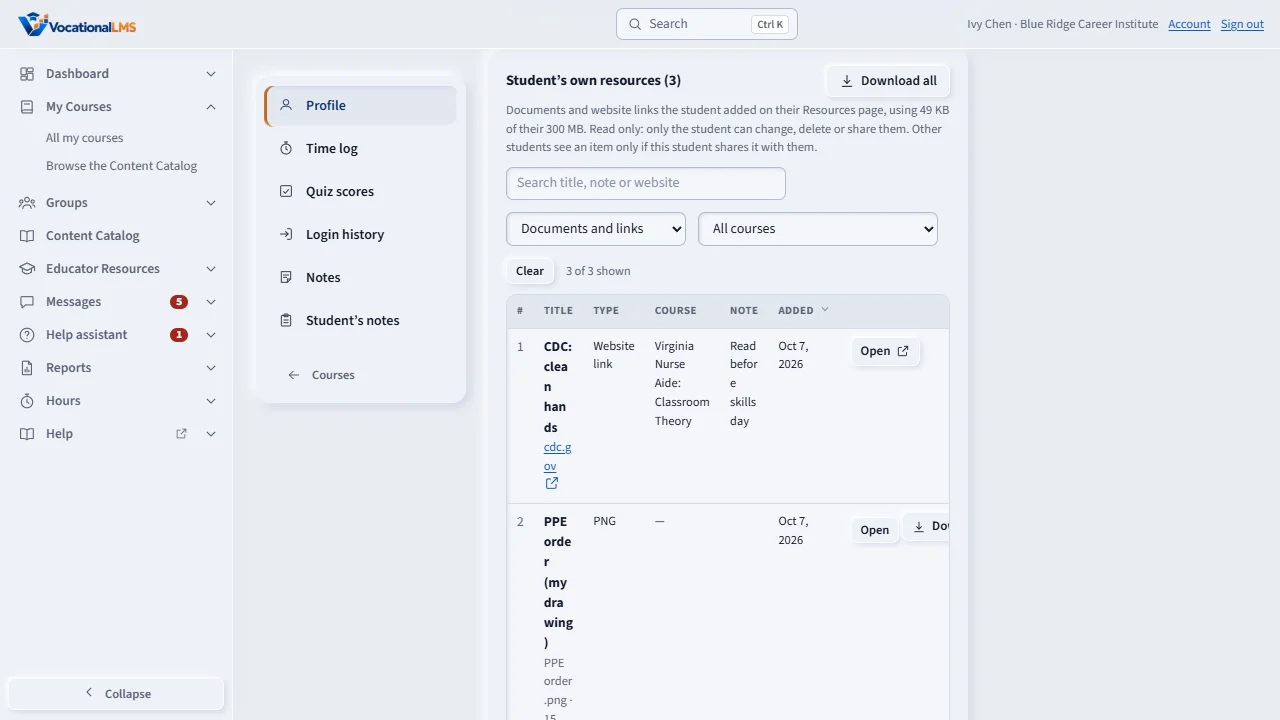
On the Portfolio tab, Student's own resources lists the documents and website links the student added to their Resources page. You can search and filter the list.
Click Open to see a document below the table, or Download to save it. Download all gives one zip file. Staff can open and download, but cannot change or delete a student's items. If the student shared an item with classmates, you can see that here too.
Open this in VocationalLMSUsers > a student > Notes
What it is for
Notes are your school's advising log: calls, meetings, warnings. Students never see them. On the profile you can also open the documents and website links the student added to their own Resources page, and see who they shared them with.
Steps
Add a note
- Open the student's profile and click Notes in the left menu.
- Type the note and click Add note.
See the student's own documents
- Open the student's profile and click Portfolio in the left menu: it shows Student's own resources.
- Use the search box and filters to find an item. Click Open to see a document below the table, or Download. Download all gives one ZIP file.
- If the student shared an item with classmates, the sharing and its history are listed there too. You can read them; you cannot change them.
What happens next
A note is kept permanently with your name and the time. It cannot be edited or deleted, so write it the way you would in a paper file.
Common problems
| # | Problem | What to do |
|---|---|---|
| 1 | You wrote the wrong thing in a note. | Add a second note that corrects it. Notes cannot be changed. |
| 2 | You want to delete a student's file. | Staff can open and download, never change or delete. Ask the student to delete it. |