
A-78For School Admins and Directors
The picture on each of your courses, and the covers of courses you build
Every course your school has carries a cover picture across the top of its card. A course your school builds gets its picture by itself; you can regenerate it, and turn the automatic covers on or off.
How-to video V-54 · 0:52 (the same video as V-54)
Read the words of this video
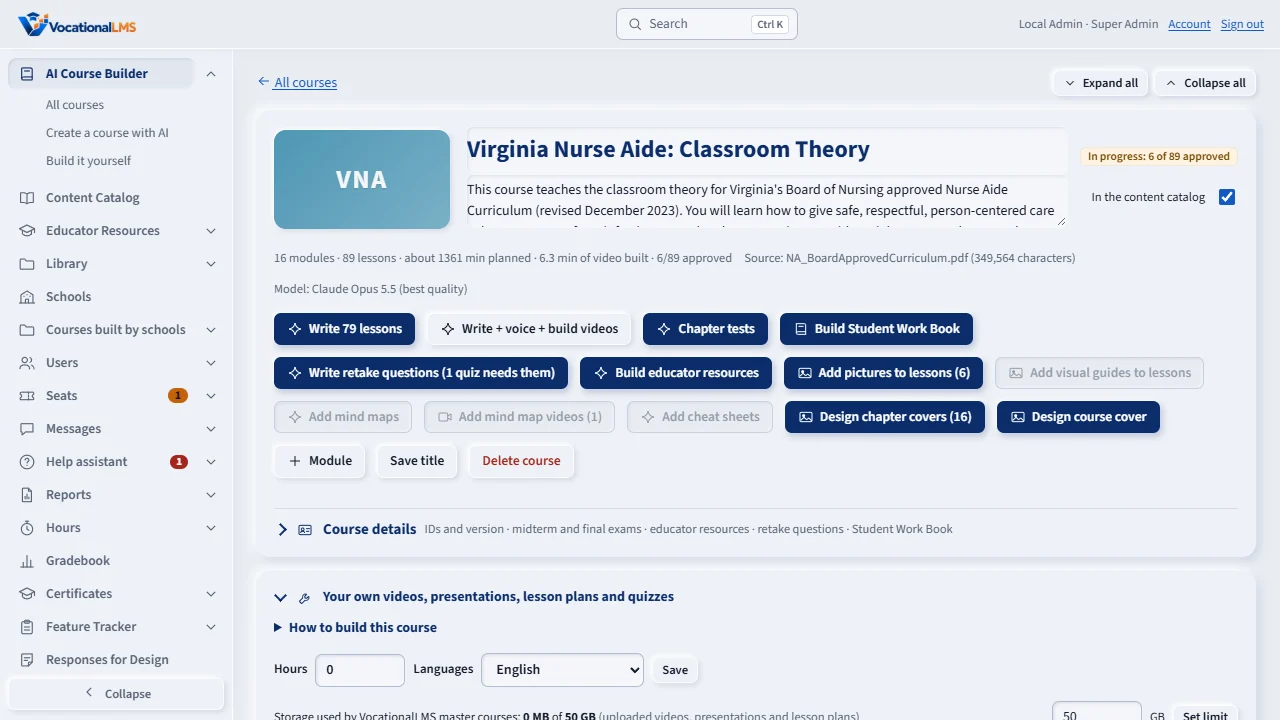
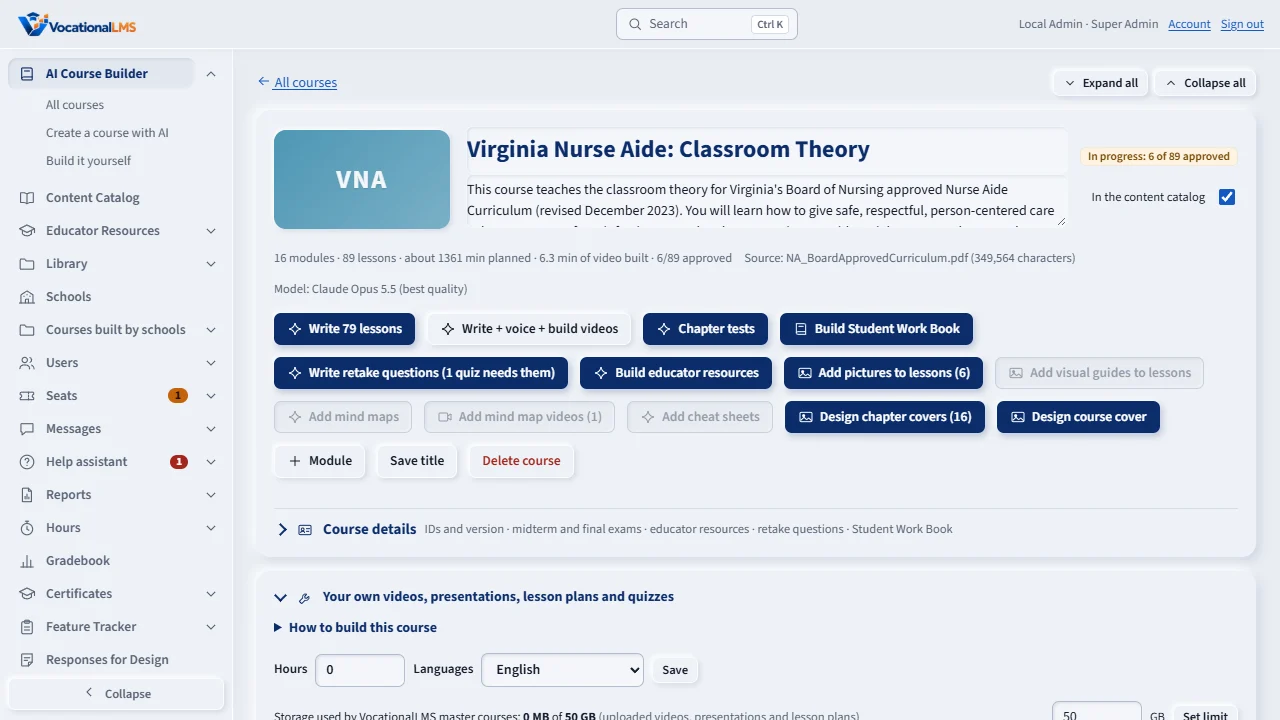
Every course has one wide cover picture, a realistic photo of the workplace the program trains for. It makes itself the moment a course is created. The header shows Making cover while it works.
Open the Course cover panel to read who made the picture and what it cost. Edit the picture description if you like and click Regenerate cover. The new picture replaces the old one everywhere.
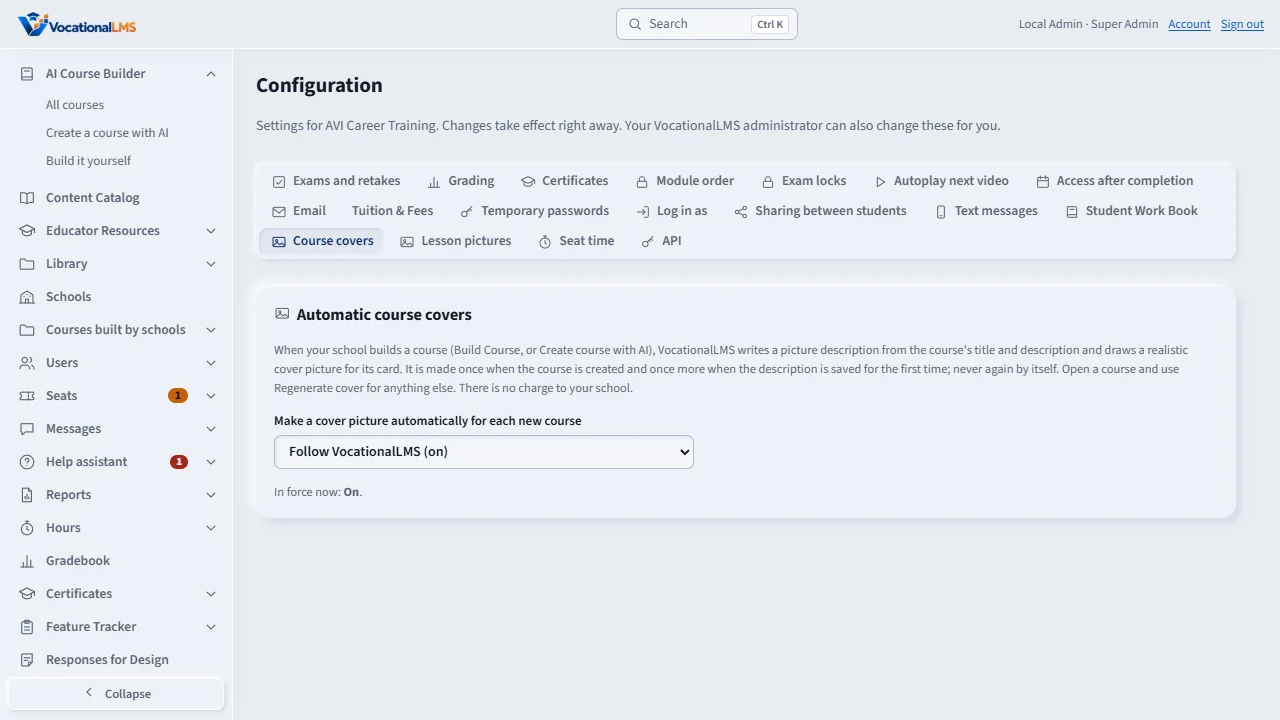
In Configuration, Course covers, choose Follow VocationalLMS, On or Off for automatic covers. Regenerate cover keeps working either way.
A School Admin sees the same pictures on every course card, and a course the school builds gets its own picture in about a minute.
Open this in VocationalLMSConfiguration > Course covers
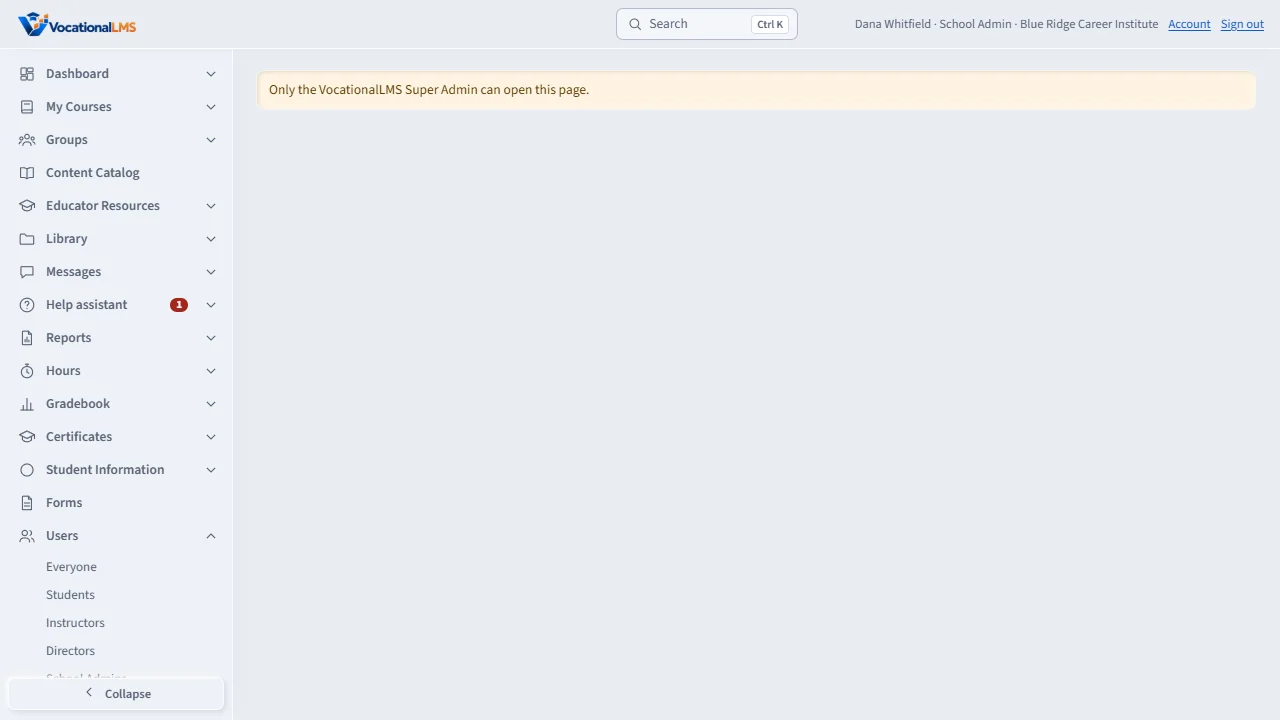
Who can do this: Everyone at your school who sees a course sees its picture. A School Admin or Director can regenerate the cover of a course the school built, and choose whether new courses get one automatically.
What it is for
Each course has one wide cover picture: a realistic photo of the workplace the program trains for. You see it across the top of each course's card in My Courses and on your Dashboard (Your courses, Recent courses), in the Content Catalog, and beside the course's title when you open it. Your students see the same picture on their own course list. VocationalLMS makes the pictures of its own courses. A course your school builds gets its picture by itself, in about a minute, drawn from the course's title and description; there is no charge to your school.
Steps
See the pictures
- Open My Courses (or your Dashboard and click Your courses). Each card has its course's picture across the top.
- Click a card to open the course, as before. Its picture sits beside the course's title.
A course your school builds
- Click Build Course for your school (A-12) and create the course. The header tile says Making cover… over the course's initials, then shows the picture, by itself.
- If you left the description empty, the picture comes from the title and category, and it is drawn once more the first time you save a description. Nothing else changes it by itself.
- Open the Course cover panel on the course page to read the picture description, edit it, and click Regenerate cover. The new picture replaces the old one everywhere.
Turn automatic covers on or off
- Configuration › Course covers: choose Follow VocationalLMS, On or Off. In force now shows what applies. Regenerate cover keeps working either way.
What happens next
The pictures only help you recognize each program at a glance; nothing changes when you click them.
Common problems
| # | Problem | What to do |
|---|---|---|
| 1 | A card shows letters instead of a picture. | That course's picture is not made yet, or automatic covers are off. The letters are the course's initials; everything else works the same. For a course your school built, open it and click Design course cover. |
| 2 | The Course cover panel is not on a course. | It is only on courses your school built. The pictures of VocationalLMS courses are VocationalLMS's. |
| 3 | Regenerate cover is refused. | A cover is being made right now (wait a minute), the description is under 20 characters, or the course has had 12 covers made today. |