
A-01For School Admins and Directors
Your school dashboard and menu
The dashboard's section menu with its links, the pages under each group of the menu on the left, your school's numbers, and where everything is.
How-to video A-01 · 1:24
Read the words of this video
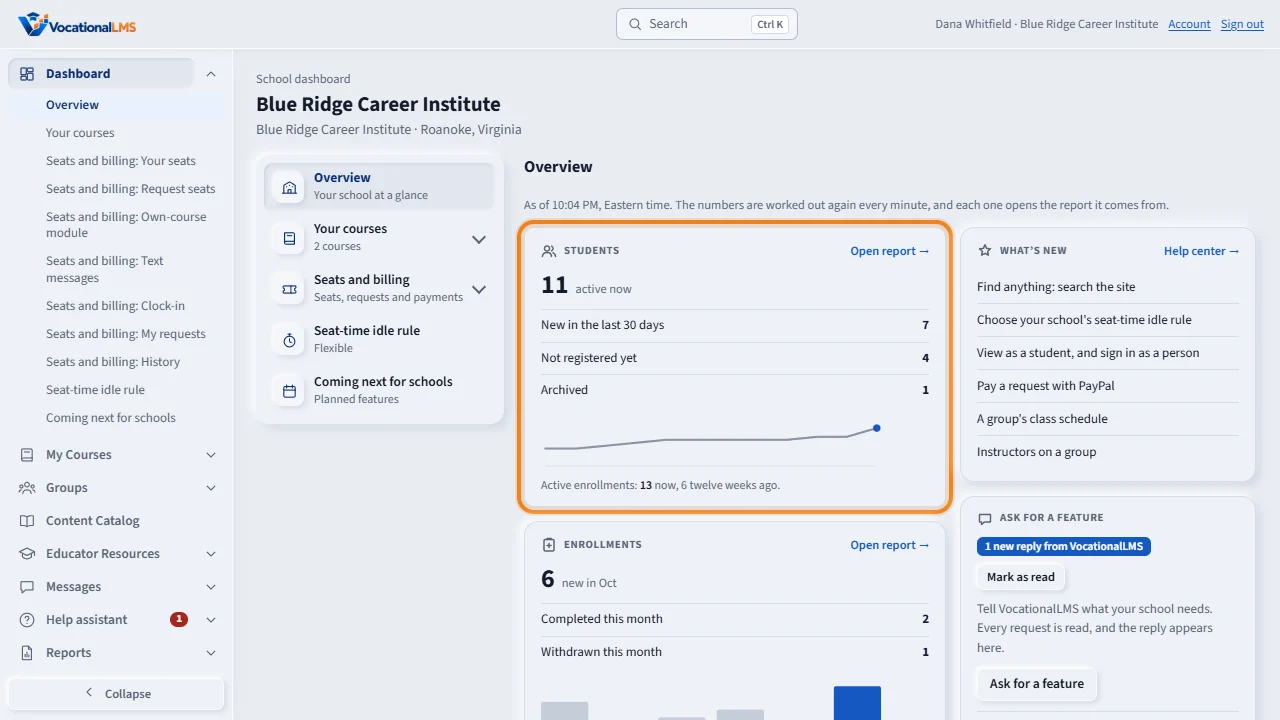
The Dashboard is your school's home page. Students counts who is active, new, not registered yet and archived. Enrollments shows this month, with a bar for each of the last six months.
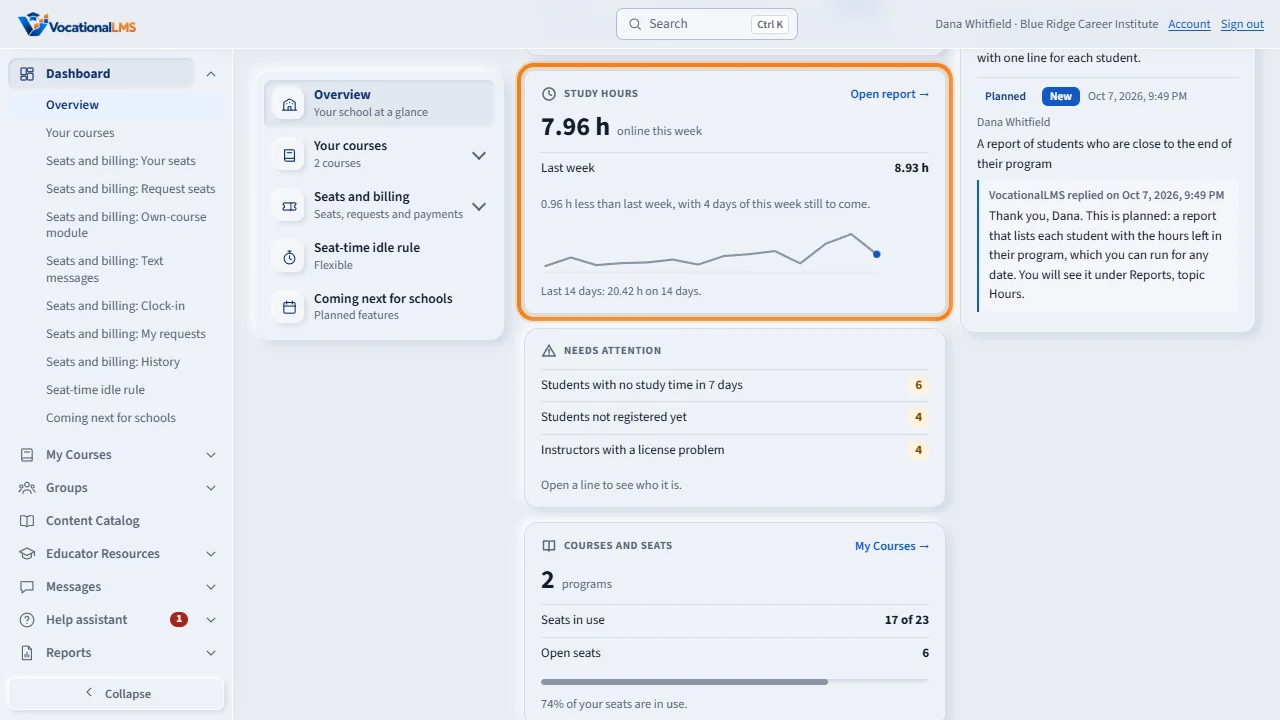
Study hours compares online hours this week with last week. Needs attention lists students with no study time in seven days, students not registered yet, and instructors with a license problem.
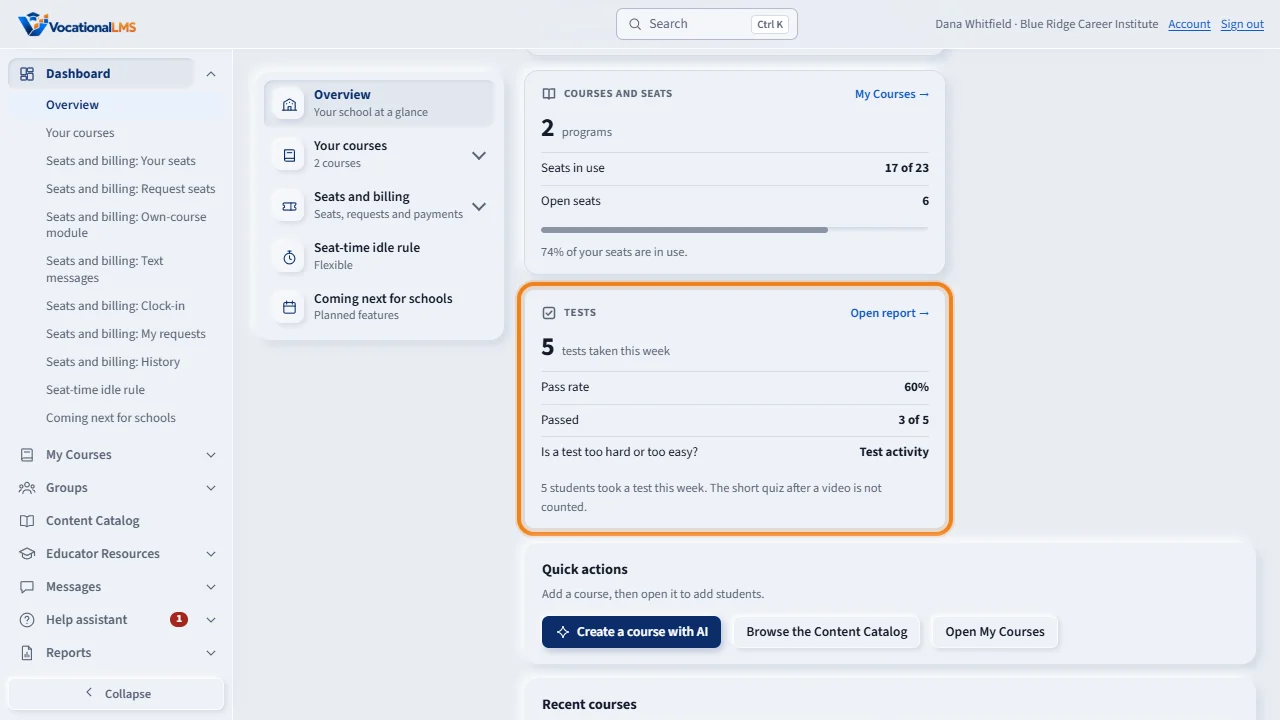
Courses and seats shows your programs and your seats in use. Tests shows the tests taken this week and the pass rate. Every number opens the report it comes from: click Open report on a tile.
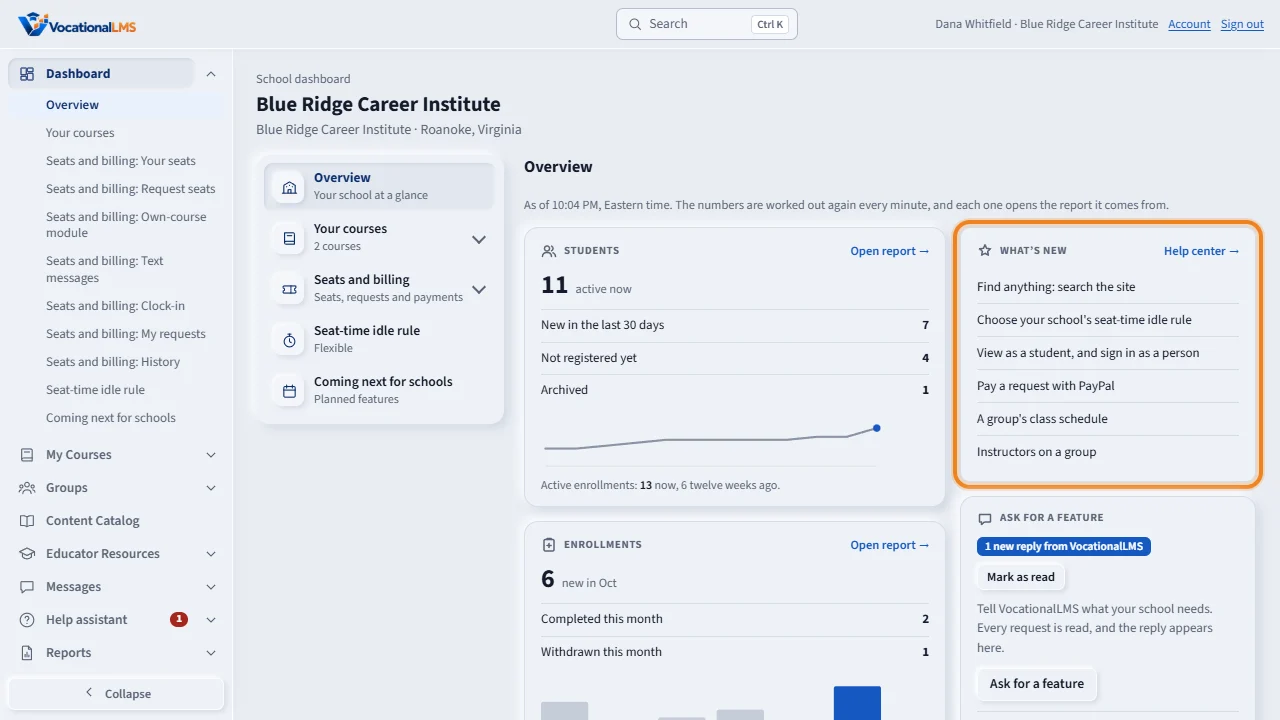
On the right, What's new lists the newest features. Under it, Ask for a feature is where you tell VocationalLMS what your school needs.
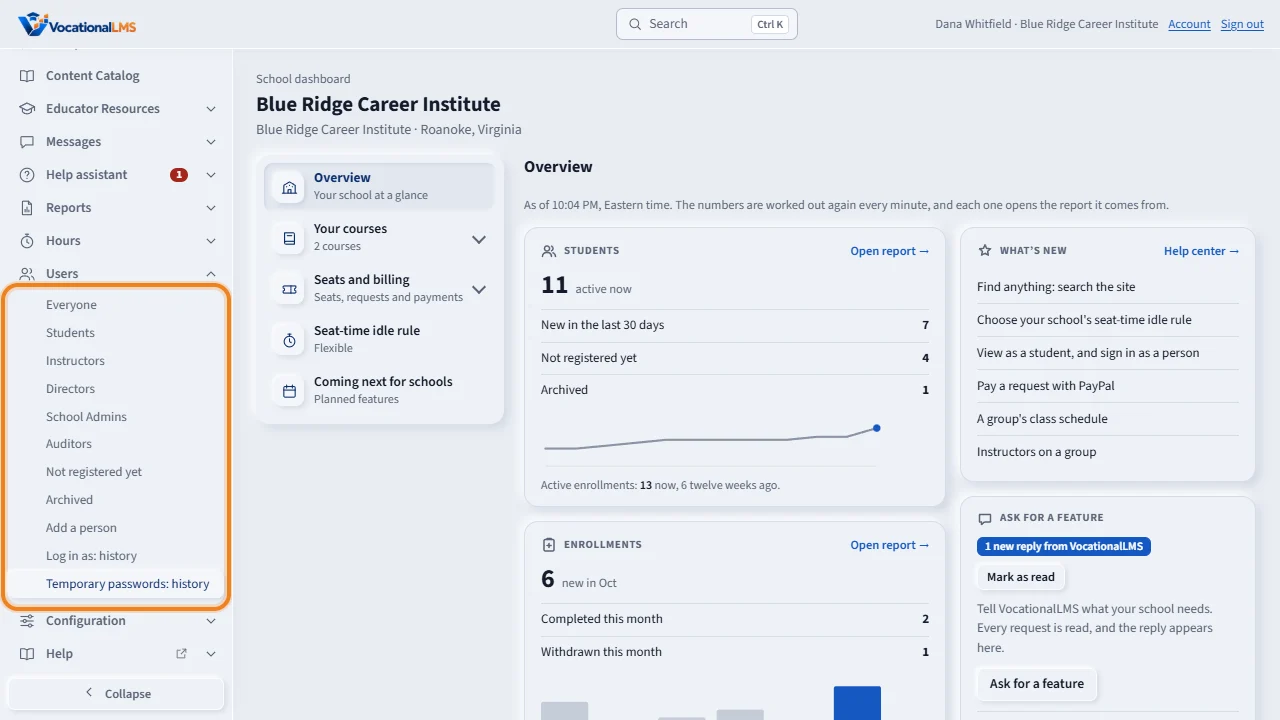
In the menu on the left, a line with a small arrow has pages under it. Click the arrow beside Users, and its pages open in place, right under the line: Students, Not registered yet, Add a person and the rest. One group is open at a time.
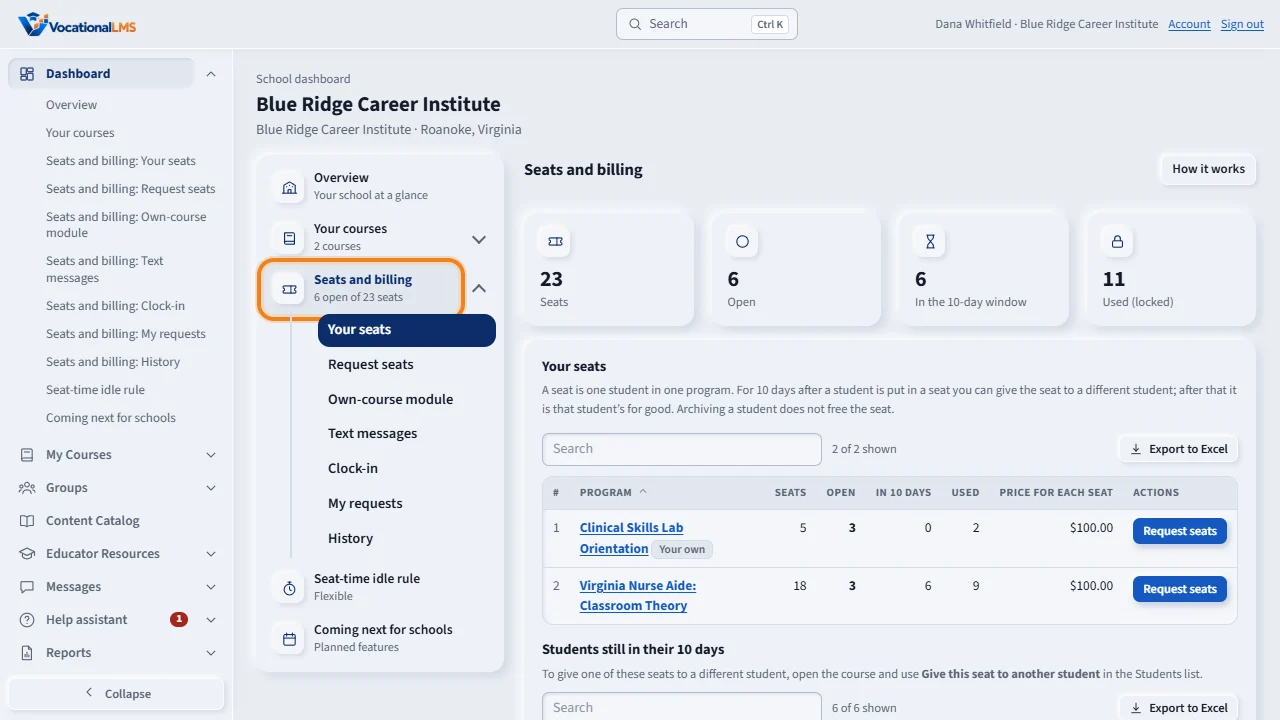
The dashboard's own section menu, beside the tiles, shows one section at a time: Overview, Your courses, Seats and billing, and the Seat-time idle rule.
Open this in VocationalLMSDashboard > Overview
What it is for
The Dashboard is your school's home page in the Studio. Its section menu, beside the tiles, has one section at a time: an overview with your numbers, your courses, seats and billing, and the seat-time idle rule. The overview shows your students, enrollments, study hours, tests and seats at a glance, and each number opens the report it comes from.
Steps
- Sign in with the Client login. The Dashboard opens.
- Overview shows six tiles. Students: how many are active now, new in the last 30 days, not registered yet and archived, with a small chart of active enrollments over 12 weeks. Enrollments: new, completed and withdrawn this month, with a bar for each of the last six months. Study hours: online hours this week (Monday to today) and last week, the difference in plain words, and a chart of the last 14 days.
- Needs attention lists what to look at: students with no study time in 7 days, students not registered yet, and instructors with a license problem. A number in a colored box means someone is waiting; click the line to see who. Courses and seats shows your programs and the seats in use of the seats you own. Tests shows the tests taken this week and the pass rate (the short quiz after a video is not counted).
- Click Open report on a tile, or any number that is a link. The report opens with the same filters, so it shows the same number, and you can download or print it (A-31).
- On the right, What's new lists the newest features your school can use; each line opens its help article. Under it is Ask for a feature (A-60). Quick actions and your recent courses are under the tiles.
- Your courses lists every course your school has. Click one to open it. Under it in the section menu are three links: Create a course with AI, Browse the Content Catalog and Open My Courses. The small arrow at the right of the section shows or hides its links; they also show when you open the section.
- Seats and billing has five links under it: Your seats, Request seats, Own-course module, My requests and History. Each one shows just that part (A-20).
- Seat-time idle rule shows and changes the rule for quiet minutes (A-17).
- The menu on the left has Dashboard, My Courses, Groups, Content Catalog, Educator Resources, Messages, Help assistant, Reports, Hours, Users, Configuration and Help (A-73).
- Click the small arrow at the right end of a line, such as Users, to see the pages under it: they open in place, under the line. Click one to go straight to it: for example Messages > Send announcement, or Users > Students, Not registered yet or Add a person. Clicking the line's name itself still opens its first page.
What happens next
The numbers on the tiles are worked out again every minute; the line above them says as of what time. They are the same numbers as the reports: a tile never counts in a different way. An instructor sees the same tiles for their own students only. Days and weeks follow the system time zone, and a week starts on Monday. Coming next for schools lists what VocationalLMS is building.
Common problems
| # | Problem | What to do |
|---|---|---|
| 1 | A tile shows a different number than a minute ago, or does not show a student you just added. | The tiles are worked out again every minute. Wait a minute and open the Dashboard again. |
| 2 | A tile shows 0 or says there are no students yet. | A new school starts empty. Open a course and add students; they appear on the tiles within a minute. |
| 3 | This week's hours are lower than last week's on a Monday or Tuesday. | This week runs from Monday to today, and last week is all seven days. The line under the numbers says how many days of this week are still to come. |
| 4 | You do not see Users or Settings. | Only a School Admin has them. Directors and Instructors do not. |
| 5 | The pages under a group do not show. | Click the small arrow at the right end of the group's line. One group is open at a time, so opening another closes it. On a phone, open the menu with the menu button (three lines) at the top left first. |
| 6 | Seats and billing is missing. | It appears for School Admins and Directors. Instructors do not see it. |