
S-34For students
The picture of each of your courses
Each of your courses has its own picture, beside its name in My courses and on My dashboard.
How-to video S-34 · 0:24
Read the words of this video
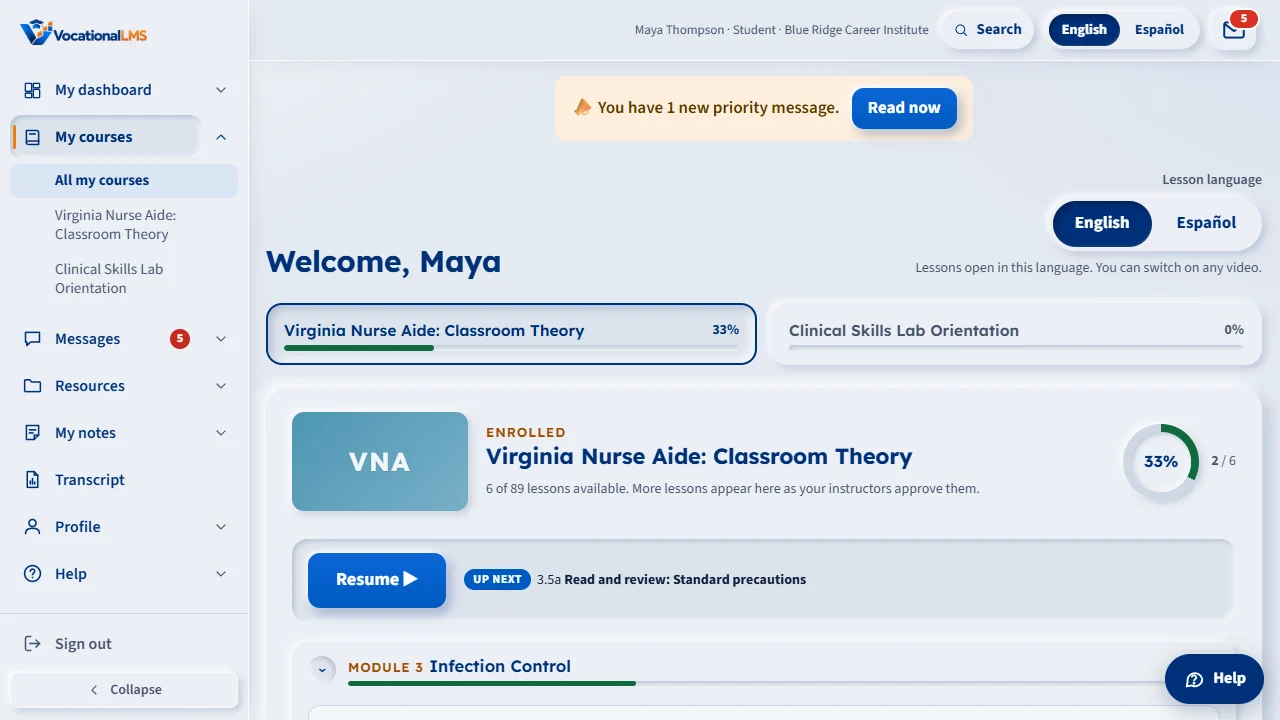
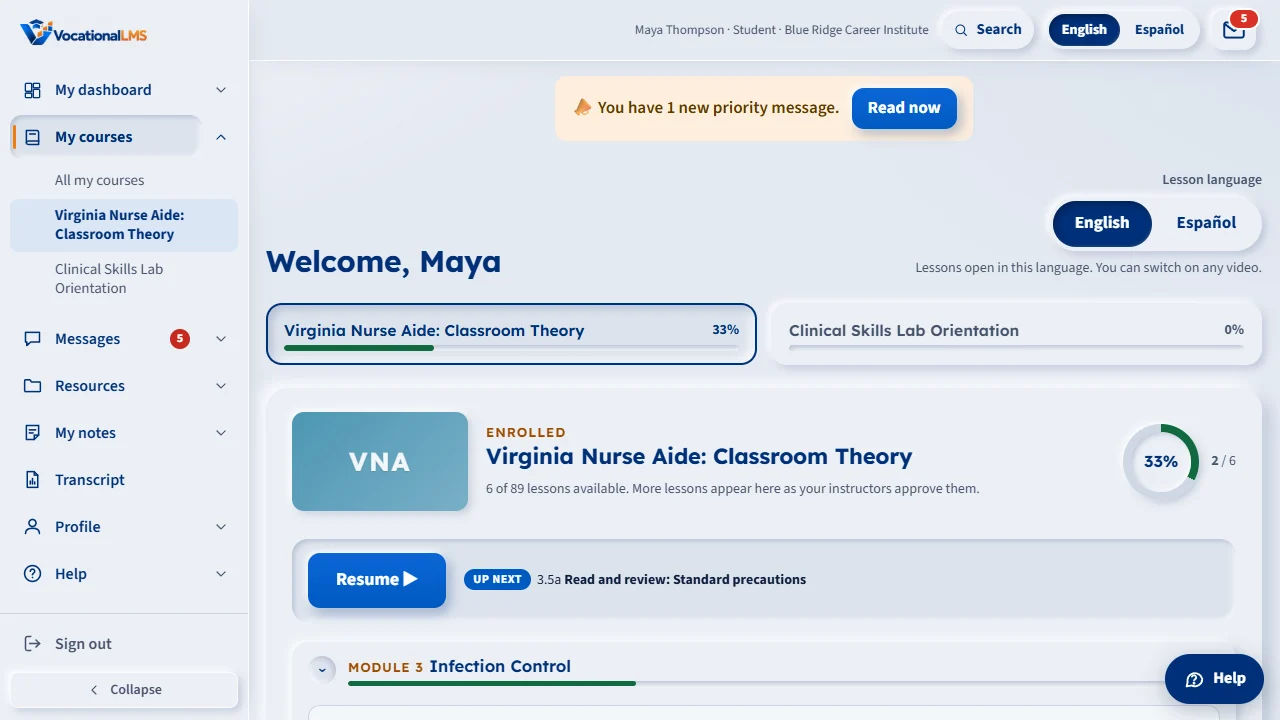
In My courses, each course has a wide picture beside its name: a photo of the kind of workplace the program prepares you for.
Each module also has a small picture at the start of its row. Click the row to show or hide its lessons. In a lesson, the list on the right shows the same pictures.
Open this in VocationalLMSMy courses > a course's picture
What it is for
In My courses, each of your courses has a wide picture beside its name: a photo of the kind of workplace the program prepares you for. My dashboard shows a smaller copy at the start of each course in Continue learning.
Steps
- Open My courses. The course's picture is at the top, beside its name and your progress.
- Open My dashboard. Each course in Continue learning starts with its small picture.
What happens next
The pictures are only there to help you recognize your courses; nothing changes when you click them.
Common problems
| # | Problem | What to do |
|---|---|---|
| 1 | I see letters on a colored tile instead of a picture. | Your course's picture is not ready yet. The letters are the course's initials; your lessons work the same way. |