
A-12For School Admins and Directors
Build your own course: create it, add modules and lessons
Make a course by hand, with no AI: title, hours, languages, then modules and lessons. Its cover picture makes itself.
How-to video A-12 · 1:04
Read the words of this video
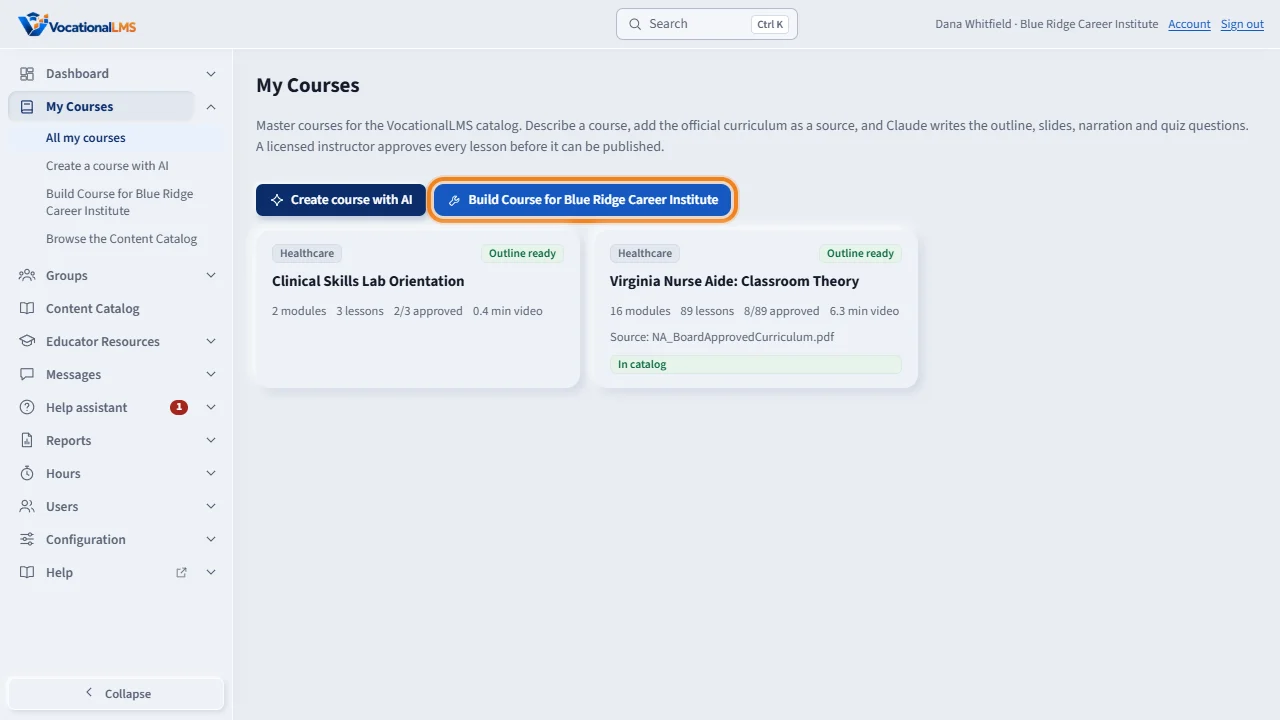
Your school can make its own course by hand, with no AI. Click My Courses, then the button Build Course for, followed by your school's name. It is next to Create course with AI.
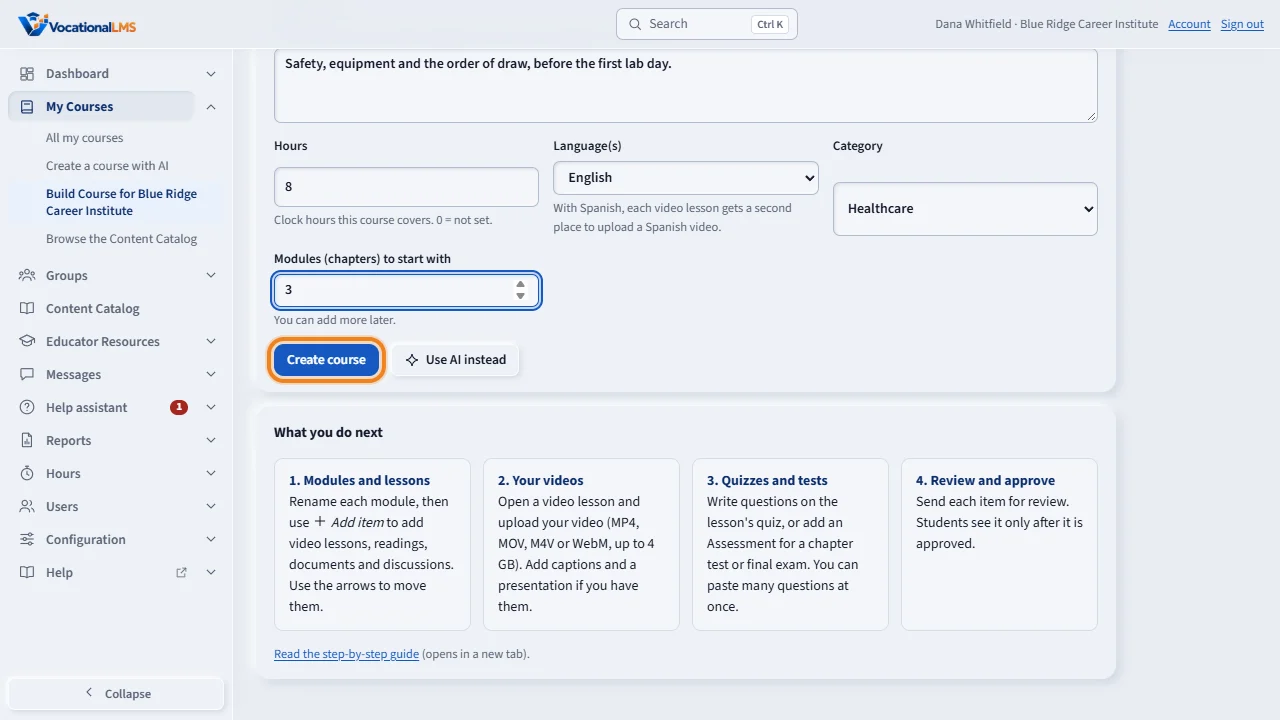
Type the course title and a short description. Fill in the hours the course covers, the languages, the category, and how many modules to start with. Then click Create course.
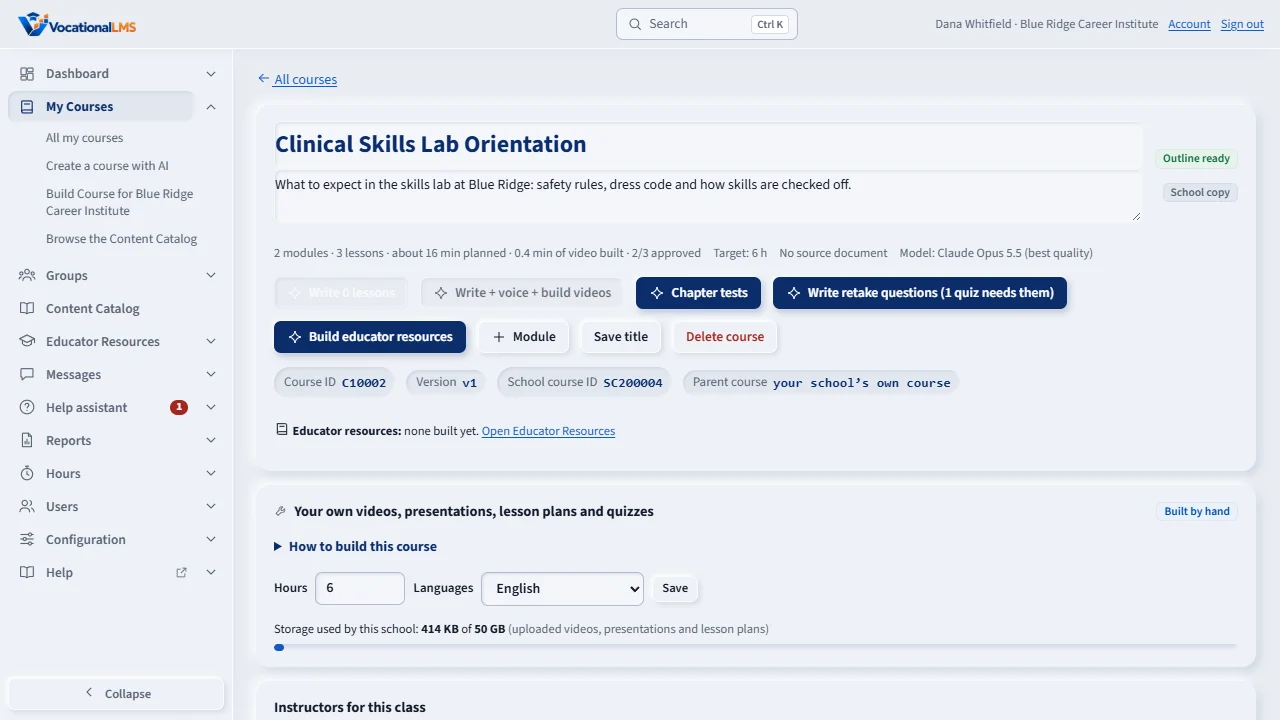
The course page opens. Click a module's name to rename it. In a module, open Add item and choose Video lesson or another kind. The arrows move a module or a lesson up and down. The trash can deletes it, and asks you to click twice.
This box shows the storage your school is using, fifty gigabytes to start with, and lets you change the course hours and languages. Click Open on a lesson to add its video, presentation, lesson plan and quiz.
Open this in VocationalLMSCourses > Build a course yourself
Who can do this: A School Admin or Director. If VocationalLMS has turned on the own-course module for your school, it must be unlocked (A-22).
What it is for
Your school can make its own course by hand: its own modules, lessons, videos, presentations, lesson plans, quizzes and tests. Other schools never see it.
Steps
- Click My Courses, then Build Course for followed by your school's name, for example Build Course for AVI Career Training.
- Type the Course title and a Description. Fill in the Hours, the Languages (English, or English and Spanish), the category and how many modules to start with.
- Click Create course. The course page opens. Its cover picture makes itself: the header tile says Making cover… over the course's initials, then shows a realistic wide picture drawn from the title and description (from the title and category when the description is empty), in about a minute. If you add the description later, the cover is designed once more from it the first time you save it. Open the Course cover panel to edit the picture description and click Regenerate cover when you want another; nothing else changes it by itself. Your school can turn automatic covers off under Configuration › Course covers (A-78).
- Click a module's name to rename it. Module adds one. ↑ ↓ move it. the trash can deletes it (click twice).
- In a module, open Add item… and choose Video lesson or another kind. Click Open on a lesson to work on it.
What happens next
The box Your own videos, presentations, lesson plans and quizzes shows the storage your school uses (50 GB to start). Add students in the Students box when lessons are approved.
Common problems
| # | Problem | What to do |
|---|---|---|
| 1 | A page says the own-course module is locked. | Request or renew it under Seats and billing (A-22). |
| 2 | You want AI to write the course instead. | Click Use AI instead, or Create a course with AI. |