
A-107For School Admins and Directors
Keep the clock running when the student opens another browser tab to research the topic
A school switch (off by default): a student who searches the internet in another tab keeps earning time, up to a maximum number of minutes away, and the time log shows it on its own line.
How-to video A-107 · 1:00
Read the words of this video
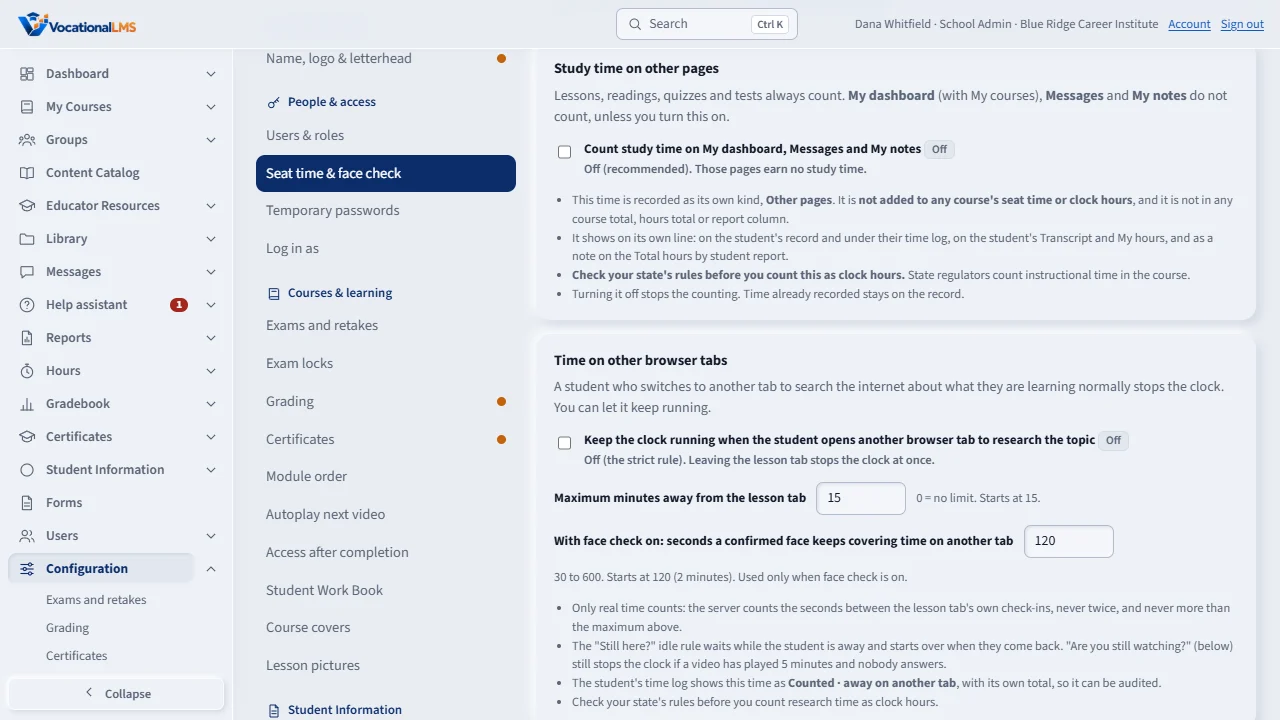
Normally the clock stops the moment a student switches to another browser tab. If your students research on the internet, you can change that. Open Configuration, then the Seat time and face check tab.
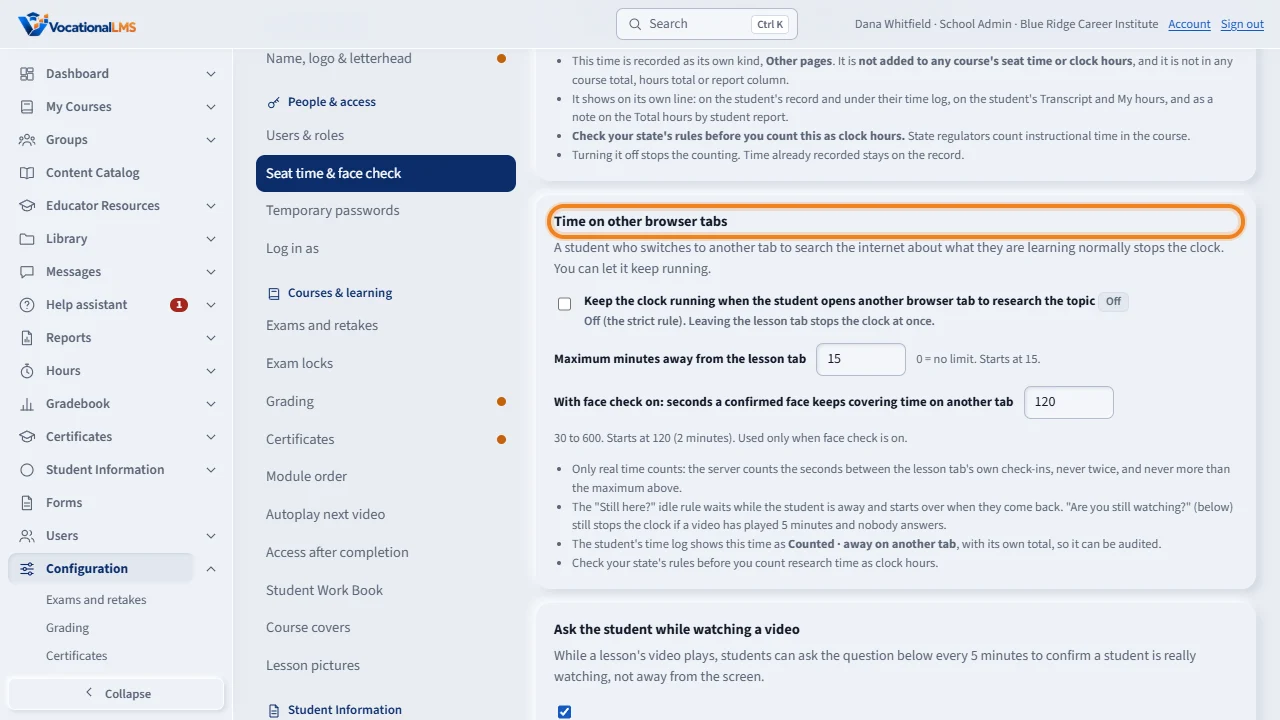
Tick Keep the clock running when the student opens another browser tab. Then set the maximum minutes away from the lesson tab. Fifteen is a good start, and zero means no limit. It saves by itself.
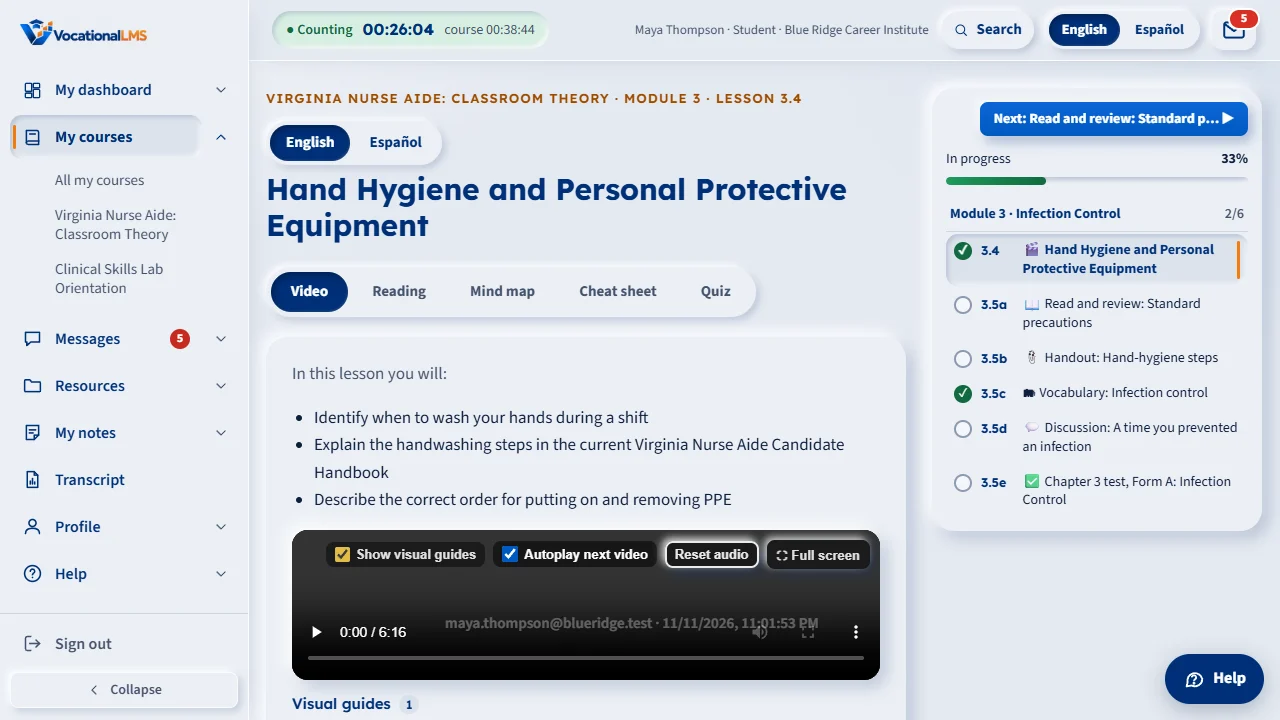
The student sees one plain line on the lesson page: your school counts time on other tabs; return to continue the lesson. If they stay away too long, the clock stops and a message asks them to click to continue.
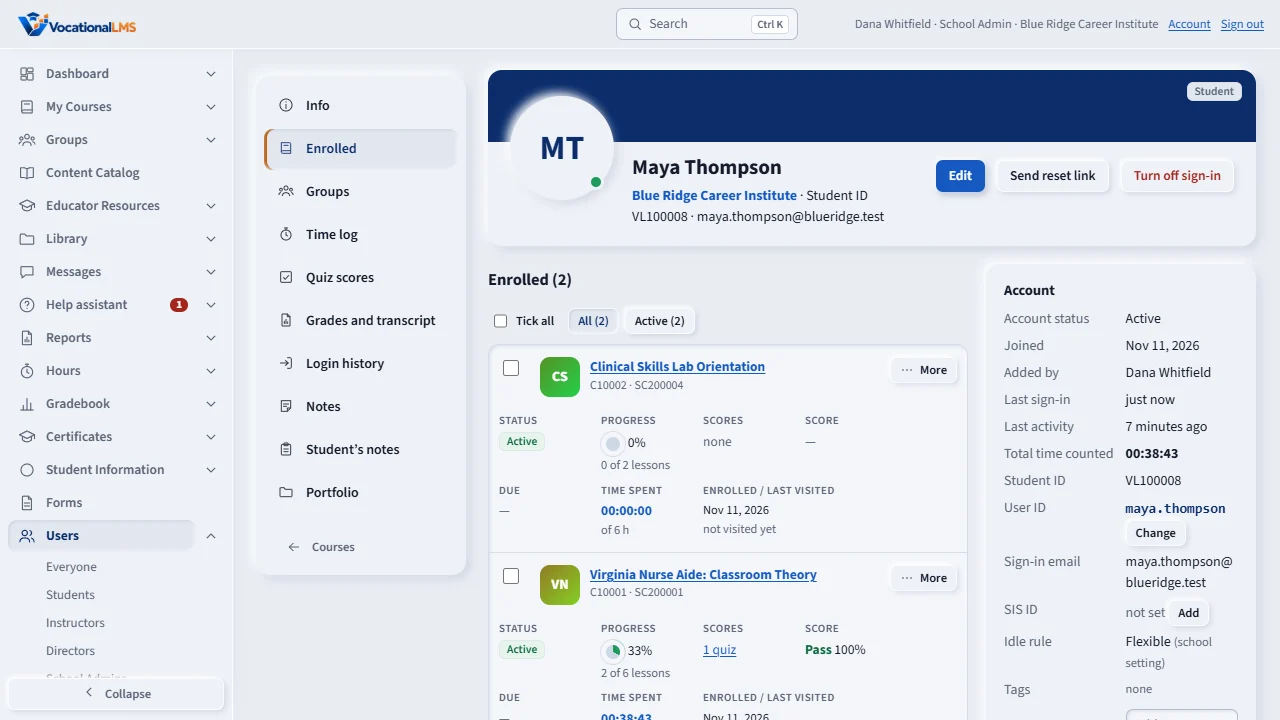
In the student's Time log, that time is marked Counted, away on another tab, with its own total. Check your state's rules before you count research time as clock hours.
Open this in VocationalLMSConfiguration > Seat time & face check > Time on other browser tabs
Who can do this: Only the School Admin changes it. A Director can see it but not change it.
What it is for
Normally, when a student switches to another browser tab, the clock stops at once. If your students research what they are learning on the internet, you can turn on Keep the clock running when the student opens another browser tab to research the topic. It is off for every school until you turn it on. Check your state's rules before you count research time as clock hours.
Steps
Turn it on
- Open Configuration, then the Seat time & face check tab. Find Time on other browser tabs.
- Tick Keep the clock running when the student opens another browser tab to research the topic. The label changes to On.
- Set Maximum minutes away from the lesson tab (it starts at 15; 0 means no limit) and press Tab. It saves by itself.
What the student sees
- A plain line on the lesson page: Your school counts time on other tabs; return to continue the lesson.
- If a student stays away longer than your maximum, the clock stops and a message asks them to click to continue the lesson.
Check it in the Time log
- Open the student's Time log. Time on another tab is marked Counted · away on another tab, with a total line Away on another tab above the table.
What happens next
Only real time counts: the server adds the seconds between the lesson tab's own check-ins, never twice, and never more than your maximum for one stretch away. While the student is away the idle rule ("Still here?") waits, and it starts over when they come back. "Are you still watching?" still stops the clock if a video has played for 5 minutes and nobody answers. Turning the switch off puts the strict rule back at once; time already counted stays.
Common problems
| # | Problem | What to do |
|---|---|---|
| 1 | A student's clock stopped after they were away. | They were away longer than your maximum. Raise it, or set 0 for no limit, if your school wants that. |
| 2 | The Time log has a line “Away on another tab”. | That is time counted while the student had the lesson open in the background. It is shown separately so you can audit it. |