
A-73For School Admins and Directors
Your menu on the left
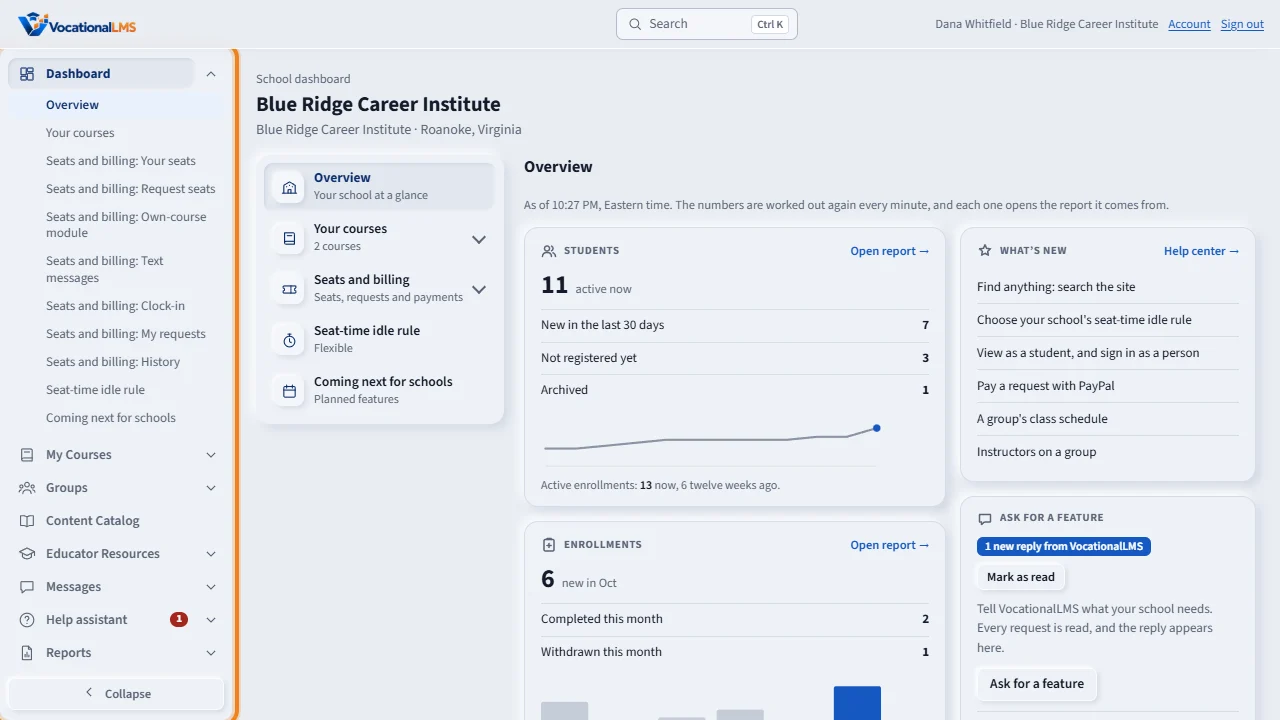
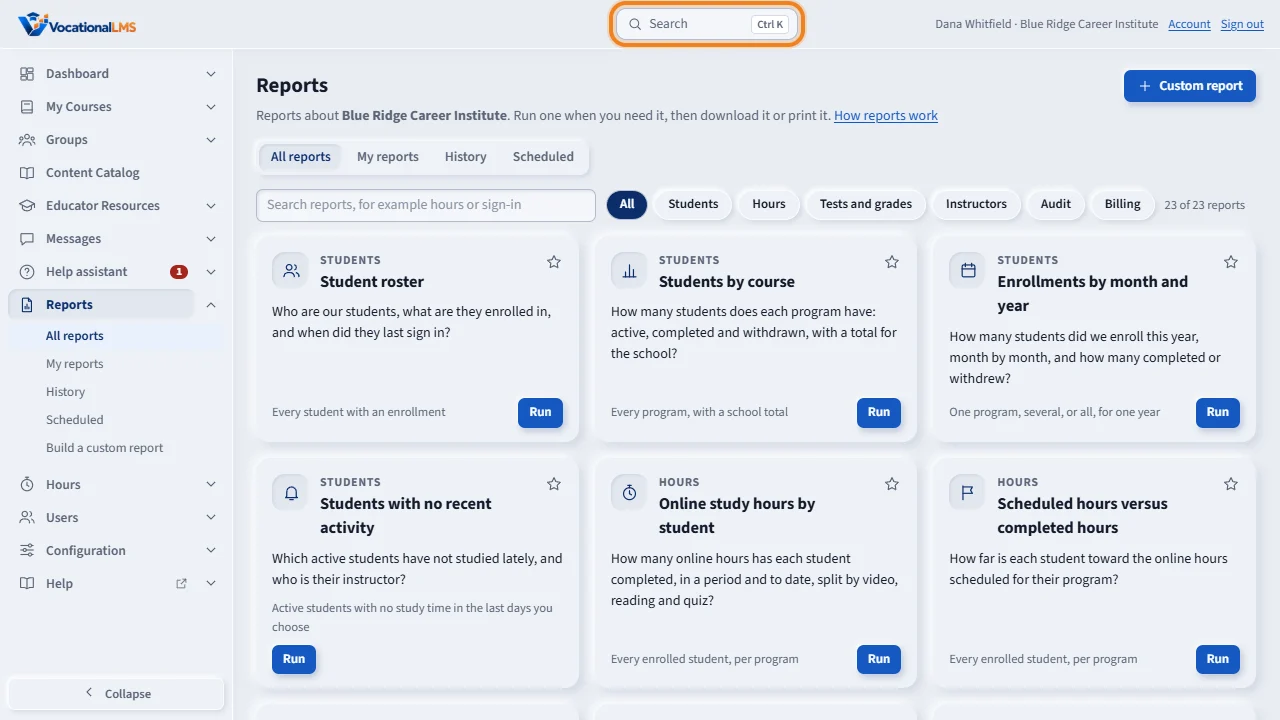
The staff menu is a column on the left of every page: open a group to see its pages, collapse it to icons, and on a phone open it from the menu button at the top.
How-to video A-73 · 1:23
Read the words of this video
Your menu is now on the left of every page. Each line is one part of VocationalLMS, with its icon: Dashboard, Users, Reports, Hours and the rest. The top of the page keeps the logo, the Search box and your account on one line.
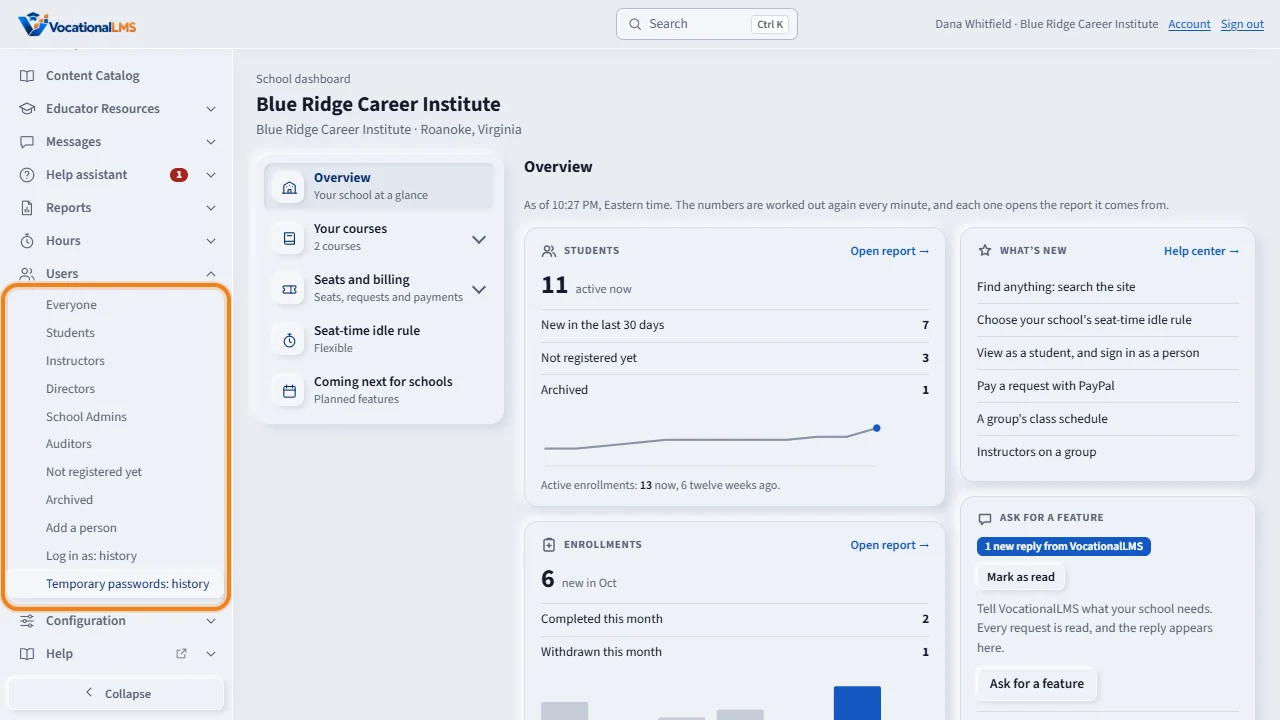
A line with a small arrow has pages under it. Click the arrow, and the pages open in place, right under the line. One group is open at a time. Click a page to go there; the page you are on is marked.
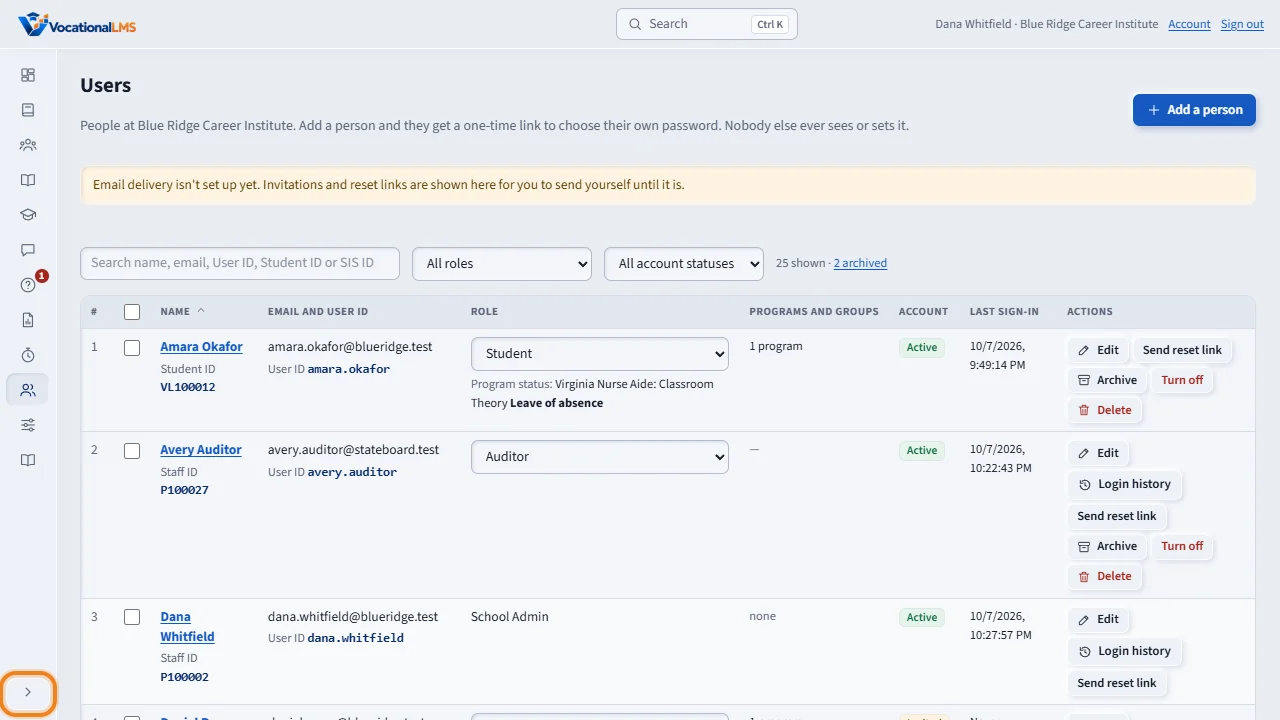
Click Collapse at the bottom, and the menu becomes a strip of icons. The page gets the room, which helps on a wide table. Rest the mouse on an icon to see its name. Click the arrow at the bottom to bring the names back. Your choice is remembered on this computer. For instructors the menu starts collapsed, until they click Expand.
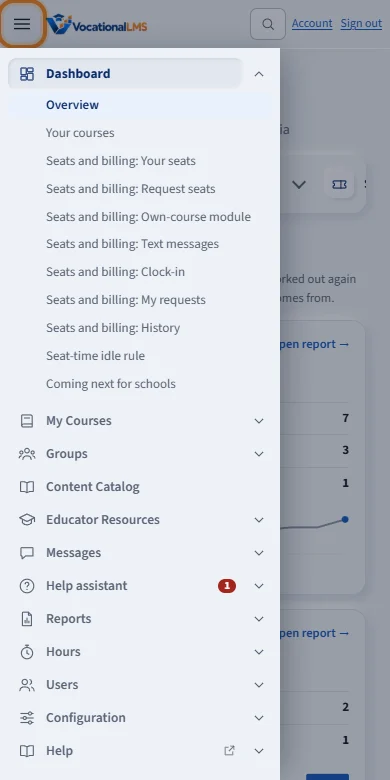
On a phone or a narrow window, the menu is hidden until you need it. Tap the menu button at the top left to open it. Choose a page, tap outside the menu, or press Escape to close it.
Search stays at the top of every page, in the middle. Click it, or press Control and K. Everything else is where it was: every page and every link in the help articles still opens the same place.
Open this in VocationalLMSMenu on the left
Who can do this: Everyone who works in the Studio: School Admins, Directors, instructors, auditors and the Super Admin. Each role sees its own lines; nothing was added or taken away. The students' pages did not change.
What it is for
The menu of the staff pages is on the left of every page, not across the top. Each line is one part of VocationalLMS, such as Dashboard, Users or Reports, with its icon. A line with a small arrow has pages under it; the pages open in place, under the line, and the page you are on is marked. The top of the page keeps three things on one line: the logo, the Search box in the middle, and Account and Sign out on the right.
Steps
Open a group and choose a page
- Click a line, such as Users. Its first page opens, and the pages under it appear below the line.
- Or click the small arrow at the right end of a line to see its pages without leaving the page you are on. One group is open at a time: opening one closes the other.
- Click a page, such as Not registered yet. The page you are on is marked in the menu, and the menu remembers which group you left open.
Make the menu smaller
- Click Collapse at the bottom of the menu. The menu becomes a narrow strip of icons, and the page gets the room.
- Rest the mouse on an icon to see its name. A red or orange number on an icon still means something is waiting.
- Click the arrow at the bottom of the strip to bring the names back. VocationalLMS remembers your choice on this computer.
- For instructors the menu starts collapsed, as a strip of icons, until they click Expand; from then on their own choice is remembered.
On a phone or a narrow window
- The menu is hidden. Tap the menu button (three lines) at the top left to open it.
- Choose a page, tap outside the menu, or press Esc to close it.
With the keyboard
- Press Tab to move through the menu, Enter to open a page, and Enter or Space on an arrow to open or close a group. Esc closes the menu on a phone.
- Ctrl and K opens Search from anywhere, as before (A-70).
What happens next
Everything is where it was: every page, every address and every link in the help articles still opens the same place. Every help video shows the menu on the left.
Common problems
| # | Problem | What to do |
|---|---|---|
| 1 | The menu is gone. | On a narrow window it is a drawer: tap the menu button (three lines) at the top left. On a wide window, click the arrow at the bottom of the icon strip to expand it. |
| 2 | I see icons only and no names. | The menu is collapsed. Click the arrow at the bottom of the strip, or rest the mouse on an icon to read its name. |
| 3 | A group closed when I opened another. | One group is open at a time, so the menu stays short. The group of the page you are on opens by itself. |
| 4 | The menu covers part of a wide table. | Click Collapse: the table gets the room. The table also scrolls sideways on its own. |