
A-69For School Admins and Directors
Set a temporary password for someone who needs it
For a person who cannot use the invitation link: VocationalLMS makes a temporary password, shows it to you once, and the person must choose their own when they sign in.
How-to video A-69 · 2:17
Read the words of this video
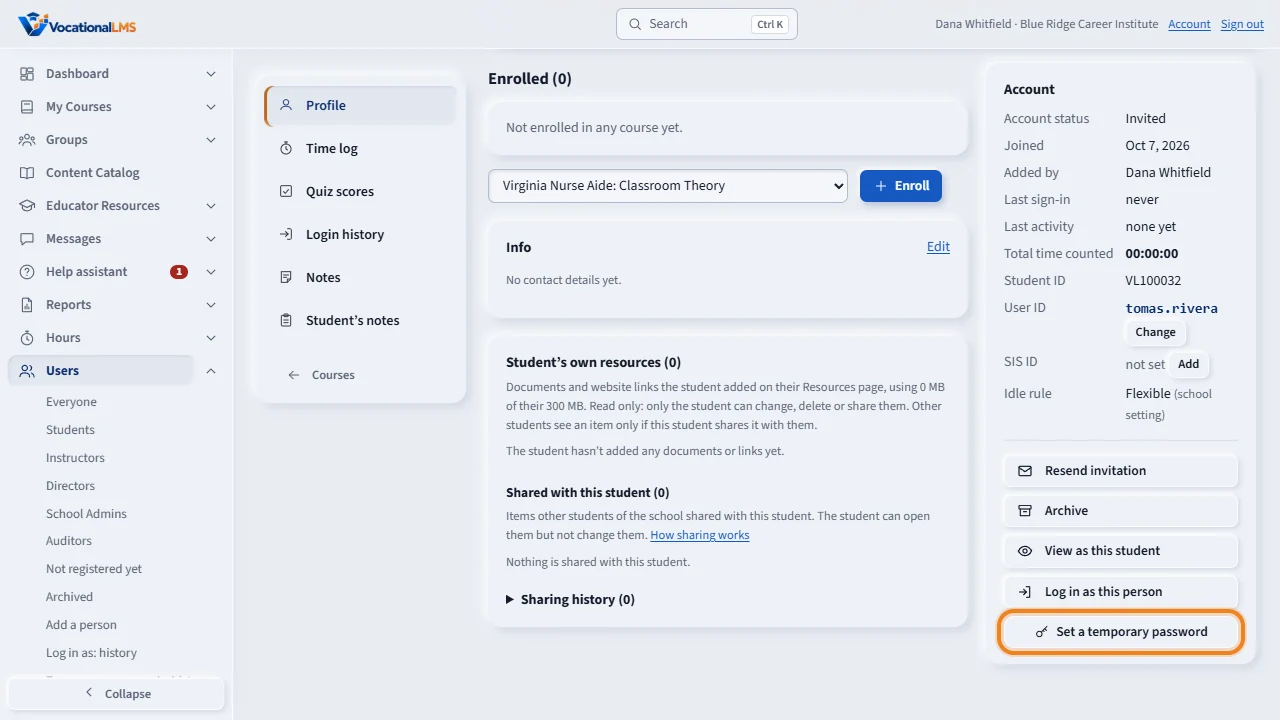
The normal way to give a person access has not changed. You add them, they get an invitation link, and they choose their own password. Some people cannot use a link, for example a student with no working email. For them you can set a temporary password. Open the person from the Users page. In the Account panel, click Set a temporary password.
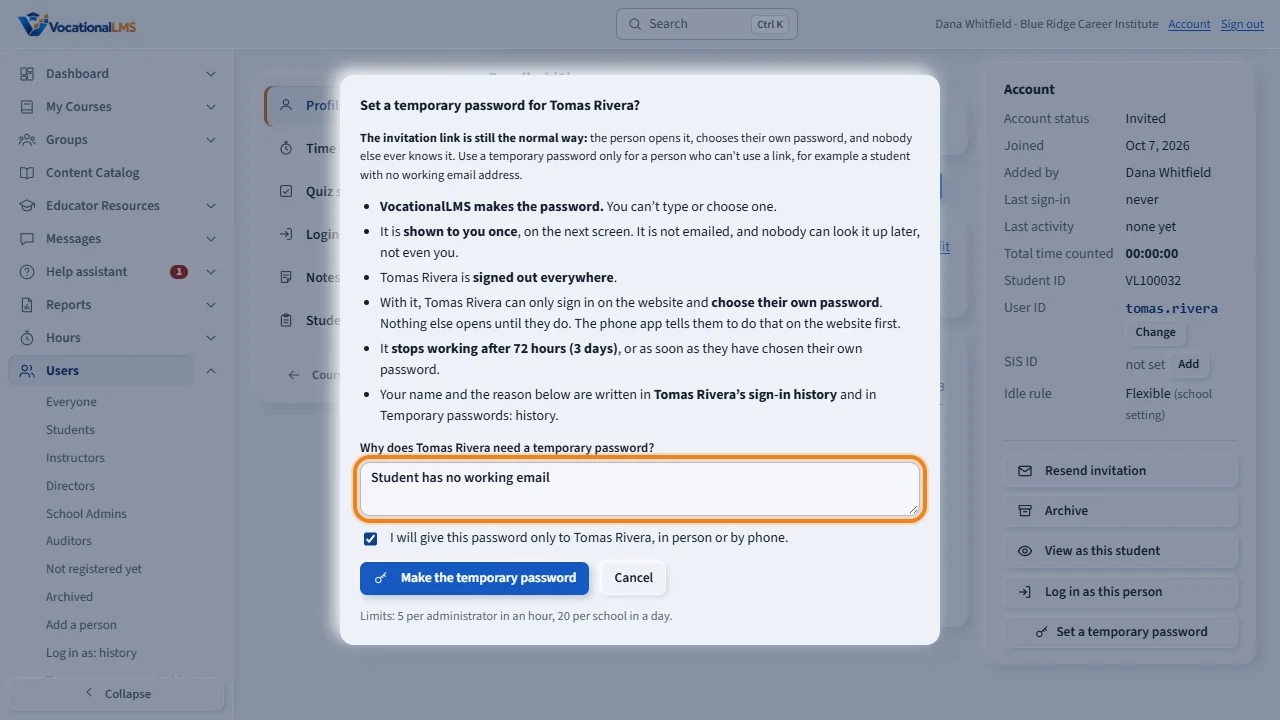
A box states the rules. VocationalLMS makes the password. You cannot type one. The person is signed out everywhere. Type the reason this person needs it. The reason is required, and it is kept in their login history with your name. Tick the box to confirm that you will give the password to this person only. Then click Make the temporary password.
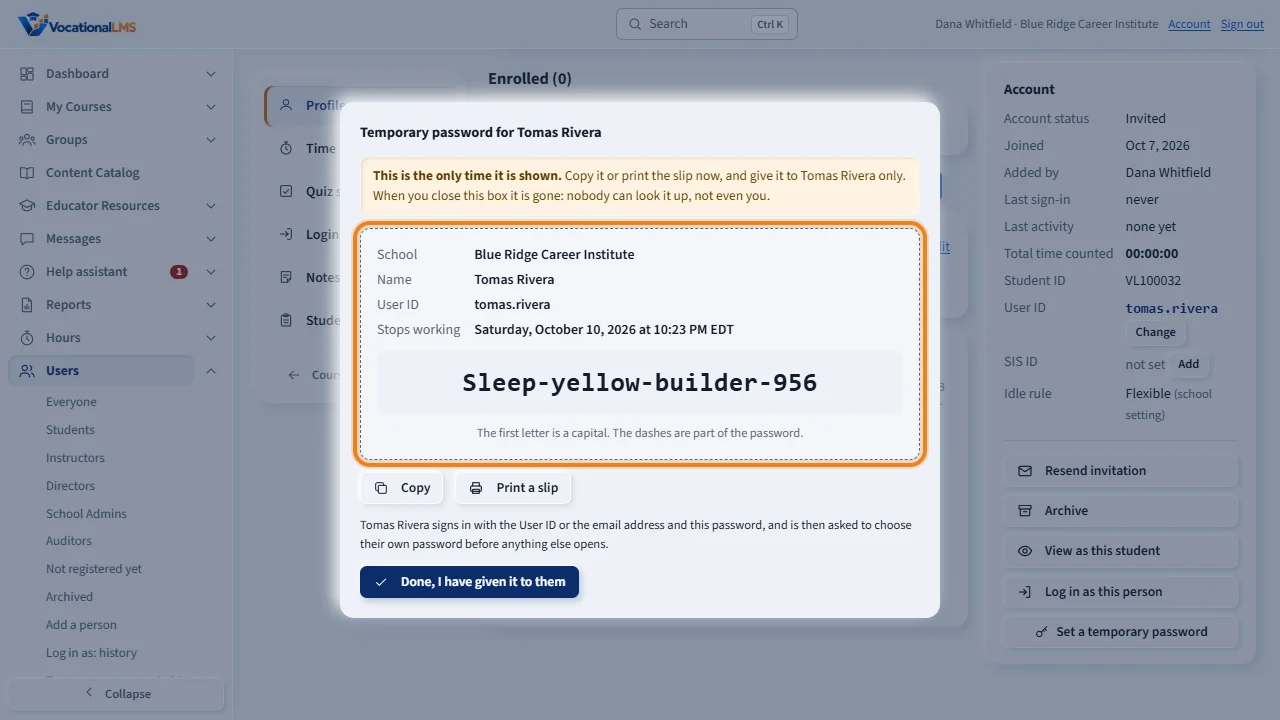
The temporary password shows one time. It is three words and three numbers, with dashes, and the first letter is a capital. Click Copy, or click Print a slip to print a small slip with the school, the person's name, their User ID, the password and when it stops working. Give it to the person only. When you close this box, nobody can look the password up again, not even you.
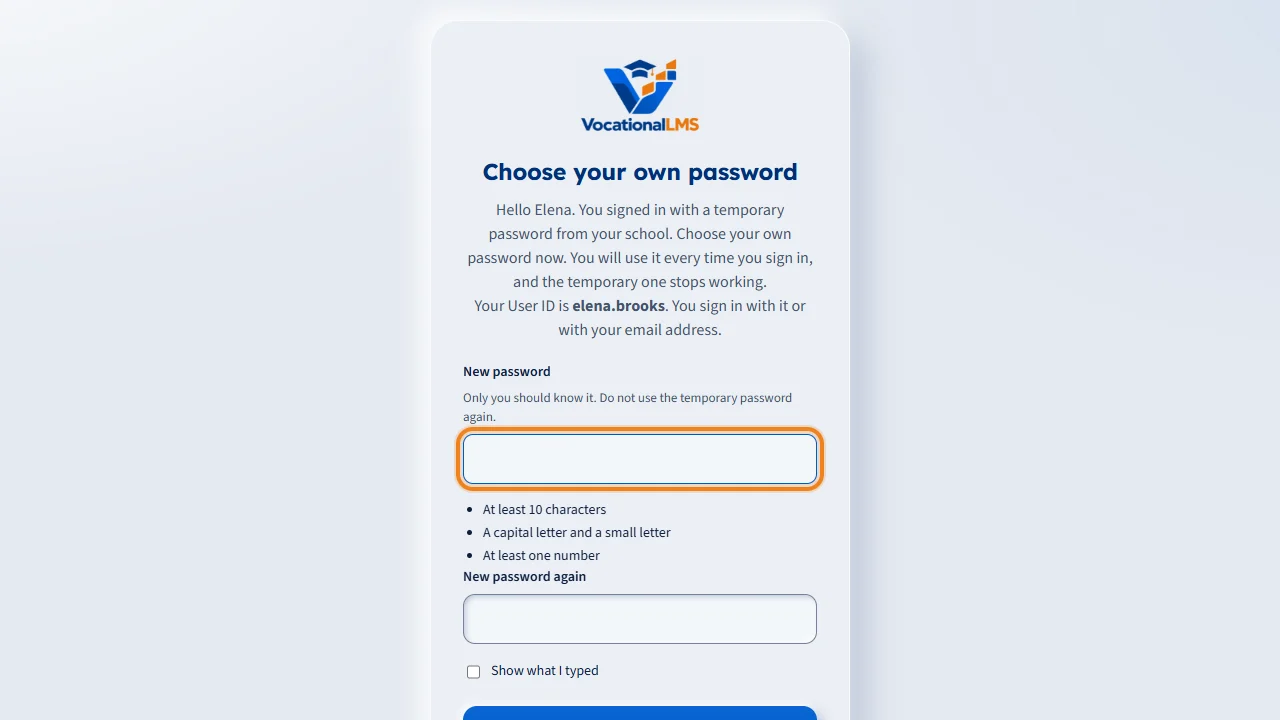
The person signs in on the website with their User ID or their email, and the temporary password. The page Choose your own password opens, and nothing else opens until they have chosen one. A temporary password stops working after seventy-two hours, or as soon as the person has chosen their own.
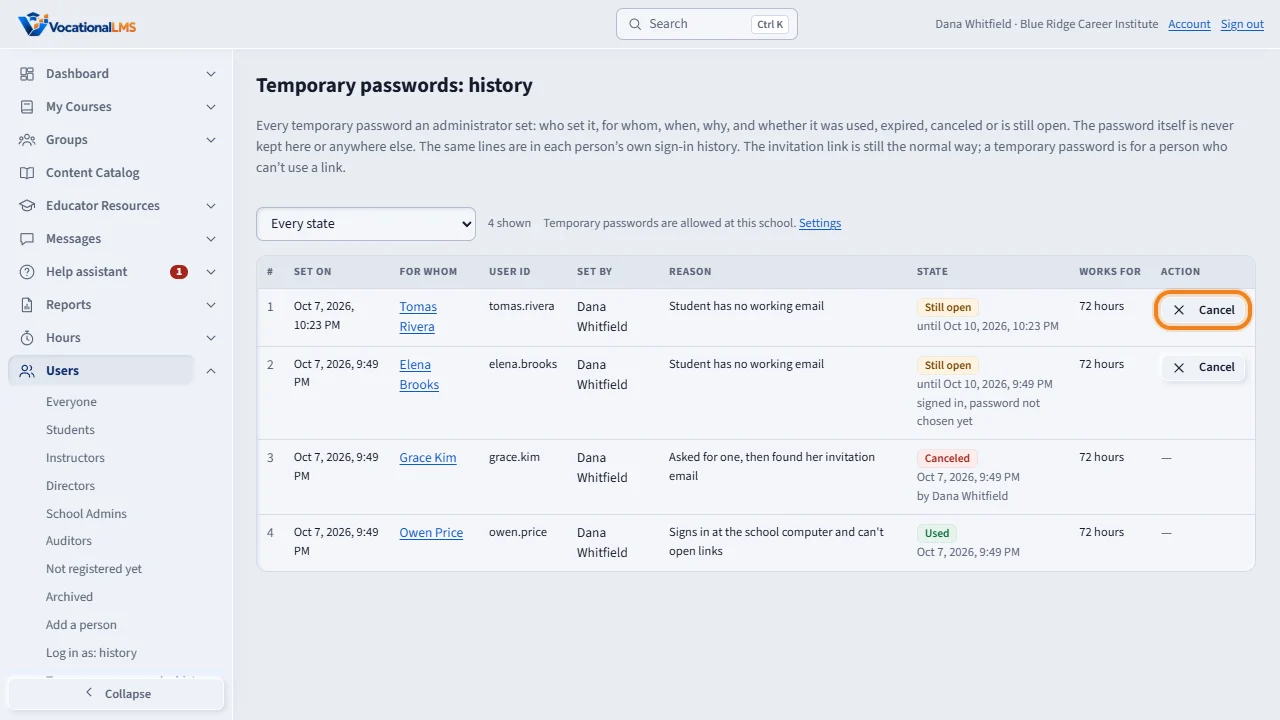
Every temporary password is on the page Temporary passwords, history, under Users in the menu on the left. It shows who set it, for whom, when and why, and whether it was used, expired or canceled. The password itself is never kept. To stop one that is still open, click Cancel. Then send that person an invitation link.
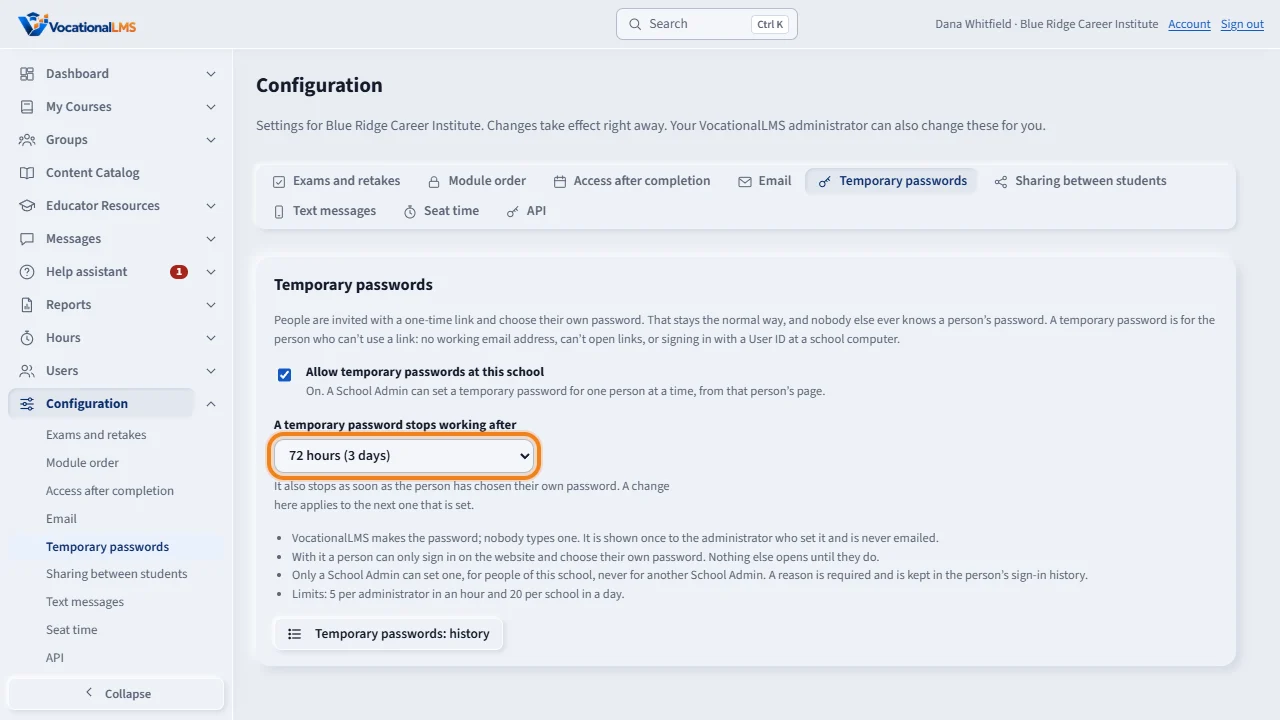
On the Configuration page, the tab Temporary passwords has two settings. You can turn temporary passwords off for your school, and you can choose how long one works: twenty-four hours, seventy-two hours or seven days. Remember: the invitation link is the normal way. A temporary password is for a person who needs it.
Open this in VocationalLMSUsers > a person > Temporary password
Who can do this: The School Admin, for the people of the school, one person at a time. Not for another School Admin: ask your VocationalLMS administrator. Not for an archived account or an account that is turned off. A Director, an instructor and an auditor cannot set one.
What it is for
The normal way has not changed: you add a person, they get an invitation link, and they choose their own password. Nobody at the school ever knows it. Some people cannot use a link: a student with no working email, a person who cannot open links, or a person who signs in with a User ID at a school computer. For them you can set a temporary password. VocationalLMS makes it, shows it to you once, and the person must choose their own password the first time they sign in. Use it only for a person who needs it.
Steps
Set a temporary password
- Open Users and click the person's name. A student's record or the person's page opens.
- In the Account panel on the right, click Set a temporary password.
- Read the rules in the box. Type the reason in Why does this person need a temporary password?, for example: Student has no working email. The reason is required.
- Tick I will give this password only to the person, and click Make the temporary password.
Give it to the person
- The temporary password shows in a box, for example Maple-river-stone-427: three words and three numbers, with dashes. The first letter is a capital.
- Click Copy, or click Print a slip for a small slip with the school name, the person's name, their User ID, the temporary password and when it stops working.
- Give it to the person only, in person or by phone. Then click Done, I have given it to them.
- This is the only time it is shown. When you close the box nobody can look it up, not even you. If it is lost, set a new one.
What the person does
- They sign in on the VocationalLMS website with their User ID or their email, and the temporary password.
- The page Choose your own password opens. Nothing else opens until they have chosen one.
- They type a new password two times and click Save my password. From then on they sign in with their own password.
See the history, or cancel one
- Open Users in the menu on the left and choose Temporary passwords: history under it.
- Each line shows when it was set, for whom, by whom, the reason, and the state: Still open, Used, Expired, Canceled or Replaced.
- To stop one that is still open, click Cancel, then click it again. The person then has no password: open their page and click Resend invitation.
Turn it off, or change how long one works
- Open Configuration and click the tab Temporary passwords.
- Untick Allow temporary passwords at this school to turn them off for your school.
- Under A temporary password stops working after choose 24 hours, 72 hours (3 days) or 7 days. The change applies to the next one you set.
What happens next
The person is signed out everywhere, and the password they had stops working. A temporary password works for 72 hours unless you chose another time, and it stops as soon as the person has chosen their own password. An expired one gives the same message as any wrong password. You cannot type the password yourself, and it is never sent by email or text. If the person has an email address and email is set up, they get an email that says a temporary password was set, by which school and when. The email does not contain the password. Your name and your reason are written in the person's Login history, with a line when it is used, when it expires and when it is canceled. The phone app does not accept a temporary password: the student chooses their own password on the website first. You can set 5 in an hour, and a school can set 20 in a day.
Common problems
| # | Problem | What to do |
|---|---|---|
| 1 | There is no button Set a temporary password. | Only the School Admin sees it. It is not shown for another School Admin, for an archived account, for an account that is turned off, or when temporary passwords are turned off on the Configuration page. It is not on the bar for several people of the Users list: it is for one person at a time. |
| 2 | You closed the box before you copied the password. | It cannot be shown again. Click Set a temporary password again to make a new one. The first one stops working. |
| 3 | “You have set 5 temporary passwords in the last hour.” | That is the limit for one administrator. Try again later, or send the invitation link instead. |
| 4 | “20 temporary passwords were set at this school in the last 24 hours.” | That is the limit for one school. Try again tomorrow, or send the invitation link instead. |
| 5 | The person says the temporary password does not work. | Check the capital first letter and the dashes. Open Temporary passwords: history: if the state is Expired, Canceled or Replaced, set a new one. |
| 6 | The person did not ask for one and got the email. | Open Temporary passwords: history to see who set it and why. Click Cancel if it is still open, then send the person an invitation link. |
| 7 | The student cannot sign in to the phone app. | The app asks them to sign in on the website first and choose their own password. After that the app accepts the new password. |