
A-68For School Admins and Directors
The icons on your screens
The small line drawings on the buttons of the staff pages: what each one means, and where to find Edit, Archive, Delete, Add, Download and Print.
How-to video A-68 · 1:19
Read the words of this video
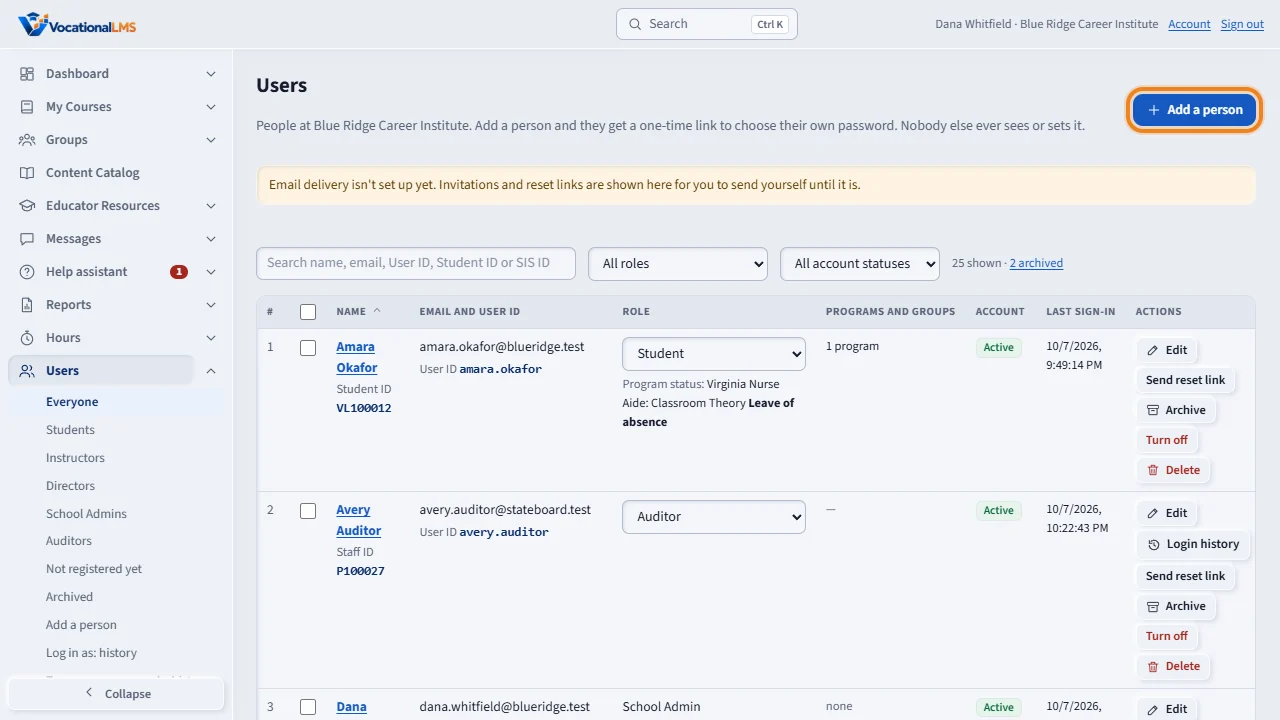
The buttons on your staff pages now carry a small line icon next to their words. The icons are the same on every page and on every device. Here on the Users page, the plus sign means Add: Add a person.
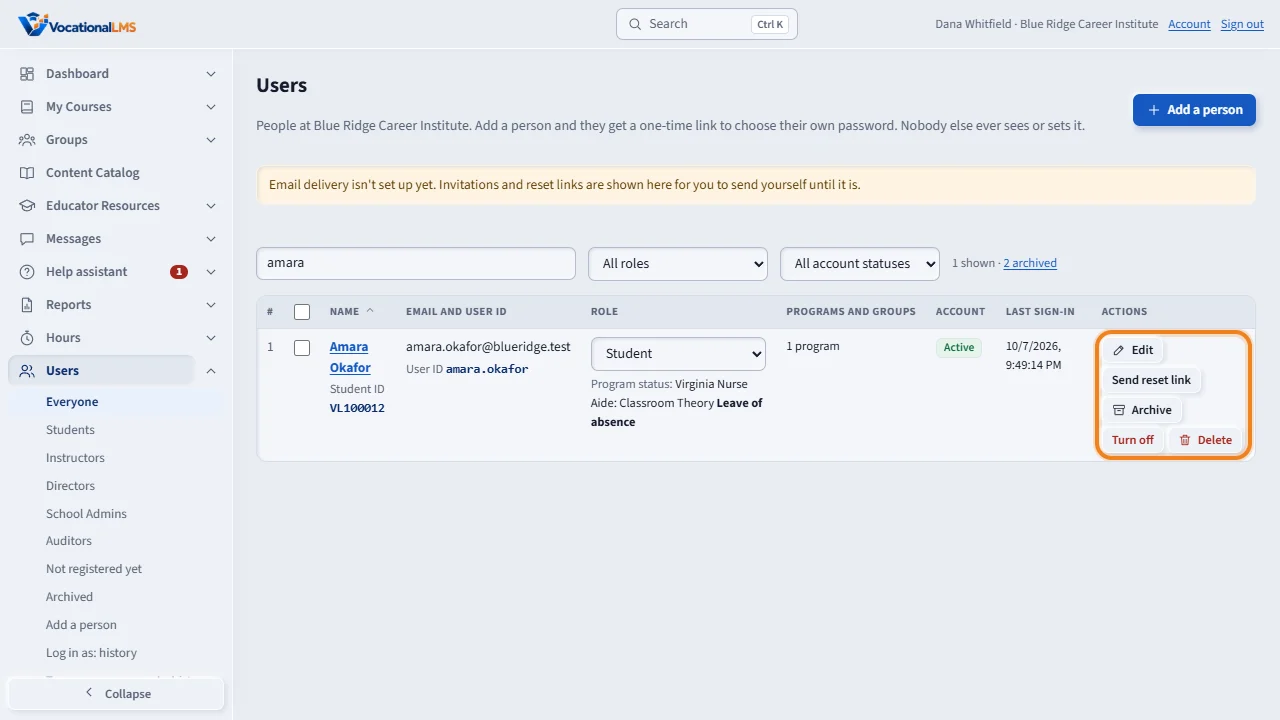
Each person has the same actions. The pencil is Edit. The box is Archive: it puts a person away and keeps all of their records. The red trash can is Delete, and it always asks you to click a second time. The words are still on every button.
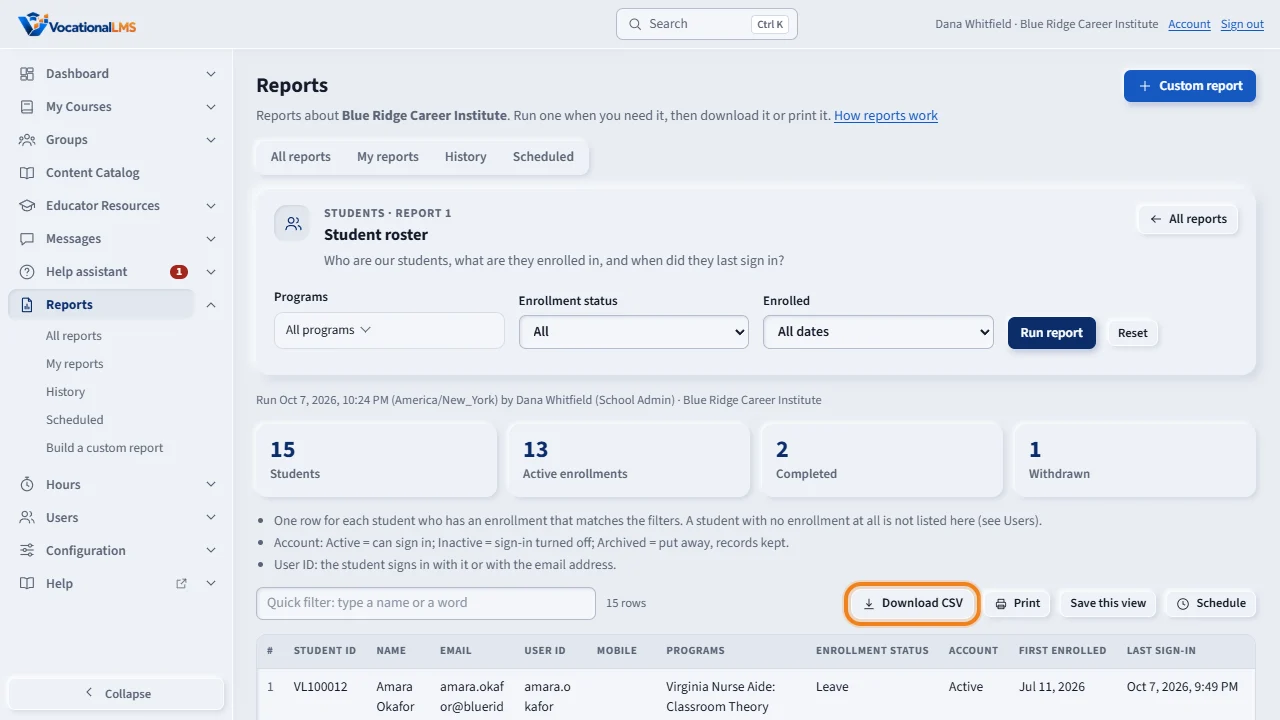
On a report, the arrow that points down to a line is Download: it saves the file to your computer. The printer next to it is Print. You will find these two icons wherever a page can be downloaded or printed.
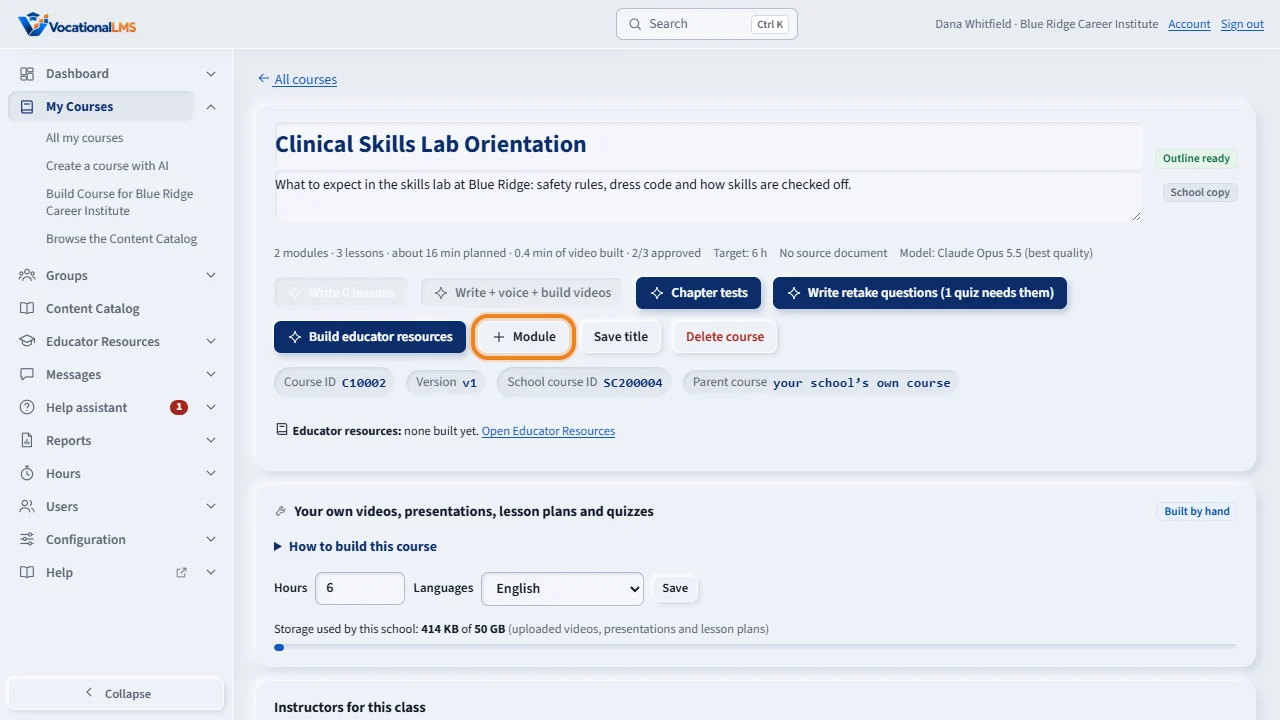
On a course page, the plus sign adds a module. A four-point star means the AI writes something for you; those buttons use AI credits. Lower on the page, small arrows move a lesson up or down, and a trash can deletes it.
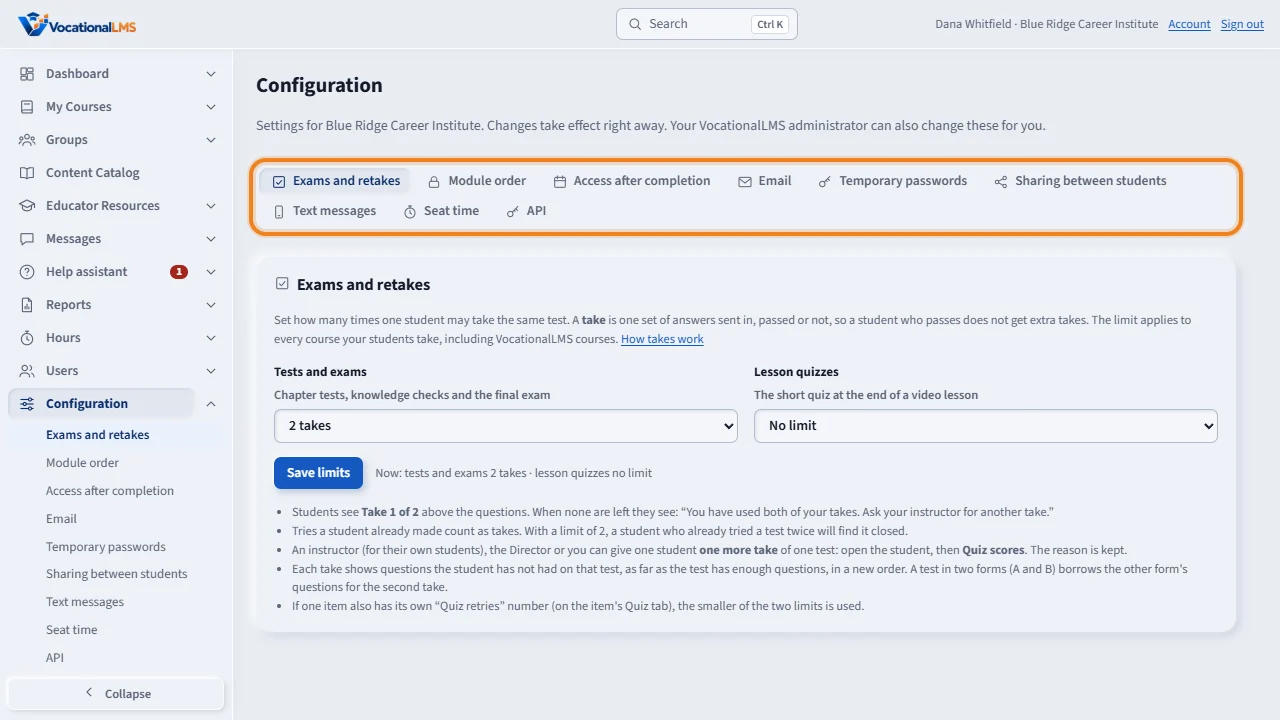
Tabs and menus have icons too, for example on the Configuration page. If you are ever not sure what a button does, rest your mouse on it: a short sentence tells you. An icon never replaces the words.
Who can do this: Everyone who works in the Studio sees the icons: School Admins, Directors, instructors, auditors and reviewers. The students' pages keep their own look.
What it is for
The buttons, tabs and menus of the staff pages carry a small line icon next to their words: a pencil for Edit, a box for Archive, a trash can for Delete, a plus sign for Add, an arrow down to a line for Download, a printer for Print. The icons are the same on every staff page, on a computer and on a phone, and they take the color of their button. They replace the small color pictures (emoji) that looked different on every device. An icon never stands in for the words: every button still says what it does, and every button still shows a short explanation when you rest the mouse on it.
Steps
The actions you use most
- Pencil: Edit. Change something: a person on Users, a question, a reading. Where a pencil says Edited, a click shows what was changed.
- Box: Archive. Put a person away and keep all of their records. Arrow turning back: Restore brings them back, and on other pages it puts an earlier version back.
- Trash can: Delete. It is red. A delete always asks you to click a second time first.
- Plus sign: Add. Add a person, a module, a question, a campus, a key.
- Arrow down to a line: Download. Save a file to your computer, for example Download CSV on a report. Arrow up from a line is Upload.
- Printer: Print. Print the page, or save it as a PDF from the print window.
Other icons you will meet
- Check mark: approve, or done. After you click Save, the button shows a check mark and the word Saved for a moment.
- Hourglass: the page is working on what you asked. Wait for it to finish.
- Four-point star: the AI writes something for you. These buttons use AI credits, and each one says so when you rest the mouse on it.
- Lock: staff only, or locked. Triangle with an exclamation mark: something needs your attention. Flag: look at this line.
- Arrows up and down: move a line one place. X: remove a line or close a box. Square with an arrow: the link opens in a new tab.
- Star on a report: keep it in My reports. A filled star is a report you starred.
- On a table, a small arrowhead next to a column heading shows which column the table is sorted by; click the heading to turn the order around.
If you are not sure what a button does
- Rest the mouse on the button. A short sentence says what it does. On a phone, press and hold.
- A button that has only an icon and no words (the arrows that move a line, the X that removes one, the star) has the same sentence.
- Nothing happens until you click, and anything that cannot be undone asks you to click twice.
What happens next
The words on the buttons did not change, so the other help articles still name each button by its words. Some pictures in older help articles still show the earlier color pictures; they are replaced as those articles are recorded again. A few screens are still being moved to the new icons: Groups, Seats and billing, and PayPal.
Common problems
| # | Problem | What to do |
|---|---|---|
| 1 | An icon looks too small. | Hold Ctrl and press the plus key to make the whole page larger in your browser. Ctrl and 0 puts it back. The icons grow with the words. |
| 2 | A button shows an hourglass and does not come back. | The page is waiting for the server. Give it a few seconds. If nothing changes, check your internet connection, then open the page again from the menu. |
| 3 | I do not see Edit, Archive or Delete on the Users page. | Those are for the School Admin. A Director and an auditor see the list and an Open button for each person. |
| 4 | The students' pages look different. | Yes. The students' pages keep their own look for now. |