
A-66For School Admins and Directors
User IDs: sign in with a User ID or an email
Every person has a short User ID next to their email. They sign in with either one. Where to see it, how it is made, and how to change it.
How-to video A-66 · 1:19
Read the words of this video
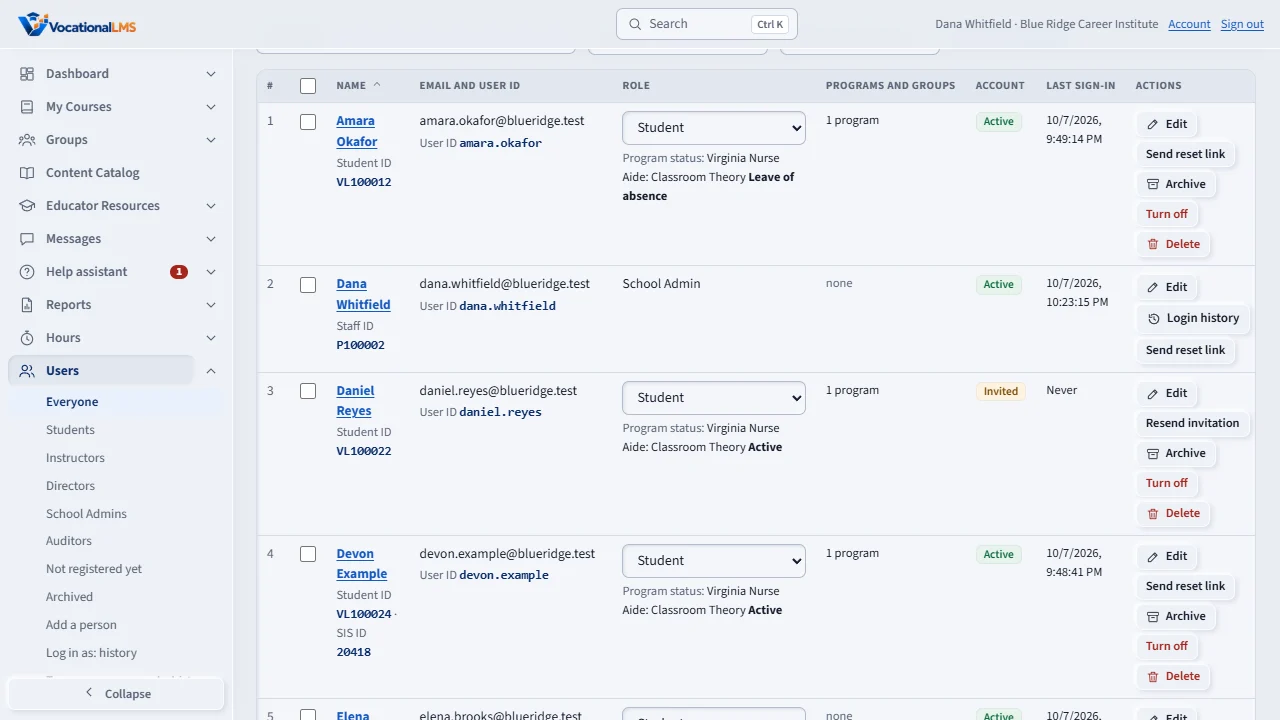
Every person on VocationalLMS has a User ID, a short name such as maya dot thompson. On the Users page it shows under the person's email. You can type a User ID in the search box to find someone.
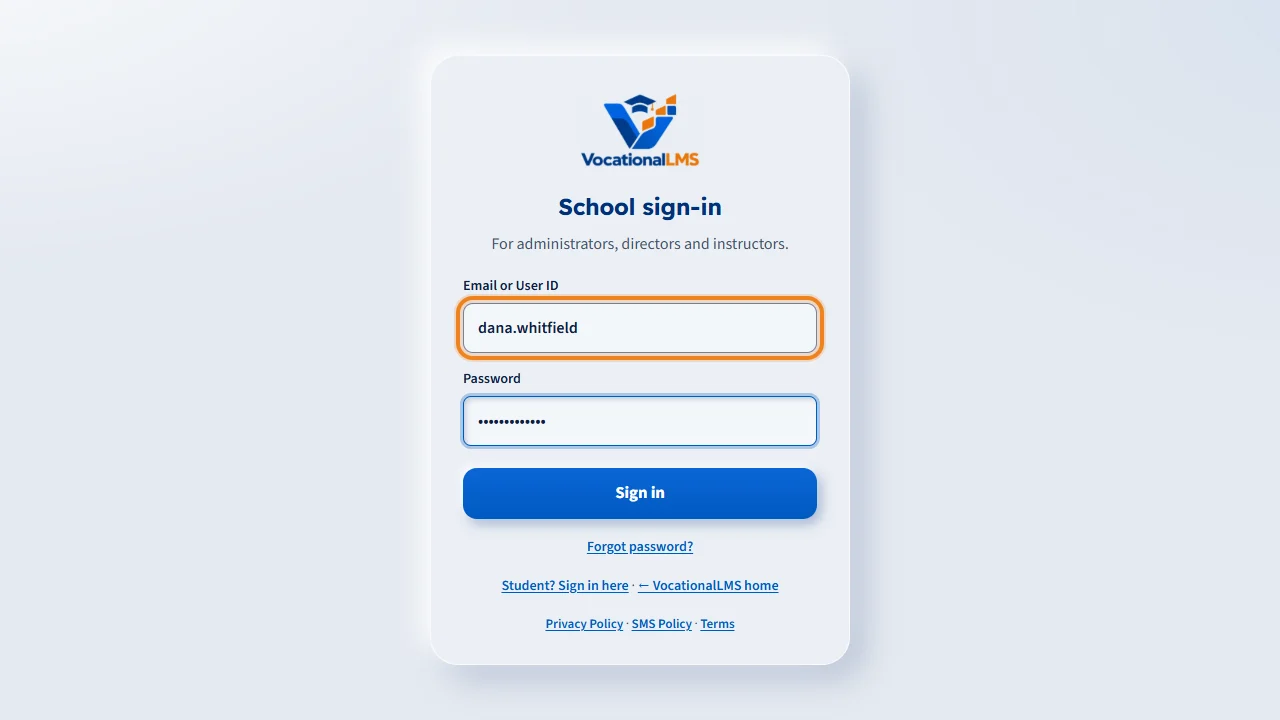
A person signs in with their email address or their User ID, and the same password. Either one works, and capital letters make no difference.
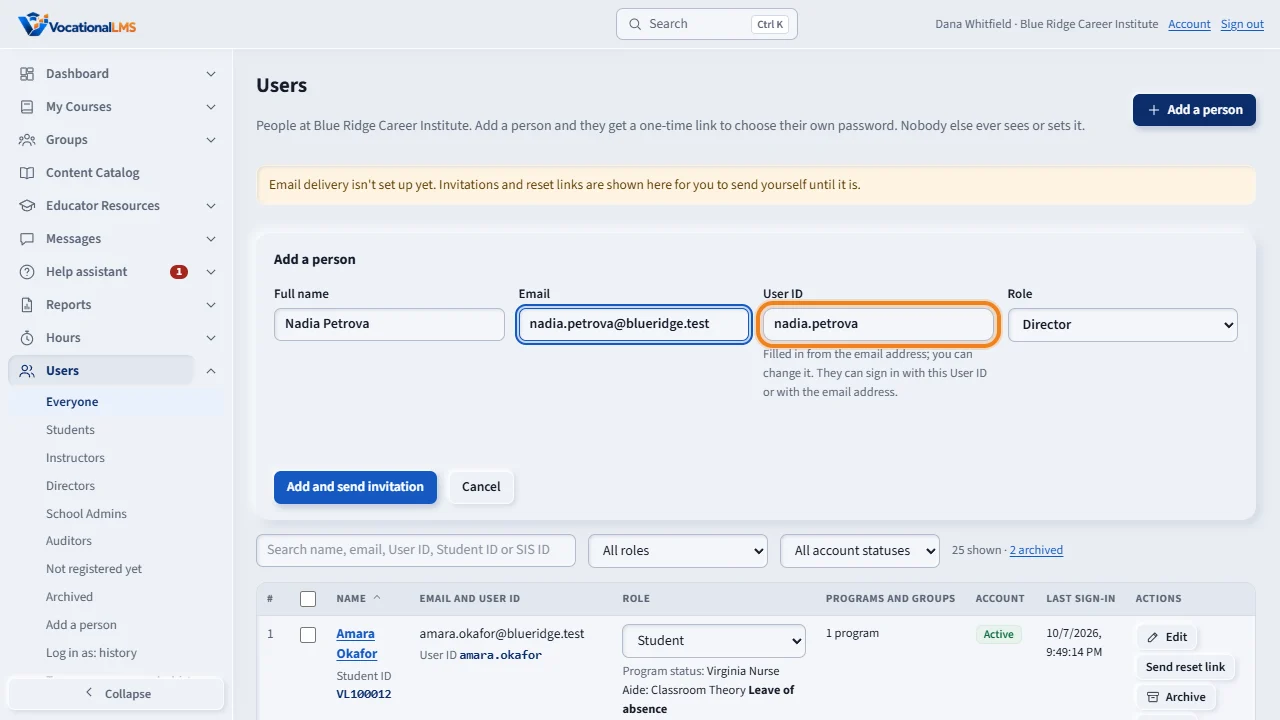
When you add a person, the User ID box fills in by itself while you type the email. It is the part of the email before the at sign. If another person already has that name, a number is added. Leave it, or type the User ID you want, then click Add and send invitation.
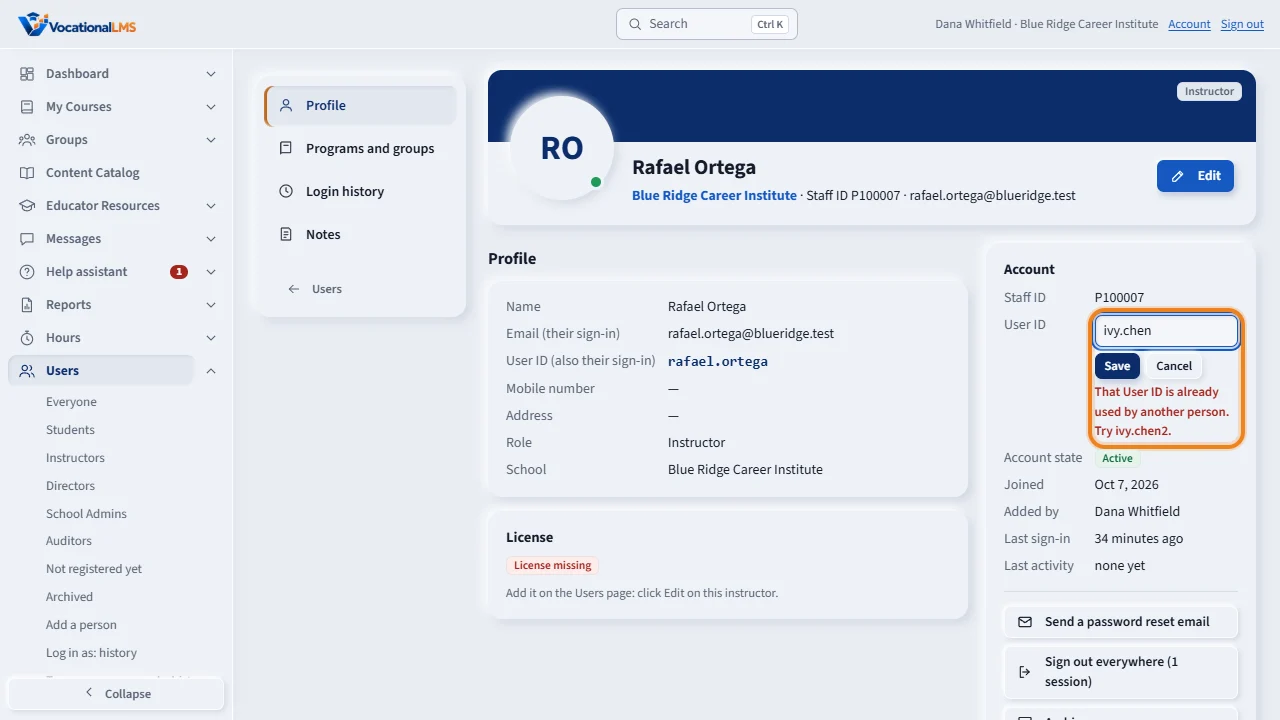
To change a User ID, open the person's page. In the Account panel, next to User ID, click Change, type the new one and click Save. No two people can have the same User ID, so if somebody already has it, the page says so and offers one that is free.
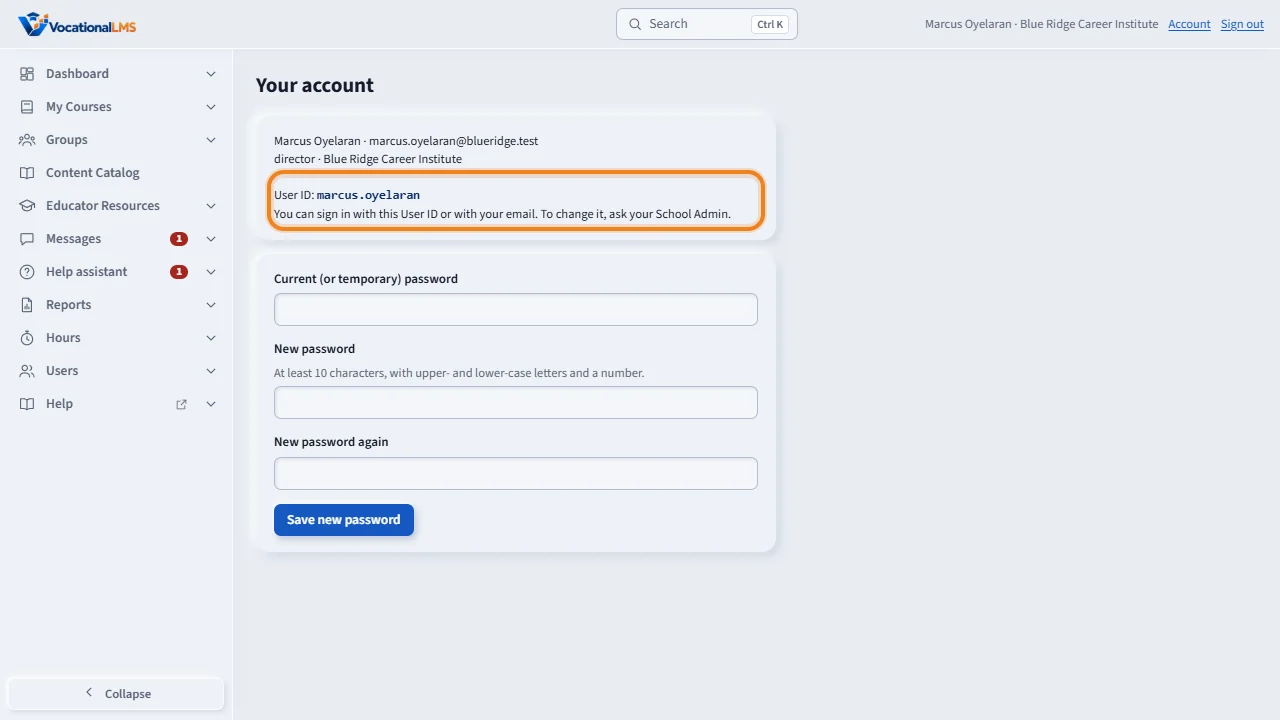
Each person sees their own User ID on their account page. Only the School Admin can change it. The email and the password stay the same, and every change is written in the person's login history with your name.
Open this in VocationalLMSUsers > a person > User ID
Who can do this: The School Admin sees and changes the User ID of every person of the school. An instructor and a student see their own on their account page and cannot change it. The VocationalLMS Super Admin can change anyone's.
What it is for
Every person on VocationalLMS has a User ID: a short name such as maria.lopez. A person signs in with their email address or their User ID, and the same password. VocationalLMS makes the User ID from the part of the email before the @ when you add the person, and you can change it. No two people can have the same User ID, in your school or in any other school, because the sign-in page does not ask for a school.
Steps
See a person's User ID
- Open Users. The column Email and User ID shows the email and, under it, the User ID.
- Type a User ID, or part of one, in the search box above the list and press Enter to find the person.
- A person's page and a student's record show it in the Account panel. The reports Student roster, Sign-in history and Sign-in summary by person have a User ID column.
Give a User ID when you add a person
- On Users click Add a person. Type the full name and the email.
- The box User ID fills in by itself while you type the email. If another person already has that name, a number is added, for example maria.lopez2.
- Leave it as it is, or type the User ID you want. Then click Add and send invitation. The invitation tells the person their User ID.
Change a User ID
- Open the person's page, or the student's record (click the name on Users).
- In the Account panel, next to User ID, click Change.
- Type the new User ID and click Save. The person signs in with the new one from now on. Their email and their password stay the same, and they are not signed out.
- You can also change it in the box User ID of the Edit form on the Users page.
What happens next
A User ID has 3 to 40 characters: letters, numbers, dots, hyphens and underscores. It starts with a letter or a number and never has an @ in it. Capital letters make no difference: Maria.Lopez and maria.lopez are the same. The email still works for signing in, and password reset links always go to the email address. Each change is written in the person's Login history with the old User ID, the new one and your name. A person's User ID does not change by itself, also not when you change their email. Students can use the User ID in the VocationalLMS phone app too.
Common problems
| # | Problem | What to do |
|---|---|---|
| 1 | “That User ID is already used by another person. Try maria.lopez2.” | Another person, at your school or at another school, has it. Use the one that is offered, or type a different one. |
| 2 | “A User ID can't have an @ in it.” | An @ is for email addresses only. Type a short name without it. |
| 3 | “That User ID is too short.” | Use at least 3 characters. |
| 4 | A person forgot their User ID. | They can sign in with their email instead. You can read the User ID on the Users list and tell them. |
| 5 | “That email or User ID and password don't match.” | The sign-in page says the same sentence for a wrong email, a wrong User ID and a wrong password, so that nobody can test which accounts exist. Check each one, or use Forgot password. |
| 6 | There is no Change button. | Only the School Admin can change a User ID. A Director, an instructor and a student see it and cannot change it. |