
A-70For School Admins and Directors
Find anything: search the site
One Search box on every page: type what you want to do, and open the exact page, tab or setting. Each result also offers its how-to article and video.
How-to video A-70 · 1:47
Read the words of this video
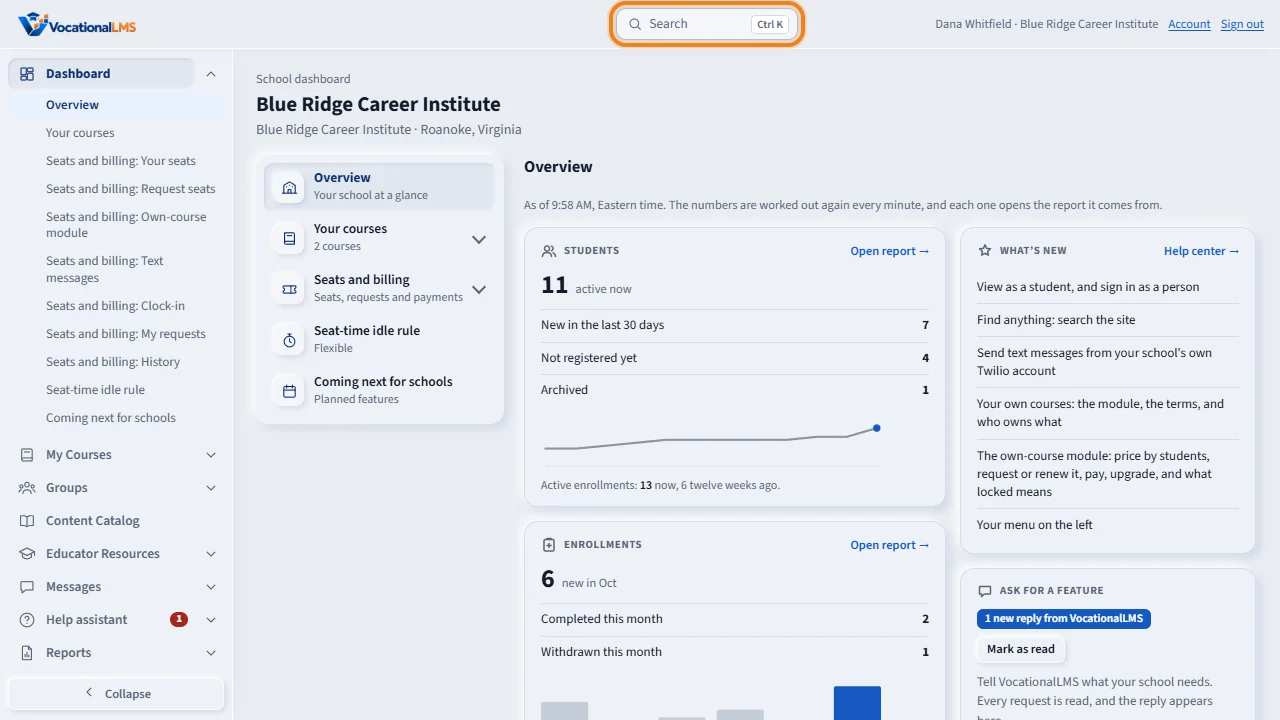
Every page has a Search box at the top. Click it, or press Control and K on your keyboard. The slash key opens it too.
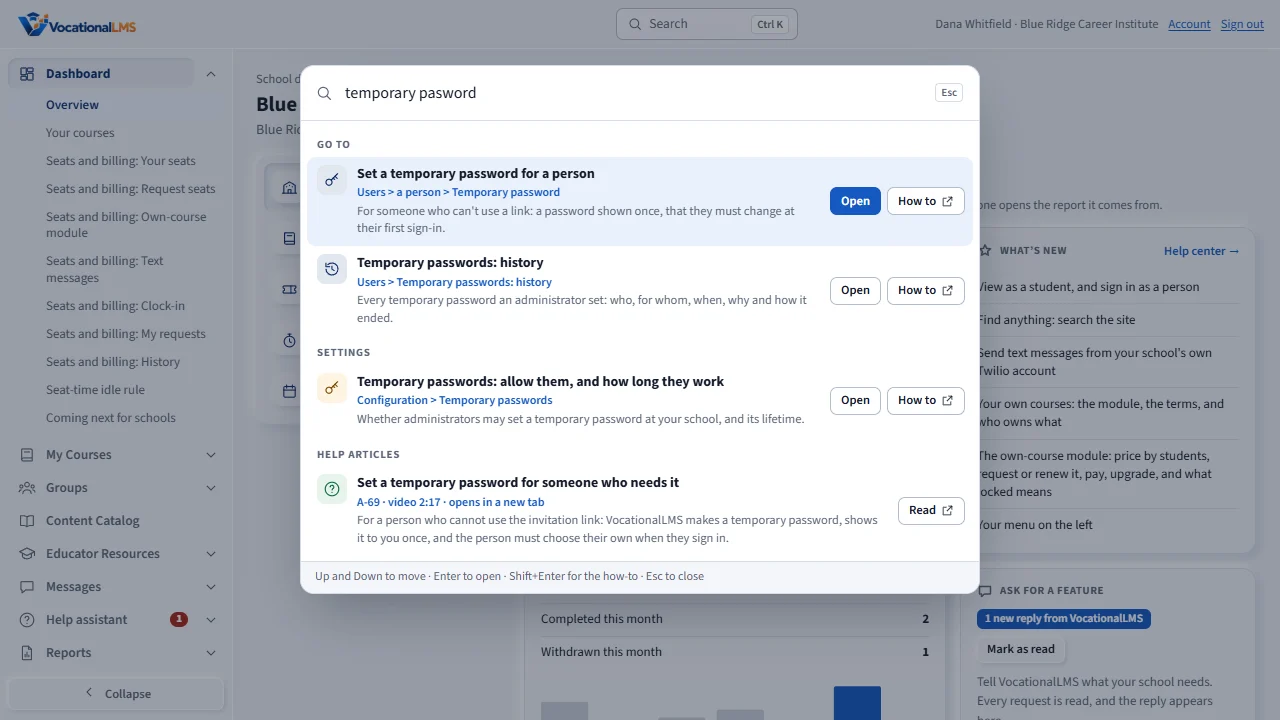
Type what you want to do, in your own words. A spelling mistake is fine. The results are grouped: Go to, for pages. Settings, for things you set. And Help articles. Under each title you see the place it lives.
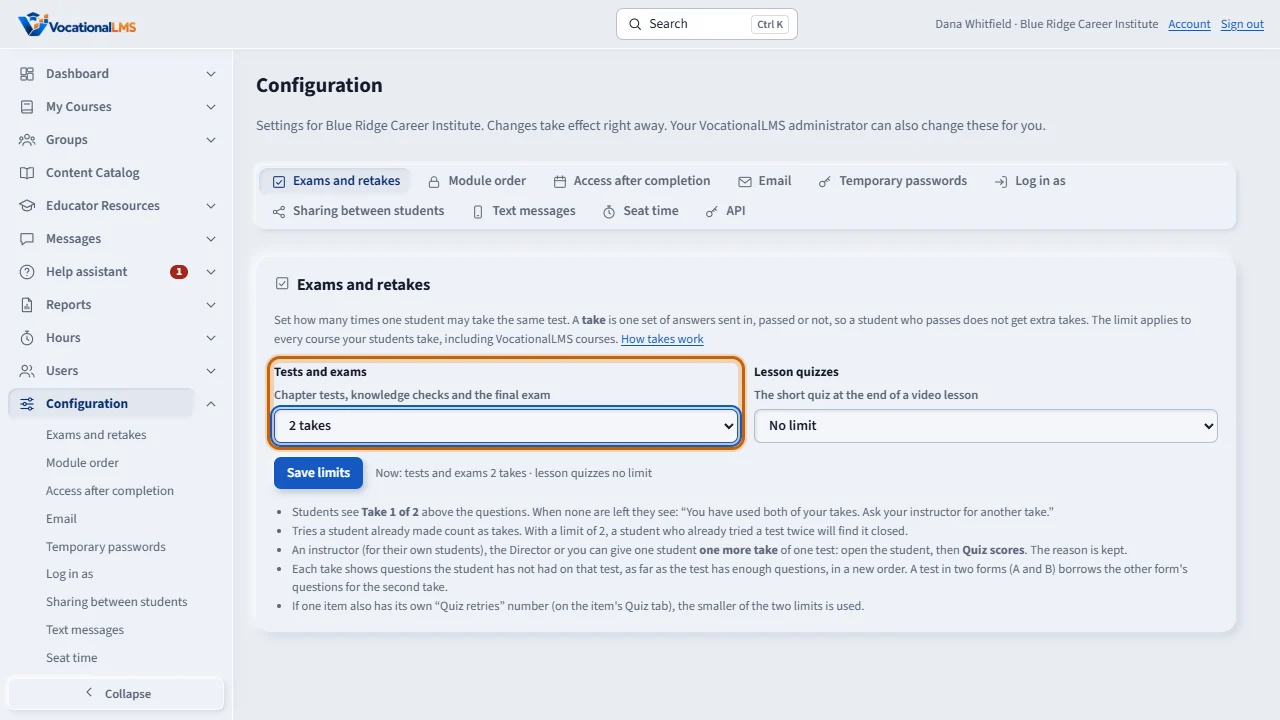
Click a result, or press Enter. The exact page and tab open, and the setting itself is marked with an orange outline for a few seconds.
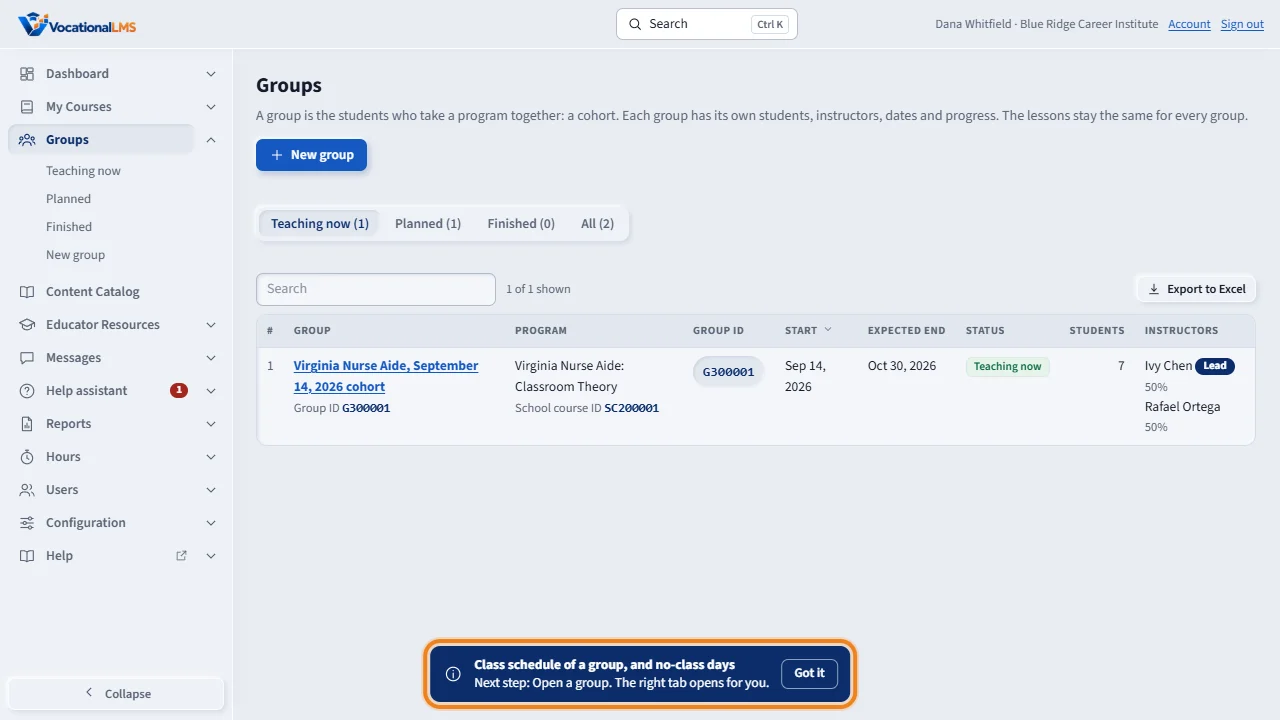
Some things belong to one group, one student or one course. The list opens, and a note says what to open. Open the group, and its Schedule tab opens for you.
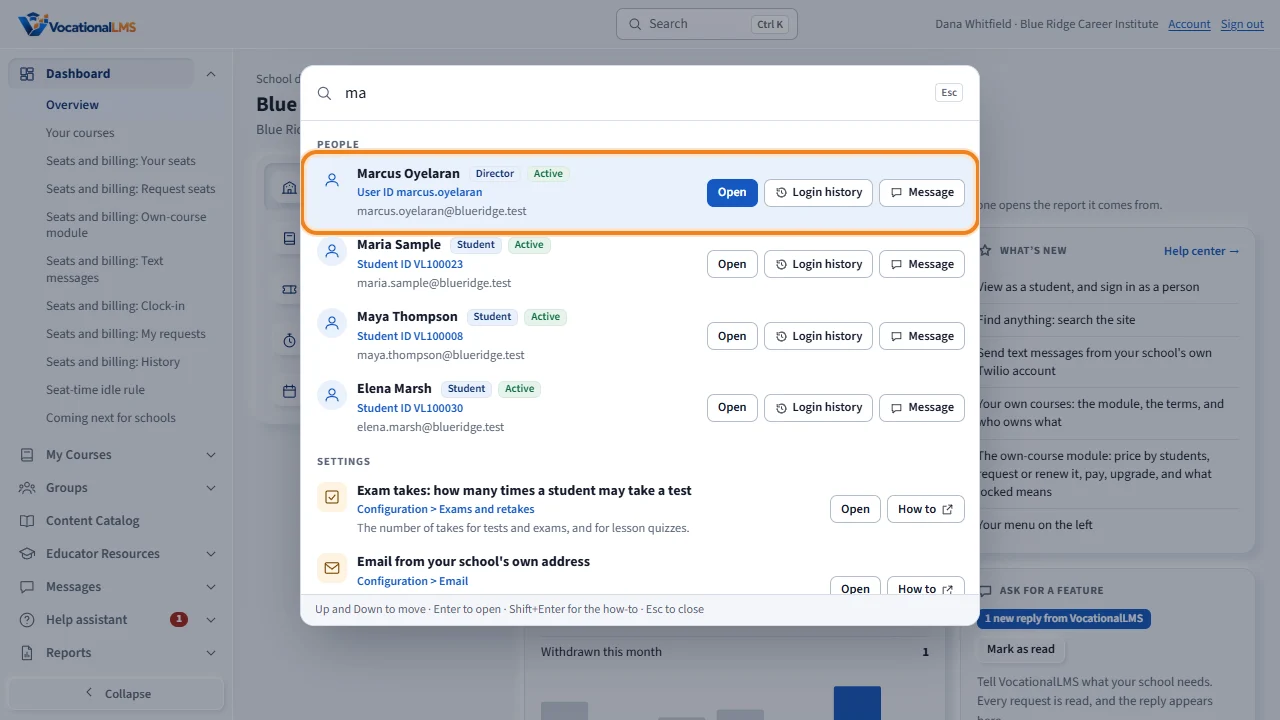
Type a name, an email address, a Student ID or a User ID, and the matching people come first: students and staff, each with their role, their ID and their account status. Open goes to the person's page, and Login history and Message are one click away. You find only the people of your school, by the same rules as the Users page.
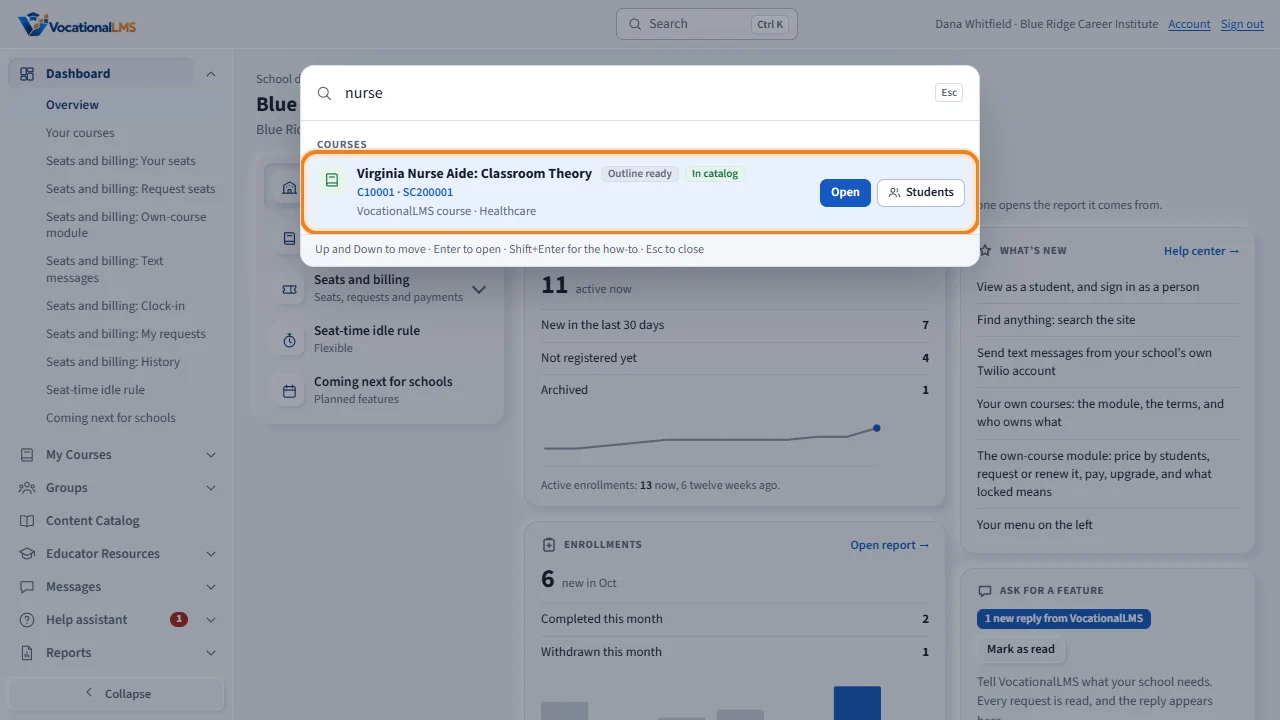
Type the name of a course, or its course ID, and the Courses group lists the matching courses your school has, each with its status, its ID and its hours. Open goes to the course page, and Students opens it at the Students panel. Groups are not searched by name: open them from the Groups list.
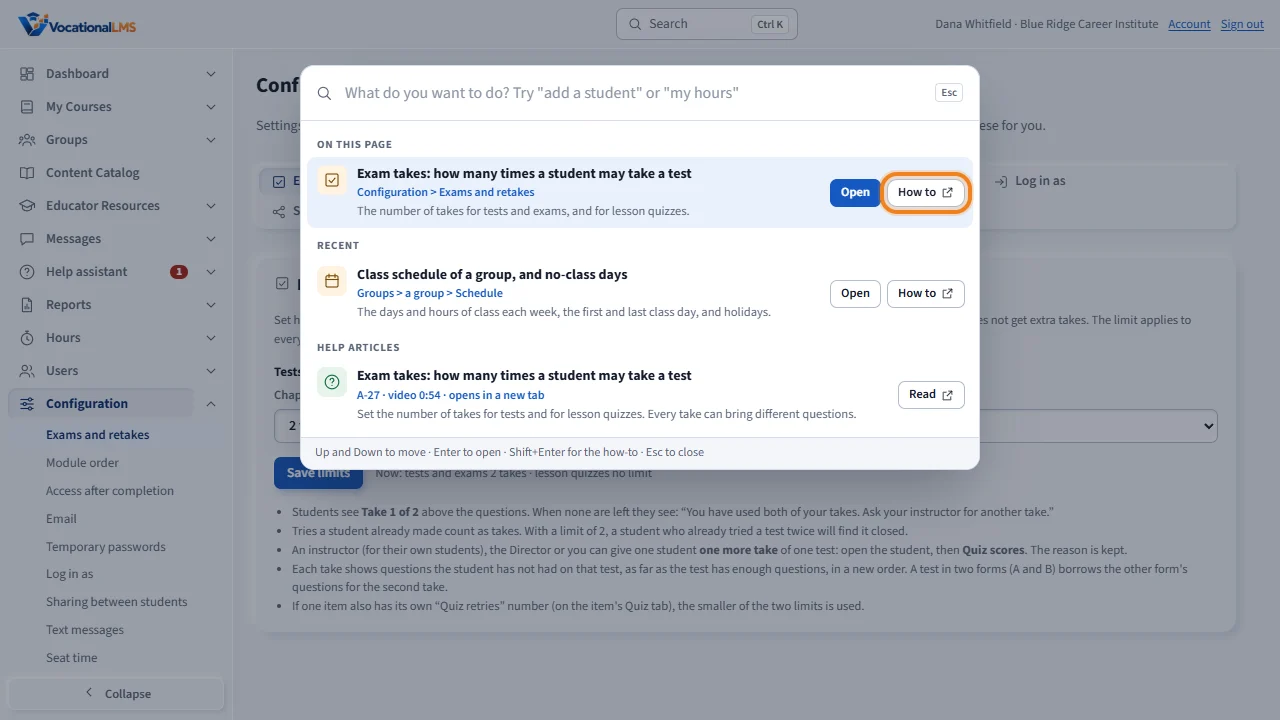
With an empty box, you see what belongs to the page you are on, and your recent picks. How to opens the help article with its video. You only see what your role and your school can open.
Who can do this: Everyone who signs in: School Admins, Directors, instructors and auditors. Each person sees their own list, and finds only the people they could open on the Users page.
What it is for
Every page has a Search box at the top. Type what you want to do in your own words, such as add a student, idle rule, temporary password or export attendance. You get a list of the matching pages and settings. Clicking one opens the exact place: the right page, the right tab, and the setting itself marked for a moment. The list holds only what your role and your school can open. Type a person's name, email, Student ID or User ID and the matching students and staff come first, under People, with their role and ID; one click opens the person's page. Type a course's name or its course ID (such as C10009) and the matching courses of your school come under Courses, with their status and hours; Open goes to the course, Students straight to its Students panel.
Steps
Search
- Click Search at the top of any page. On a keyboard, press Ctrl and K together (Cmd and K on a Mac), or press the / key.
- Type what you want. A spelling mistake is fine, and the words can be in any order.
- The results are in groups: Go to (pages and lists), Settings (things you set) and Help articles. Under each title is the place it lives, such as Configuration > Exams and retakes.
- Click a result, or click Open. With the keyboard, use the Up and Down arrows and press Enter.
- The page opens at the exact place, and the setting has an orange outline for a few seconds.
- Type a name, email, Student ID or User ID to find a person. The People group lists the matching students and staff first, each with their role, their ID and their account status (an archived person is marked). Open goes to the student's record or the person's page; Login history and Message are one click away; See all in Users opens the Users page with your search typed in.
- Type the name of a course, or its course ID (such as C10009, or your School course ID SC200001), to find a course. The Courses group lists the matching courses your school has (the VocationalLMS courses it was given and its own), each with its status, its ID and its hours. Open goes to the course page; Students opens it at the Students panel. Groups are not searched by name: open them from Groups.
Something that belongs to one group, student or course
- Some results, such as Class schedule of a group, belong to one record. The list opens, and a note at the bottom says what to open.
- Open the group (or the student, or the course). The right tab opens for you. Click Got it to hide the note.
Get help on a result
- Click How to beside a result. The help article opens in a new tab, with its video.
- With the keyboard, press Shift and Enter on a result.
With an empty box
- Open Search and type nothing. On this page lists what belongs to the page you are on. Recent lists what you opened last from the search, on this device.
What happens next
Press Esc to close the box. If nothing matches, the box says so and offers the Help center and Request a feature. The search finds pages, settings, help articles, people and courses. People are found by the same rules as the Users page: you find only your school's students and staff, and an instructor finds only the students they teach. Courses are found by the same rule as My Courses: only the courses your school has. Groups are not searched by name: open them from the Groups list.
Common problems
| # | Problem | What to do |
|---|---|---|
| 1 | A page you expected is not in the results. | The list holds only what you can open. A setting may be for the School Admin only, or it may belong to a module your school does not have, such as Clock-in. Search for the module's name to see how to request it. |
| 2 | Ctrl and K does nothing. | Click the page once, then try again. Or click Search at the top, or press /. |
| 3 | You typed a person's name and nobody was found. | Type at least two letters, the start of a first or last name, the start of the email, the Student ID (such as VL100014) or the User ID. You find only the people you could open on the Users page: your school's students and staff, and for an instructor only their own students. Archived people are found too, marked Archived. |
| 4 | You typed a course's name and no course was found. | Type at least two letters, the start of a word of the title, or the course ID. You find only the courses on your My Courses page: the VocationalLMS courses your school was given and the courses your school built. A course in the Content Catalog that your school does not have yet is not found: open the Content Catalog. |
| 5 | The page opened but nothing was marked. | The setting may need another choice first, such as a program. The page is still the right one. |