
S-03For students
My courses and your lesson language
Find your course, your modules and your next lesson. Switch everything between English and Español with the switch at the top of every page.
How-to video S-03 · 1:34
Read the words of this video
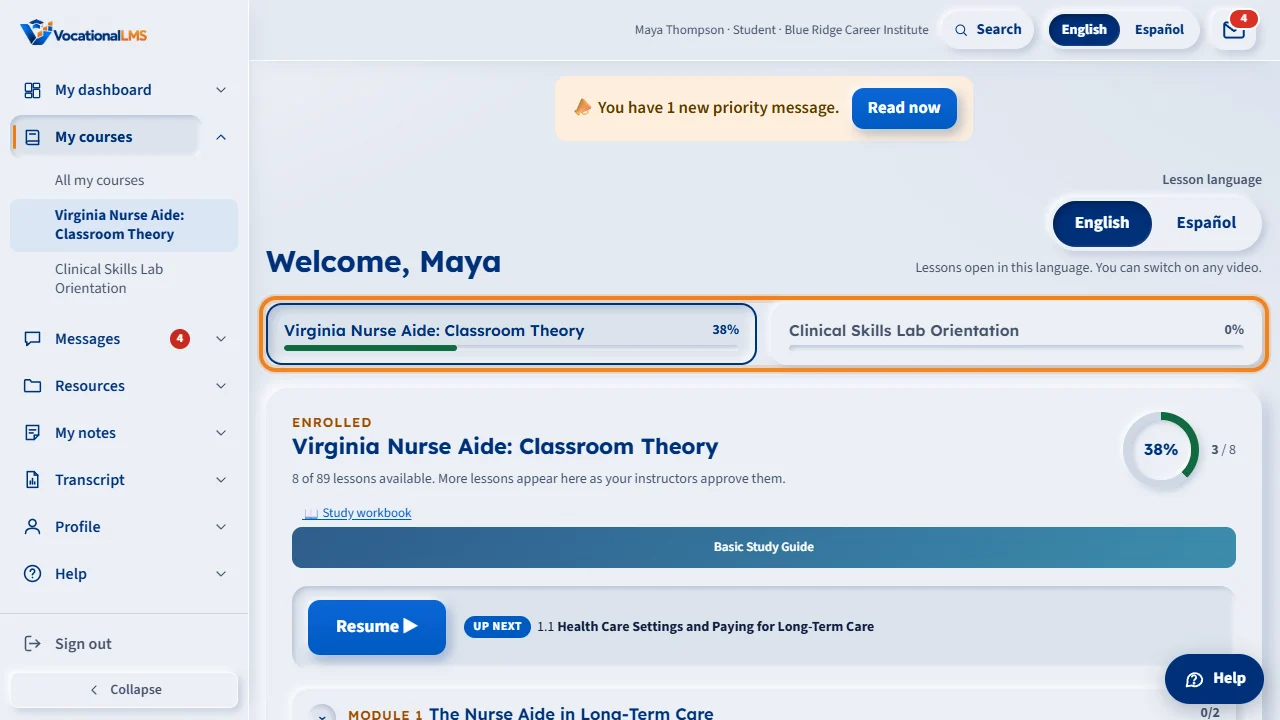
My courses is your home page. It lists only the courses your school enrolled you in. If you take more than one course, each course has a tab that shows how much of it is done. Click a tab to see that course. The page remembers the last tab you used.
The ring shows your progress in the course. Click Resume to open the item marked Up next. That is always the first item you have not finished.
Each module opens and closes when you click its row, and shows how many of its items are done. Every item has a number, such as 3.4 or 3.5 a, and a check mark when it is done. Click any item to open it. New lessons appear as your instructors approve them.
Under Lesson language, choose English or Español. The choice is saved to your account, so your lessons open in that language on any device. You can still switch inside a lesson. If a lesson has no Spanish version yet, it plays in English.
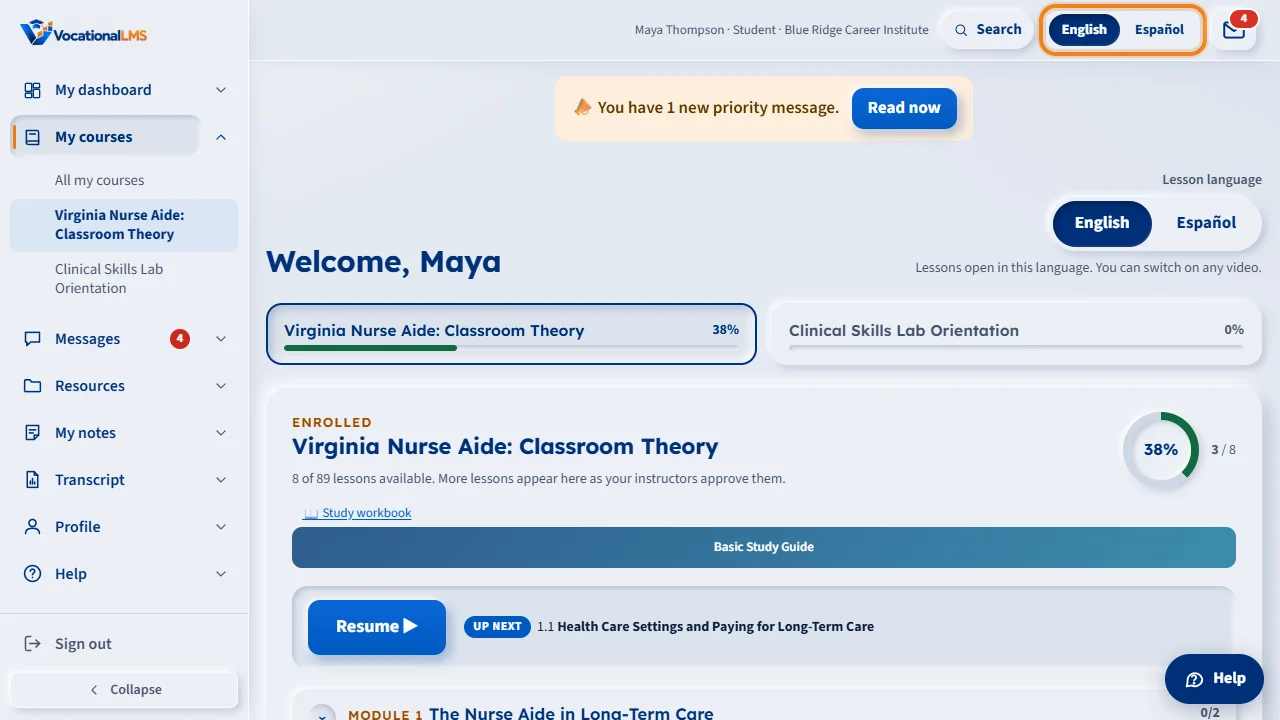
English and Español are also at the top of every page. Click one, and the menu, the page and your lessons change to that language at once, without loading the page again. On a video lesson the video keeps its place. Your choice is saved, so it is the same on your phone.
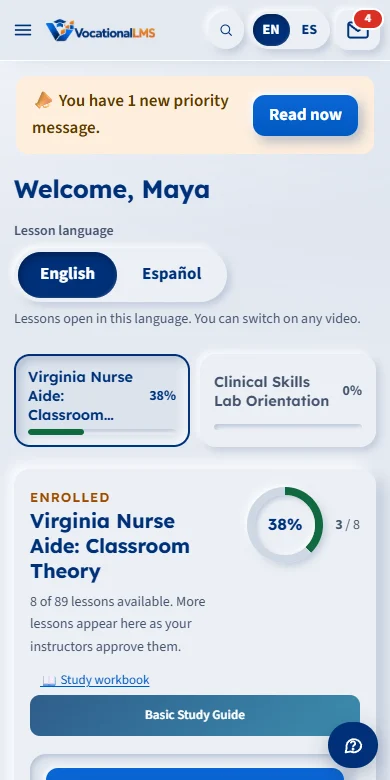
The same page works on a phone. The menu, the tabs and the lesson list fit the small screen, and there is nothing to install.
Open this in VocationalLMSMy courses
What it is for
My courses is your home page. It lists only the courses you are enrolled in, and only the lessons your instructors have approved. If you take two or more courses, each one has its own tab.
Steps
- Click My courses in the menu on the left. Its small arrow lists each of your courses, so you can open one directly.
- If you see tabs with course names, click the tab of the course you want. Each tab shows how much of the course is done.
- Click Resume to open the item marked Up next.
- To look around, click a Module row to open or close it. The module with your Up next item is already open. The first time you open another module, its items load in a moment (you may see Loading the lessons… inside it); after that it opens at once. Each item has a number (3.4, 3.5a), and a check mark when it is done. Click any item to open it.
- To change the language, click English or Español in the switch at the top of any page (on a phone it says EN and ES). The menu, the page and your lessons change at once, and the choice is saved to your account. The switch under Lesson language on My courses does the same.
What happens next
A program you have completed stays on My courses for a while, to read and watch. It says Completed on the day you completed it and You can watch the lessons until the last day, for example Completed on Oct 7, 2026. You can watch the lessons until Nov 6, 2026. You get a notice seven days before the last day. If your school has scheduled a change for a later day, such as a leave of absence, a line under Scheduled changes tells you what will happen and when. Lessons open in the language you chose, on any device. You can still switch on any lesson. If a lesson has no Spanish version yet, Español is gray and the lesson plays in English. When you click another item in the course list, or Next, only the lesson area changes, with a soft fade: the page is not loaded again, and the menu, your clock and the course list stay where they are. The clock for the item you leave stops, and a new one starts for the item you open. The browser's Back button takes you to the item before.
Common problems
| # | Problem | What to do |
|---|---|---|
| 1 | “You are not enrolled in a course yet.” | Your school has not added you to a course. Contact your school. |
| 2 | A lesson you expect is not in the list. | Lessons appear when an instructor approves them. More appear over time. |
| 3 | “Your access to … ended on …” | You completed that program, and the time your school gives to watch its lessons afterwards is over. Your transcript, hours and scores are kept. If you need the lessons again, ask your school: click Message your school. |
| 4 | A completed program says “You can watch the lessons until …”. | That is the last day you can open it. You can read and watch, and no new study time or test is recorded. Ask your school if you need more time. |
| 5 | The page opened on a different course. | The page remembers the last tab you used on this device. Click the other tab. |
| 6 | A module has a lock on it. | It is not open yet. Hover over it or tap it to read what to finish first, for example “Finish Module 1 first. 3 items left.” Finish every item in the module before it and the next one opens by itself. Resume always takes you to the right item, and your instructor can open a module for you. |
| 7 | You chose Español but a lesson is still in English. | That lesson has no Spanish version yet. A note tells you so; the menu and your other lessons stay in Spanish. |
| 8 | A module says “The lessons could not be loaded.” | The connection dropped while its items were loading. Click Try again inside the module. The rest of the page keeps working. |