
A-56For School Admins and Directors
API keys and the school API
Make a key so that your school's own system can read your students, hours and scores from VocationalLMS and send hours to it.
How-to video A-56 · 1:05
Read the words of this video
An API key lets your school's own software read your students, hours and scores, and send hours, without a person signing in. Click Configuration, then the API tab. Treat a key like a password.
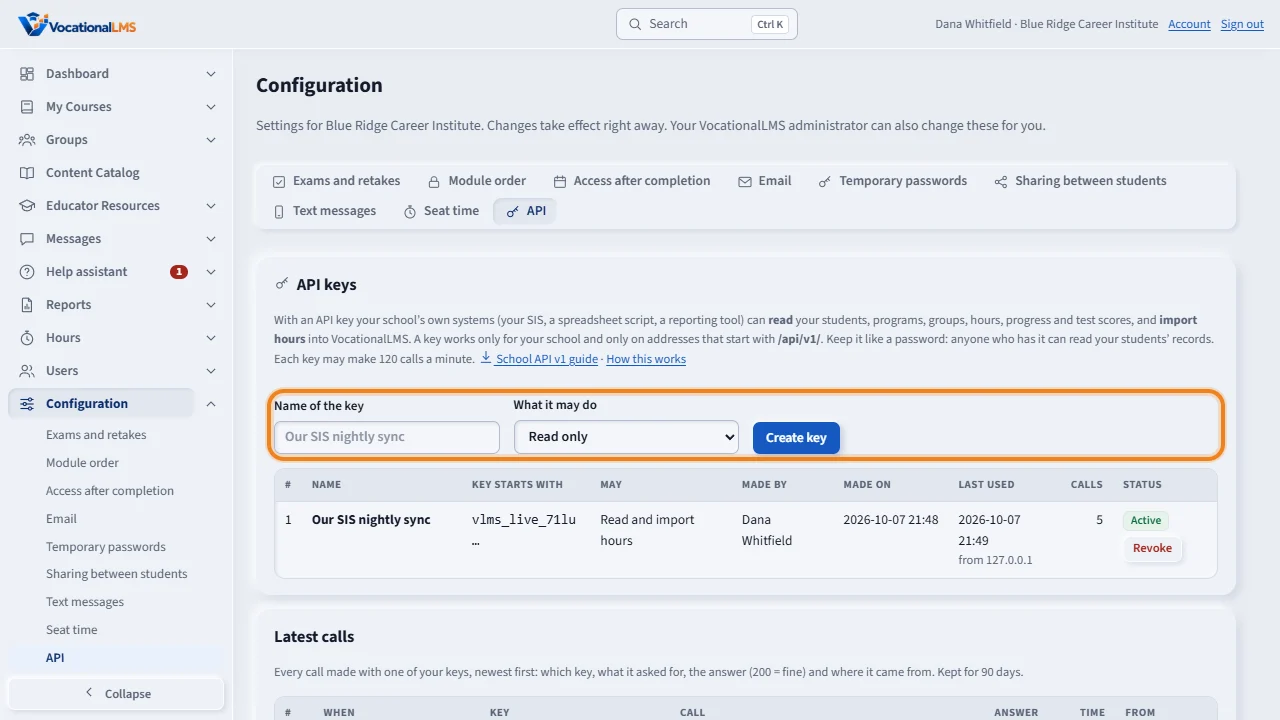
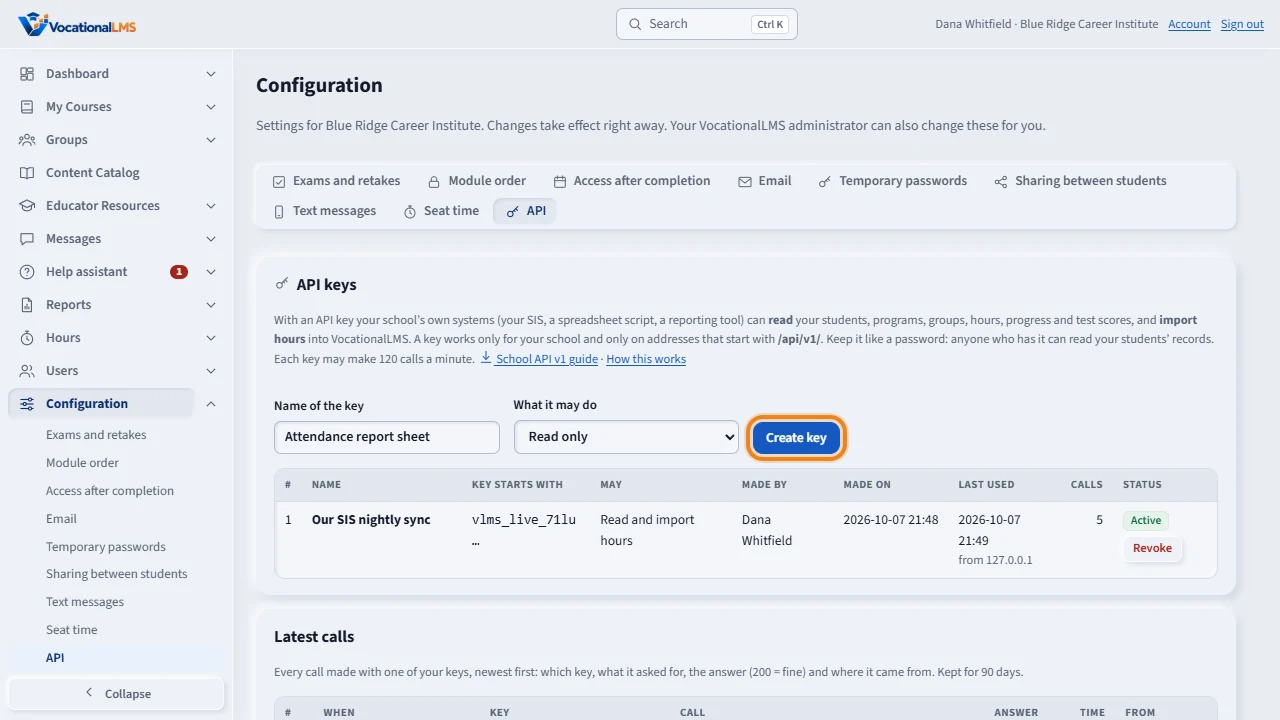
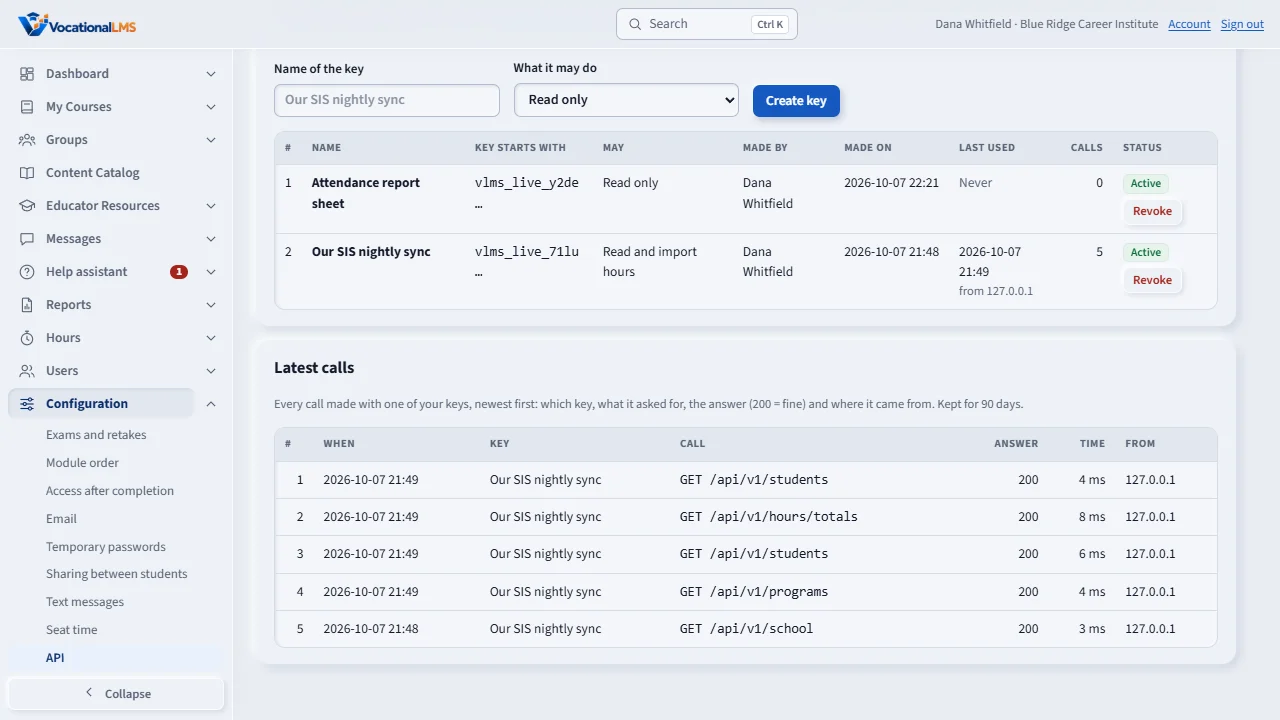
Type a name that says what uses the key. Under What it may do, choose Read only, or Read and import hours. Then click Create key.
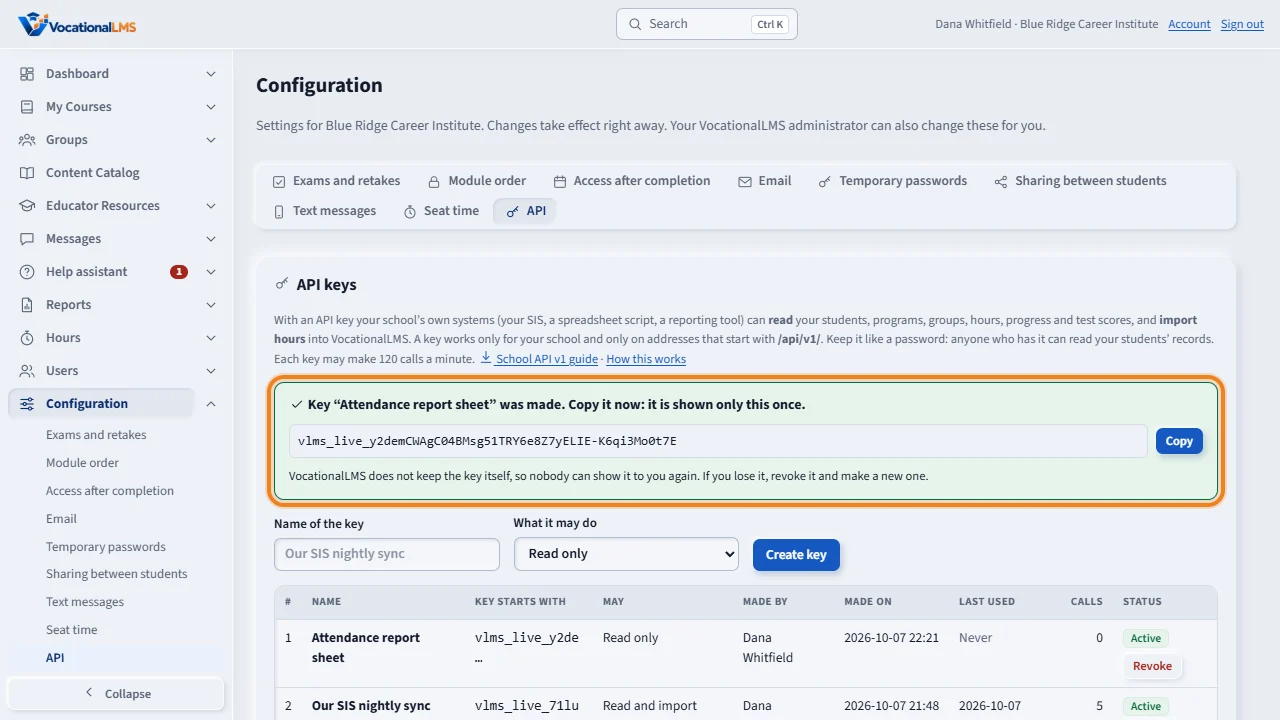
The key is shown once, in a green box. Click Copy, and give it to the person who sets up the connection, in a safe way. Nobody can show it to you again.
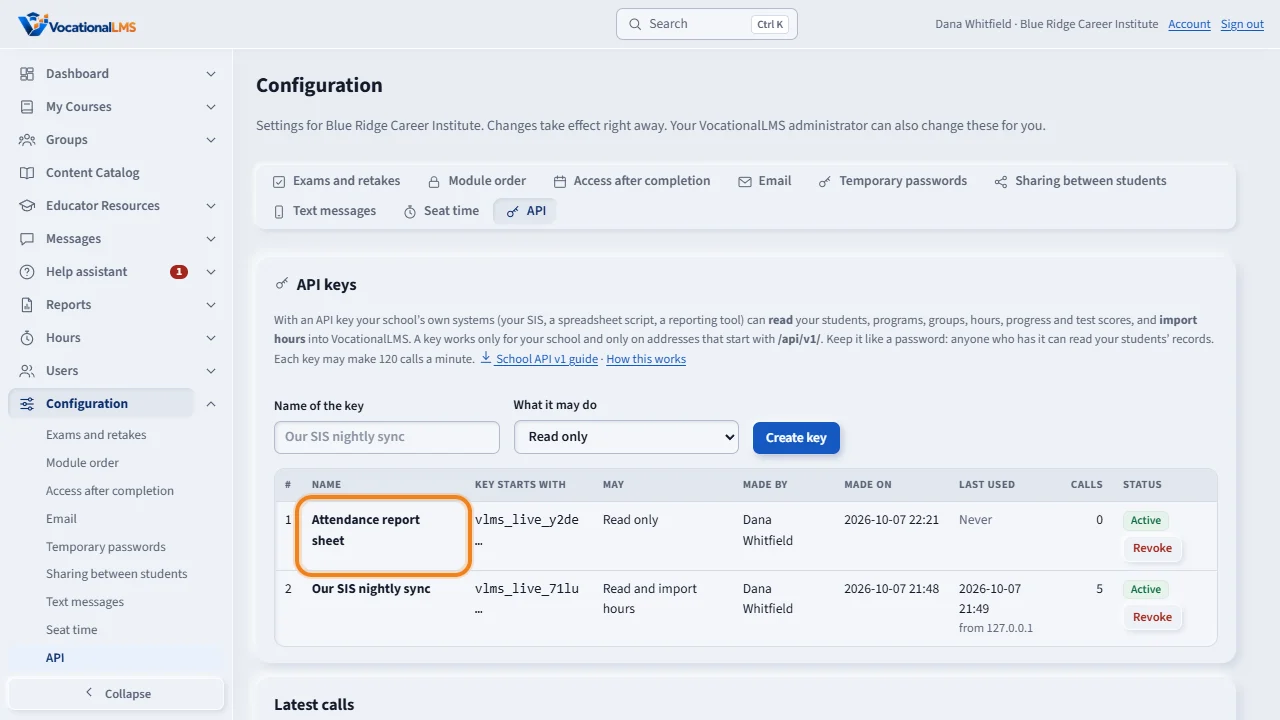
The table lists your keys: the name, the first characters, what it may do, and when it was last used. To stop a key, click Revoke, then click again. It stops working at once and cannot be brought back.
Latest calls lists every call made with your keys. The School API guide, at the top of the page, is for the person who writes the connection.
Open this in VocationalLMSConfiguration > API
Who can do this: Only the School Admin makes and revokes keys. The person who writes the connection needs the key and the guide; they do not need a VocationalLMS sign-in.
What it is for
The school API lets your school's own software talk to VocationalLMS without a person: your SIS, a spreadsheet script, a reporting tool. With an API key it can read your students, programs, groups, hours, progress and test scores, and it can import hours. A key works for your school only. Treat it like a password: anyone who has it can read your students' records.
Steps
Make a key
- Click Configuration, then the API tab.
- Type a Name of the key that says what uses it, for example Our SIS nightly sync.
- Under What it may do choose Read only, or Read and import hours.
- Click Create key. The key is shown once, in a green box. Click Copy and give it to the person who sets up the connection, by a safe way (not by email if you can avoid it).
- Click School API v1 guide and send them that file too: it has every address, examples and the limits.
Watch and revoke
- The table lists your keys: the name, the first characters, what it may do, who made it, when it was last used and from where.
- Latest calls lists every call made with your keys: which key, what it asked for, the answer and where it came from. It is kept for 90 days.
- To stop a key, click Revoke, then click again. It stops working at once and cannot be brought back. Make a new key if you still need one.
Hours sent by the API
- Each time your system sends hours, VocationalLMS makes one import under Hours > Import clock hours, marked School API with the key's name.
- You can undo it there like any import: click Undo import and type the reason.
What happens next
A school can have 5 active keys. Each key may make 120 calls a minute. A key works only on addresses that start with /api/v1/; it cannot sign in to the website, and your own sign-in does not work on those addresses. VocationalLMS keeps only a scrambled form of the key (a hash), so nobody, not even VocationalLMS, can show it to you again. Hours sent by the API are checked like a file import: an entry with a student who is not found, a date in the future or more than 16 hours in a day is refused with a sentence, and the same entry sent twice is counted once.
Common problems
| # | Problem | What to do |
|---|---|---|
| 1 | I lost the key. | It cannot be shown again. Revoke it and make a new one. |
| 2 | The Create key button is gray. | Your school has 5 active keys. Revoke one you no longer use. |
| 3 | A key may have been seen by someone else. | Revoke it now. Then look at Latest calls for calls you do not recognize, and make a new key. |
| 4 | Our system gets “This key can only read”. | The key is Read only. Make a key with Read and import hours. |
| 5 | Our system gets “rate_limited”. | It made more than 120 calls in a minute. It should wait a minute and go on. |