
A-64For School Admins and Directors
Give an auditor read-only access
Add a state inspector or an accreditor as an Auditor: they can open and print your school's records and reports, and can change nothing.
How-to video A-64 · 1:03
Read the words of this video
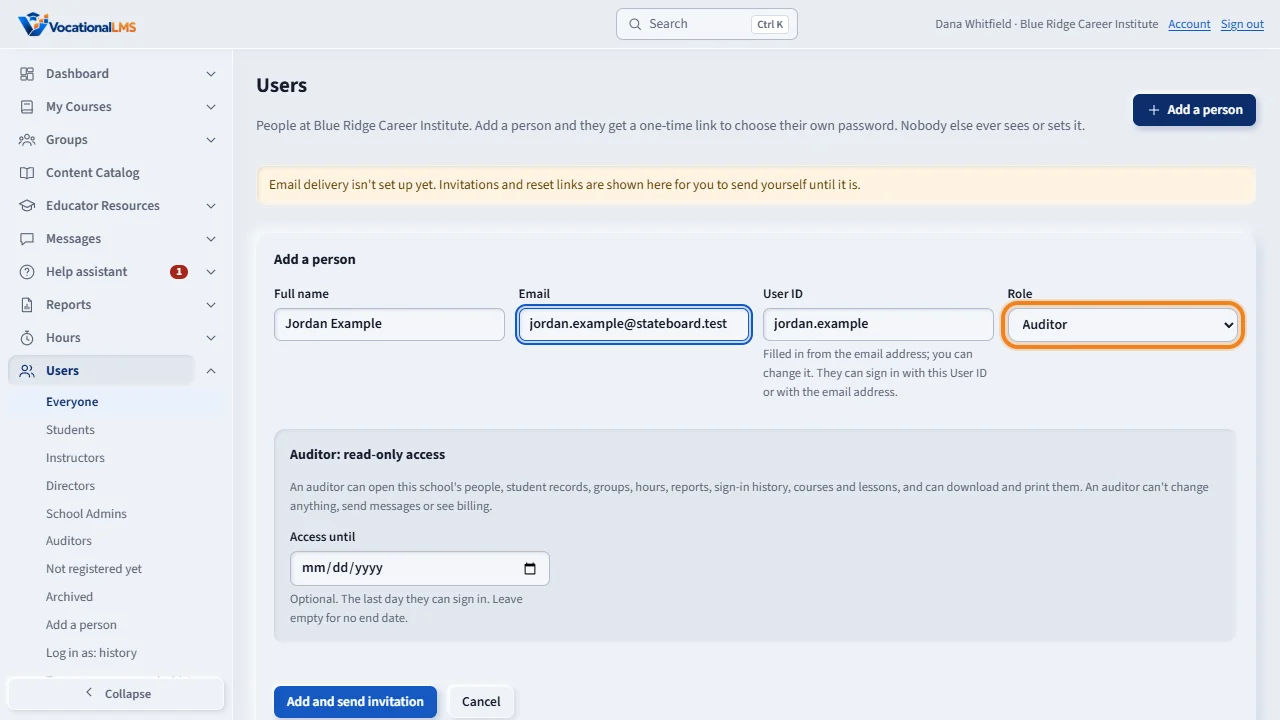
An auditor is a person from outside the school, such as a state inspector, who needs to look at your records. Open Users, click Add a person, type the name and email, and choose the role Auditor.
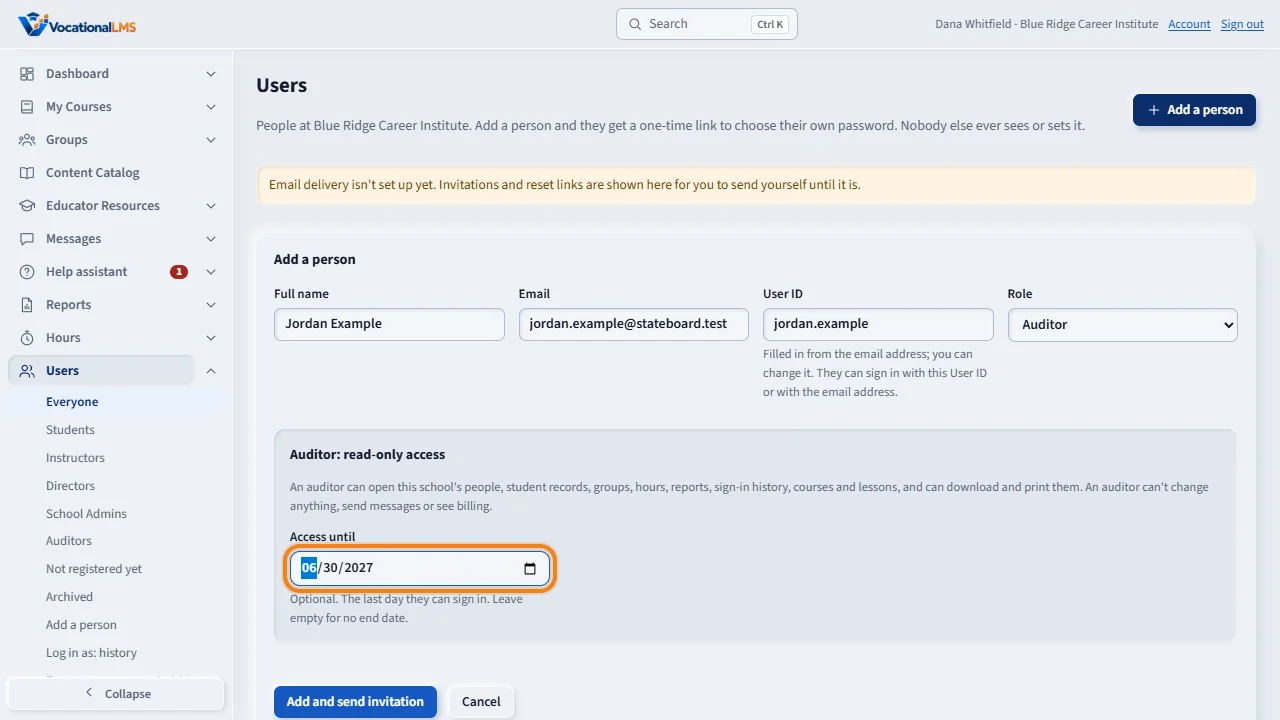
Under Access until, choose the last day the auditor may sign in, or leave it empty. Then click Add and send invitation. The auditor chooses their own password.
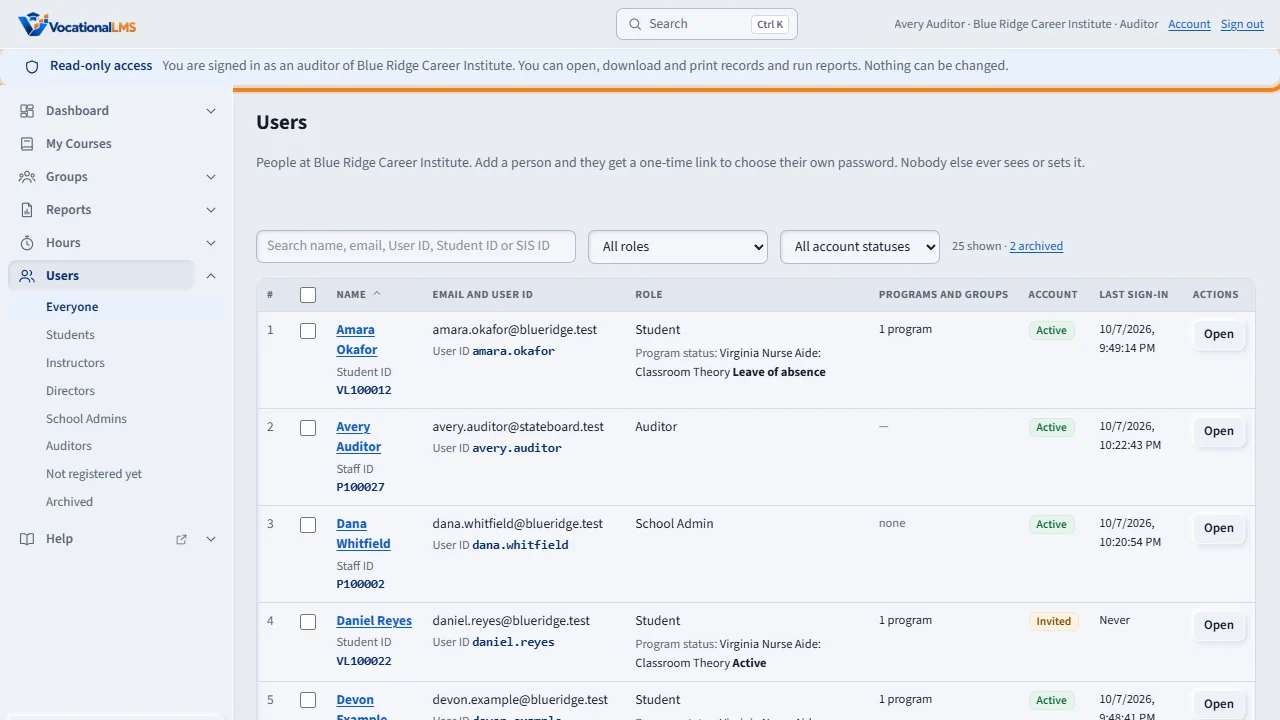
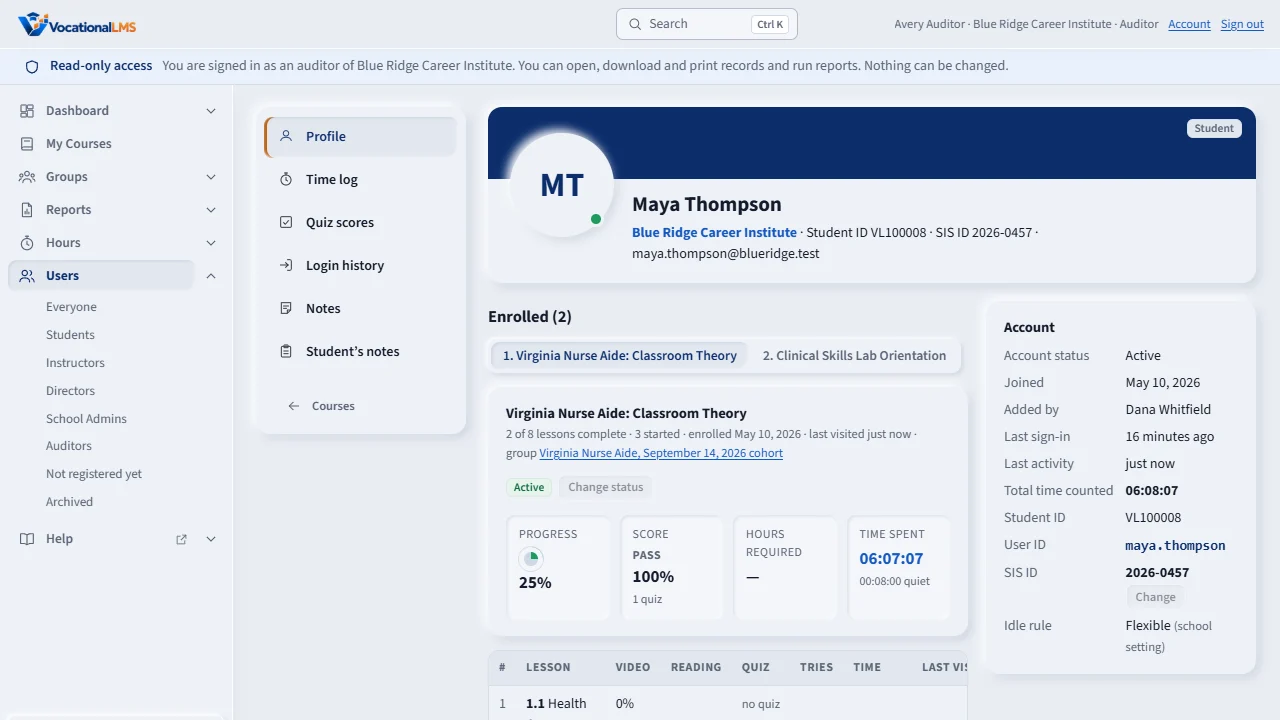
The auditor sees a strip that says Read-only access on every page, and a short menu. An auditor can open student records, run the standard reports, and download and print them.
Buttons that change something are switched off. An auditor cannot send messages, and does not see billing or settings.
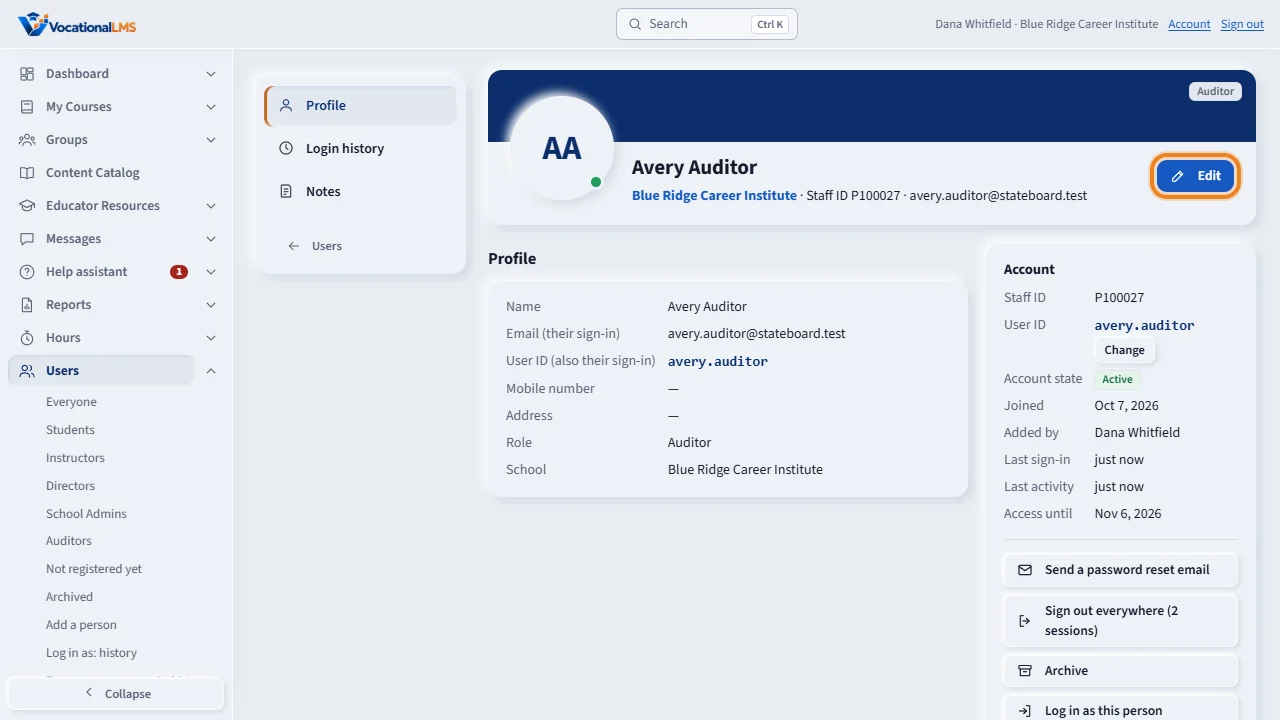
To change the last day later, open the auditor's page and click Edit. When the visit is over, archive the auditor, or let the last day pass.
Open this in VocationalLMSUsers > Auditors
Who can do this: The School Admin adds, changes and archives auditors.
What it is for
An Auditor is a person from outside the school, such as a state inspector or an accreditor, who needs to look at your records. An auditor can open the Users list, student records, person pages, groups, Hours, Reports (run, download and print), the sign-in history, and course pages and lessons. An auditor cannot change anything, send messages, or see billing and settings. You can give the account a last day, after which it stops working by itself.
Steps
- Open Users and click Add a person.
- Type the auditor's Full name and Email, and choose the role Auditor.
- Under Access until, choose the last day the auditor may sign in. Leave it empty for no end date.
- Click Add and send invitation. The auditor gets a one-time link and chooses their own password.
- To change the last day later, click Edit on the auditor's row, or open their page and click Edit.
- When the visit is over, archive the auditor (A-63) or let the last day pass.
What happens next
The auditor sees a strip that says Read-only access on every page, and a short menu: Dashboard, My Courses, Groups, Reports, Hours and Users. Buttons that change something are switched off. If the auditor tries anyway, the server refuses. Reports an auditor runs are listed in the report history with the role Auditor.
Common problems
| # | Problem | What to do |
|---|---|---|
| 1 | The auditor says “Your access to VocationalLMS ended on …”. | The last day has passed. Click Edit on the auditor and choose a later date. |
| 2 | “Read-only access: an auditor can open, download and print records, and cannot change anything.” | This is what an auditor sees when a change is tried. It is how the role works. |
| 3 | The auditor cannot open Messages or Configuration. | Those pages are not part of an auditor's access. |
| 4 | The auditor needs a scheduled or custom report. | An auditor runs the standard reports. Schedule or build the report yourself and send it to them. |