
S-21For students
Share your lesson notes with a classmate
Send the notes you typed for a lesson to classmates in the same course. They can read and print, never change.
How-to video S-21 · 0:34
Read the words of this video
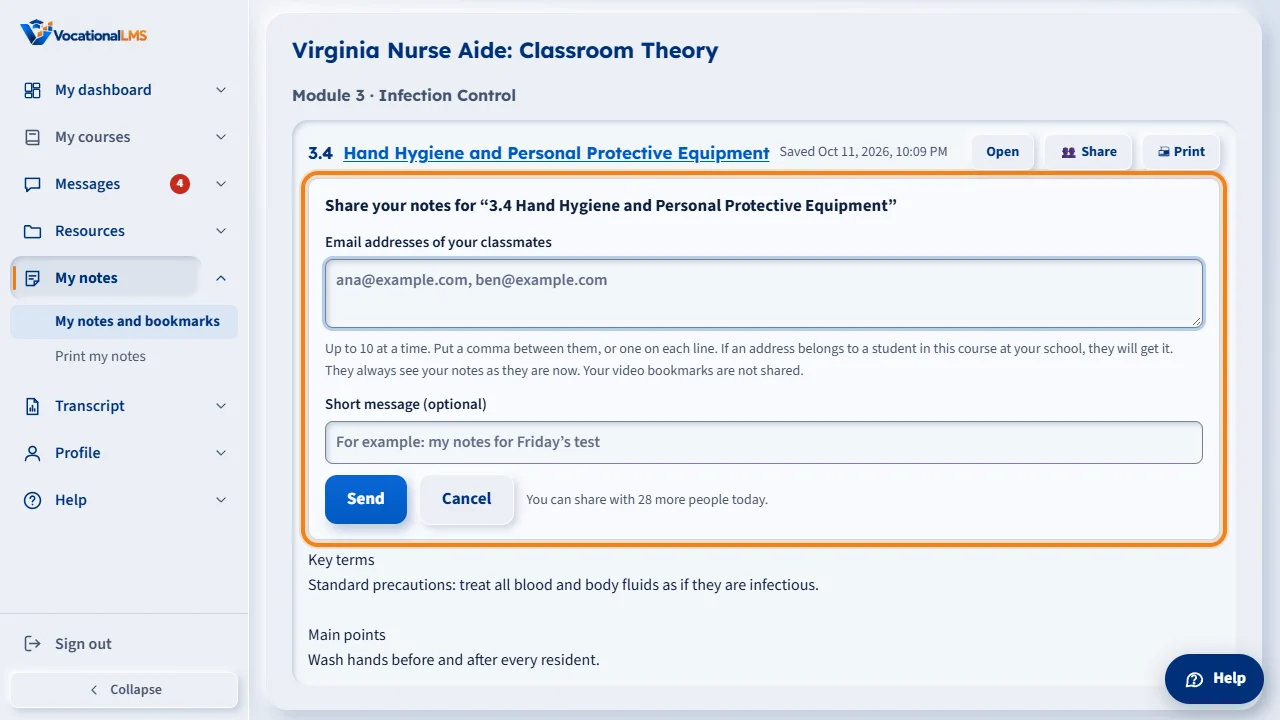
You can now share the notes you typed for a lesson with a classmate. Open My notes, click Share on a lesson, type your classmate's email address, and click Send. The classmate must be in the same course at your school.
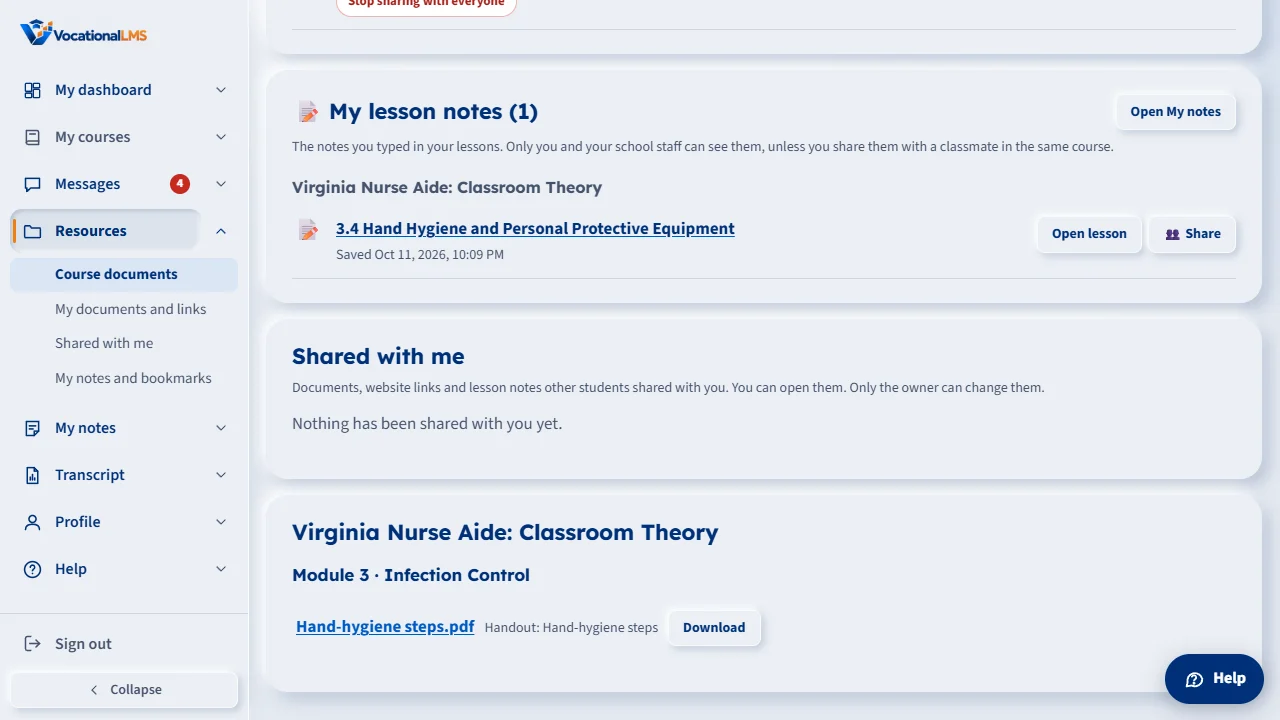
Your classmate finds them under Shared with me on the Resources page, where they can read and print them but never change them. They always see your latest words, and you can click Stop at any time. Your notes are never put in an email or a text message.
Open this in VocationalLMSMy notes > Share
What it is for
You can share the notes you typed for a lesson (S-20) with classmates who are in the same course at your school. They read your notes inside VocationalLMS; the notes are never put in an email or a text message.
Steps
Share my notes
- Open My notes (or Resources > My lesson notes).
- On the lesson's notes, click Share.
- Type your classmates' email addresses, with a comma between them (up to 10). If your school has text messages on, you can also type a mobile number.
- Add a short message if you like, then click Send. The names appear beside Shared with.
Read notes shared with me
- Open Resources and look under Shared with me (or the bottom of My notes).
- Click Read. The notes open on the page, read only. Print gives a paper copy; Remove (click twice) takes them off your list.
Stop sharing
- Open My notes. Beside the person's name click Stop, then click again. Stop sharing with everyone ends it for all.
What happens next
Your classmates always see your notes as they are now, so a change you make shows for them too. Your bookmarks are not shared. A classmate must be a student at your school and in the same course. You can share with up to 30 people a day, counting documents and notes together.
Common problems
| # | Problem | What to do |
|---|---|---|
| 1 | Your classmate did not get your notes. | They must be a student at your school and in the same course, and you must type the email they sign in with. |
| 2 | There is no Share button. | Your school has turned sharing off, or the notes are empty. |
| 3 | You can't type a mobile number. | Your school does not have text messages on. Use email. |
| 4 | Notes you were reading disappeared. | The owner stopped sharing, emptied the notes, or you left the course. |