
A-26For School Admins and Directors
Module order: finish a module before the next one opens, and unlock modules
Turn the rule on or off for your school, and open one module, every module, or a module for one student.
How-to video A-26 · 1:03
Read the words of this video
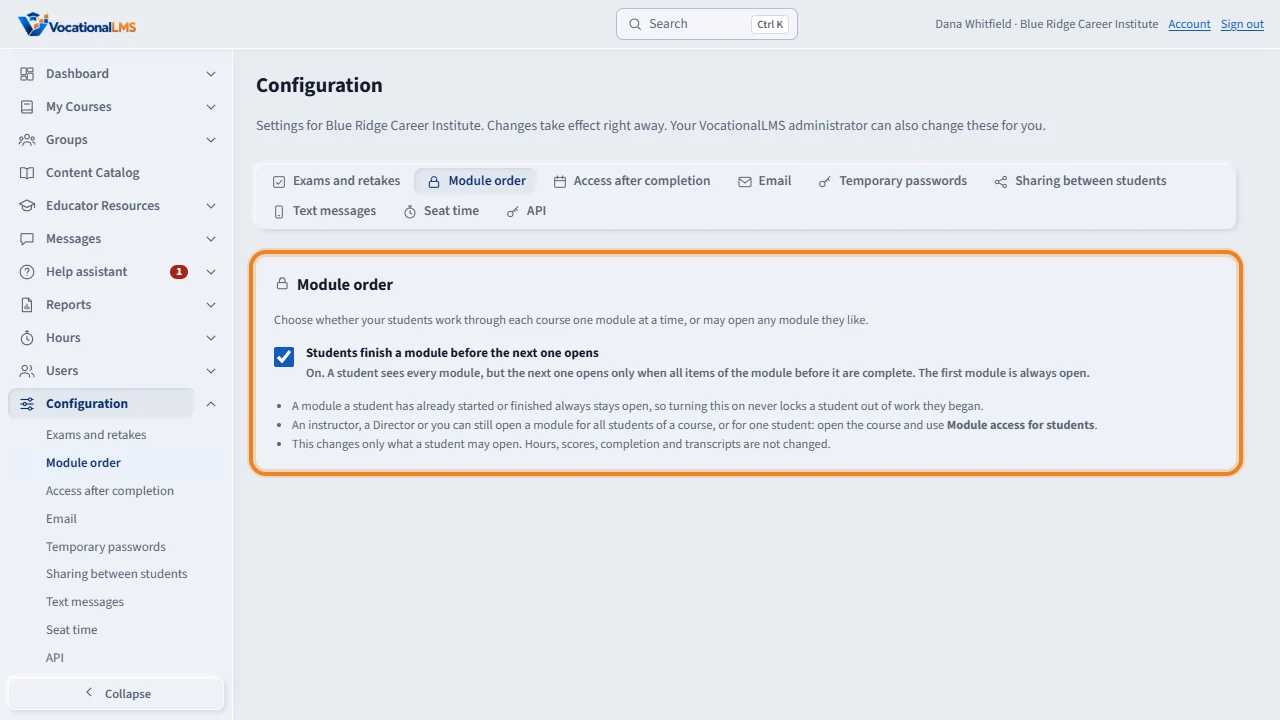
By default, your students work through each course one module at a time. The next module opens when every item of the one before it is complete. If your school prefers to let students learn in any order, open Configuration, then Module order, and turn the switch off.
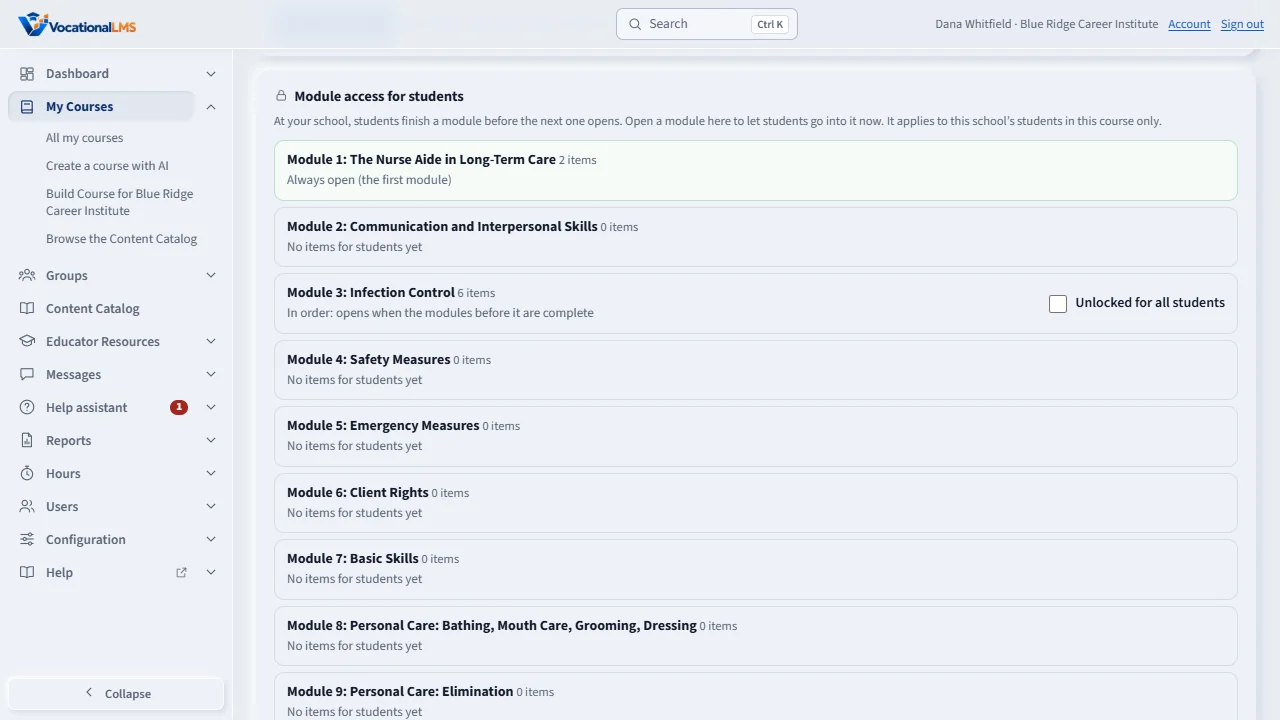
Staff can also open modules for a course. On the course page, find Module access for students. Tick Unlocked for all students on one module, or click Unlock all modules. Back to in order undoes it. You can also open a module for one student, such as a student who transferred in.
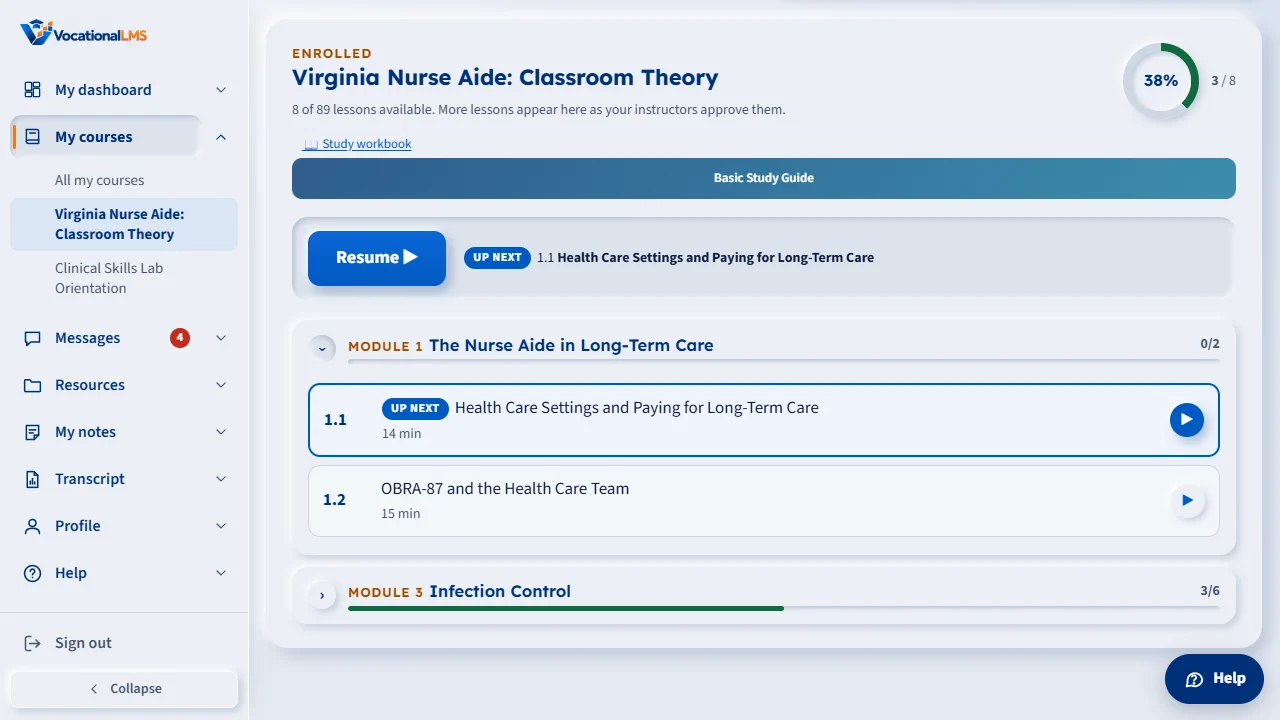
A student sees every module. A locked module shows a small lock and says exactly what to finish first. When the student completes the last item of a module, the next one opens right away. A module the student already started always stays open. Nothing here changes hours, scores or transcripts.
Open this in VocationalLMSConfiguration > Module order
What it is for
By default, students work through a course one module at a time: the next module opens when every item of the module before it is complete. Your school can turn this off, and staff can open modules for a course whenever they need to.
Steps
Turn the rule on or off (School Admin)
- In the menu on the left open Configuration, then the Module order tab.
- Tick or untick Students finish a module before the next one opens. It is saved at once.
- On: a student sees every module, but the next one opens only when the one before it is complete. The first module is always open. Off: students may open any module in any order.
Open modules for students (School Admin, Director, or the course's instructor)
- Open the course (My Courses, then the course) and find the panel Module access for students. Each module shows its state.
- To open one module for everyone, tick Unlocked for all students on that module. Untick it to put it back in order.
- To open everything, click Unlock all modules. To undo, click Back to in order.
- To open a module for one student, such as a transfer, click Open a module for one student, choose the student and the module, and click Open for this student. Click the close button beside the name to take it back.
- History at the bottom of the panel shows who opened or closed what, and when.
What happens next
A module a student has already started or finished always stays open, so turning the rule on never locks a student out of work they began. Unlocking applies only to your school's students in that course. Hours, scores, completion and transcripts are not changed by any of this; it only changes what a student may open.
Common problems
| # | Problem | What to do |
|---|---|---|
| 1 | A student says a module is locked but they finished the one before. | Check that every item of the earlier module is complete: a video needs 95% watched and its quiz passed. One unfinished item keeps the next module locked. |
| 2 | You unlocked a module but the student still sees a lock. | Ask them to click the module again; it opens on the next click. Check that you unlocked it in the right course. |
| 3 | You do not see the Module access panel. | Instructors see it only on courses they teach. Ask your School Admin to add you to that program (A-03). |
| 4 | The panel says every module is already open. | Module order is off for your school. A School Admin can turn it on under Configuration. |
| 5 | Some students can still open a later module after you turned the rule on. | They had already started that module, so it stays open for them. |