
A-130For School Admins and Directors
Visual quality and cost: Basic or High-quality pictures, with the price shown first
Every picture button on a course (Add pictures, visual guides, mind maps, mind map videos, cheat sheets) now shows Basic and High-quality side by side with the number of pictures, the credits, the dollars and the time before anything runs, and nothing is spent until you approve a cap.
How-to video A-130 · 1:01
Read the words of this video
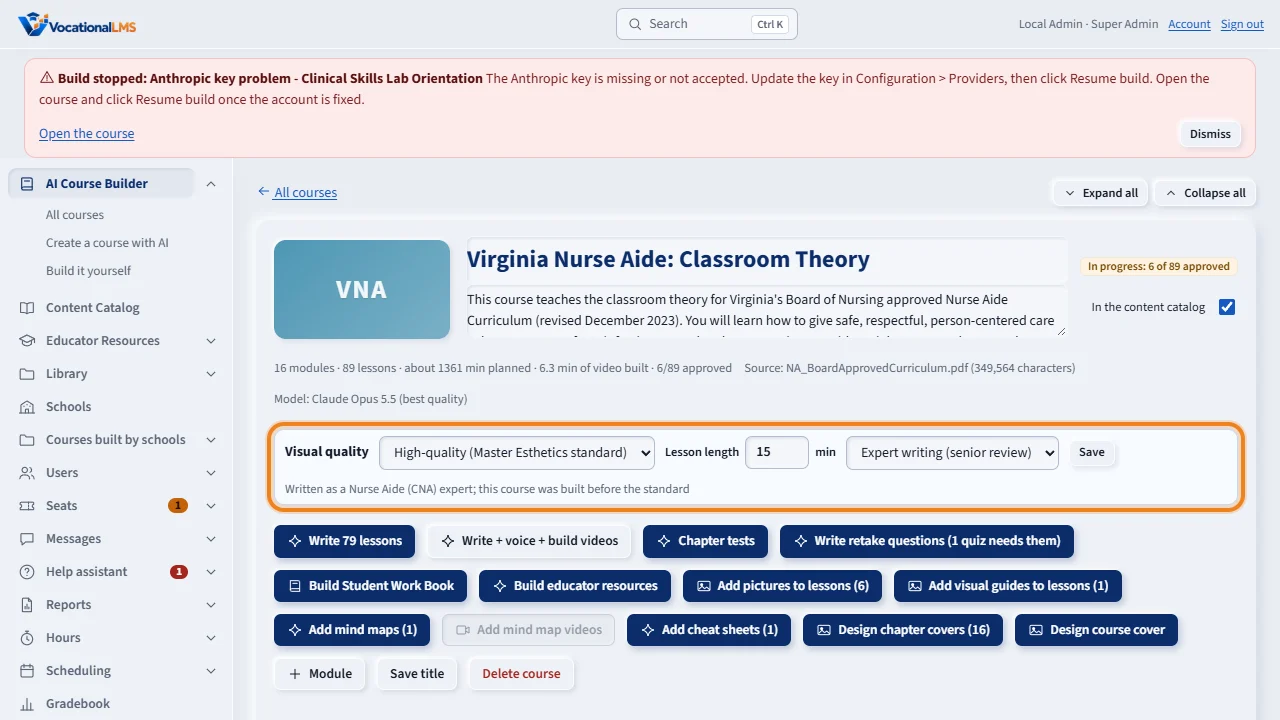
New courses follow the Master Esthetics standard. Above the Add buttons, the Visual quality row sets Basic or High-quality for this course, how long each lesson runs, fifteen minutes unless you change it, and the writing level. Saving only records your choice. Nothing is generated or spent.
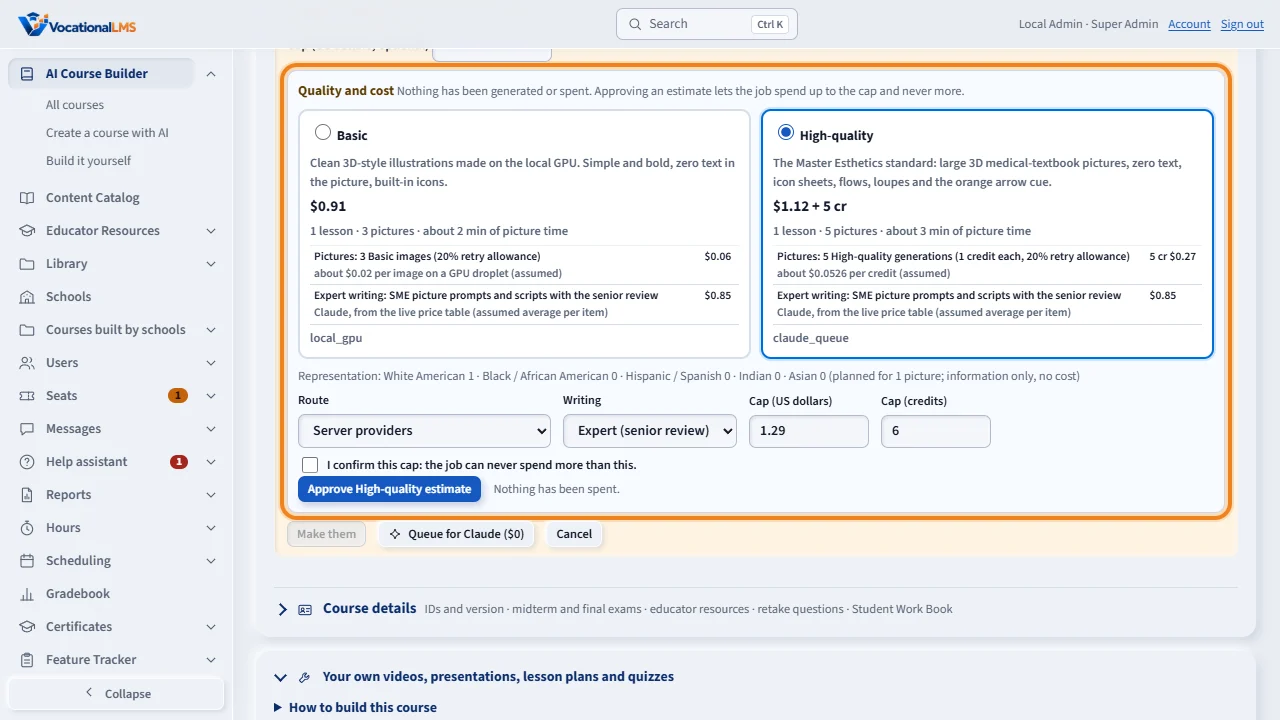
Click any Add button, here Add visual guides to lessons. Under it, Quality and cost shows two cards side by side. Basic and High-quality each list how many pictures they will make, the credits, the dollars, the time and which provider makes them. The box says it plainly: nothing has been generated or spent.
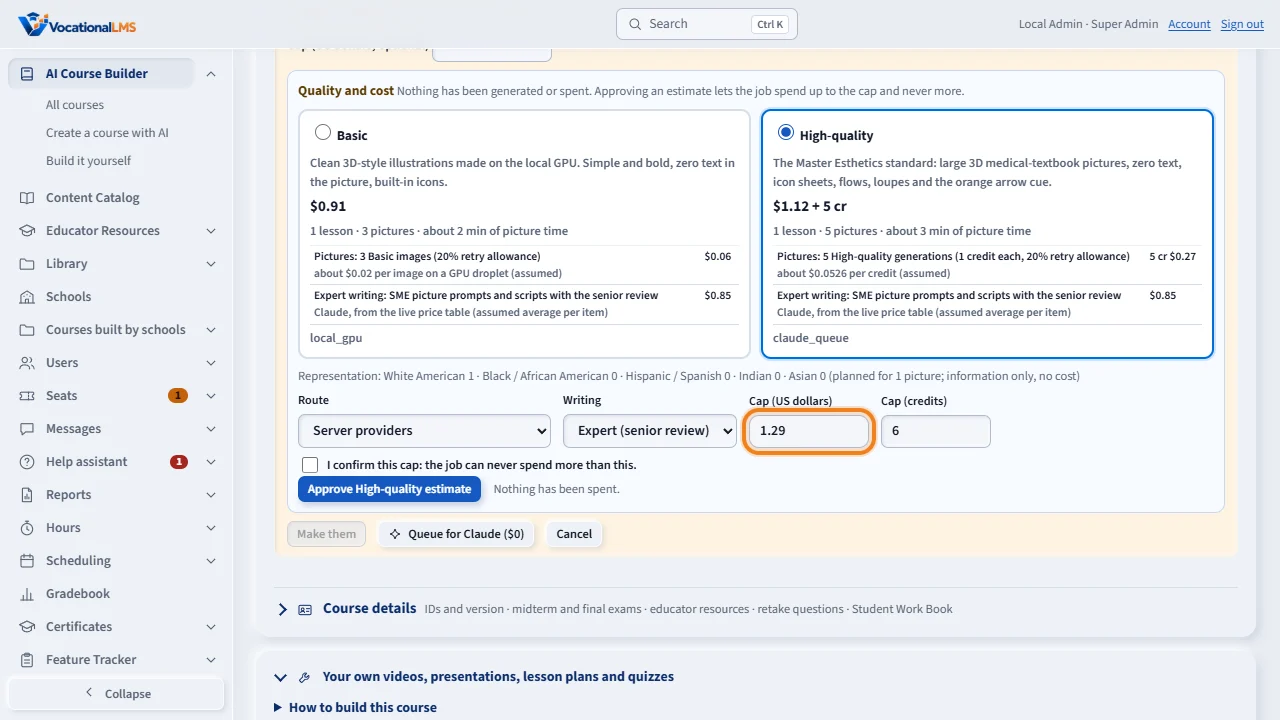
Next, the cap. It is pre-filled with the estimate plus fifteen percent. A School Admin can lower it, never raise it. Tick the box to confirm the cap, then click Approve estimate. The Start button stays grey until you do.
Open this in VocationalLMSAI Course Builder > a course > Visual quality
Who can do this: The VocationalLMS Super Admin, and the School Admin or Director of the school that built the course. Only the Super Admin sees Queue for Claude ($0) as the way High-quality pictures are made; a School Admin can lower the suggested cap but not raise it. Schools do not pay for lesson pictures: VocationalLMS does.
What it is for
New courses follow the Master Esthetics standard: large 3D medical-textbook pictures with no text inside the picture (every word on a picture is real text laid over it, so the same picture is reused for Spanish), icon sheets cut from one 3 by 3 picture, animations with a small orange arrow showing what to click next, and careful wording so the picture services accept anatomy and treatment pictures. Above the Add buttons the Visual quality row sets, for the course: Basic (clean 3D-style pictures made on the local graphics computer, lowest cost) or High-quality (the full standard), the Lesson length (15 minutes unless you change it) and the writing level (Standard, or Expert with an extra senior review). Click any Add button and its yellow box gets a Quality and cost section: two cards, Basic and High-quality, each with how many pictures it will make, the credits, the dollars, the time and which provider makes them. Nothing has been generated or spent until you approve. You choose the cap (pre-filled with the estimate plus 15 percent), tick that you confirm it and click Approve estimate. The job can never spend more than the cap, a refused picture is given back, and when it ends the unused cap is released. The Start button stays grey until an estimate is approved. Everything is written by an expert persona for the course's program (for example a master esthetician and instructor with 25 years of practice) and then reviewed by a second, skeptical senior instructor before any picture prompt or video script is used. This improves depth and care; it is not a source of truth, so your sources and your sign-off still decide the facts. Diverse people: every picture, clip or deck the system makes that shows people includes White American, Black / African American, Hispanic / Spanish, Indian and Asian models, mostly women (about 70 percent) and some men, all clearly adult (22 and over, mostly in their 20s and 30s) with a polished, professional, top-class model look and modest, dignified styling (white tunic, hair covered or pulled back, gloves, chest covered). The system names each person's group, sex and age in the picture instructions (an unnamed person drifts to one default look), spreads the groups evenly across a lesson, chapter or course set, rotates who plays each role (a role is never tied to an ethnicity), keeps recurring people in video clips consistent through a cast sheet, and shows skin conditions on a range of skin tones. Pictures of objects alone are not affected. The Quality and cost panel shows a Representation line with how many people of each group the run will show; it is information only and costs nothing. The senior reviewer flags any script whose people are all one group or that pairs a role with an ethnicity, any person described under 18 or with youthful wording, and any sexualized styling. Draping: in every facial or treatment picture or clip the client is draped a little higher, with the towel or sheet up to about the collarbone line so the chest is covered and never shown (neck and shoulders may show), and the practitioner wears gloves for the whole facial. The senior reviewer flags any script or clip that shows the chest uncovered. Same people across a lesson, and a clean white look: each lesson has a small cast, one esthetician and one client, each with a fixed group, sex, age, appearance wording and wardrobe (the practitioner in a white tunic and gloves, the client draped to the collarbone), so the same two people appear in every picture of that lesson that shows an esthetician or a client. The groups rotate from lesson to lesson, so a chapter or course is still balanced, and the Representation line still counts every person. When a cast sheet picture exists for a person, it is passed to the picture service as a reference so the face stays the same; a service that cannot take references uses the appearance wording alone. Treatment pictures use a neutral, clean white tone with white or clear towels and trays (the school's brand colors are for the page, not for objects in the picture), and pictures never carry drawn circles, arrows or lines: pointers are added later by the page. A skin cross-section or other anatomy picture shows no person at all. The Quality and cost panel allows for about 20 percent of pictures being redone (measured on real runs).
Steps
Choose the quality for the course
- Open the course. Above the Add buttons, find Visual quality.
- Choose Basic or High-quality (Master Esthetics standard), the lesson length in minutes and the writing level, then click Save. Saving spends nothing.
- New courses start with the standard switched on: High-quality and Expert writing for VocationalLMS's own courses, Basic and Standard writing for a school's course, 15 minutes.
See the price before anything runs
- Click an Add button, for example Add visual guides to lessons. In the yellow box open Quality and cost.
- Compare the Basic and High-quality cards: pictures, credits, dollars, time and provider. Click a card to choose it.
- The Super Admin can pick the route: the server's providers, or Queue for Claude ($0 server spend), where your own agents make the High-quality pictures under your plan.
Approve a cap
- Check the cap (dollars, and credits for High-quality). Tick I confirm this cap. Click Approve estimate.
- The box then shows Approved estimate in force with the cap and what has been used. Click Start as usual (or, on the queue route, the request is already with your agents).
- Click Stop this estimate at any time: the unused cap is released and nothing more can be spent under it.
What happens next
The job makes pictures one at a time and stops by itself at the cap, in plain words. A picture the service refuses, or that fails, is given back to the estimate. When the job ends you see what was used against what was estimated. High-quality pictures through the queue are imported like any other Queue for Claude request (A-115).
Common problems
| # | Problem | What to do |
|---|---|---|
| 1 | Start is grey. | Open Quality and cost in the same box and approve an estimate. The job can only spend what an approved estimate allows. |
| 2 | The page says 'Stopped at the cap you approved'. | The job reached the cap and made no more. Approve a new estimate to continue; the pictures already made are kept. |
| 3 | A School Admin cannot raise the cap. | The cap can be lowered below the suggestion, not raised. Ask VocationalLMS if a bigger job is needed. |
| 4 | The course says its role brief is not approved. | Choose the course's program in the Visual quality settings, or ask VocationalLMS to add or approve the role brief for that trade. Writing for the course still uses the expert persona; the senior review stage waits for an approved brief. |
| 5 | Basic pictures wait. | Basic pictures are made on a local graphics computer that is not connected on this server yet. The estimate still shows what they will cost; use High-quality through Queue for Claude until the worker is connected. |
See also
- A-115 Queue for Claude ($0): cheat sheets, mind maps, visual guides and pictures at no charge
- A-110 Visual guides on a lesson: import, upload, edit, preview
- A-111 Mind maps on a lesson: write with AI, upload, edit, approve, build the video
- A-112 Cheat sheets on a lesson: write with AI, upload, edit, approve
- Build your own course (full guide)