
A-121For School Admins and Directors
Why it stopped: what went wrong with your AI build and how to continue
When the AI build of a course your school makes stops, the course page explains why in plain words, which lessons or chapter tests failed, what is left, and gives buttons to continue, retry only the failed items, skip, or copy the details for support.
How-to video V-69 · 0:52 (the same video as V-69)
Read the words of this video
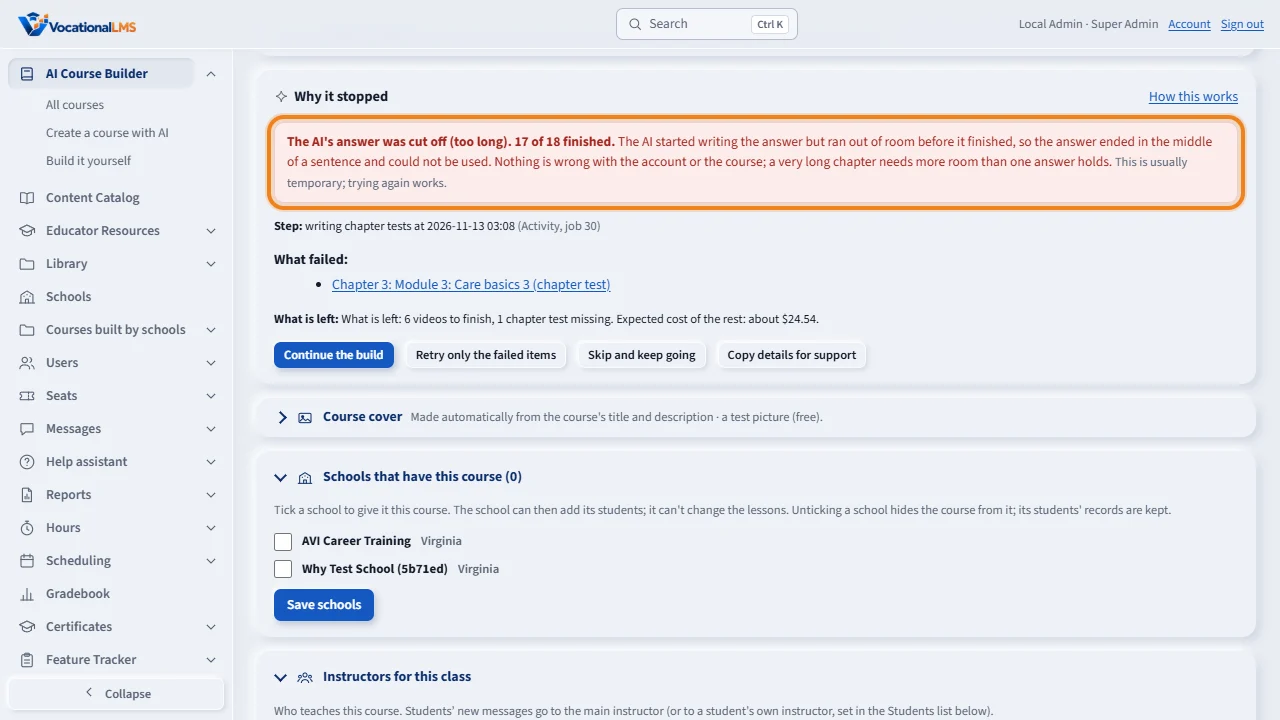
A build that stops no longer just says a step failed. Under the red badge, the Why it stopped panel gives the reason in plain words. Here the AI's answer for one chapter test was cut off because it was too long.
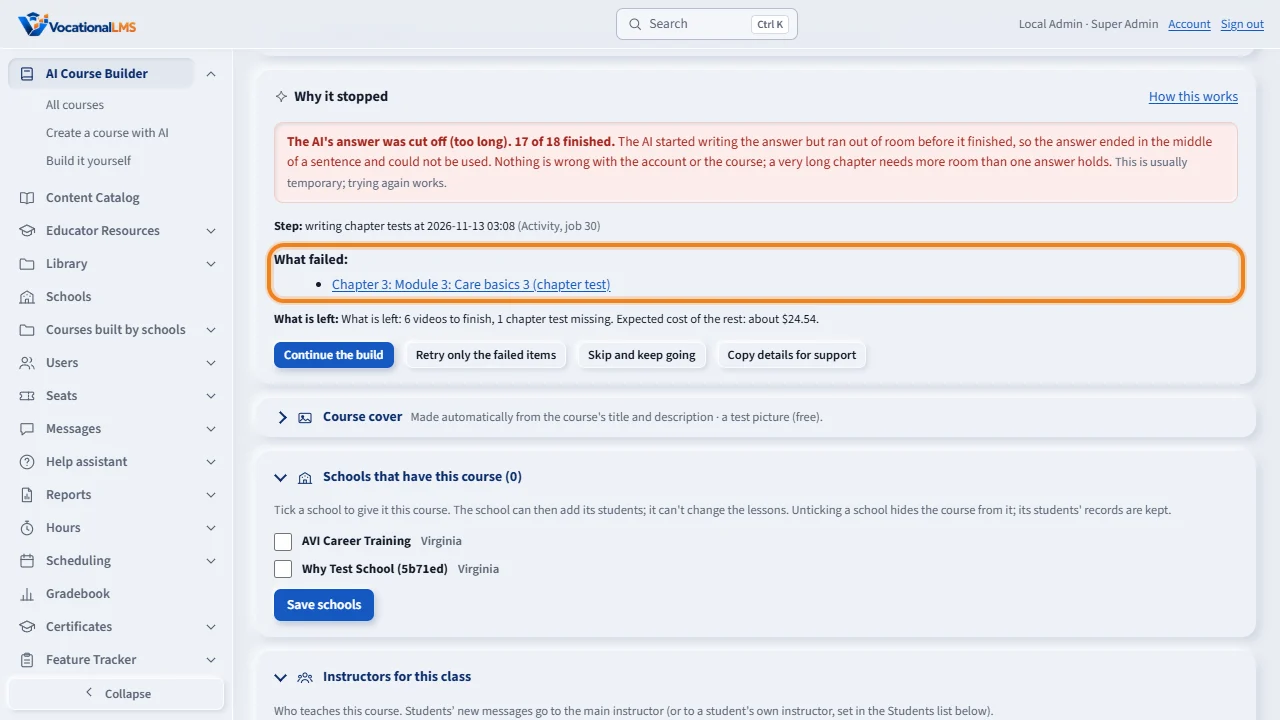
It names the step, shows how many finished, links the lessons or chapter tests that failed, and says what is left and what it will cost.
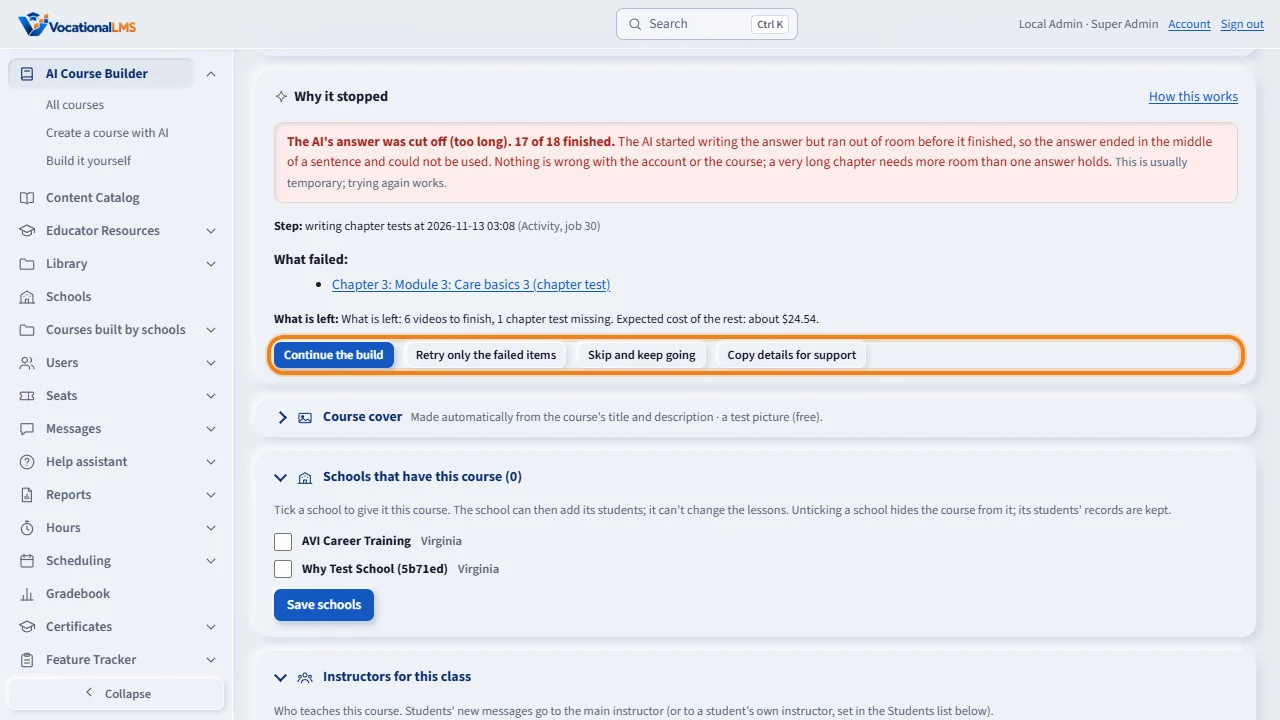
Then the buttons. Continue the build does everything unfinished. Retry only the failed items does just the failures, so the good work is not paid for twice. Skip hides the message, and Copy details for support copies everything for a message to us. A grey button says why: for example a mind map video job is running, and its Stop button is right there.
Open this in VocationalLMSAI Course Builder > a course > Why it stopped (under the red Build stopped badge)
Who can do this: The School Admin of the school (the Director and instructors can read the panel).
What it is for
If the build of your own course stops, the red Build stopped badge is followed by a Why it stopped panel. It never uses technical error text: a sentence tells you what happened and whether it is temporary.
Steps
- Open My Courses and open the course with the red badge. Hover over the badge: its tooltip starts with the reason in one sentence.
- Read Why it stopped: the reason, the step, which lessons or chapter tests failed (each a link), and What is left.
- Click Continue the build to do everything unfinished, or Retry only the failed items to redo just the failures; finished work is never paid for twice. Skip and keep going hides the message and changes nothing.
- If a button is grey, point at it: it says why (work is running on the course, which you can Stop; paused for a deploy; nothing left). If a service the build depends on needs attention, the panel says VocationalLMS will fix it; you do nothing.
- If you are unsure, click Copy details for support and paste them in a Help message.
What happens next
When the work is done the panel goes away and the course label returns to In progress or Ready.
Common problems
| # | Problem | What to do |
|---|---|---|
| 1 | The panel says a service needs attention. | VocationalLMS tops up or renews it; the build can be continued afterwards. Nothing already built is lost. |
| 2 | The badge says stopped but all lessons look fine. | Click Clear this message. Chapter tests waiting for review are not unfinished work. |