
A-111For School Admins and Directors
Mind maps on a lesson: write with AI, upload, edit, approve, build the video
Give a lesson a radial mind map (and its narrated video) that students see on the Mind map tab. Write it with AI from the lesson's own slides, upload your own, edit the words, show or hide it, build the video; or add them to a whole course at once.
How-to video A-111 · 0:35
Read the words of this video
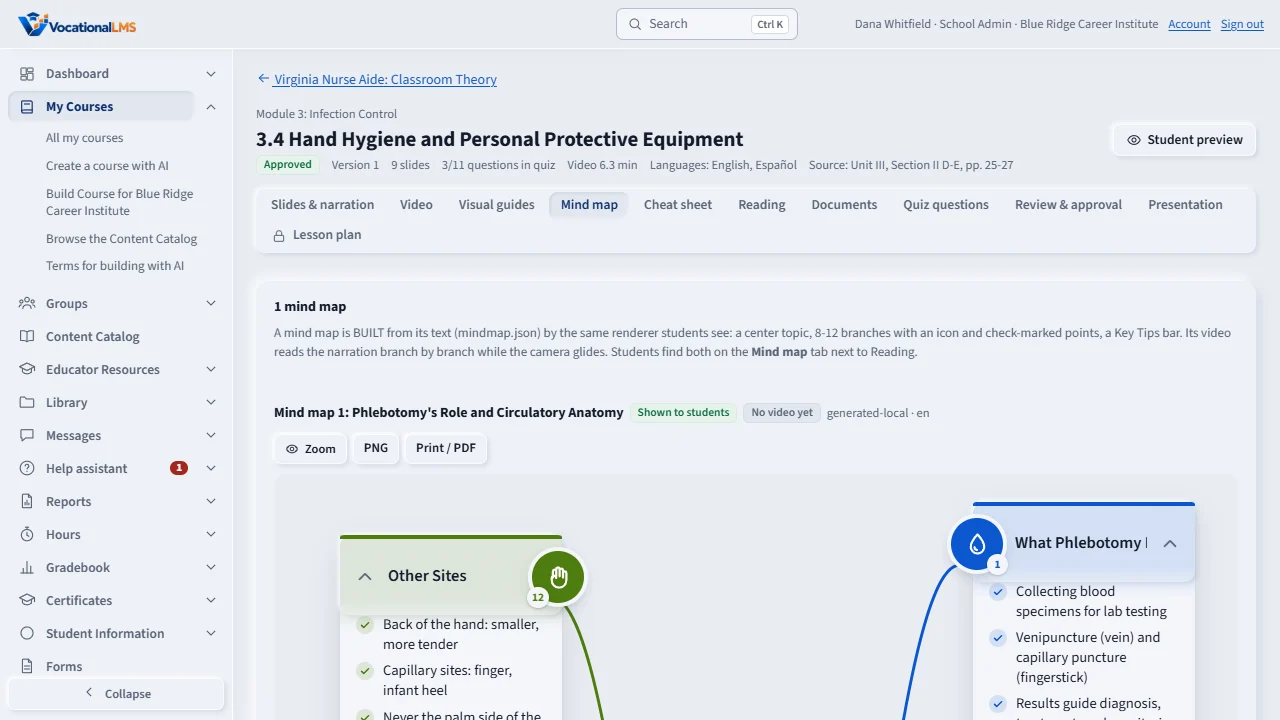
Open a lesson and click the Mind map tab. Click Write with AI, or Upload my own.
Check the preview. Edit text changes the title, every branch and the narration, and the map redraws at once. Hide keeps it as a draft, and Show publishes it to students.
Click Build video. The narration is recorded and the video made in the background, and the tab shows Video ready when it is done.
Open this in VocationalLMSAI Course Builder > a course > a lesson > Mind map
Who can do this: The Super Admin on any course; a School Admin or Director on a course your own school built. Everyone who can open the lesson can look.
What it is for
A mind map is built from its text (a small JSON file: title, subtitle, 8-12 branches with an icon and points, key tips, narration) by the same renderer students see, never a painted picture, so every word can be edited. Its video is rendered from the same map: the center appears, each branch draws in while the narration reads it, the camera glides branch to branch and ends on the key tips. The narration voice is the engine chosen in Configuration > Narration voice (Kokoro, free on the server, by default) and, with Kokoro, the voice chosen there for the school (Sarah for English and Dora for Spanish unless changed).
Steps
One lesson
- Open the course, open the lesson, click the Mind map tab.
- Click Write with AI (Claude writes the structure from this lesson's own slides, narration and reading; one AI call, the course's budget rules apply), or Upload my own (a mindmap.json, or a zip of it with its .webp pictures, as docs/visual-guides-contract.md describes).
- Check the preview. Edit text changes the title, every branch, the key tips and the narration; the map redraws at once. Hide keeps it as a draft; Show publishes it to students.
- Click Build video. The narration is recorded and the video rendered in the background (a few minutes); the tab shows Video ready when done. Changing the words afterwards marks the video out of date: build it again.
A whole course
- On the course page click Add mind maps: one map for every lesson with slides or reading text that has none, with the estimate; set a cap if you like and click Start. Stop it any time from the Activity list.
- Then Add mind map videos for every approved map without a video. With Kokoro the voice is free; with ElevenLabs it uses voice credits.
A new course
- On Create a course with AI the Visuals box lists Mind maps, Mind map videos, Cheat sheets, Visual guides and Slide pictures, all ticked, with an estimate. Untick what you do not want: the rest is made by itself after each lesson's video is built.
- The VocationalLMS Super Admin can instead click Queue for Claude ($0) on any of those estimate panels: the owner's own Claude Code agents write and import the content at no charge to the course (A-115).
What happens next
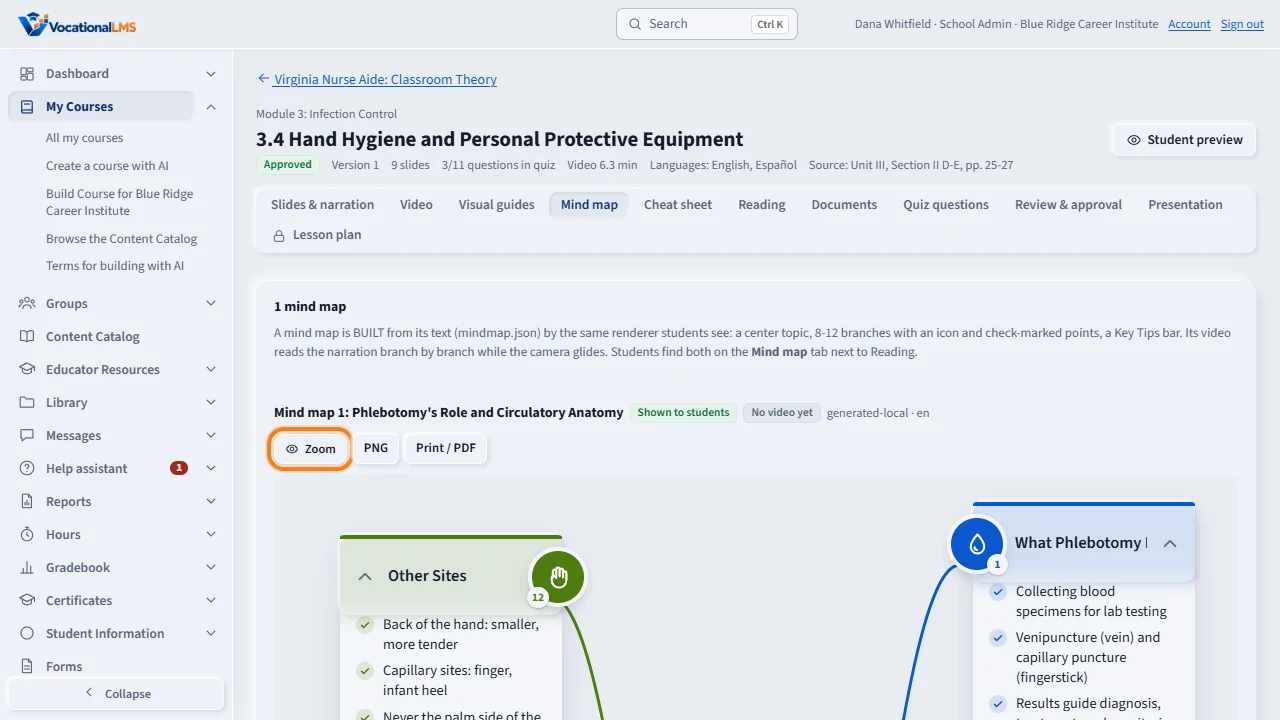
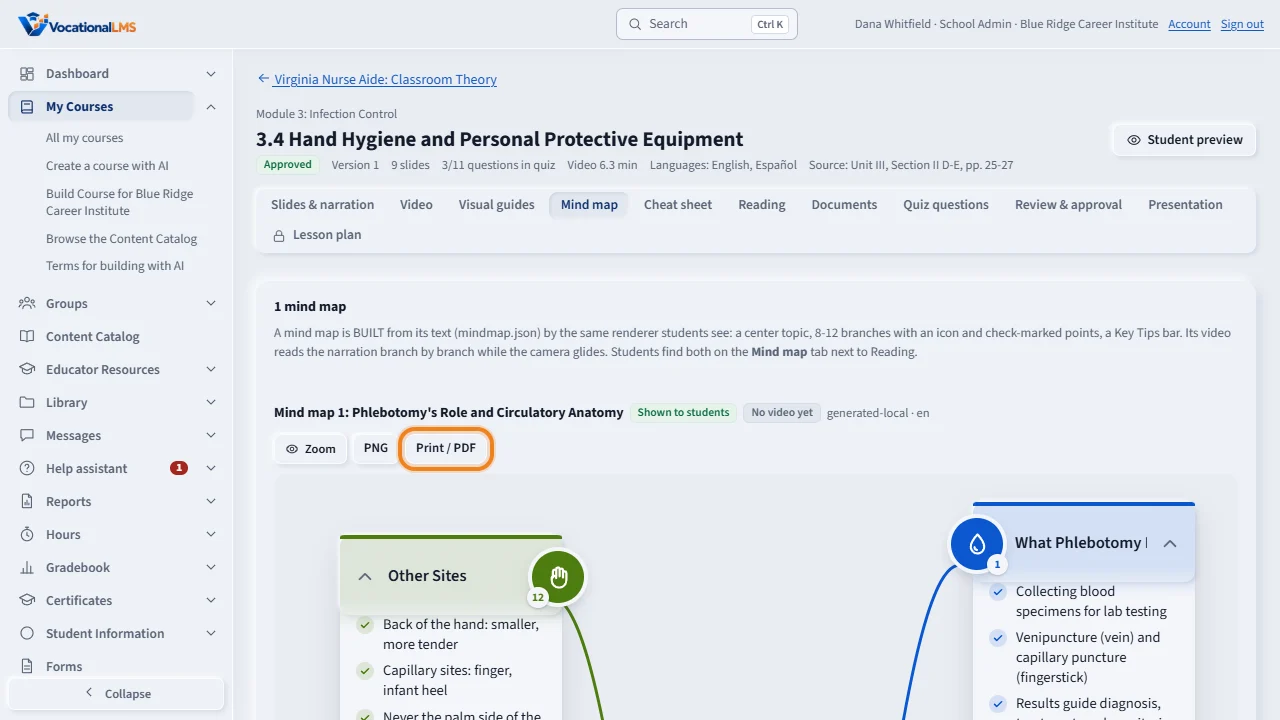
Students see approved mind maps on the Mind map tab next to Reading. The PNG and PDF are drawn by the server the first time a student asks for them.
Common problems
| # | Problem | What to do |
|---|---|---|
| 1 | Add mind map videos is grey: Kokoro is not installed. | The free voice needs its packages on the server (deploy/README.md, Kokoro narration voice). Ask VocationalLMS, or choose ElevenLabs in Configuration > Narration voice. |
| 2 | Write with AI is grey. | That lesson has no slides and under about 1,500 characters of reading text to write a mind map from. Upload your own instead. Imported video lessons with reading text are fine: the map is built from the reading. |
| 3 | The upload was refused. | The message names the field: 3 to 12 branches, 1 to 6 points each, one narration paragraph per branch, en or es, and every picture named must be in the zip. |