
A-110For School Admins and Directors
Visual guides on a lesson: import, upload, edit, preview
Attach a blueprint picture, an animation or a short silent clip to a slide of a lesson video. It pops out beside the video when that slide starts. Import folders made offline, upload your own, edit, hide, reorder.
How-to video A-110 · 0:34
Read the words of this video
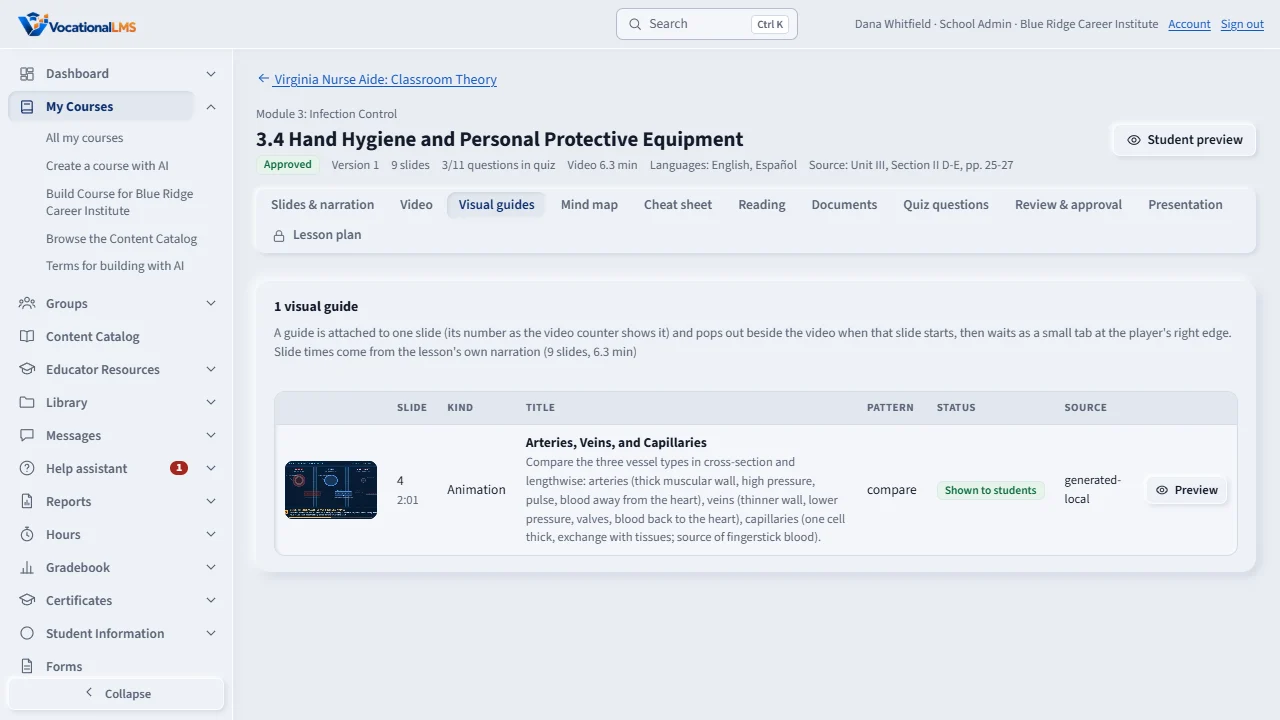
A visual guide belongs to one slide of a lesson video. Open the lesson and click the Visual guides tab.
Click Import folder, choose the zip of guides made for this lesson, and import. Each guide that came in is listed, and a folder with a problem is named with its reason.
You can also upload your own, edit a guide's name and slide, preview it exactly as students see it, and Hide or Show it.
Open this in VocationalLMSAI Course Builder > a course > a lesson > Visual guides
Who can do this: The Super Admin on any course; a School Admin or Director on a course your own school built. Everyone else who can open the lesson can look and preview.
What it is for
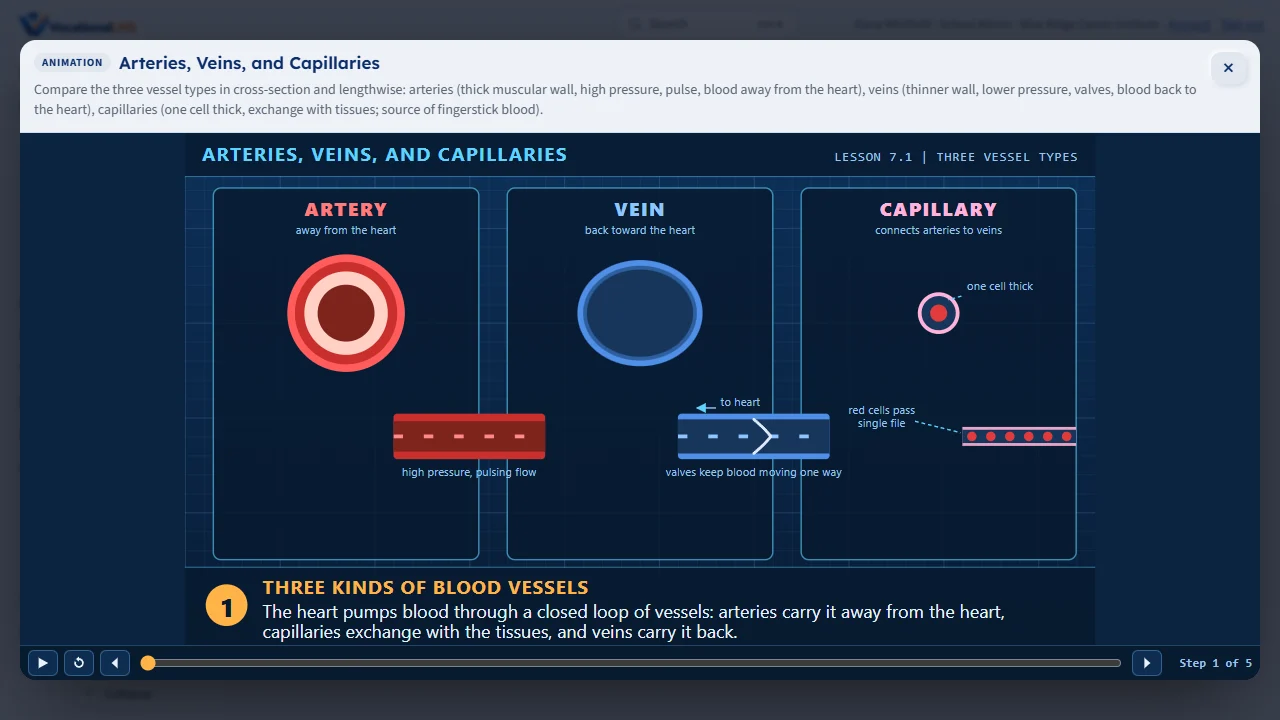
A visual guide belongs to one slide of a lesson video (the slide's number as the video counter shows it). When the video reaches that slide, students see a card slide out beside the video for a few seconds, then a small tab at the player's edge; they open it full size, and the video never pauses for it. Three kinds: an animation (one self-contained web page, run in a sandbox with no network), a blueprint image (a WebP picture with callouts the view glides between), and a clip (a silent MP4 that loops, with a poster picture).
Steps
Import guides made offline
- Open the course, open the lesson, and click the Visual guides tab.
- Click Import folder (zip). Choose a zip of the guide folders made for this lesson (
lesson-<id>/<slide>-<slug>/guide.jsonwith its files, exactly asdocs/visual-guides-contract.mddescribes). Tick Import as drafts if you want to look first. - Click Import. The list shows every guide that came in; a folder with a problem is named with the reason and the others still import. Importing the same folder again replaces the earlier guide.
- On the server,
py -m vlms.manage import-guides <folder>imports whole trees of lessons at once.
Upload your own
- Click Upload my own. Choose the slide, the kind and a title; add a one-line summary and, for a picture, the callouts (a JSON list of boxes in 0-1 image coordinates).
- Choose the file: an animation as
index.html(or a zip holding only that page), a picture as .webp/.png/.jpg, a clip as .mp4 with an optional poster. Click Upload.
Edit, preview, order, hide, delete
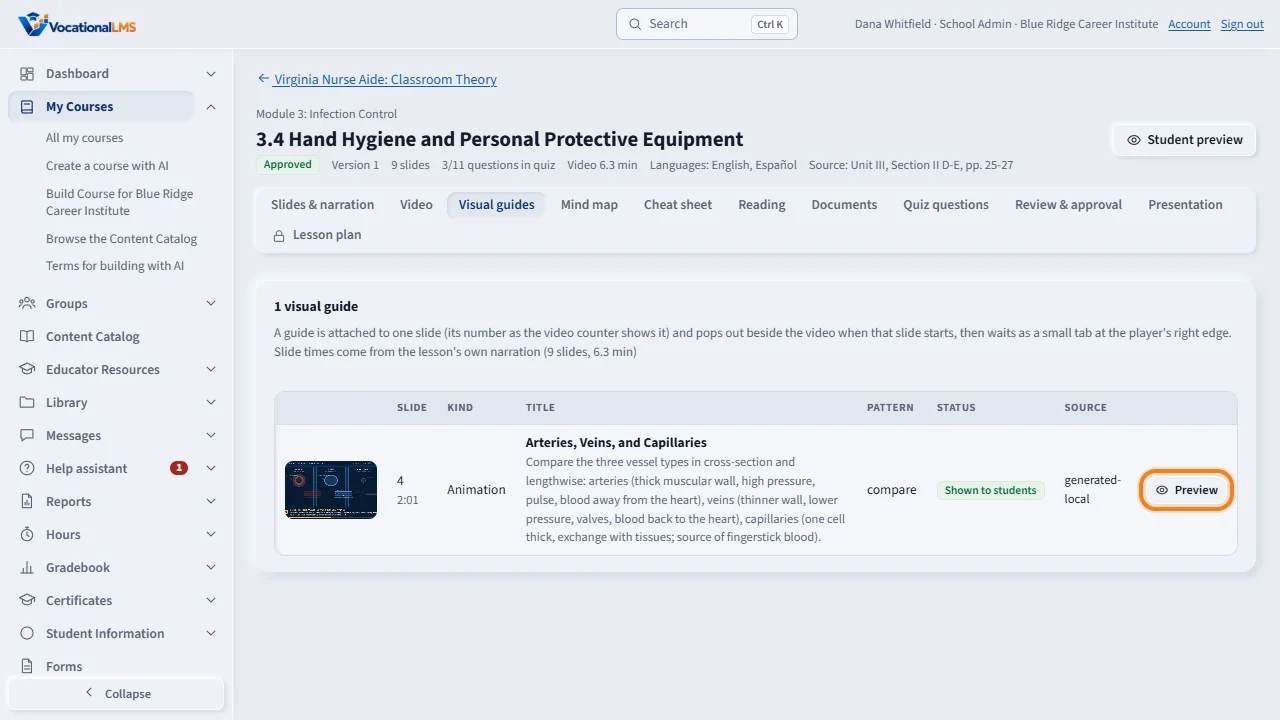
- Preview opens the guide full size exactly as a student sees it.
- Edit changes the title, summary, pattern, slide and callouts. ↑ and ↓ change the order in the strip. Hide keeps a guide as a draft that students do not see; Show publishes it. Delete (click twice) removes the guide and its files.
What happens next
Students see approved guides the next time they open the lesson. Slide times come from the lesson's own narration; a produced video uploaded as a file has no slide timing, so its guides sit in the strip, the tab and the Reading without a timed pop-out.
Common problems
| # | Problem | What to do |
|---|---|---|
| 1 | Import refused an animation: it loads files from the web. | The page runs with no network. Put every script, style and picture inline in index.html (data: URIs for pictures and fonts) and import again. |
| 2 | The zip was refused: it is for another lesson. | The Visual guides tab imports for its own lesson only. Open the right lesson, or use the command on the server for a whole tree. |
| 3 | The Add visual guides to lessons button is grey. | No paid visual-guide service is connected, so nothing can be made or spent. Import guides made offline instead. |