
A-15For School Admins and Directors
Write quizzes and tests by hand, then review and approve
Write or paste questions, set the pass mark and tries, add a chapter test, and approve the lesson.
How-to video A-15 · 1:07
Read the words of this video
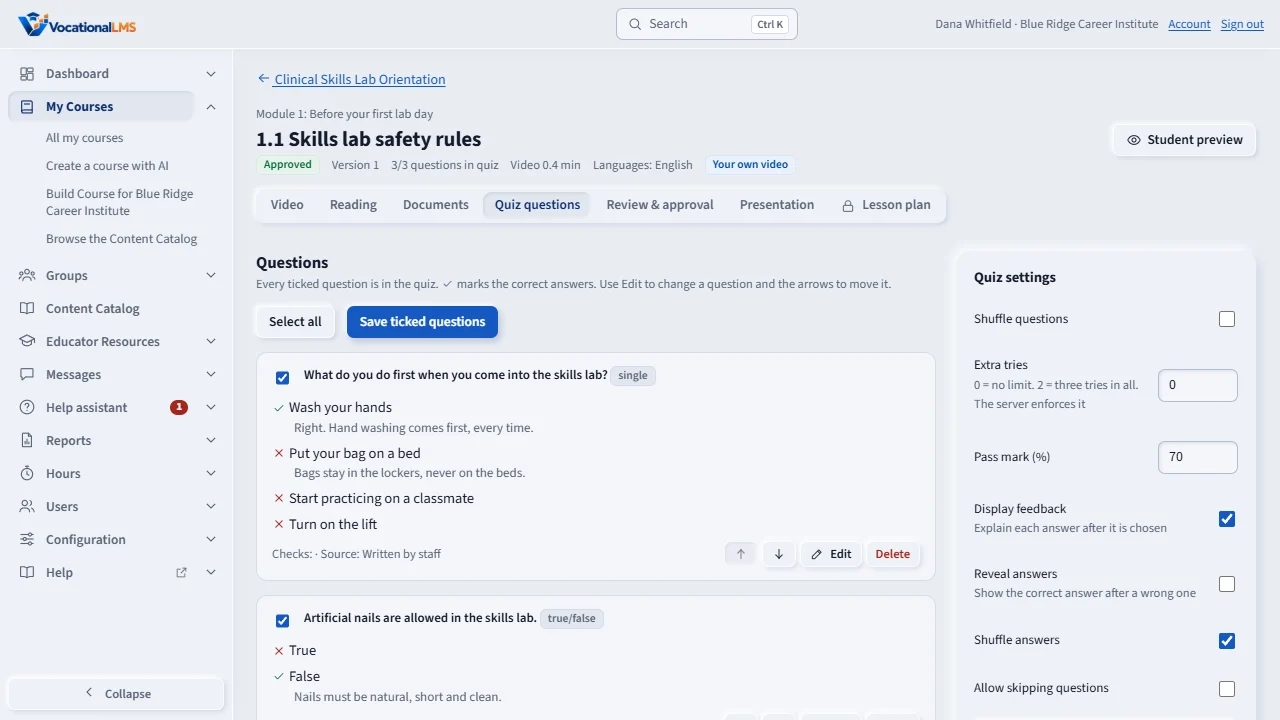
Every lesson has a quiz you write yourself. Open the lesson and click Quiz questions. The questions you have written are listed, with Edit, Delete and arrows to move them.
Under Write a question, type the question, choose multiple choice, multiple answer or true or false, type the answers, and tick the correct one. Then click Add question.
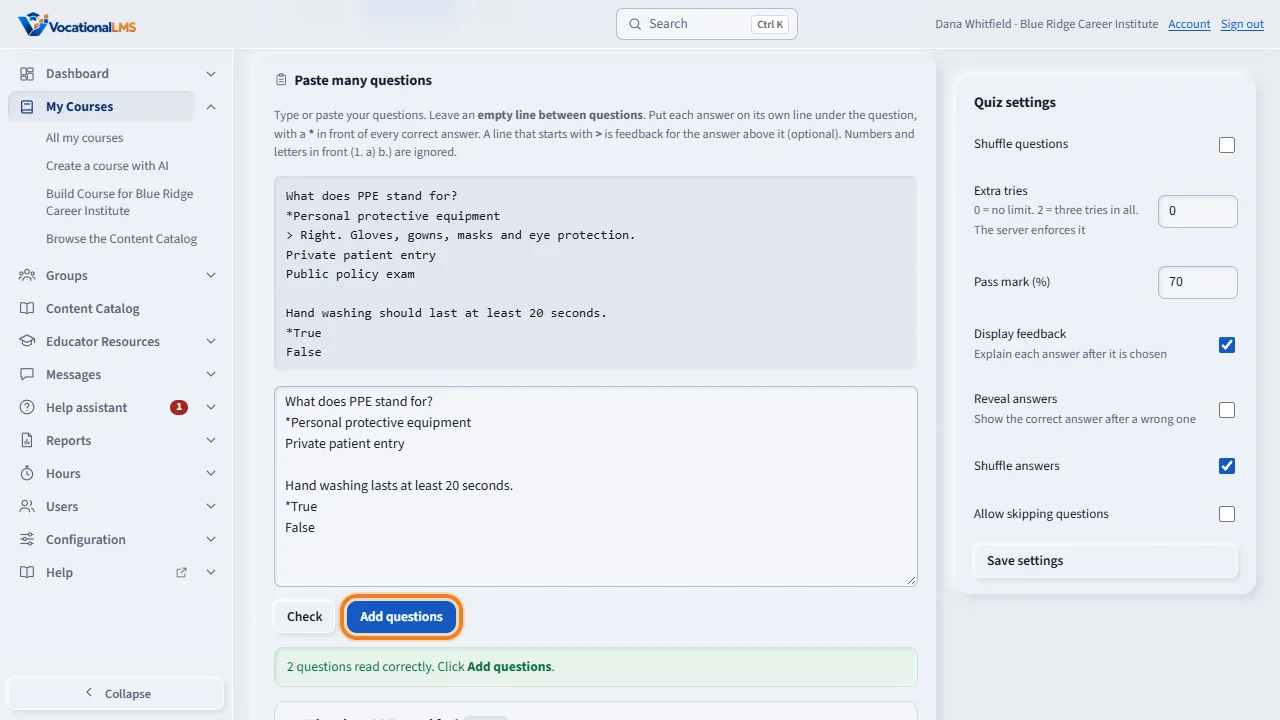
To add many at once, use Paste many questions. Leave an empty line between questions, and put a star in front of each correct answer. Click Check to see how they were read, then Add questions.
For a chapter test or a final exam, click Assessment on a module. Choose the kind, check the title, the pass mark, the time estimate and the extra tries, and click Create assessment.
Nothing reaches students until it is approved. Open Review and approval, send the item for review, and approve it with the reviewer's name. Each version is kept, and Restore brings an earlier one back.
Open this in VocationalLMSCourses > a lesson > Quiz
What it is for
Every lesson has a quiz you write yourself, and a module can have its own assessment: a chapter test, a final exam or a quiz. Nothing reaches students until the item is approved.
Steps
Write the quiz
- Open the lesson and click the Quiz questions tab.
- Under Write a question, type the question, choose the kind, type the answers, tick the correct one(s), and click Add question.
- Or use Paste many questions: leave an empty line between questions and put a
*before each correct answer. Click Check, then Add questions. - Under Quiz settings, set the pass mark, extra tries and shuffling, and click Save settings.
Add a test
- On the course page click Assessment on a module. Choose Chapter test, Final exam or Quiz, check the title, pass mark, time estimate and extra tries, and click Create assessment.
Approve
- On the item open Review & approval, click Send for review, then type the reviewer's name and click Approve lesson.
What happens next
Students see the item once it is approved. If you later change the video, captions, presentation or a question, the item goes back for review, and the earlier version is kept under Version history, where Restore brings it back.
Common problems
| # | Problem | What to do |
|---|---|---|
| 1 | Pasted questions are refused. | The page names the question to fix, for example one with no *. Nothing is added until all are right. |
| 2 | Extra tries: what does 0 mean? | 0 means no limit. 2 means three tries in all. |
| 3 | The time estimate is not a timer. | It only tells students about how long the test takes. |