
A-11For School Admins and Directors
Add your school's own items to a VocationalLMS course
Put your own reading, document, quiz, discussion or flashcards in any chapter. Only your school sees them.
How-to video A-11 · 0:59
Read the words of this video
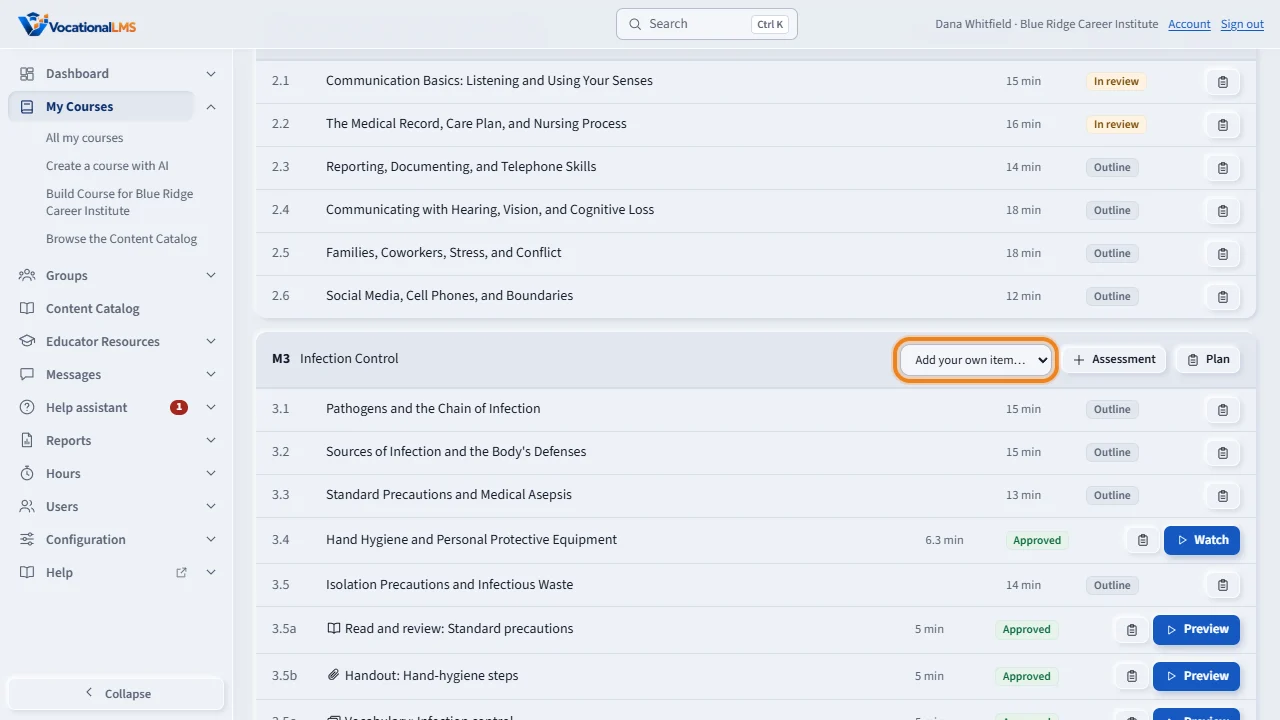
On a course VocationalLMS gave your school, you cannot change the lessons. But you can add your own items to any chapter. On the chapter, open Add your own item.
Choose the kind: a video lesson, a reading, a document, a knowledge check, a discussion or flashcards. For example, your clinical-site orientation, or a school handout.
The item opens. Fill it in: the reading text, the documents, the questions, the discussion question, or the cards. This is a reading a school wrote, the way its students see it.
Then open Review and approval, send it for review, and approve it with the reviewer's name. Students of your school see the item once it is approved. Other schools never see it, and the course's own items stay as VocationalLMS published them.
Open this in VocationalLMSMy Courses > a course > Add item
What it is for
On a course VocationalLMS gave your school, you cannot change the lessons, but you can add your own items to any chapter: a clinical-site orientation, a school handout, a local policy quiz. Only your school's people see them.
Steps
- Open the course and find the chapter (module).
- Open Add your own item… and choose the kind: Video lesson, Reading, Document, Knowledge check, Discussion or Flashcards.
- The item opens. Fill it in: the reading text, the documents, the questions, the discussion question or the cards.
- Open Review & approval, click Send for review, then approve it with the reviewer's name.
- Assessment adds a chapter test, final exam or quiz of your own to the module.
What happens next
Students of your school see the item in that chapter once it is approved, marked as your school's. The course's own items stay as VocationalLMS published them. Editing an approved item sends it back for review.
What each kind of item is
| # | Item | Students complete it when |
|---|---|---|
| 1 | Reading | They spend some time on it and click Mark as done |
| 2 | Document (PDF, Word, PowerPoint, Excel, images; 50 MB each) | They open it |
| 3 | Knowledge check | They pass it |
| 4 | Discussion | They post |
| 5 | Flashcards | They turn every card |
Common problems
| # | Problem | What to do |
|---|---|---|
| 1 | Students do not see the new item. | It is not approved yet. |
| 2 | You cannot edit a lesson of the course. | Only your own items can be edited. The master course belongs to VocationalLMS. |