
V-54For the VocationalLMS Super Admin
Course cover pictures: made by themselves, regenerated on request
Every course gets one realistic cover picture by itself when it is created; you can edit the picture description and regenerate it, and turn the automatic covers on or off.
How-to video V-54 · 0:52
Read the words of this video
Every course has one wide cover picture, a realistic photo of the workplace the program trains for. It makes itself the moment a course is created. The header shows Making cover while it works.
Open the Course cover panel to read who made the picture and what it cost. Edit the picture description if you like and click Regenerate cover. The new picture replaces the old one everywhere.
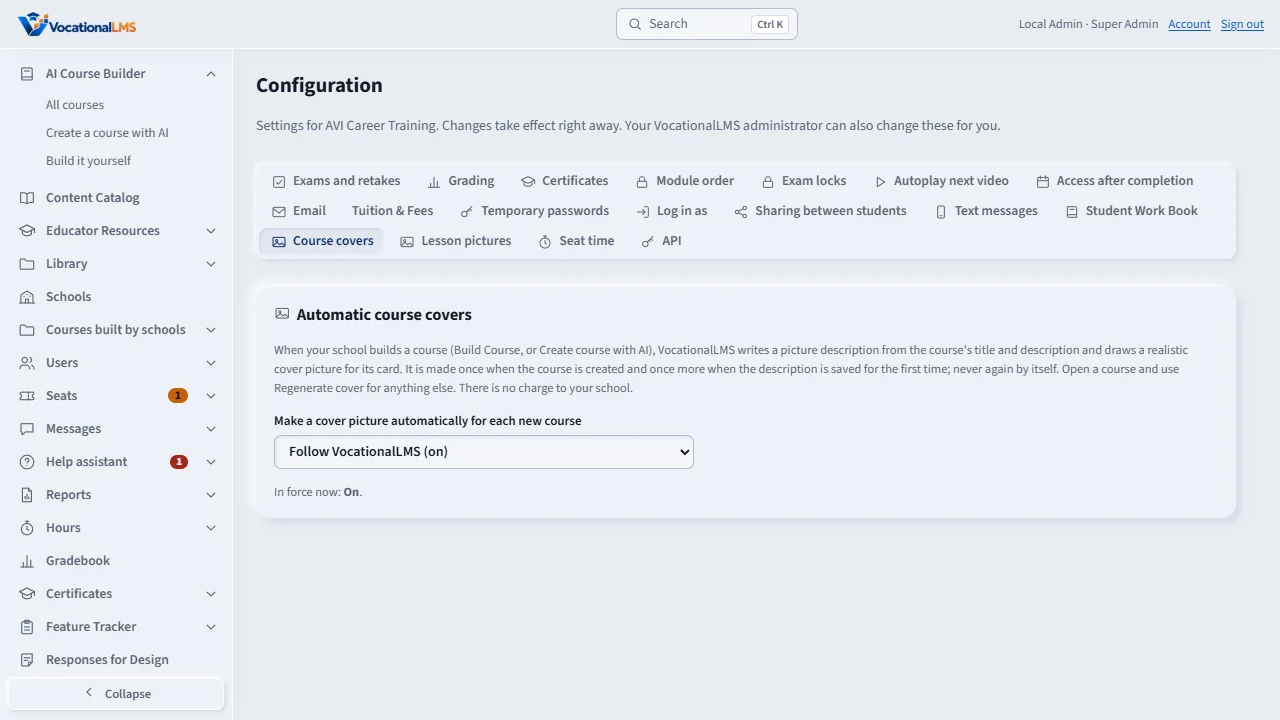
In Configuration, Course covers, choose Follow VocationalLMS, On or Off for automatic covers. Regenerate cover keeps working either way.
A School Admin sees the same pictures on every course card, and a course the school builds gets its own picture in about a minute.
Open this in VocationalLMSConfiguration > Course covers
Who can do this: The VocationalLMS Super Admin for every course. A School Admin or Director can regenerate the cover of a course their own school built; nobody at a school changes the picture of a VocationalLMS master course.
What it is for
Each course has one wide cover picture: a realistic photograph of the workplace the program trains for (for a medical assistant program, a clinic exam room; for a dental program, a dental office; for an esthetics program, a treatment room). It is the banner across the top of the course's card in the AI Course Builder and the Content Catalog, it sits beside the course's title on the course page, and schools and students see the same picture on their own lists. It makes itself: the moment a course is created (Create course with AI, or Build it yourself), Claude writes a picture description from the course's own title, description, category and audience, and the picture service (fal.ai) draws it, 16:9, in about a minute. Generic adult models, no real people, no words or logos in the picture, nothing distressing. About $0.03 a picture, paid by VocationalLMS and listed in the AI cost ledger.
Steps
When a course is created
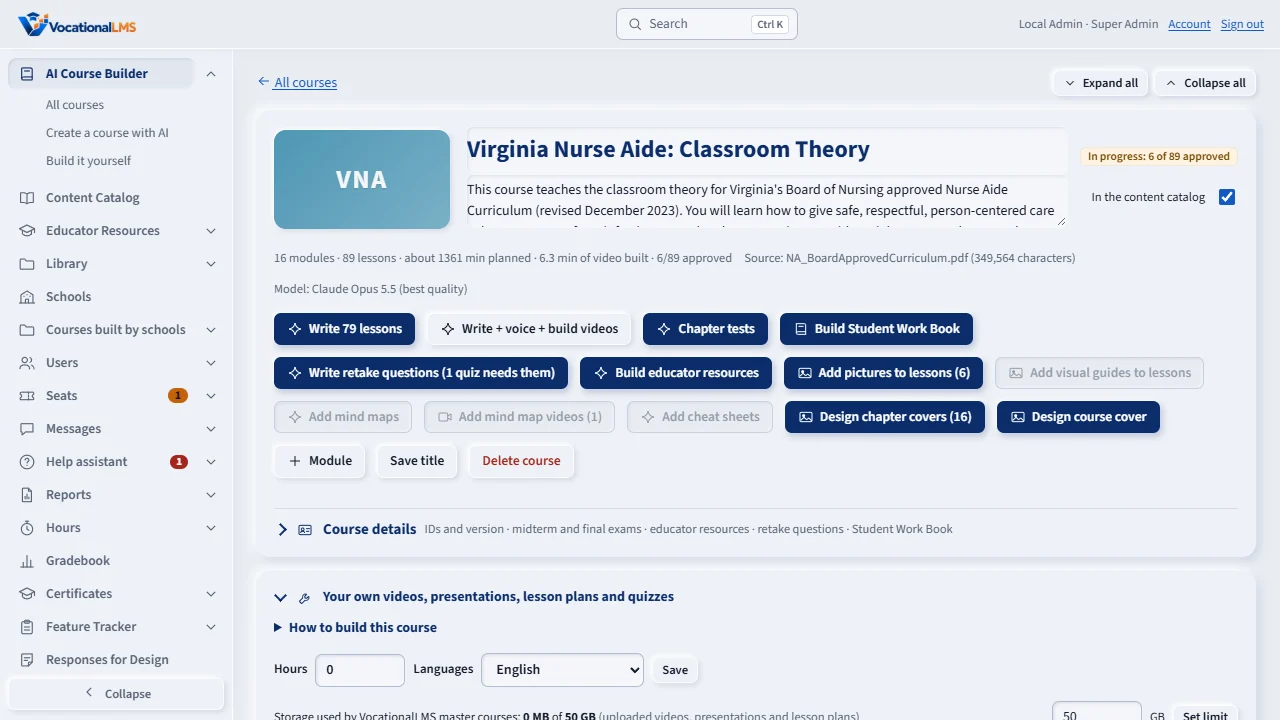
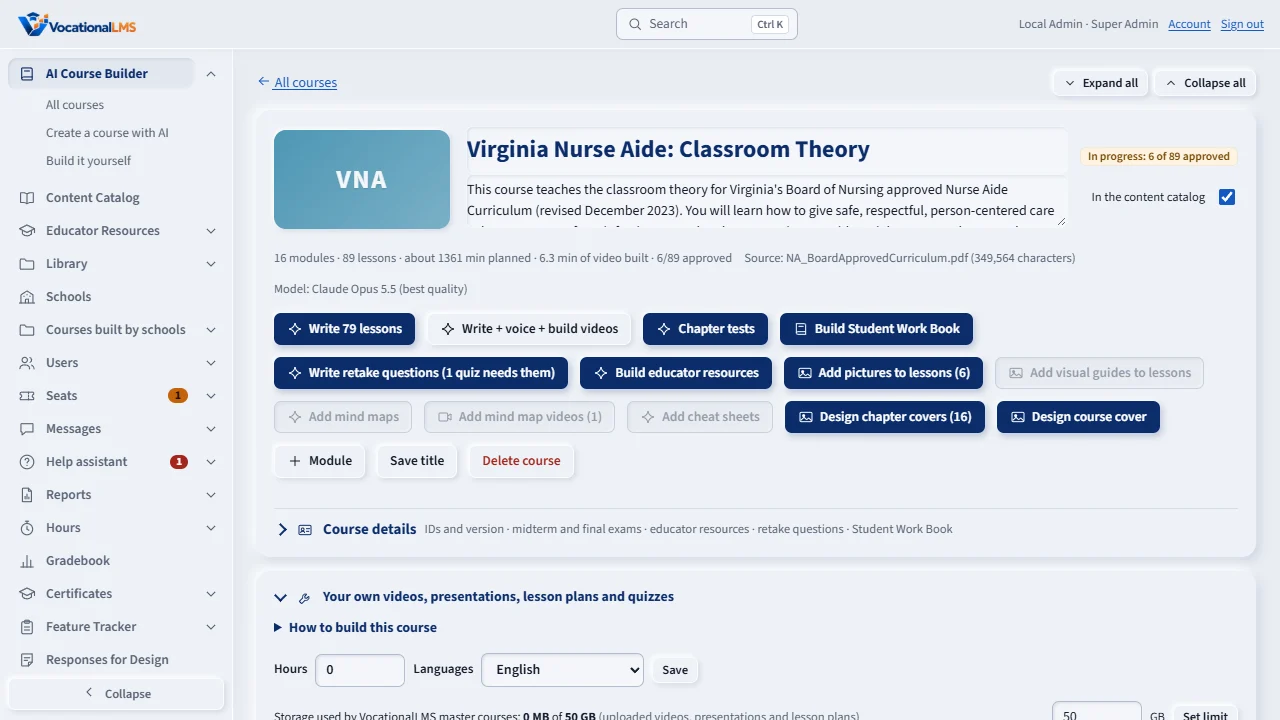
- Create a course with AI, or Build it yourself, as usual. The course page's header tile and the course's card show Making cover… over the course's initials, then the picture, by themselves.
- A course created with AI gets its first cover from what you typed; when the outline has written the course's description, the cover is designed one more time from it. A course built by hand without a description gets a cover from its title and category, and one more when you first save a description.
- That is all that ever happens by itself: a later edit of the description or the title changes nothing, and a cover you made or regenerated yourself is never replaced automatically. A course still called Untitled course gets no picture until it has a real name.
Edit the description and regenerate
- Open the course and the Course cover panel. It says who made the picture (automatically, or on request), the picture service and about what it cost.
- Picture description is what Claude wrote. Edit it if you like (keep the style and safety wording at the end, or shorten it) and click Regenerate cover. The new picture replaces the current one on every course card; the description stays as you wrote it.
- New description and cover (or New course cover at the top) has Claude write a brand-new description from the title and description first, then draws it. You click twice to confirm.
- Design course cover at the top makes the first picture for a course that has none (for example after automatic covers were turned off).
Turn automatic covers on or off
- Configuration › Course covers: the switch Make a cover picture automatically for each new course governs VocationalLMS master courses and is the starting value for every school.
- Under Each school, choose Follow VocationalLMS, On or Off for one school; a school can choose for itself under its own Configuration › Course covers. The buttons on the course page keep working either way.
- The same switch governs the chapter (module) pictures made after an AI outline of a master course (V-53).
What happens next
The picture is stored with the course's other media. A course given to a school shows the same picture; a copy made for a school keeps it. If the server has no picture service connected, the picture's description is still written and the course waits (a dashed banner for staff) until VocationalLMS attaches a picture.
Common problems
| # | Problem | What to do |
|---|---|---|
| 1 | A course card shows its initials instead of a picture. | Its picture is not made yet, or automatic covers are off. Open the course and click Design course cover. |
| 2 | The tile says Making cover… for more than a few minutes. | Open the course's Activity panel: the coursecover job shows what happened. Regenerate cover tries again. |
| 3 | Regenerate cover is refused. | A cover is being made for this course right now (wait for it), the description is under 20 characters, or the course is still called Untitled course. A school may also make at most 12 covers for one course in a day. |
| 4 | I want the picture from before. | Pictures are replaced, not kept. Edit the description and regenerate, or ask VocationalLMS. |