
V-53For the VocationalLMS Super Admin
Module cover pictures
Every module (chapter) gets a realistic cover picture made from its own name, shown next to the module for you and for students.
How-to video V-53 · 0:37
Read the words of this video
Every module of a course has its own cover picture, a realistic photo of what the module is about, made from the module's own name. It sits at the start of the module's row.
When a course is built with AI, the pictures are made right after the outline, one by one, while you keep working. A module still called Chapter 3 gets its picture once you give it a real name.
Students see the same pictures next to each module in My courses, so every chapter is easy to recognize at a glance.
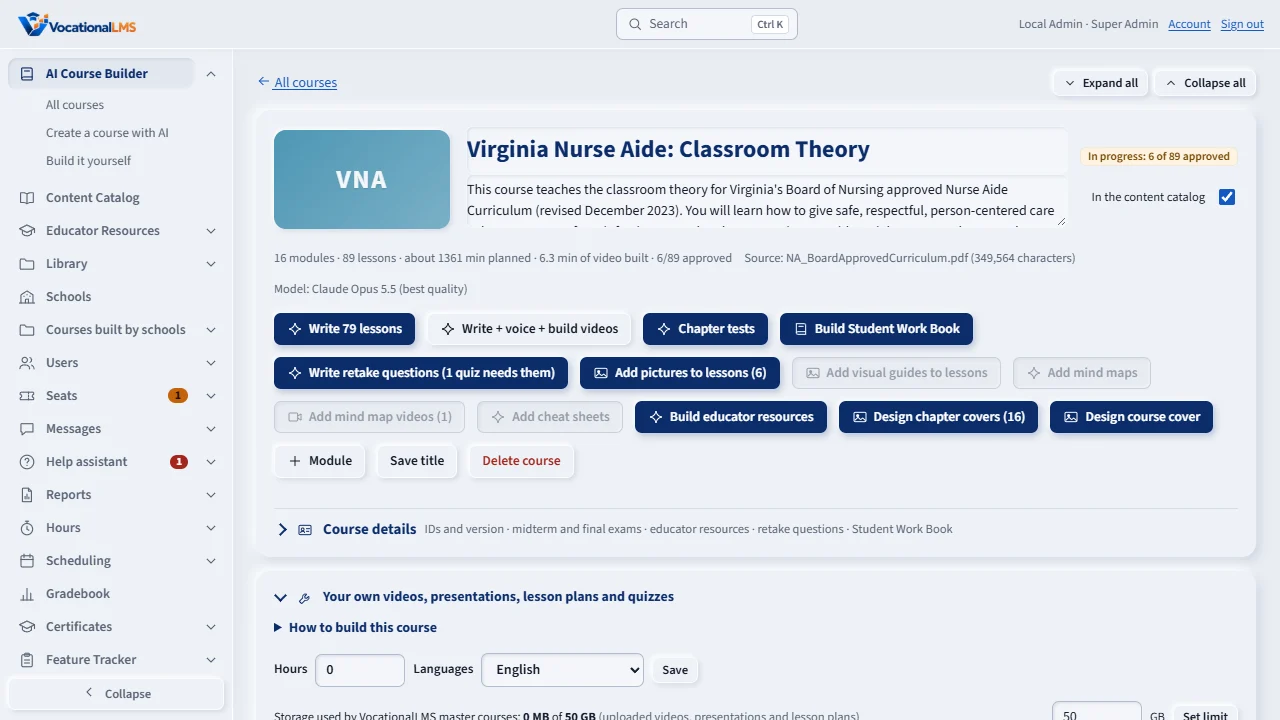
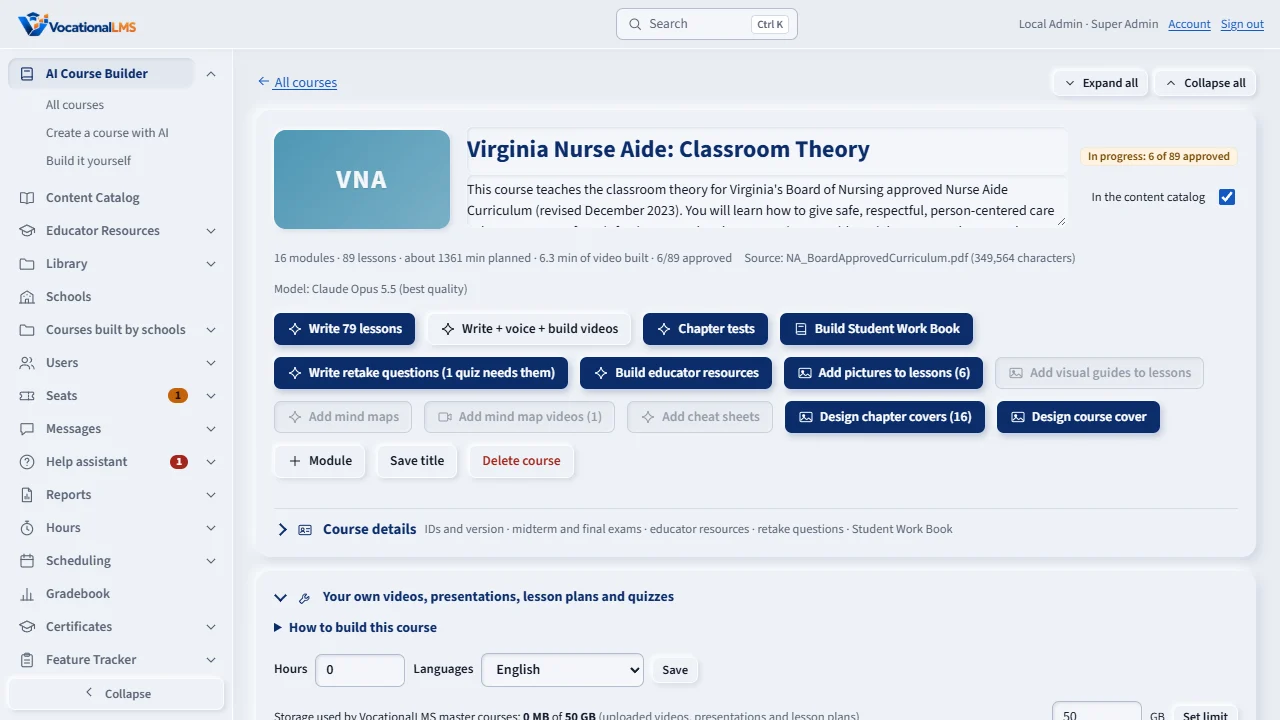
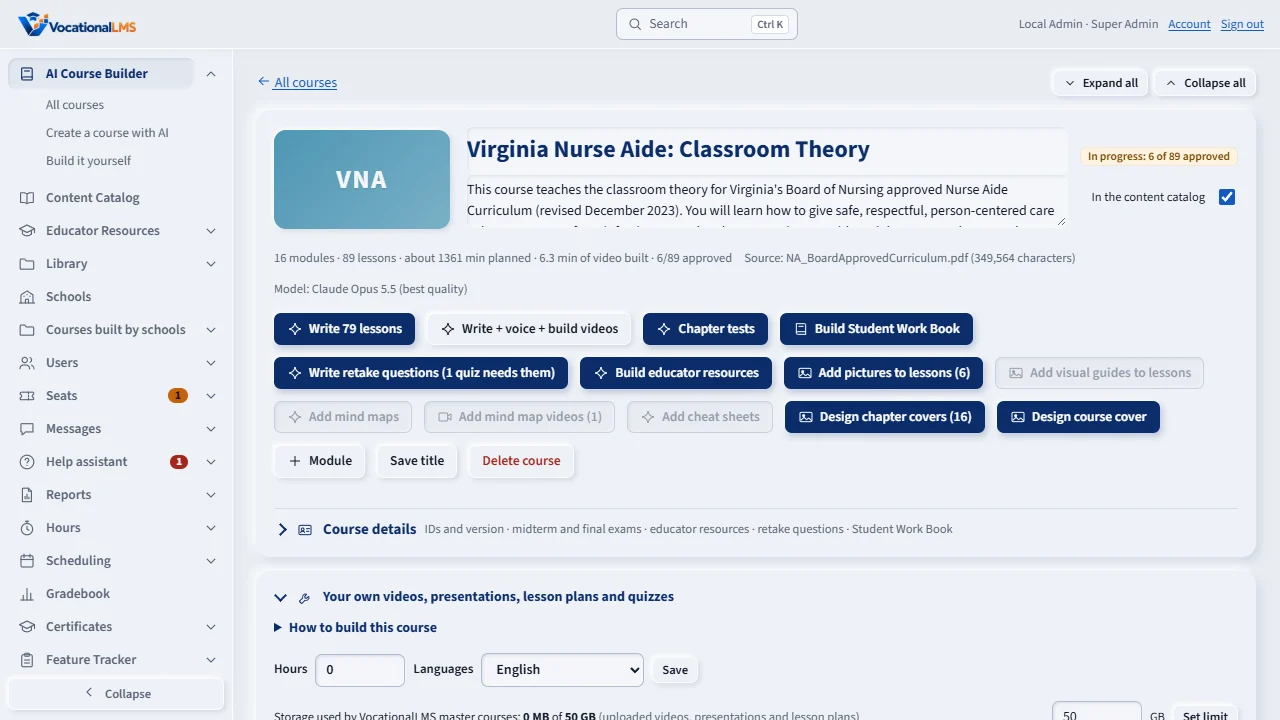
Open this in VocationalLMSAI Course Builder > a course > Design chapter covers
Who can do this: Only the VocationalLMS Super Admin designs covers. A school sees the pictures of the courses it has; it does not make or change them.
What it is for
Each module of a course has a small, square cover picture: a realistic photograph of the module's topic (for a nurse aide course, a nurse aide with a resident, in the setting the module is about). It sits at the start of the module's row on the course page, and students see the same picture next to each module in My courses and in the list beside a lesson. The picture is described from the module's own name, summary and lesson names only, with generic adult models, no real people, no words or logos in the picture, and nothing distressing even for serious topics.
Steps
When a course is built
- Create a course with AI as usual. The outline is ready as fast as before; the cover pictures are made after it, as their own work, and each one appears next to its module by itself while you keep working.
- A module still called Chapter 3 or New module gets no picture. Give it a real name and its picture is made.
Make the missing ones
- Open the course. When some named modules have no picture, the button Design chapter covers shows how many.
- Click it. A shimmering square marks each module whose picture is being made; the picture replaces it when it is ready.
- Hold the pointer over a picture's square to see what it shows.
What happens next
The pictures are stored with the course's other media. A course copied for a school keeps the same pictures. When the server has no picture service connected (today's setting), the description of each picture is written and VocationalLMS makes the picture and adds it; the module shows a dashed square until then.
Common problems
| # | Problem | What to do |
|---|---|---|
| 1 | A module has no picture. | Its name is still a placeholder (Chapter 3, New module), or its picture is still being made. Rename it, or click Design chapter covers. |
| 2 | A picture shows a dashed square. | The picture's description is written and VocationalLMS adds the picture; nothing for you to do. |
| 3 | Design chapter covers is not there. | Every named module already has a picture. |