
V-43For the VocationalLMS Super Admin
Review and approve lessons (for reviewers)
For a reviewer of a library course: open each lesson and each Educator Resources item, then approve it or send it back with a reason.
How-to video V-43 · 1:25
Read the words of this video
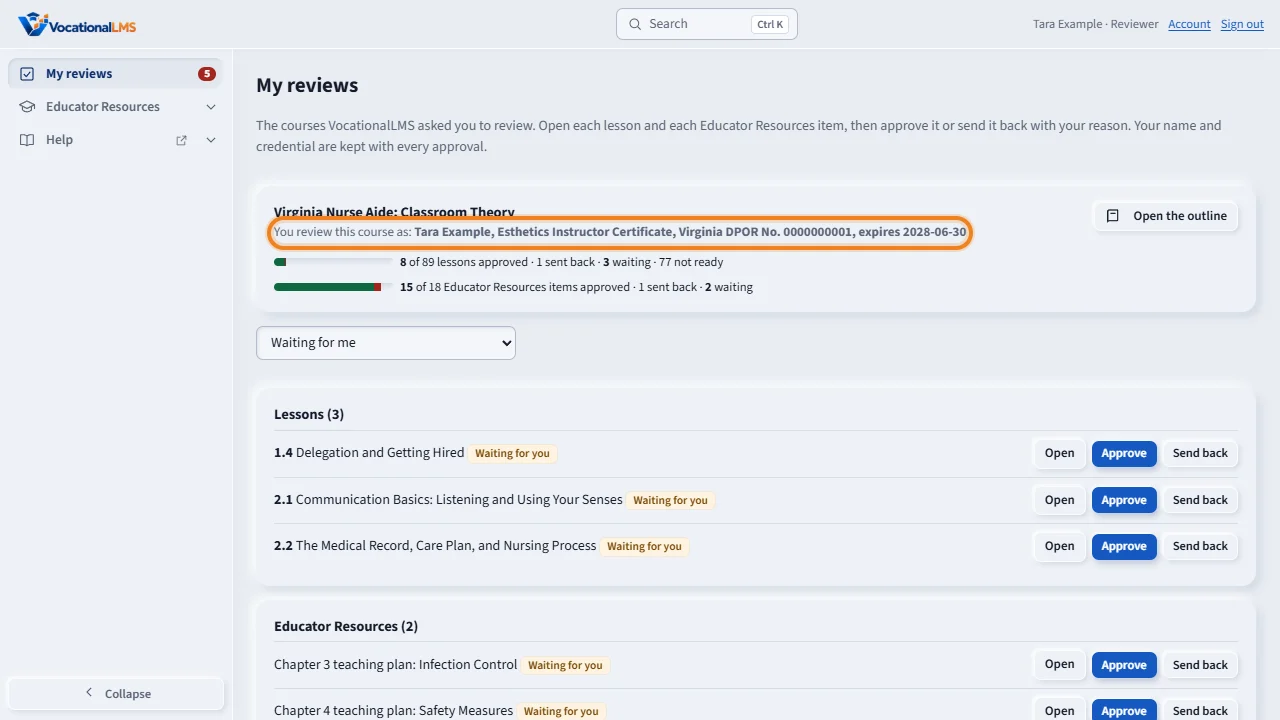
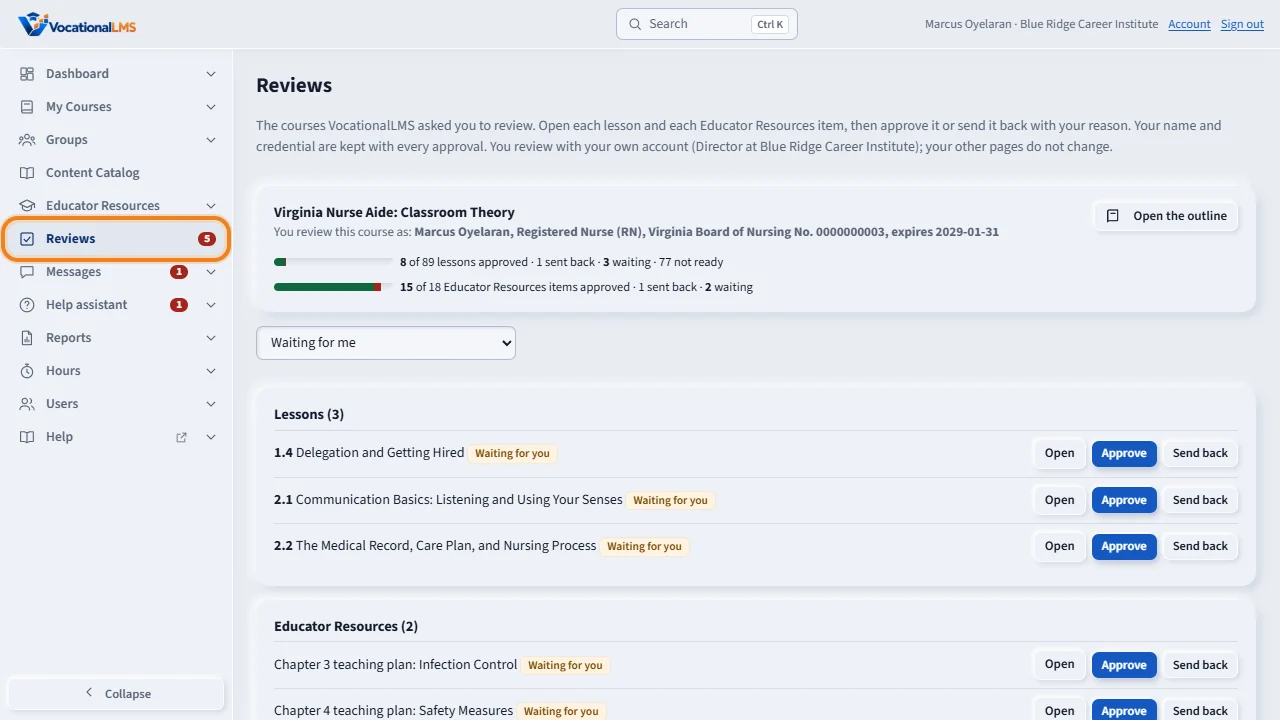
This video is for reviewers. VocationalLMS asked you to review a course. After you choose your password, you land on My reviews. The top of the page says what you sign as: your name and credential. If it is wrong, tell VocationalLMS before you approve anything.
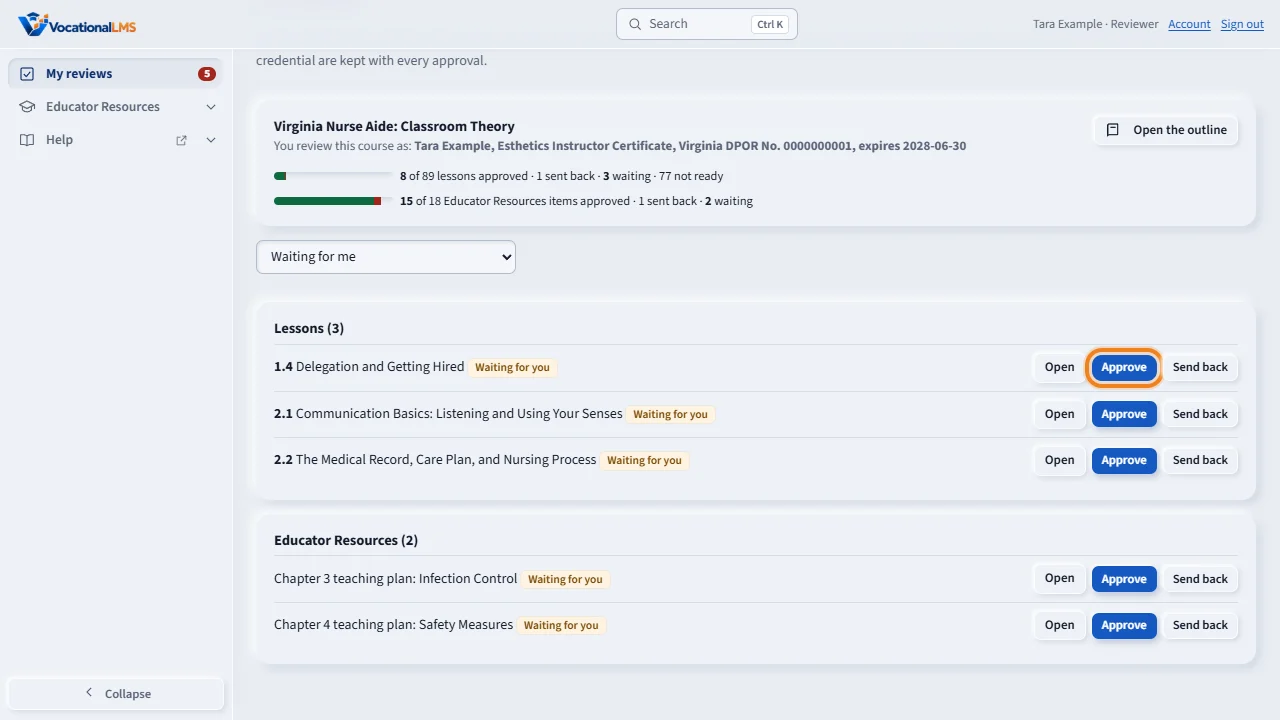
The list shows what is waiting for you. Click Open on a lesson to read its slides, narration, video, reading and quiz. Click My reviews in the menu to come back. If the lesson is correct and complete, click Approve.
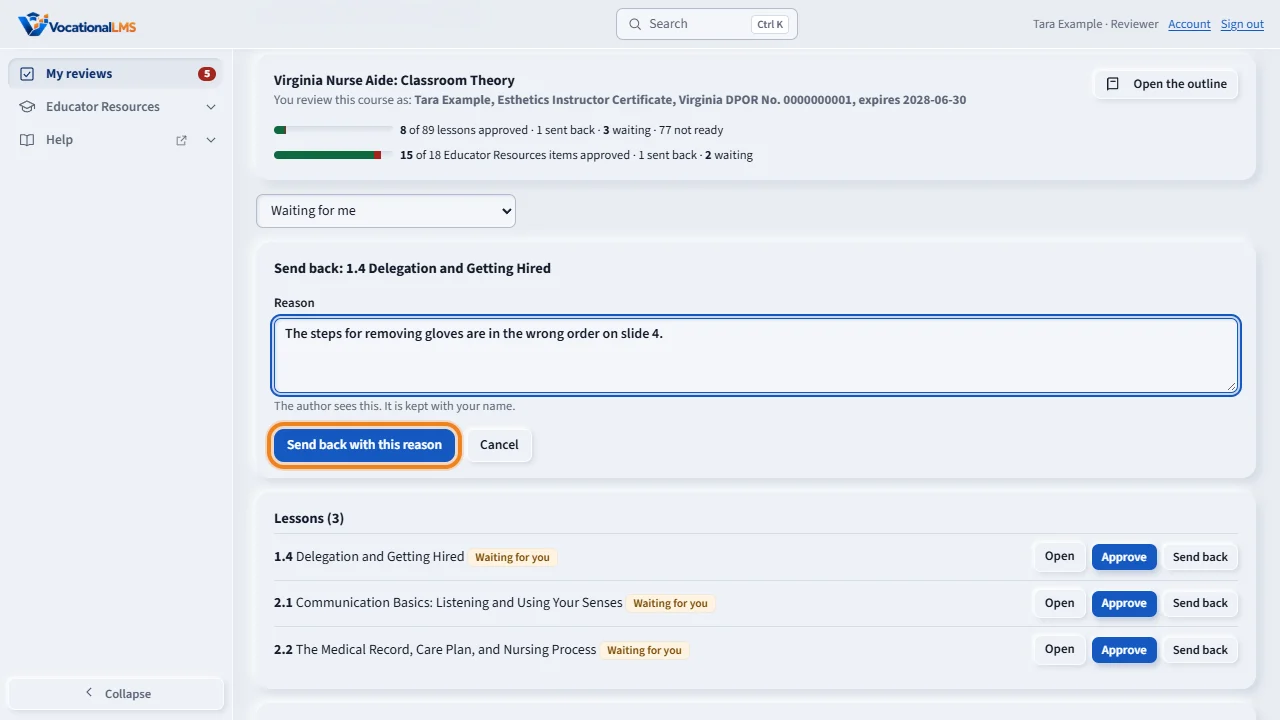
If something must change, click Send back, type the reason, and click Send back with this reason. The author sees your reason, and the lesson comes back to you when it is fixed.
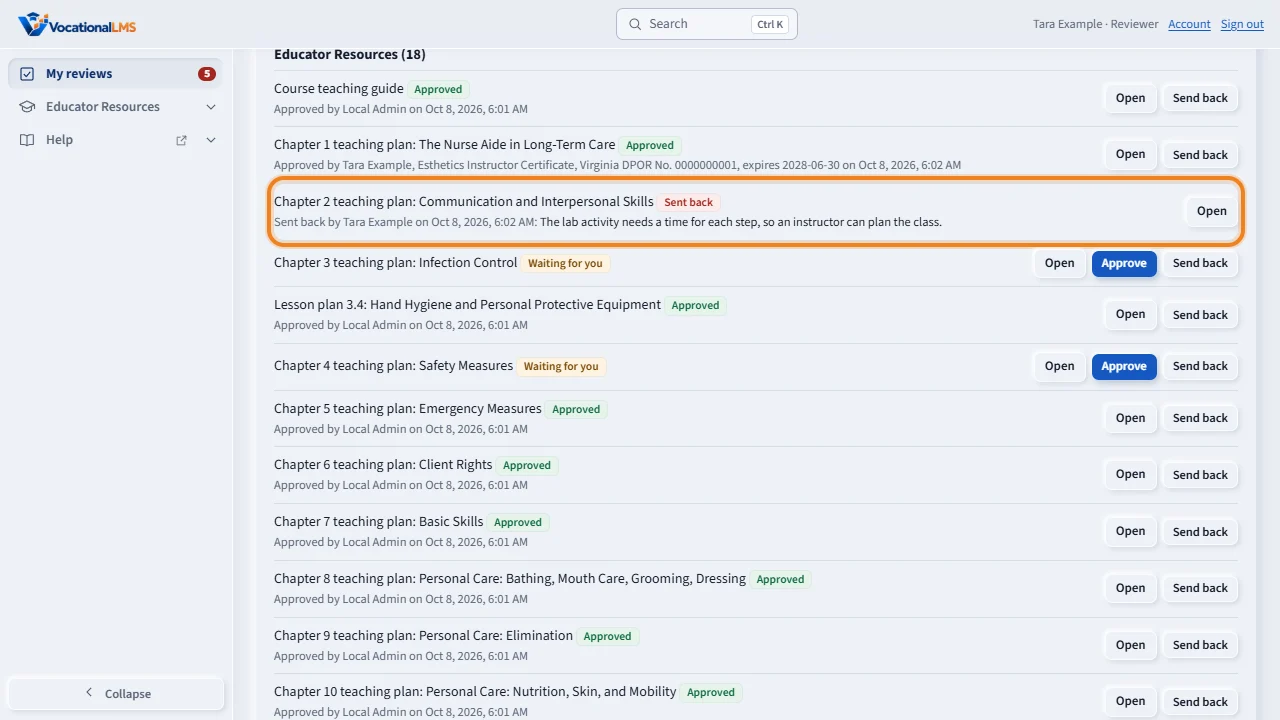
Do the same for the Educator Resources items, which are the teaching plans. Use the box above the list to see what you sent back, what you approved, or everything. Your name and credential are kept with every approval.
If you are a School Admin, a Director or an Instructor whom VocationalLMS asked to review a course, you keep your own account and password. Reviews appears in your menu, with the number of items waiting for you, and opens this same page for that course. Your other pages do not change.
Open this in VocationalLMSMy reviews
Who can do this: A reviewer, for the courses VocationalLMS gave them; and a School Admin, Director or Instructor given a course to review with their own account. (It is filed under the Super Admin's articles because reviewers do not have a tab of their own in the Help center.)
What it is for
This article is for a reviewer. VocationalLMS asked you to review one or more courses. Your page My reviews lists every lesson and every Educator Resources item of those courses. You read each one, then approve it or send it back with your reason. Your name and credential are kept with every approval. If you are a School Admin, a Director or an Instructor who was asked to review a course, you keep your own account: Reviews in your menu opens the same page, and your other pages do not change.
Steps
- Open the invitation email, click the link and choose your password. You land on My reviews. (A staff member given a course keeps their own sign-in: open Reviews in your menu; the number beside it is what is waiting for you.)
- The top of the page says what you sign as: your name and credential. If it is wrong, tell VocationalLMS before you approve anything.
- The list shows what is Waiting for me. Click Open on a lesson to read its slides, narration, video, reading and quiz. Click My reviews in the menu to come back.
- Click Approve if the lesson is correct and complete.
- If something must change, click Send back, type the reason and click Send back with this reason. The author sees your reason.
- Do the same for the Educator Resources items. Open shows the plan; on that page you can also click Approve (my sign-off) or Send back with a reason.
- Use the box above the list to see Sent back, Approved or Everything.
What happens next
An approved lesson reads Approved by your name and credential. You can take an approval back with Send back. You can keep private notes on a plan under My notes for this plan; only you see them. You cannot publish a course, give it to a school or build with AI, and you cannot change content unless VocationalLMS gave you that right for the course.
Common problems
| # | Problem | What to do |
|---|---|---|
| 1 | A lesson says Not ready for review. | The author has not sent it for review yet. There is nothing for you to do on it. |
| 2 | “Type the reason you are sending this lesson back.” | A send-back always needs a reason, so the author knows what to change. |
| 3 | A button is gray and says you review this course. | Changing content is for VocationalLMS unless they ticked May edit for that course. |
| 4 | You do not see a course you expected. | Ask VocationalLMS to give you the course. |