
V-23For the VocationalLMS Super Admin
The pages under each group of the menu
Go straight to any page: click the arrow beside a group in the menu on the left.
How-to video V-23 · 0:52
Read the words of this video
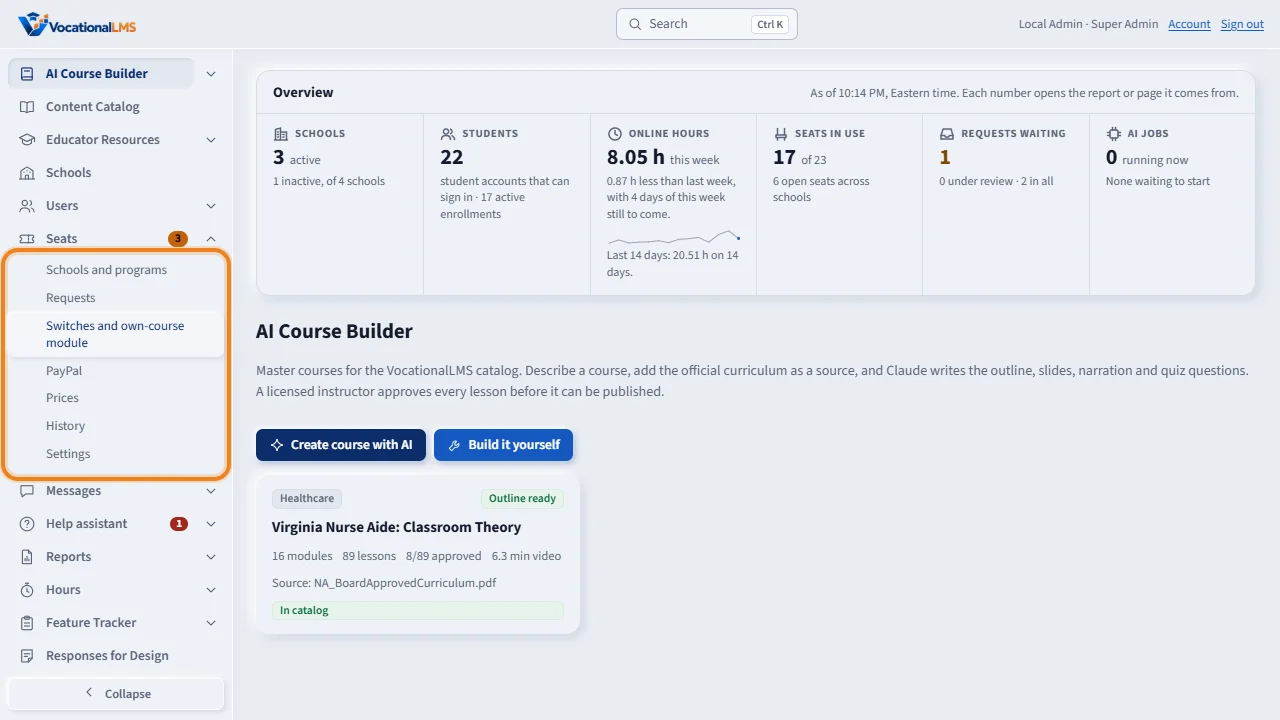
In the menu on the left, every group with more than one page has a small arrow at the right end of its line. Click the arrow, and its pages open in place, under the line. Under Seats you can go straight to Requests, Prices, History or Settings.
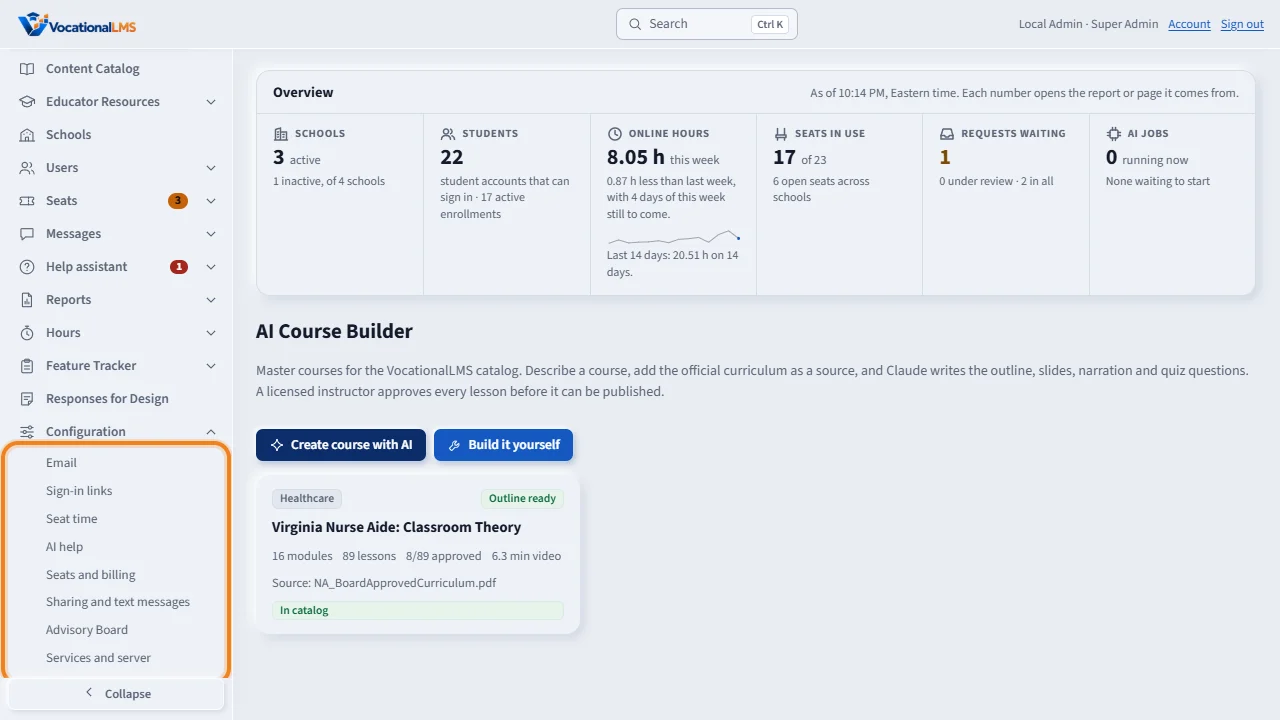
Configuration lists its eight tabs, such as Email, AI help, and Advisory Board. Users lists each kind of person, the people who have not registered yet, archived students, and Add a person. Clicking a group's name itself still opens its first page.
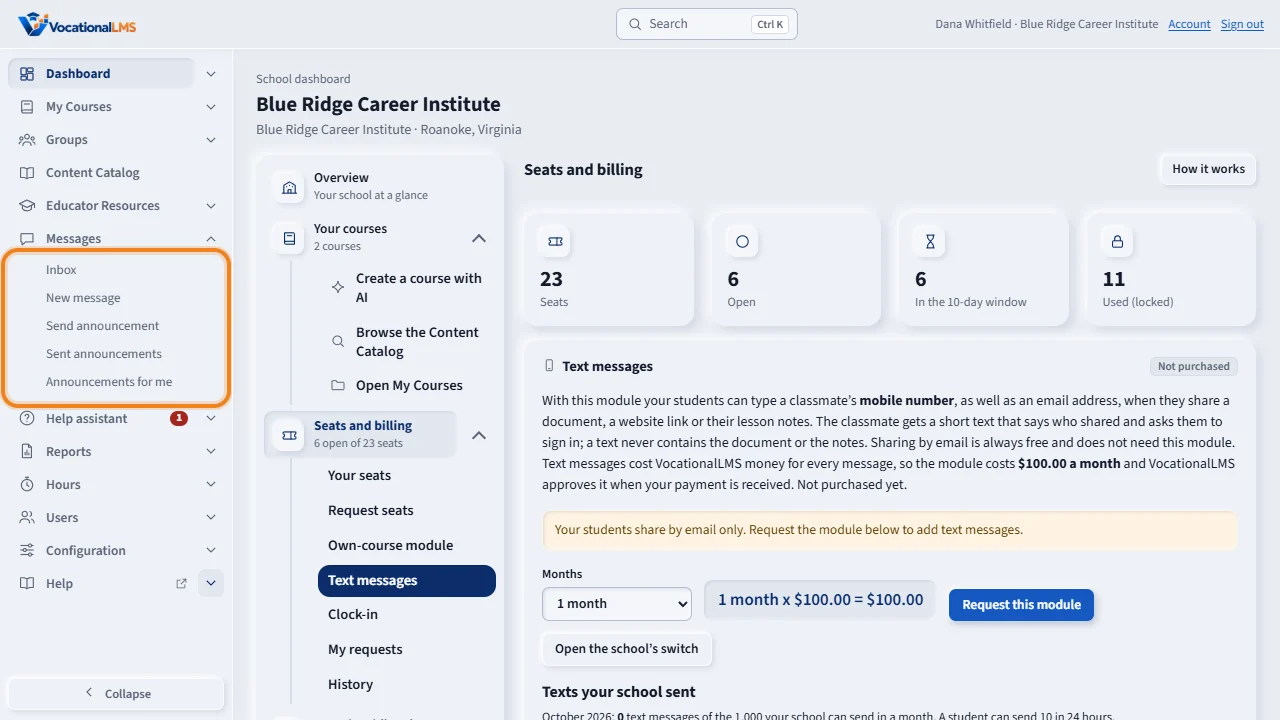
School staff have the same groups in their own menu, and students have the same lists in their own menu on the left. With the keyboard, press Enter or Space on the arrow, Tab to a page, and press Enter to open it.
Open this in VocationalLMSAI Course Builder
What it is for
Every group of the menu on the left that has more than one page shows a small arrow at the right end of its line. Its pages open in place, under the line, and take you straight to a page: a tab of Seats, a tab of Configuration, one kind of person in Users, and so on. School staff have the same kind of groups in their own menu, and students have the same lists under the lines of their own menu on the left.
Steps
- Click the small arrow at the right end of a group's line. Its pages open under it. One group is open at a time, and the group of the page you are on opens by itself.
- Click a page. For example Seats > Requests, Configuration > Advisory Board, Users > Not registered yet, or Messages > Send announcement.
- Clicking the group's name itself still opens its first page, as before.
- With the keyboard: Tab to the arrow, press Enter or Space, Tab to a page and press Enter. On a phone, open the menu with the menu button (three lines) at the top left first.
What happens next
AI Course Builder: All courses, Create a course with AI, Build it yourself. Users: Everyone, each role, Not registered yet, Archived students, Add a person. Seats: its six tabs. Messages: its five tabs. Help assistant: Chats, Approved answers, Usage and limits. Feature Tracker: Overview, All features. Configuration: its eight tabs. Help: the Help center for each role. Content Catalog, Schools and Responses for Design have one page each, so they have no arrow.
Common problems
| # | Problem | What to do |
|---|---|---|
| 1 | A group stays open. | That is normal: the menu keeps the group of the page you are on open. Opening another group closes it, or click its arrow. |
| 2 | On a tablet the menu is not there. | Narrower than about 1000 pixels the menu is a drawer: tap the menu button (three lines) at the top left, then tap the arrow beside the group. |