
V-25For the VocationalLMS Super Admin
Text messages module: price, payments and usage for each school
Set the price and the monthly limit, approve a school's request, and see how many texts each school sent.
How-to video V-25 · 1:04
Read the words of this video
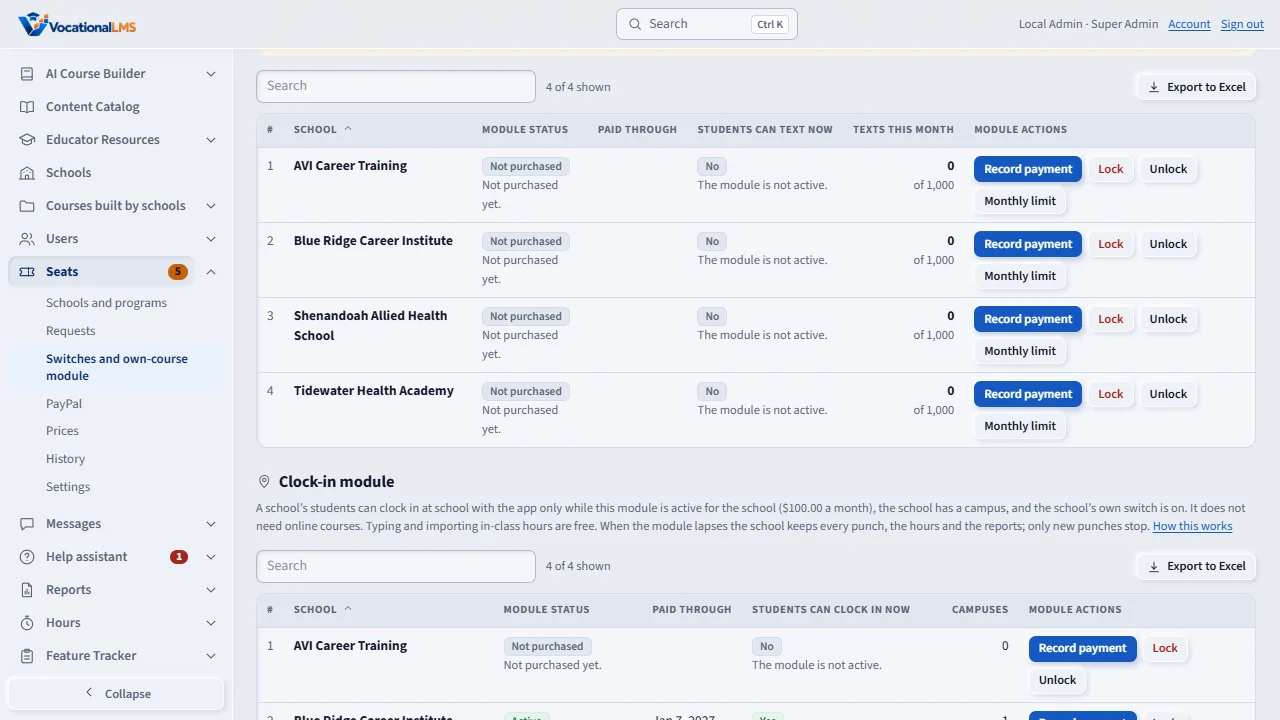
A school's students can share by text message only when the school has the Text messages module. On the Seats page, under Switches and own-course module, the Text messages module table shows each school's status, its paid-through date, and the texts it sent this month. Record a payment, lock, unlock at no charge, or set a monthly limit from the school's row.
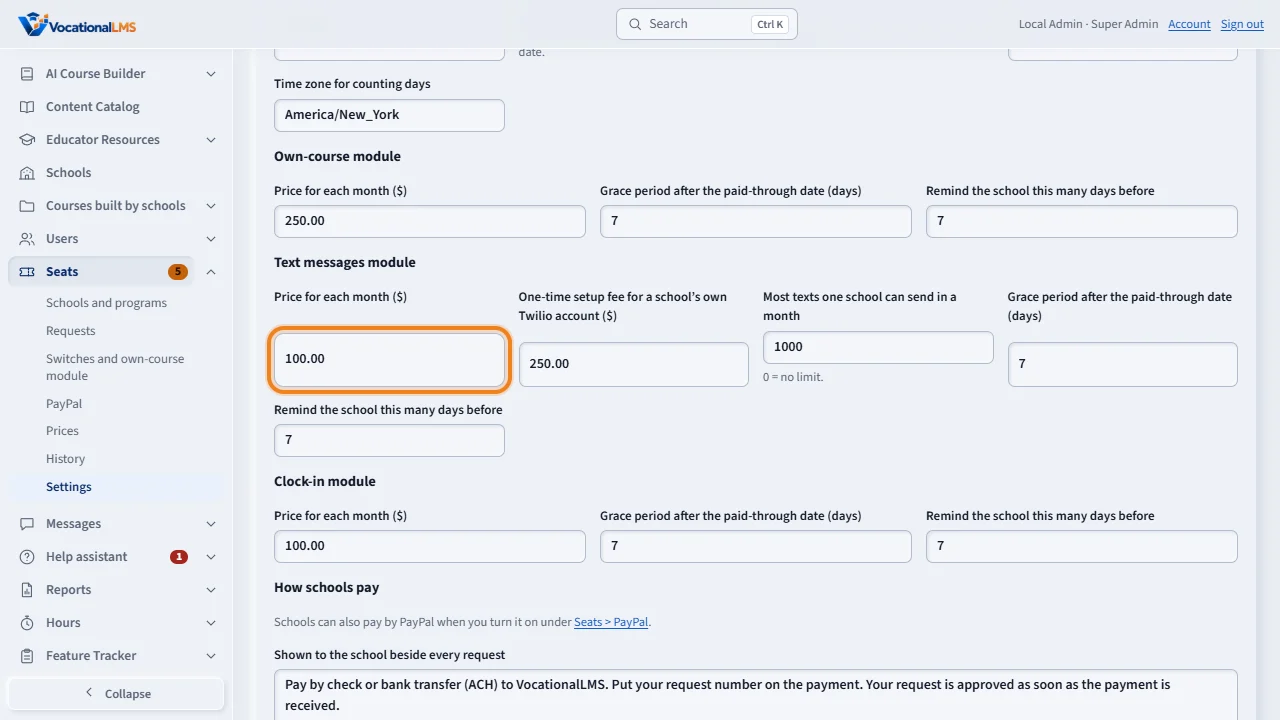
The price for a month, the one-time setup fee for a school's own Twilio account, the monthly limit of texts, the grace days and the reminder are on the Settings tab. A school's request appears under Requests, and so does the setup fee, which the school requests from its Text messages page and pays with PayPal or by check. Paid with PayPal, a request is approved and the paid-through date moves by itself. A check or bank transfer you record and approve there, exactly like the own-course module.
Open this in VocationalLMSSeats > Switches and own-course module > Text messages module
What it is for
A school's students can share by text message only when the school has the Text messages module. It works like the own-course module: the school requests months and pays; paid with PayPal, the request is approved and the paid-through date moves by itself (V-41); a check or bank transfer you record and approve; and it is active through a date. A school that uses its own Twilio account (V-17) pays a one-time setup fee instead of the monthly module: the school requests it from its Text messages page and pays it the same way, and the request appears under Requests like any other.
Steps
- Seats > Settings > Text messages module: the price for a month ($100.00 unless you change it), the one-time setup fee for a school's own Twilio account ($250.00), the monthly limit of texts for a school, the grace days and the reminder.
- A school's request appears in Seats > Requests. Paid with PayPal, it is already approved. For a check or bank transfer click Payment received, then Payment received and approve. The one-time setup fee of a school's own Twilio account is a request here too (Own Twilio account: one-time setup fee, no months to change); approved, the school's own account is used from that day. You can also record or waive that fee under Configuration > Sharing and text messages > A school's own Twilio account.
- Seats > Switches and own-course module has a second table, Text messages module: each school's status and paid-through date, Record payment, Lock, Unlock (no charge), Follow the date and Monthly limit.
- The column Texts this month, and Texts sent, month by month under the table, show the usage you pay the carrier for.
What happens next
Texts go out only when the platform's text service is set up (Configuration > Sharing and text messages), the school's module is active, and the school's own switch is on. Unlocking a school at no charge turns texts on for it, because the school's switch is on by default. The codes that confirm a student's mobile number are counted too.
Common problems
| # | Problem | What to do |
|---|---|---|
| 1 | A school paid but students see no mobile option. | Check the three conditions: the platform text service, the module's status, and the school's switch in its Configuration. |
| 2 | A school reached its monthly limit. | Raise it with Monthly limit on the school's row; 0 means no limit. |