
V-04For the VocationalLMS Super Admin
Write the lessons, record the voice-over and build the videos
One lesson or all of them, View details to see what the work is doing, and Finish videos when a batch stops part-way.
How-to video V-04 · 1:29
Read the words of this video
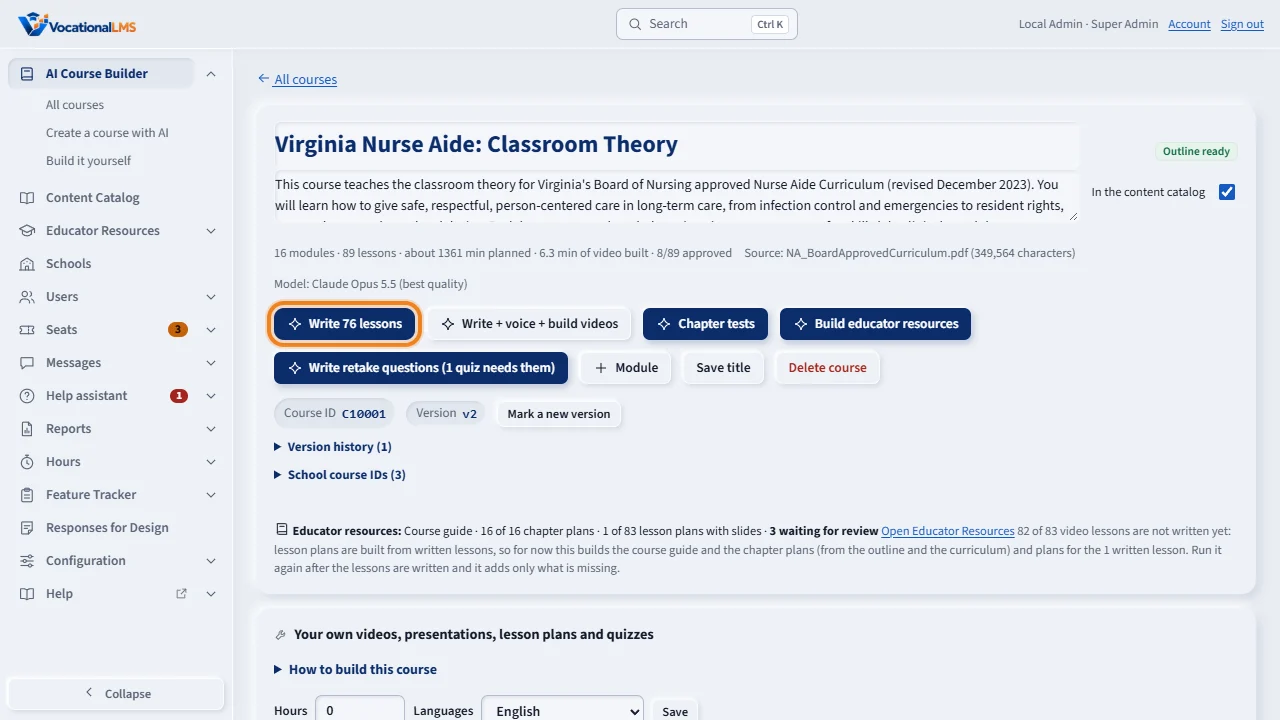
For each lesson, the AI writes slides, a narration for every slide, and quiz questions. On the course page, click AI on one lesson, or Write lessons for all of them. Three lessons are written at a time.
Write plus voice plus build videos does everything in one go: the writing, the narration and the video. Activity, lower on the page, shows the progress of each job.
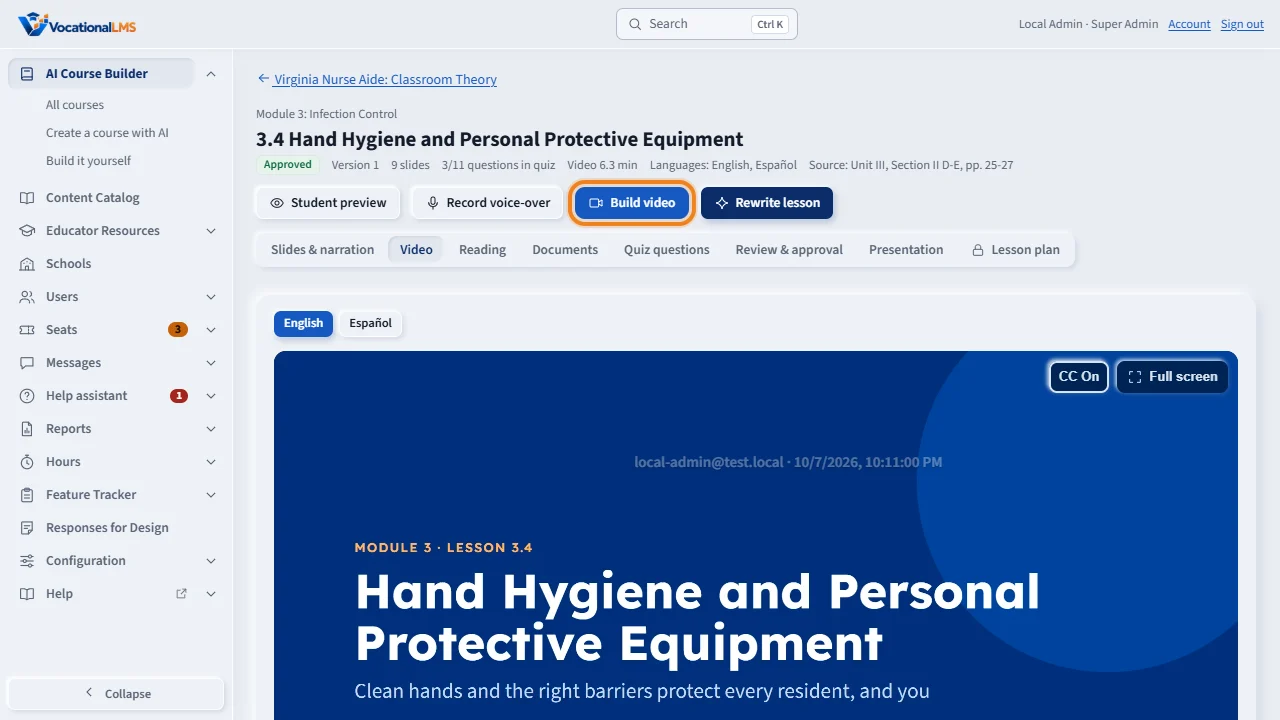
On a lesson, Record voice-over records only the slides that are new or changed. Build video draws every slide and joins them into one narrated video with captions.
When many lessons are made at once, the voice service can get busy. The builder waits and tries again by itself. A lesson that still fails shows Error with the reason. Then click Finish videos on the course page. It records what is missing, and rewrites any lesson that came back incomplete.
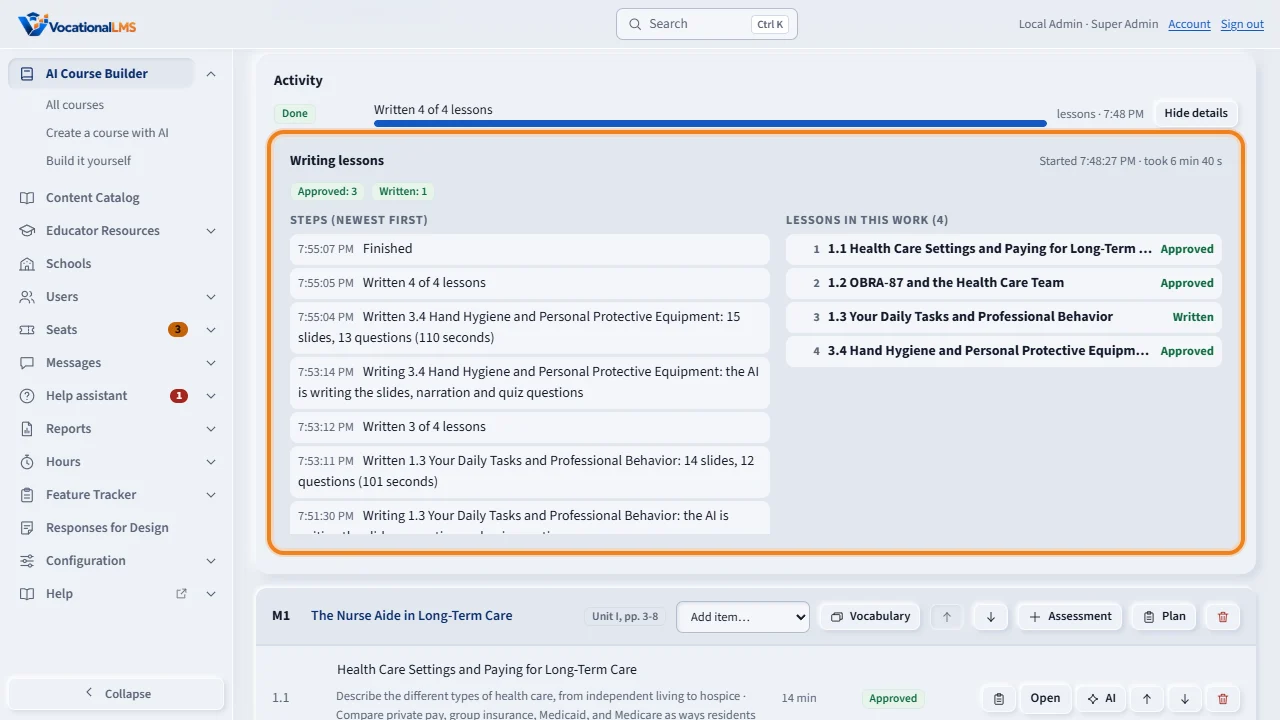
To see what a job is doing, click View details on its row. On the left is every step with its time: which lesson is being written, which one finished, and how long it took. On the right is each lesson in that job and where it stands: waiting, writing now, written, or failed with the reason. While the work runs, this updates by itself, so you are never left guessing.
Open this in VocationalLMSAI Course Builder > a course
What it is for
For each lesson the AI writes slides, a narration for every slide, and quiz questions. Then the narrator voice is recorded and the slides are joined into one narrated video with captions.
Steps
- On the course page every module starts closed, so the page opens quickly. Click the ▶ arrow at the left of a module to show its lessons (the first time, they load in a moment: Loading the lessons…); click ▼ to hide them again. Each closed module shows how many items it has and how many are at each stage (Outline, Written, Video ready, Approved…). The buttons at the top (Write N lessons, Finish N videos …) always count every module, open or closed.
- Every other part of the page (Course details with the IDs and exam buttons, Course cover, Schools, Students, Pronunciation list, Activity …) starts closed, one slim row each with its count or state, so the modules are right under the buttons: click a row's title to open it, use Expand all or Collapse all at the top, and the page remembers which rows you keep open, on every device you sign in from.
- Click AI on one lesson (open its module first), or Write N lessons for all of them. Three lessons are written at a time.
- Write + voice + build videos does everything in one go.
- Watch Activity on the course page: each job shows its progress.
- Click View details on a row of Activity to see what that work is doing: every step with its time (which lesson is being written, which one finished and how long it took, which video is being built) and the list of lessons with where each one stands: Waiting, Writing now, Written, Video ready or Failed. It updates by itself while the work runs. Hide details closes it.
- On a lesson, Record voice-over records only slides that are new or changed. Build video draws each slide and joins them, with captions.
- If some videos did not finish, click Finish N videos on the course page.
What happens next
When many lessons are made at once the voice service can get busy. The builder waits and tries again by itself, up to eight times. A lesson that still fails shows Error with the reason. Finish videos records what is missing and rewrites any lesson that came back incomplete.
Common problems
| # | Problem | What to do |
|---|---|---|
| 1 | A lesson says Error. | Read the reason, then click Finish videos, or open the lesson and build its video. |
| 2 | The work says running and nothing seems to happen. | Click View details. A lesson takes 1 to 3 minutes to write, and three are written at a time, so the count moves in steps. The newest step, at the top, shows what is being done right now. A failed lesson is listed first with its reason. |
| 3 | View details says no steps were recorded. | That work ran before the log was added (October 4, 2026). New work records its steps. |
| 4 | The server restarted during a batch. | Interrupted lessons are released; click Finish videos. |
| 5 | A module says “The lessons could not be loaded.” | The connection dropped while its lessons were loading. Click Try again inside the module. The rest of the page keeps working. |
| 6 | While work runs, do I have to open a module to see where its lessons stand? | No. Each module's counts (for example Writing… 2, Video ready 5) update by themselves every few seconds, open or closed; an open module's rows update too. |