
V-03For the VocationalLMS Super Admin
Create a course with AI: from a curriculum to an outline
Describe the course, add the official curriculum, and get an outline you can edit. The cover picture makes itself.
How-to video V-03 · 1:03
Read the words of this video
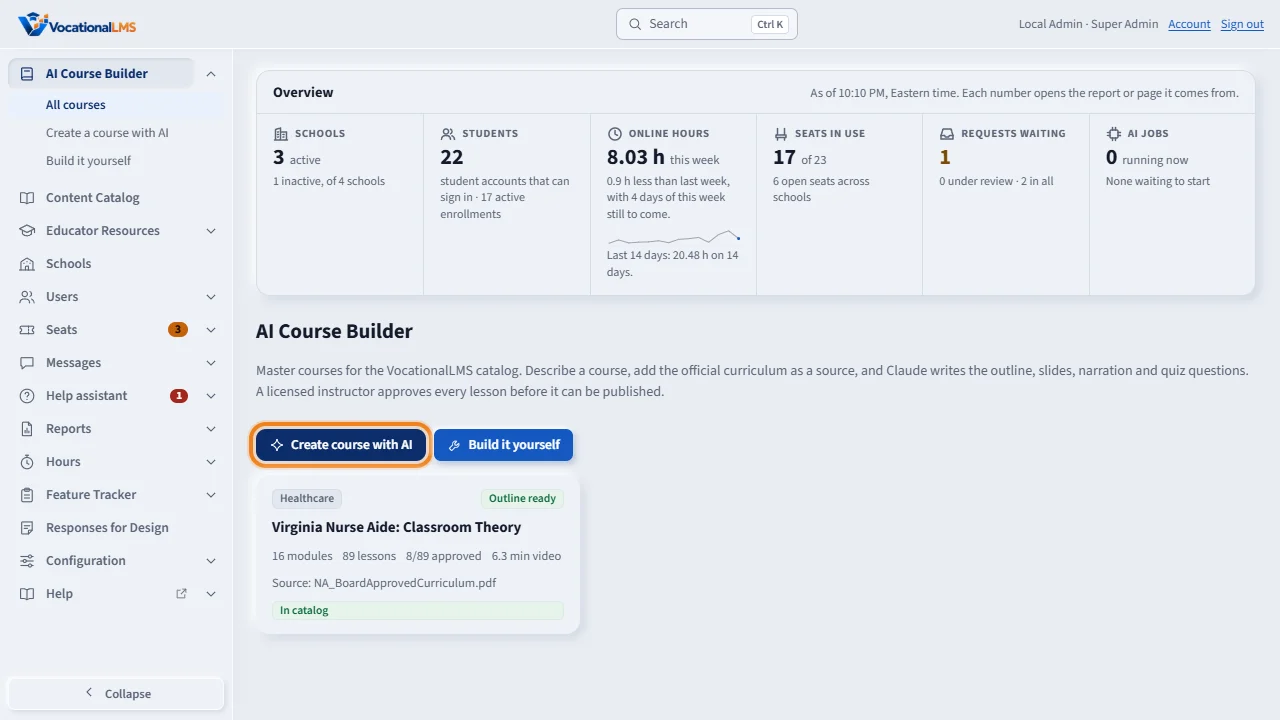
The AI Course Builder turns a description and an official curriculum into a course. Every course built here is a master course for the Content Catalog. Click Create course with AI.
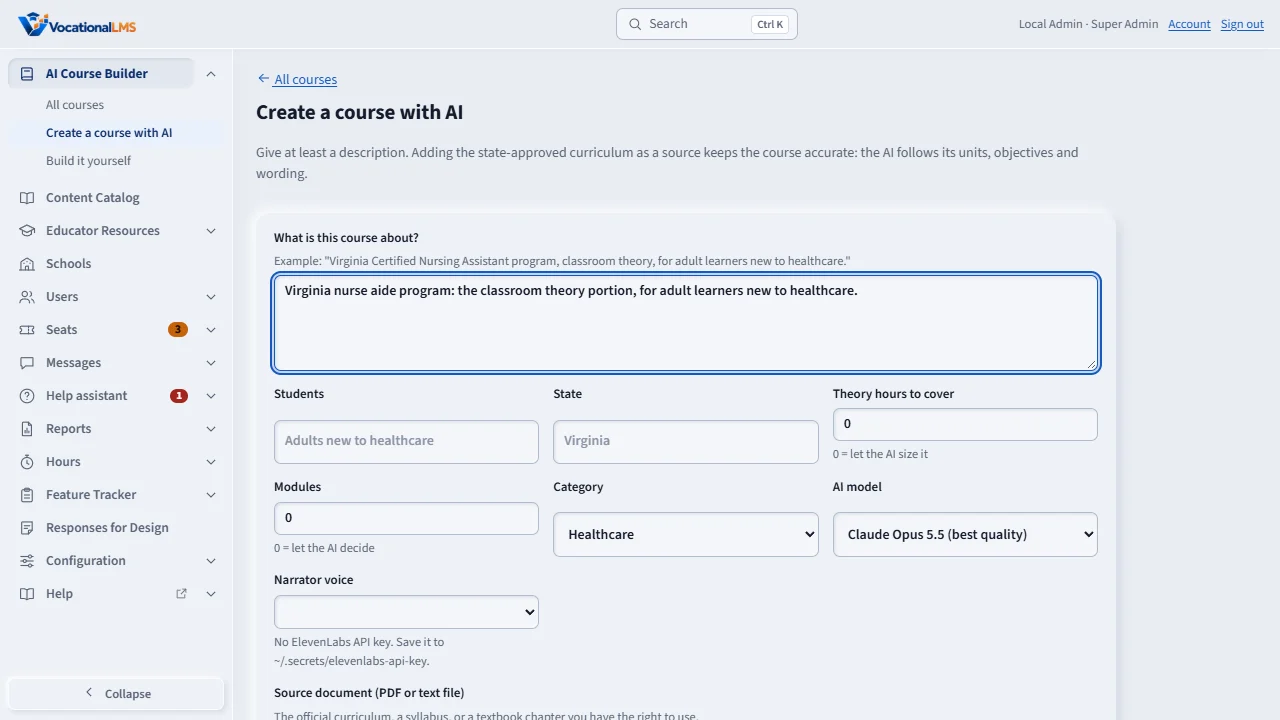
Describe the course in a sentence or two. Fill in who the students are, and the state. Leave the hours and modules at zero to let the AI size the course.
Upload the state-approved curriculum as the source document, so the AI follows its units, objectives and wording. Pick the AI model and the narrator voice, then click Generate outline. It takes one to three minutes.
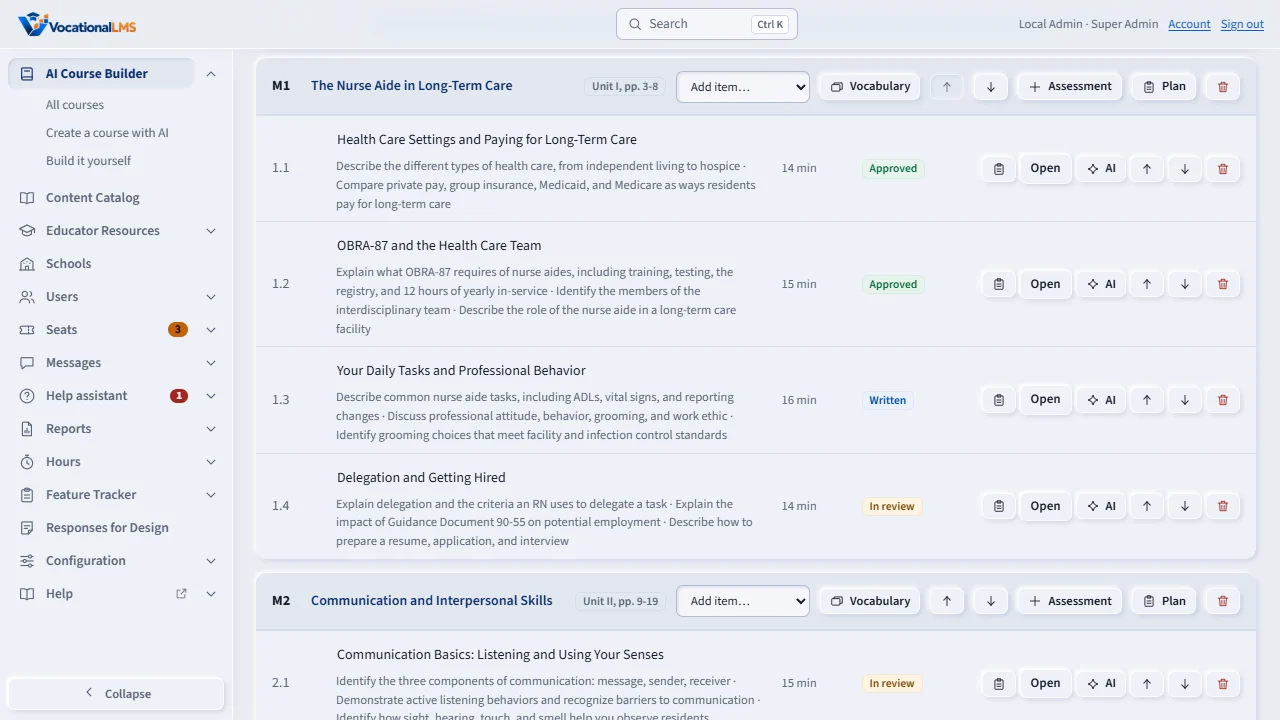
You get a full outline of modules and lessons. Click a title to rename it. The arrows move a lesson, the trash can deletes it, and Module adds a new one. Shape the outline first: nothing costs AI time until you ask for lessons to be written. Later changes send only the source pages a lesson cites.
Open this in VocationalLMSAI Course Builder
Who can do this: The Super Admin for VocationalLMS master courses. A School Admin or Director can do the same for their school's own courses when the own-course module is unlocked.
What it is for
The AI Course Builder turns a description and an official curriculum into a course outline: modules and lessons, each showing the unit and pages it came from. Nothing costs AI time after that until you ask for lessons to be written.
Steps
- Open AI Course Builder and click Create course with AI.
- In What is this course about? write one or two sentences.
- Fill in Students and State. Leave Theory hours and Modules at 0 to let the AI size the course.
- Upload the state-approved curriculum as the source document (a PDF with real text, not scanned pictures).
- Pick the AI model and the narrator voice, then click Generate outline. It takes 1 to 3 minutes.
- While the outline is written, the cover picture makes itself: Claude writes a picture description from the course's title and what you typed, the picture service draws a realistic wide cover, and the course page shows Making cover… then the picture (about a minute). Once the outline has written the course's description, the cover is designed one more time from it; after that it only changes when you ask (V-54).
- On the course page, click a title to rename it; ↑ ↓ move, the trash can deletes, Module adds.
What happens next
To keep AI cost down, later changes to a slide or new questions send only the source pages that lesson cites, not the whole curriculum. Automatic covers can be turned off under Configuration › Course covers.
Common problems
| # | Problem | What to do |
|---|---|---|
| 1 | The builder says the PDF has no text. | It is a scan. Run text recognition (OCR) on it first. |
| 2 | The outline is too long or too short. | Set the hours and the number of modules and generate again, or edit the outline by hand. |