
S-20For students
Take notes online and bookmark the video
Fill in your note-taking sheet on the page, write notes beside the video, save moments of the video, and find it all on My notes.
How-to video S-20 · 1:09
Read the words of this video
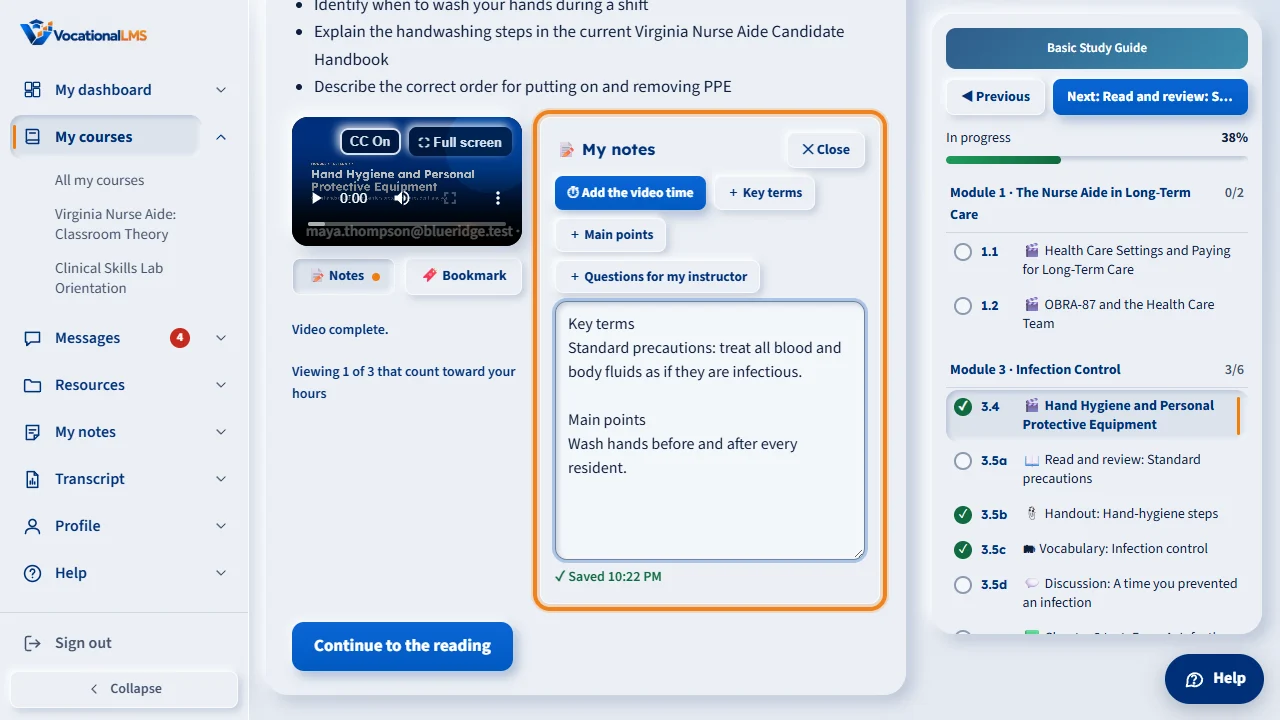
You can now take your notes right inside your course. Under the video, click Notes. The notes open beside the video, and you type without pausing. You do not need to save: the page says Saved a moment after you stop typing. The buttons add headings, such as Key terms and Main points.
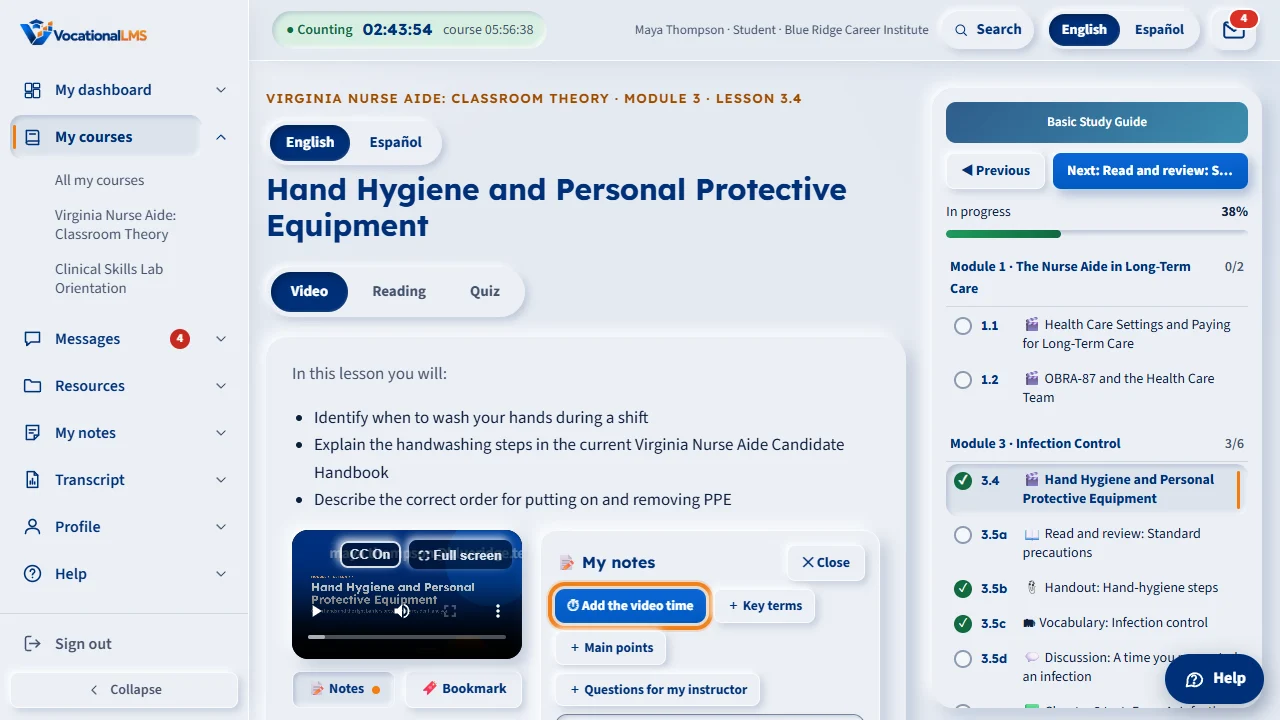
Click Add the video time to put the current time into your notes. Later, click that time under the box, and the video goes straight to that moment. The Note-taking sheet in your course list shows these same notes as a sheet you fill in, and the printable sheet is still there.
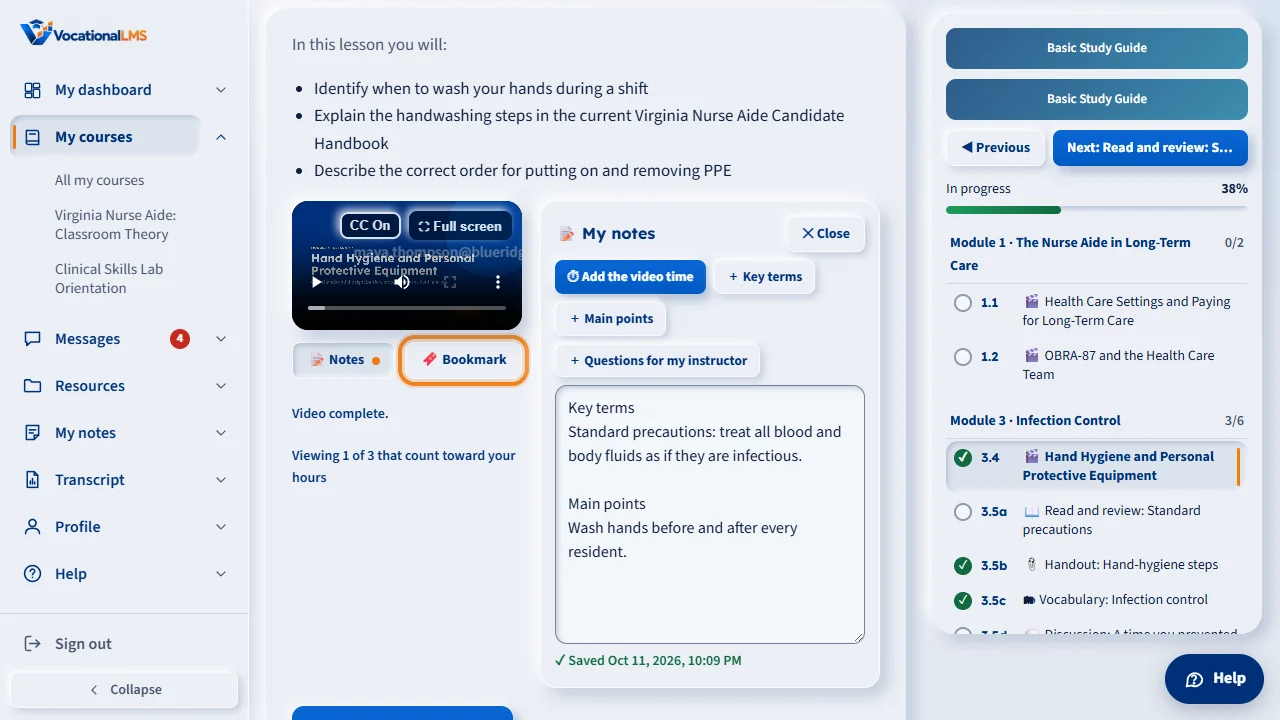
To save an important moment, click Bookmark while the video plays. Give it a short name if you like. Your bookmarks are listed under the video. Click one to play from that moment. Jumping to a bookmark does not count the part you skipped as watched.
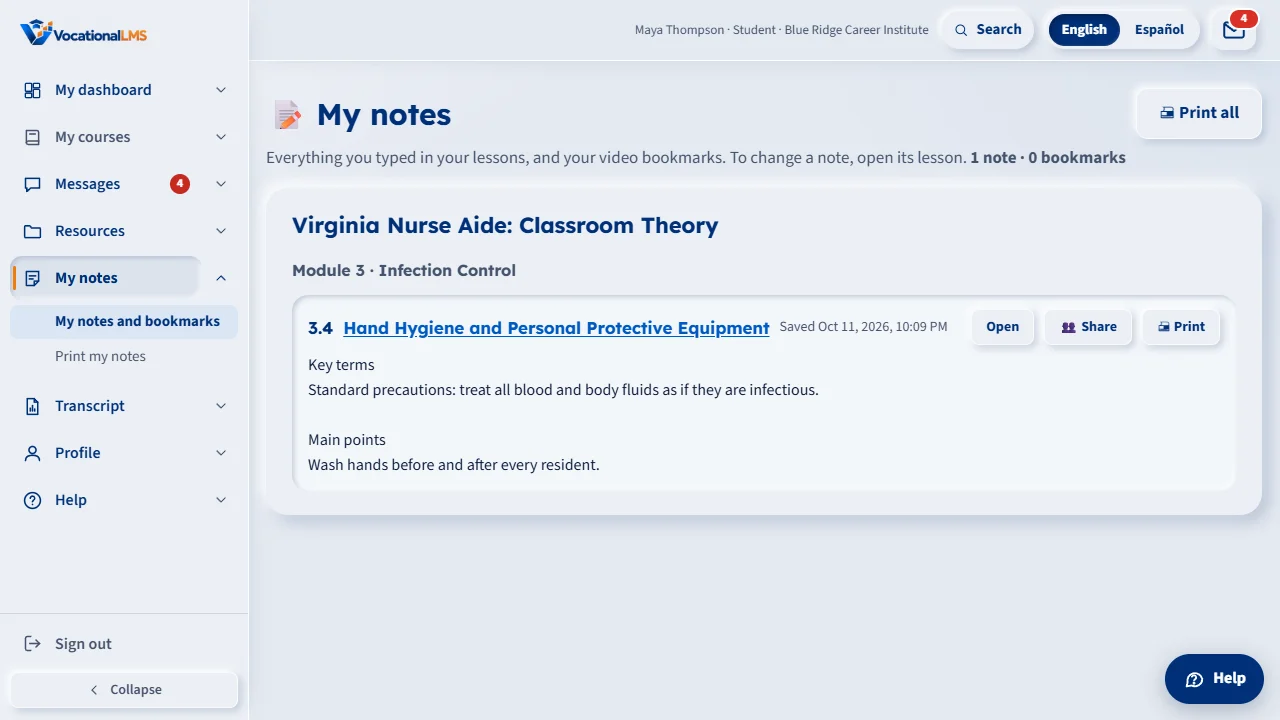
Everything you wrote is on the My notes page, by course and module. Open a lesson to change a note, click a time or a bookmark to open the video at that moment, or print your notes. Your notes are private to you and your school staff.
Open this in VocationalLMSMy notes
What it is for
You can take your notes right inside your course. The Note-taking sheet of a lesson is a box you type in, and the same notes are beside that lesson's video. You can also bookmark a moment of a video and go straight back to it later. Everything saves by itself.
Steps
Fill in your note-taking sheet
- Open the item called Note-taking sheet in your course list.
- Type in the box. Click Key terms, Main points or Questions for my instructor to add a heading.
- You do not need to save: the page says Saved with the time a moment after you stop typing. The printable sheet is still below (Open or Download).
Take notes while you watch
- Under the video, click 📝 Notes. The notes open beside the video; on a phone they slide up from the bottom and the video stays at the top.
- Type without pausing the video. Click Add the video time to put the current time into your notes, for example [04:32].
- Later, click that time under the box and the video goes straight to that moment. Close or Esc puts the notes away.
Bookmark a moment of the video
- While the video plays, click 🔖 Bookmark. Type a short label if you want one and press Enter.
- Your bookmarks are listed under the video. Click one to play from that moment. Use the pencil to rename it, or the X to delete it.
Find everything later
- Click My notes in the menu on the left (also on My dashboard and under Resources).
- Your notes and bookmarks are listed by course and module. Click Open to go to the lesson, or a time or bookmark to open the video at that moment. Print prints one item; Print all prints everything.
What happens next
The notes on a lesson's Note-taking sheet and the notes beside its video are the same notes. Jumping to a bookmark does not count the part you skipped as watched. Your notes are private to you and to the staff of your school who work with you. Filling in the online sheet completes the Note-taking sheet item; you do not have to open the PDF.
Common problems
| # | Problem | What to do |
|---|---|---|
| 1 | “Not saved yet. Your notes are safe on this device.” | The connection dropped. Keep typing; the page saves by itself when the connection is back. |
| 2 | Add the video time or Bookmark says the video is still loading. | Wait a few seconds for the video to start, then click again. |
| 3 | Your bookmarks are missing after you switched to Español. | Bookmarks belong to the video they were made on. Switch back to English to see them; the page tells you how many there are. |
| 4 | The box will not take more text. | A note holds up to 20,000 characters. Shorten it, or continue in the notes of the next lesson. |
| 5 | There is no Notes box on a quiz. | Notes are not shown on the Quiz tab or on knowledge checks. They are still on My notes. |