
S-04For students
Watch a video lesson
The Video, Reading and Quiz tabs, the 95% rule, captions and the CC button, the three viewings that count toward your hours, the Next card at the end of the video, the clock pausing when the video ends, the course panel on the right, and Previous and Next.
How-to video S-04 · 2:28
Read the words of this video
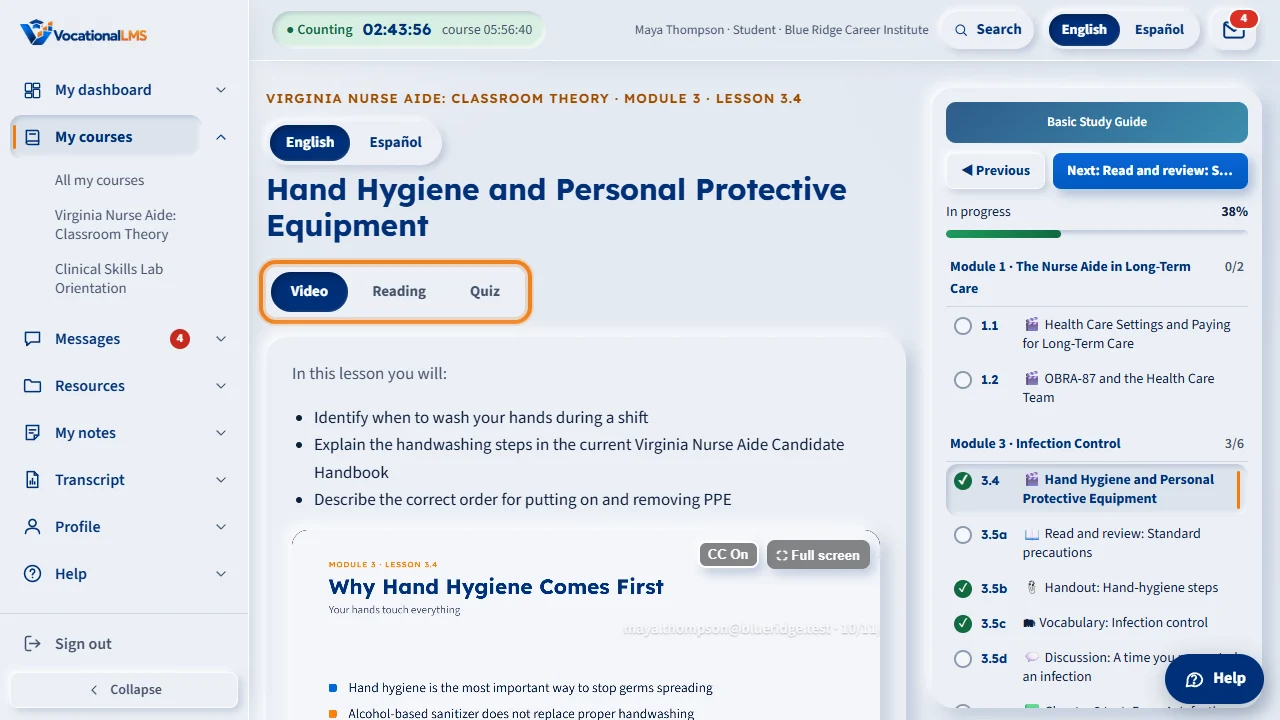
A video lesson has three tabs: Video, Reading and Quiz. You can click any tab, in any order, and go back and forth. A check mark shows on a tab only when that part is really done.
Press play and watch at least ninety-five percent. The line under the video shows how much you have watched. Skipping ahead does not count. Your email moves across the picture, and the video cannot be downloaded.
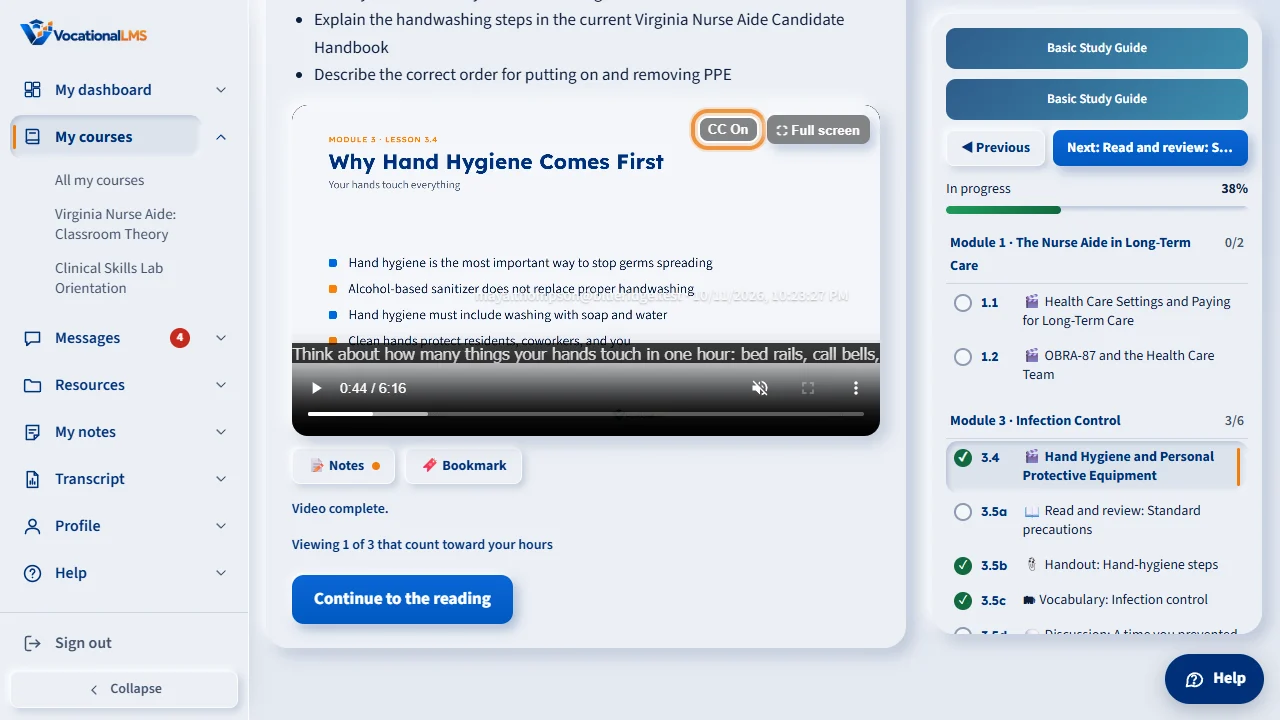
Captions are on when the video starts. To turn them off, click the CC button at the top right of the video, beside Full screen. Click it again to turn them back on. Your choice is remembered for your next lessons, in English and in Español.
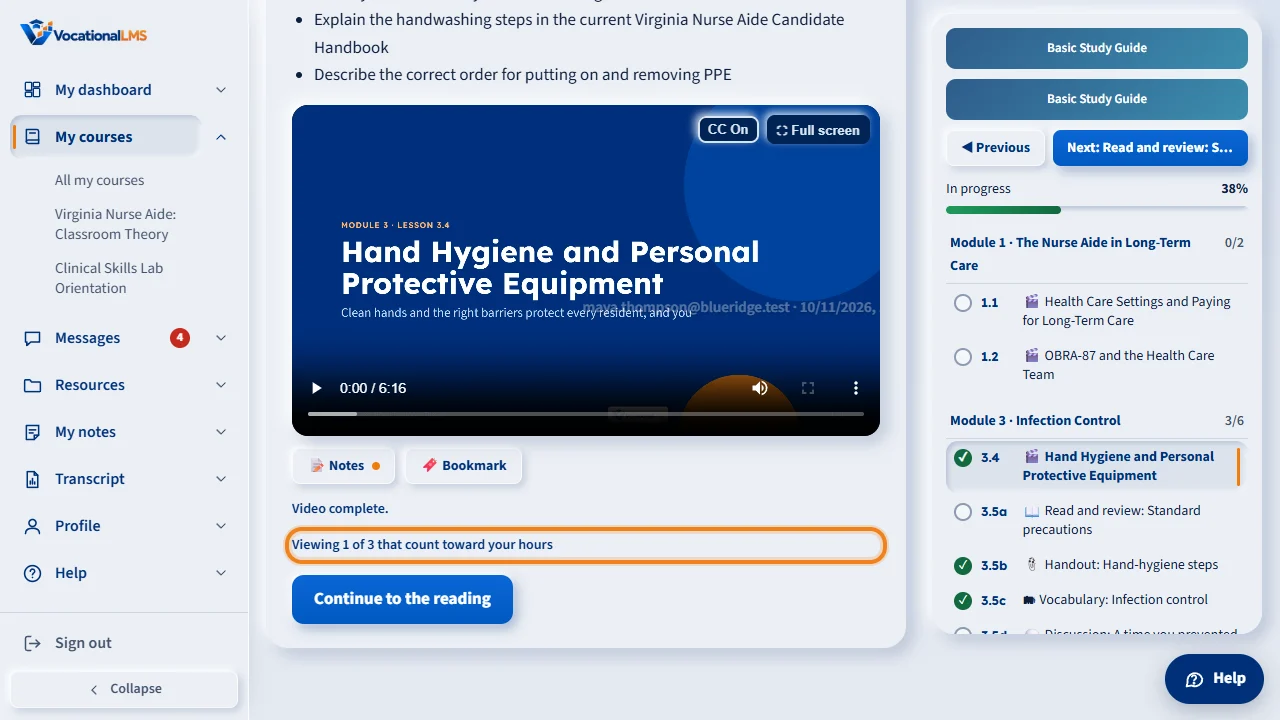
Under the video, a line tells you which viewing this is. A video adds to your hours the first three times you watch it to the end. After the third time, you can still watch it as often as you like, but those viewings add no hours. The reading, the quiz and your notes always count.
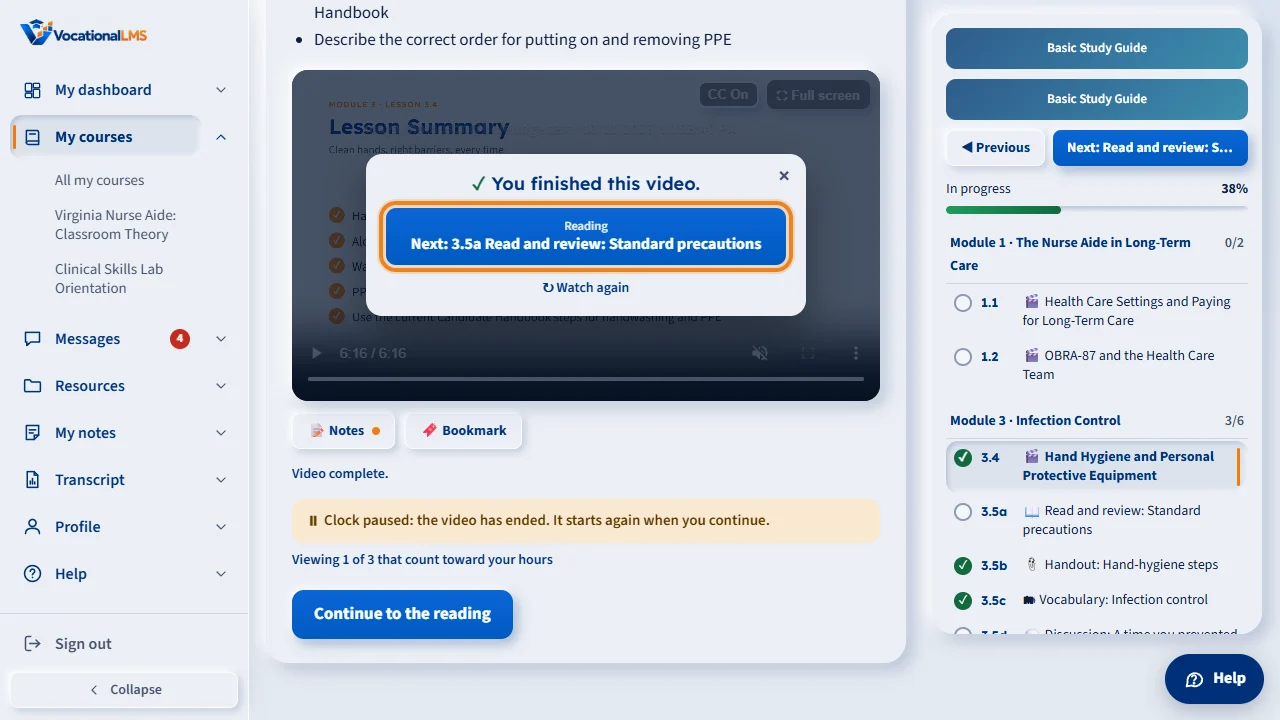
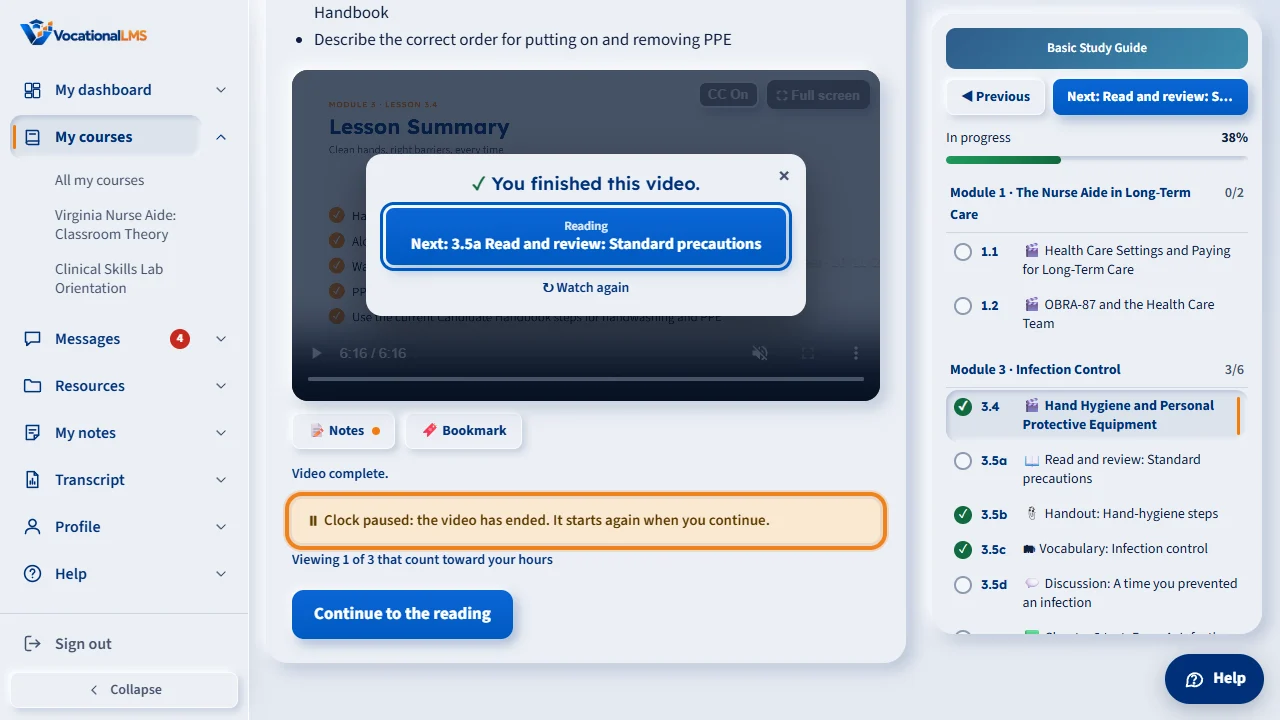
When the video ends, a card appears over it. Its blue button shows what comes next. If this lesson still has its reading or its quiz, the button takes you there. After that, it opens the next item of the chapter, or the next chapter. Nothing starts by itself: click the button when you are ready. Watch again plays the video from the start.
At the same moment, your clock pauses, and a line under the video says so: Clock paused: the video has ended. It starts again when you continue. To continue, click the button on the card, open the reading or the quiz, type in your notes, scroll the page, or play the video again. Moving the mouse does not start the clock.
Click Reading to read the lesson page. It covers the same ideas as the video, so it is a good place to review before the quiz. Then click Quiz. The lesson is complete when the video is watched and the quiz is passed.
The switch at the top changes the lesson between English and Español: the video, the captions, the reading and the quiz. If you switch during the video, it picks up at about the same place.
The panel on the right shows your progress and lists every item of the course with its number. A check mark means done. Click an item to open it, or use Previous and Next. On a phone, open the panel with Course contents.
Open this in VocationalLMSMy courses > a lesson
What it is for
A video lesson has three parts: the Video, the Reading and the Quiz. You can move between them in any order. The lesson is complete when you have watched at least 95% of the video and passed the quiz.
Steps
- Open the lesson from My courses.
- Press play. Use Full screen if you like.
- Captions are on when the video starts. To turn them off, click CC On at the top right of the video; it changes to CC Off. Click it again to turn them back on. Your choice is remembered for your next lessons and on any device, and it stays the same when you switch between English and Español.
- Watch at least 95%. The line under the video tells you how much you have watched. Only time you really played counts; skipping ahead does not.
- Under that line you see Viewing 1 of 3 that count toward your hours. A video adds to your hours the first 3 times you watch it to the end. After the third, the line says You can watch this video as often as you like. Your hours count for the first 3 viewings only. You are never stopped from watching.
- When the video ends, a card appears over it: You finished this video. Its blue button says where it goes. While this lesson still has its reading or its quiz, it says Continue: Reading or Continue: Lesson quiz. After that it says Next: with the number and name of the next item, or Go to the next chapter. Click it when you are ready; nothing starts by itself. Watch again plays the video from the start.
- At the same moment your clock pauses. A line under the video says Clock paused: the video has ended. It starts again when you continue. It counts again as soon as you do something on the page: click the button on the card, open the reading or the quiz, type in your notes, scroll, or play the video again. See S-08.
- Click the Reading tab (or Continue to the reading) and read the page.
- Click the Quiz tab (or Continue to the quiz) and take the quiz. See S-05.
- Use the panel on the right to see every item of the course with its number. Click one to open it, or use Previous and Next.
What happens next
A check mark shows on a tab only when that part is done. When the lesson is complete it gets a check mark in the course panel and on My courses, and Next takes you to the following item.
Good to know
- Videos cannot be downloaded. Your email and the time move across the picture as a watermark.
- The English | Español switch at the top changes the video, the captions, the reading and the quiz. Switching during a video picks up at about the same place.
- Leaving the video for the Reading or Quiz tab (or for another lesson in the course panel) never loses your place. When you come back, the video waits, paused, at the same second, with a small card over it: Continue from 4:32 plays on from where you were; Start over plays the video from the beginning. Pressing Play on the video itself also continues from that second. Nothing starts by itself.
- Some lessons use a YouTube video. It plays inside the lesson, and the 95% rule is the same. A YouTube video has no CC On button of ours: use YouTube's own CC button in the bar at the bottom of the video. Captions start on when the video's owner published captions.
- The CC button shows only on a video that has captions in the language you are watching.
- A viewing is counted when the video plays to its end. Watching part of a video and coming back later to finish it is one viewing. Jumping to the last seconds is not a viewing. Reading, the quiz and your notes always count, however many times you have watched the video.
- On a phone, the course panel opens with Course contents.
- The card at the end of a video never skips a step. If your school opens chapters in order and the next chapter is still locked, the card lists what to finish first, with a button to the first of those items.
- After the last video of a course the card says You reached the end of this course and takes you back to My courses.
- To close the card and stay on the video, click the × or press Esc. On a phone, Back to the lesson list on the card opens the course panel.
Common problems
| # | Problem | What to do |
|---|---|---|
| 1 | “Continue to the reading” is gray. | It turns on at 95%. You can still click the Reading and Quiz tabs at any time. |
| 2 | I came back from the reading and the video was at the start. | Since November 10, 2026 the video waits at the same second when you come back, with the card Continue from and Start over. If you still see 0:00, reload the page once so the newest player loads. |
| 3 | At the end of the video the card says you have not watched 95%. | Part of the video was skipped. Click Watch from the start and let the skipped parts play. |
| 4 | No card appeared at the end of the video. | The card shows when the video plays to its end. If you dragged the bar to the end, play the last part of the video. |
| 5 | The percent watched does not go up. | Jumping ahead is not counted. Let the video play. |
| 6 | The clock says “Paused: the video has ended”. | Time is counted while you are working. Click a button or a tab, type, scroll or play the video again, and it counts again. Moving the mouse is not enough. See S-08. |
| 7 | The clock says “Not counting: video already watched 3 times”. | You have watched this video to the end three times, so playing it again adds no hours. You can keep watching. The reading, the quiz and your notes still count. |
| 8 | There are no captions, or no CC button. | That video has no captions in the language you chose; try the other language with the English | Español switch. On a YouTube video, use YouTube's own CC button at the bottom of the video. |
| 9 | The video stopped when you opened another tab. | That is the clock rule, unless your school counts time on other tabs. See S-09 and S-45. |