
S-08For students
How your hours are counted
The clock at the top of a lesson, what counts as activity, the pause when a video ends, the three viewings of a video that count, the “Are you still there?” question, which pages do not count, and where to see your total.
How-to video S-08 · 2:11
Read the words of this video
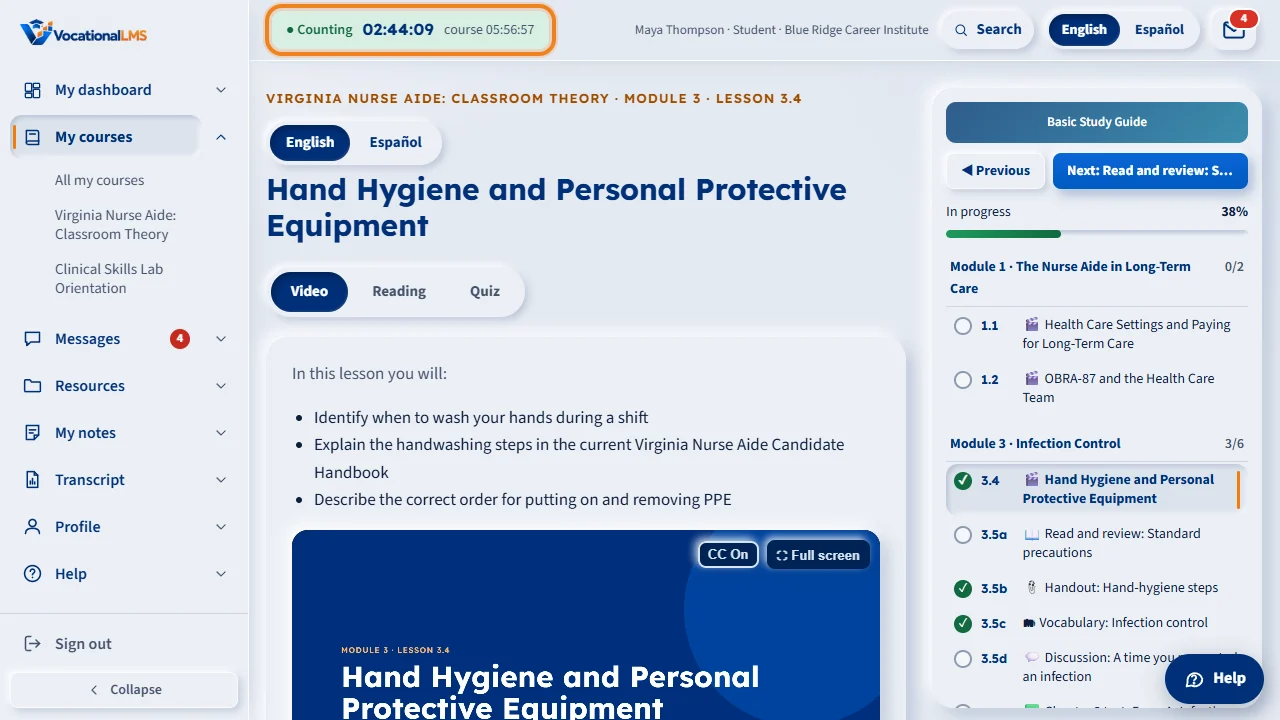
Your school needs a true record of your hours. When a lesson is open, the clock bar at the top shows Counting, your time in this lesson, and your time in the course. The server keeps the clock, second by second, and there is nothing for you to submit.
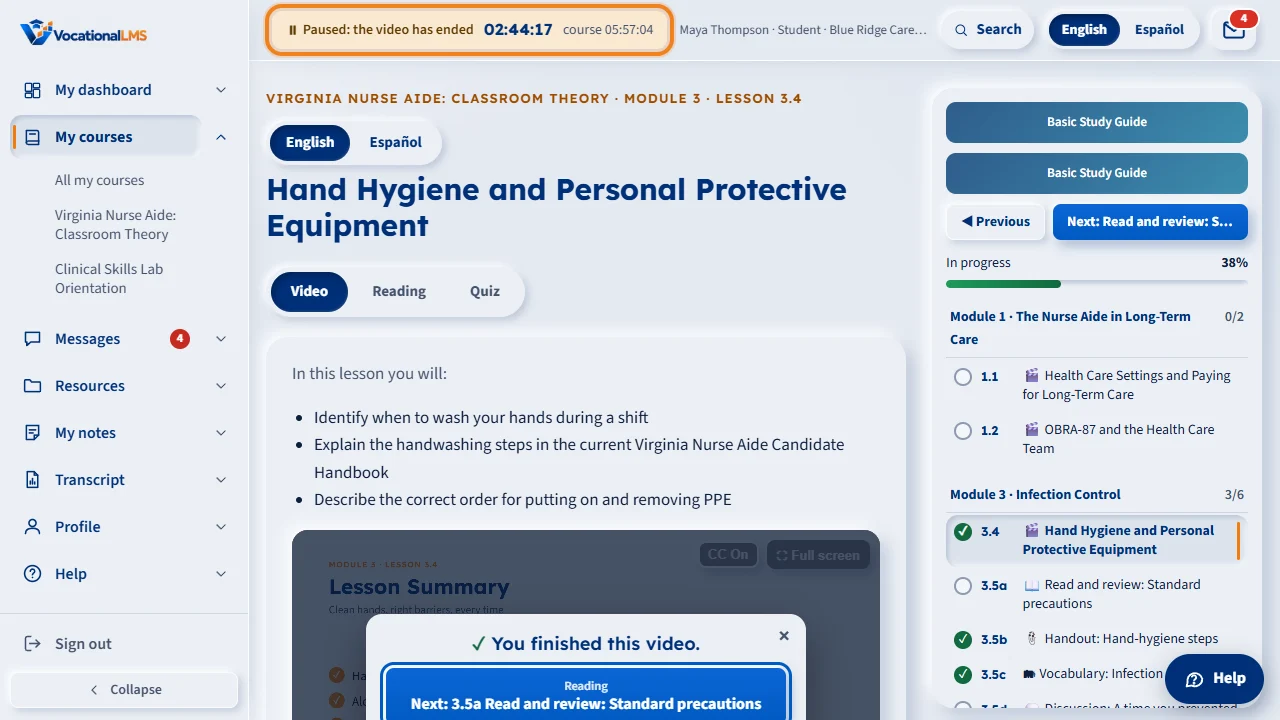
Time is counted while you are working. When a video ends, the clock pauses at once. The clock bar says Paused: the video has ended, and a line under the video says: Clock paused: the video has ended. It starts again when you continue. The clock counts again as soon as you do something on the page: press a key or type, click or tap a button, a tab or an answer, scroll the page, play the video again, or open the next item. Moving the mouse is not enough.
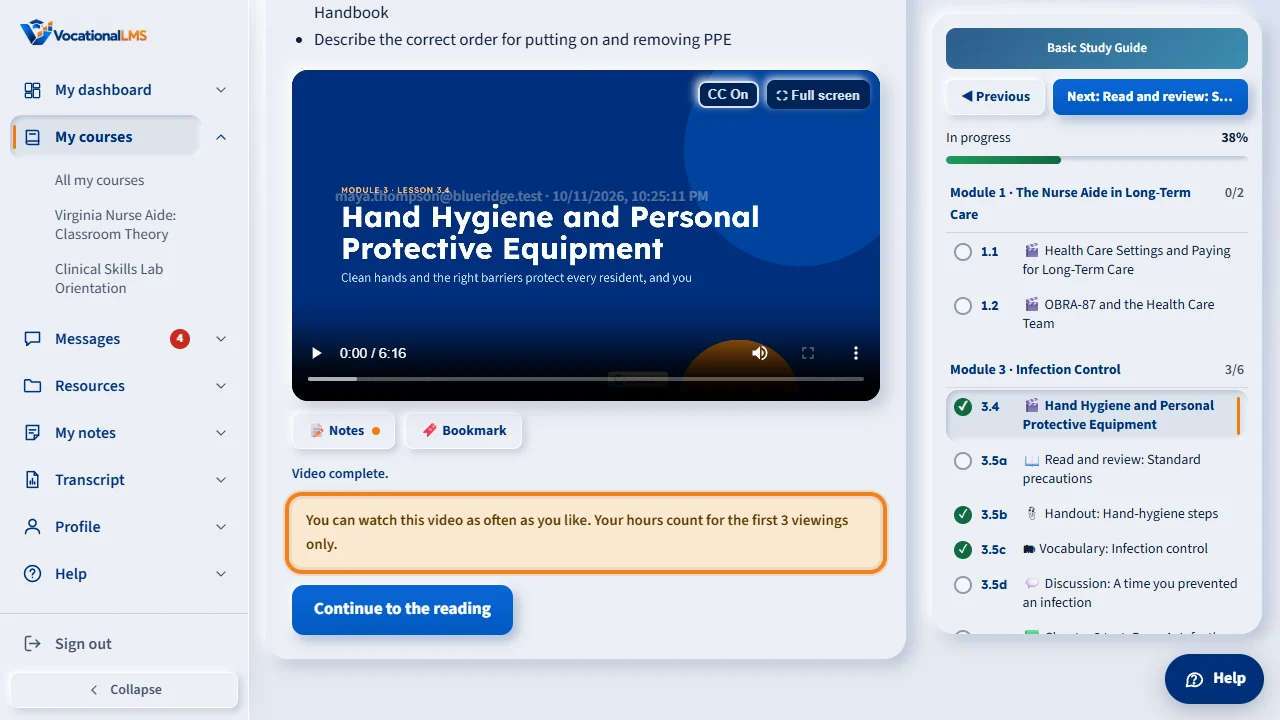
A video adds to your hours the first three times you watch it to the end. The line under the video shows which viewing you are on. After the third, you can watch as often as you like, but the playing time is not counted. The reading, the quiz and your notes still count.
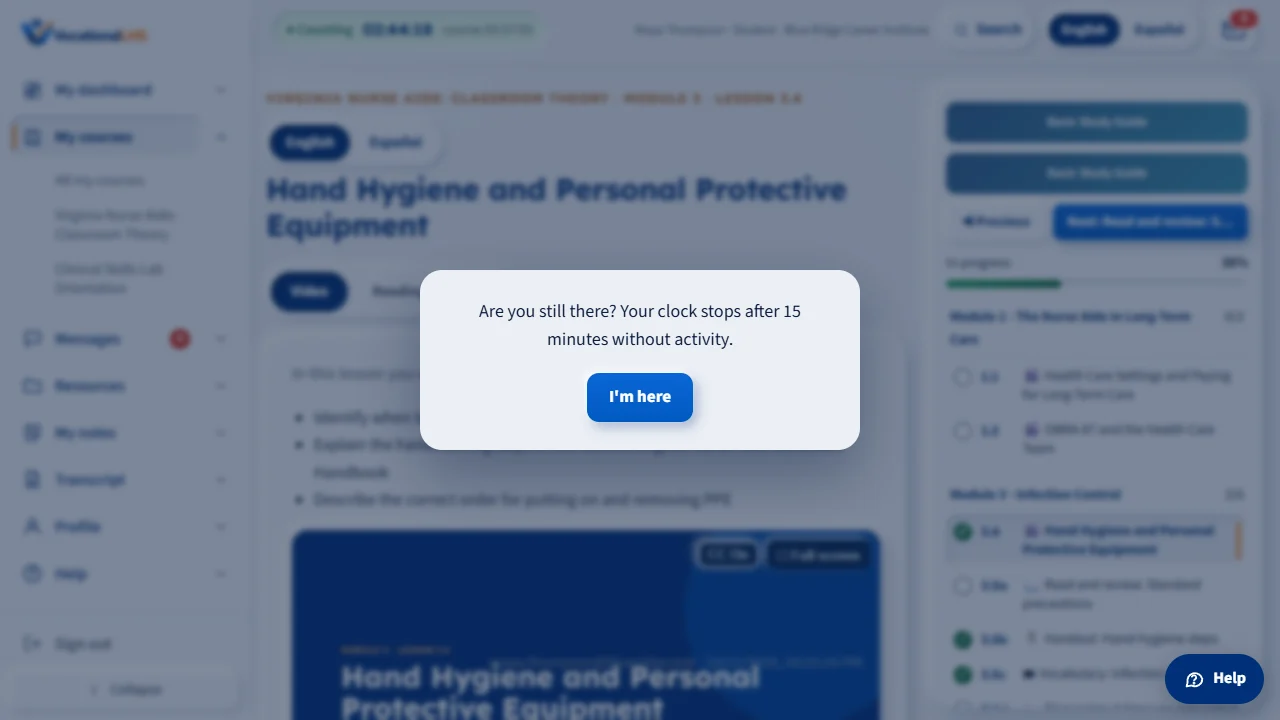
A playing video, clicks, typing and scrolling all count as activity. After fourteen minutes with no activity, you are asked: Are you still there? Click I'm here, and the clock keeps counting.
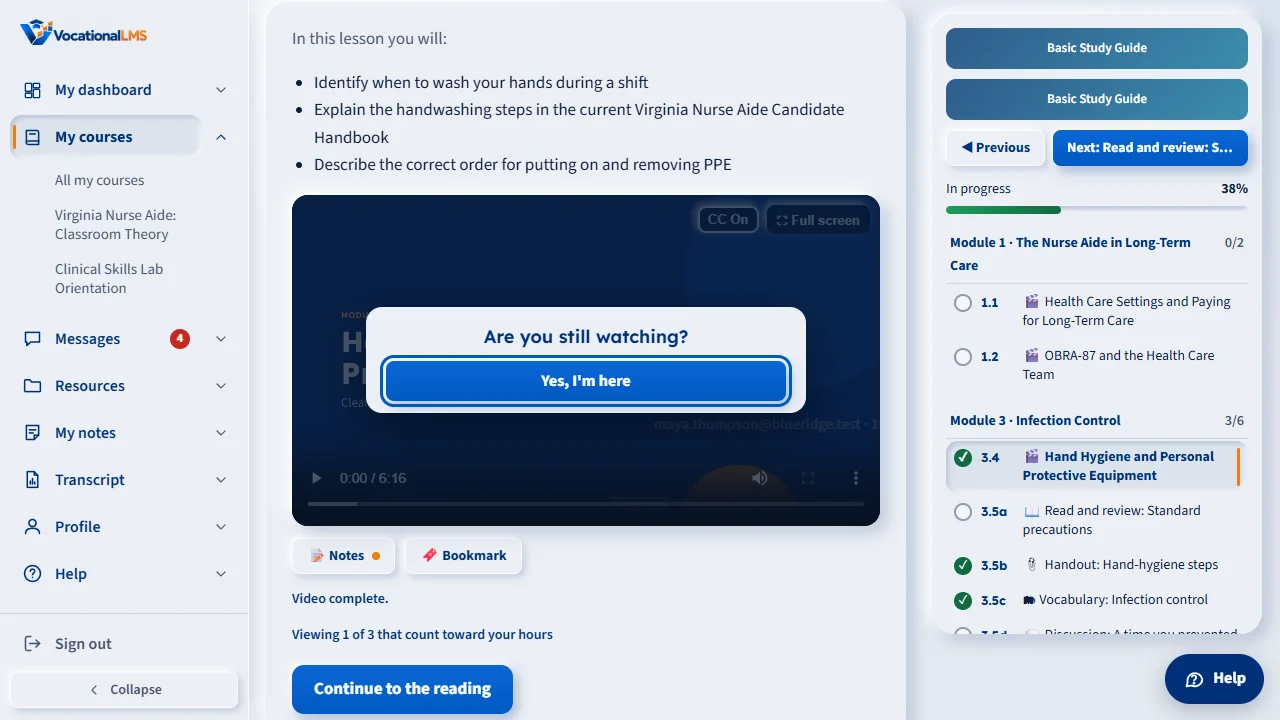
Every school asks this every 5 minutes while a video plays, to confirm someone is watching, unless it turns the question off. The video pauses, and so does your clock. Click Yes, I'm here, and both start again, with a fresh five minutes. If your school has turned this off, you are never asked.
If you do not answer, the clock stops at fifteen minutes. Click Continue the lesson to start it again. The time up to the stop is kept. You have one clock, so if you open a lesson in a second window, the clock moves there.
Your total is on My dashboard under Time counted, and on your Transcript for each item. The dashboard, Messages and My notes pages do not add to your course hours. If your hours look wrong, message your instructor. Staff can see every stretch of your time.
Open this in VocationalLMSMy dashboard > My hours
What it is for
Your school needs a true record of your hours. The clock is kept by the server, second by second, and it runs only while you have a lesson open and are working on it.
Steps
- Open any lesson or item. The clock bar appears at the top: ● Counting, the time in this lesson, and the time in the course.
- Keep working: a playing video, clicks, typing and scrolling all count as activity. While a video plays you do not need to touch anything.
- When a video ends, the clock pauses at once. The bar says Paused: the video has ended, and a line under the video says Clock paused: the video has ended. It starts again when you continue.
- Do something on the page and the clock counts again: see What counts as activity below.
- A video adds to your hours the first 3 times you watch it to the end. The line under the video says which viewing you are on. After the third, you can still watch; while it plays the bar says Not counting: video already watched 3 times.
- If you do nothing for 14 minutes while the clock is counting, you are asked Are you still there? Click I'm here.
- If you do not answer, the clock stops at 15 minutes. Click Continue the lesson to start it again.
- Unless your school turns it off: while a video plays, every 5 minutes a card asks Are you still watching? The video pauses; click Yes, I'm here and it keeps playing.
- To see your totals, open My dashboard (Time counted) or Transcript.
What happens next
Time is saved as you go; there is nothing to submit. Your school chooses whether the quiet minutes before the clock stopped are kept or removed.
What counts as activity
After a video has ended, any one of these starts your clock again:
- Pressing a key or typing: your notes, a discussion post, an answer.
- Clicking or tapping a control on the page: a button, a link, a tab, an answer, a text box, the video.
- Scrolling the page: with the wheel, a finger, the keyboard or the scroll bar.
- Playing the video again.
- Opening the next step of the lesson, or another item.
Moving the mouse does not start the clock. From the moment you do one of these, your time is counted by the usual rules of what you are doing: the reading, the quiz or test, a discussion, your notes.
Pages that do not count
Your hours are counted in lessons and other course items. My dashboard, My courses, Messages and My notes do not add to your course hours.
Some schools turn on a clock for those pages. Then a bar at the top of them says Counting · other pages. That time is kept separately: it shows as Other pages on your Transcript and under My hours, and it is never part of your course hours. Resources, Transcript, Profile and Help never count.
Are you still watching?
Every school asks this while a video plays, unless it turns the question off: every 5 minutes of the video really playing, it pauses and a card asks Are you still watching? Click Yes, I'm here and the video and your clock both start again, with a fresh 5 minutes. Nothing is counted while the card is up. If your school has turned this off, you are never asked.
Good to know
- You have one clock. If you open a lesson in a second window, the clock moves there and the first window says so.
- A closed laptop, a sleeping phone or a lost connection is not counted.
- Playing a video faster (up to 1.5×) still counts real time.
- Watching is activity. After a long video you watched without touching anything, you are not asked Are you still there? when it ends; the clock pauses instead, as above.
- Pausing a video in the middle does not pause the clock. Only the end of the video does.
- A viewing is counted when the video plays to its end. If you watch part of a video and finish it another day, that is one viewing. Reading, quizzes and your notes count every time.
Common problems
| # | Problem | What to do |
|---|---|---|
| 1 | The bar says “Paused: the video has ended”. | The video played to its end, so the clock is waiting for you. Click a button or a tab, type, scroll, or play the video again. The time up to the end of the video is kept; the wait is not counted. |
| 2 | A card asks “Are you still watching?”. | Your school asks this every 5 minutes while a video plays, to confirm someone is there. Click Yes, I'm here and the video and your clock both continue. |
| 3 | The bar says “Not counting: video already watched 3 times”. | A video adds to your hours for its first three viewings. You can keep watching; go on to the reading, the quiz or the next item to earn time. |
| 4 | There is no clock on My dashboard or Messages. | Those pages do not count toward your hours unless your school turned that on, and even then the time is kept separately from your course hours. |
| 5 | The bar says “Open in another window”. | Close the other window, or click Count my time here instead. |
| 6 | The bar says “Stopped”. | Click Continue the lesson. The time up to the stop is kept. |
| 7 | Your hours look wrong. | Message your instructor (S-11). Staff can see every stretch of time in your time log. |