
S-02For students
My dashboard
One page with your hours, your scores, a Resume button for each course and a link to everything else.
How-to video S-02 · 1:12
Read the words of this video
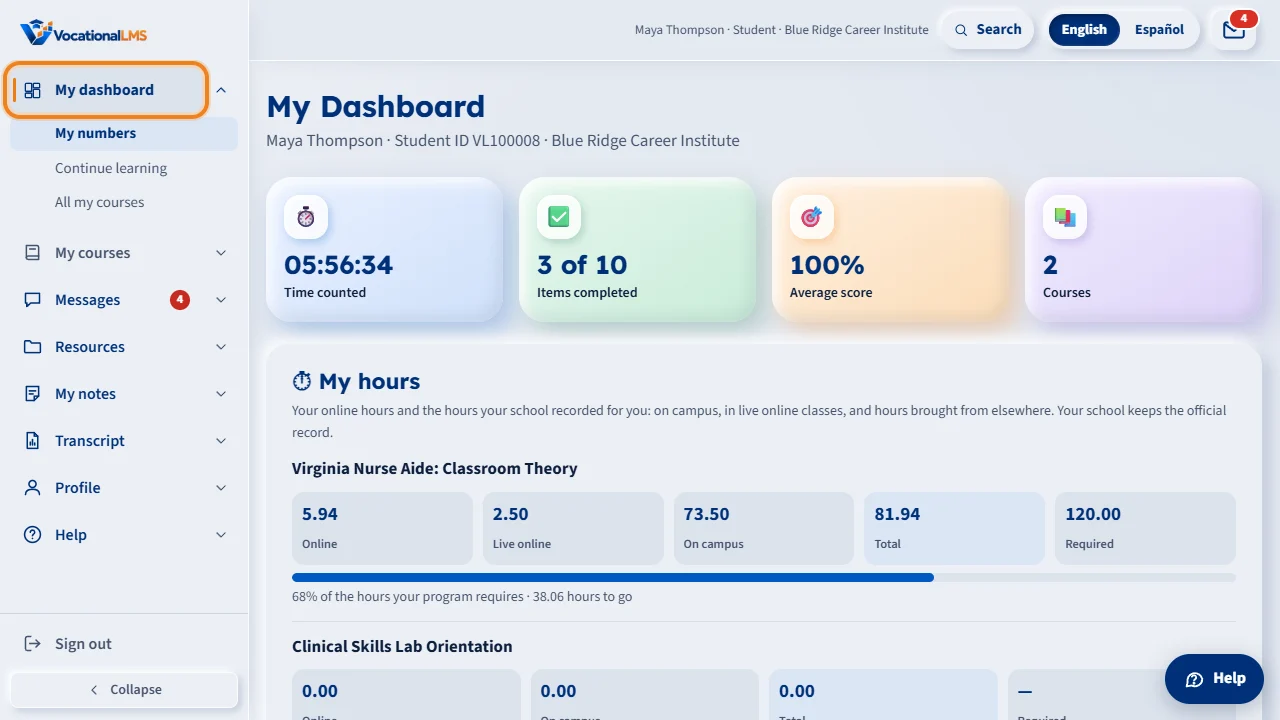
Your menu is on the left of every student page. My dashboard is its first line. It is the quickest way to see where you stand. Under the title you see your name, your Student ID and your school.
The four tiles show the time counted for you, the items you have completed, your average score on quizzes and tests, and how many courses you are in. The numbers update each time you finish an item.
Under Continue learning, each of your courses has a progress bar, the percent done, and the name of your next item. Click Resume to open that item. For a course you have not started, the button says Start.
Everything in one place has a card for My courses, Messages, Resources, Transcript, Profile and the Help assistant. Click a card to go there. The red number on Messages shows how many messages you have not read yet.
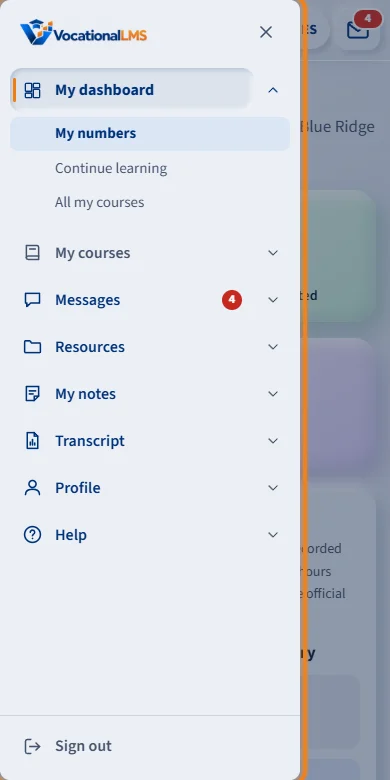
On a phone, the menu is hidden until you need it. Tap the menu button at the top left to open it. Each line has a small arrow that shows the pages under it. Choose a page, or tap outside the menu, to close it.
Open this in VocationalLMSMy dashboard
What it is for
My dashboard is the quickest way to see where you stand: the time counted for you, how many items you finished, your average score, and a button that takes you straight to your next item in each course.
Steps
- Click My dashboard, the first line of the menu on the left of any student page. Each line of the menu has a small arrow at its right end: click it to see the pages under it, for example Profile > Change my password or Resources > My documents and links. The page you are on is marked, and its pages open by themselves.
- On a phone or a narrow window the menu is hidden: tap the menu button (three lines) at the top left to open it, and choose a page, tap outside it or tap × to close it. On a wide screen, Collapse at the bottom of the menu shrinks it to icons; Expand brings the names back.
- Read the four tiles: Time counted, Items completed, Average score and Courses.
- Under Continue learning, click Resume (or Start) beside a course to open your next item.
- Under Everything in one place, click a card to open My courses, Messages, Resources, Transcript, Profile or the Help assistant.
What happens next
The numbers update each time you finish an item or the clock counts more time. Your name, Student ID and school are shown under the title.
Common problems
| # | Problem | What to do |
|---|---|---|
| 1 | Time counted looks too low. | Time counts only while a lesson is open and you are on its page. See S-08 and S-09. |
| 2 | A course is missing. | Your school enrolls you. Message your instructor (S-11) or call the school. |
| 3 | The menu is not there. | On a phone or a narrow window it is hidden: tap the menu button (three lines) at the top left. On a wide screen, if you see only icons, click the arrow at the bottom of the menu (Expand). |