
I-28For instructors
The Gradebook for your students
See every grade of the students you teach, type scores for posts and readings, excuse a student from an item, write roster notes, and print a student's course summary.
How-to video A-80 · 1:18 (the same video as A-80)
Read the words of this video
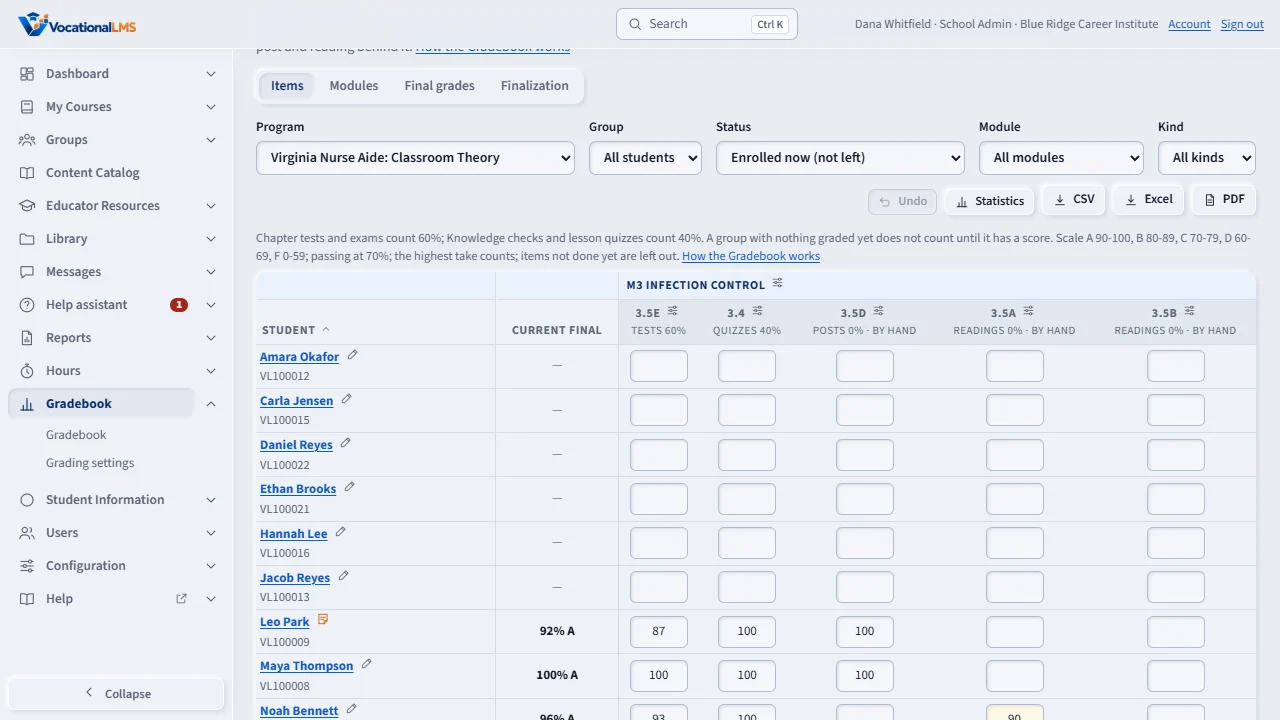
The Gradebook opens on the Items grid: one row per student, the current final grade right after the name, and a column for every graded item, with its group's share in the heading. Quizzes and tests are graded by themselves. Type a score in a cell for a post or a reading, press Enter or Tab to move on, and type E to excuse a student from an item. Under every column you see the class average, median, high and low.
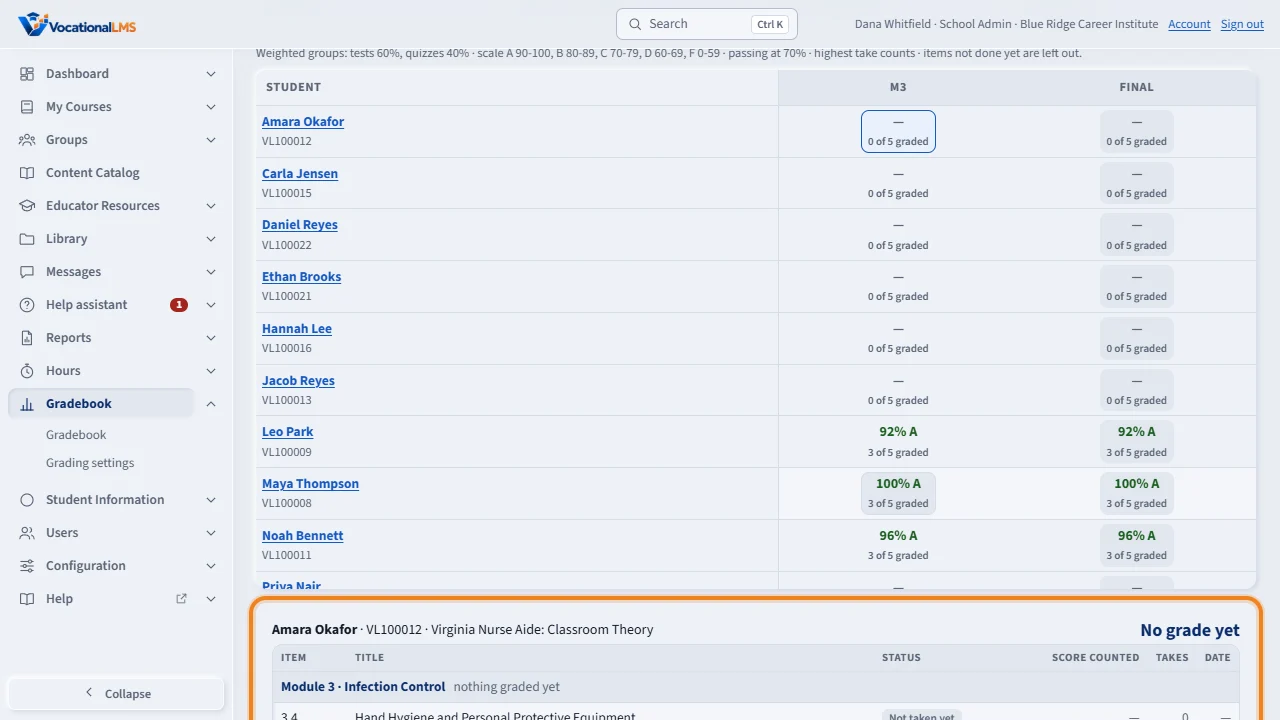
The Modules view shows one column per module and the final course grade. Click any cell to see every quiz, test, post and reading behind it, with the score that counts, the takes and the dates.
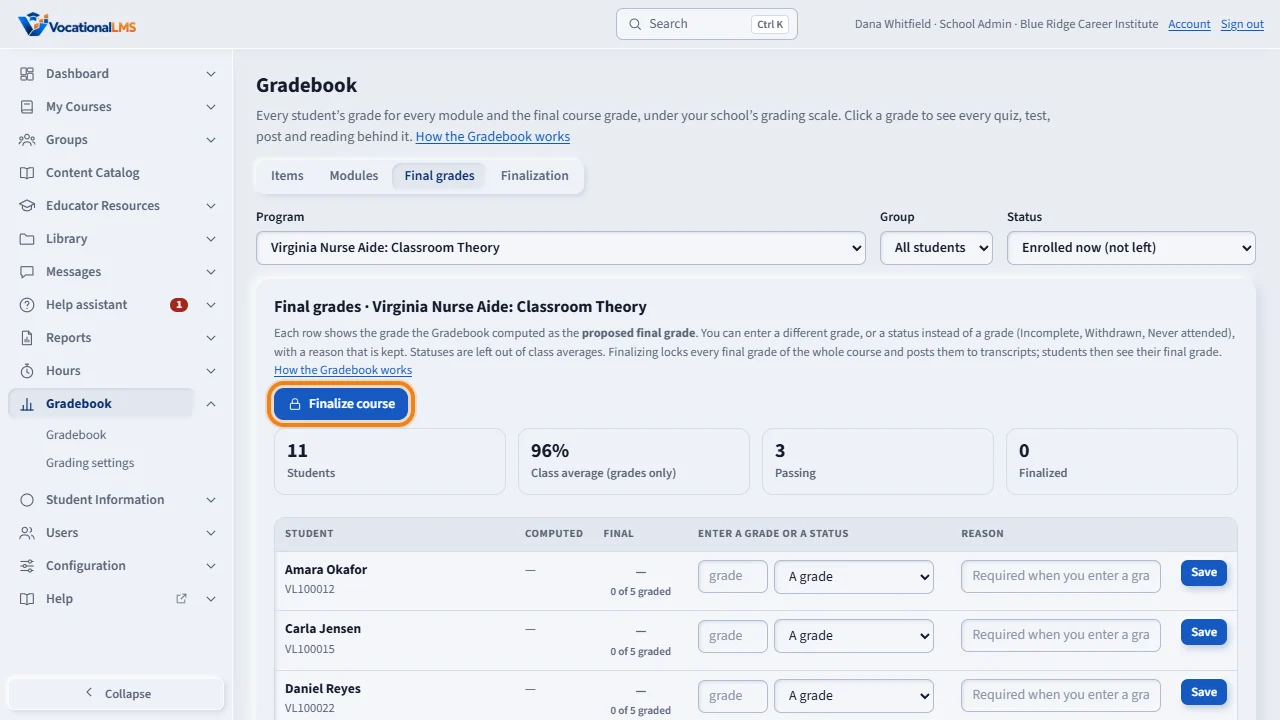
Final grades is the last step. Each row shows the computed grade as the proposed final grade. Enter a different grade, or a status like Incomplete, with a reason. When the course is done, click Finalize course: every final grade is locked, posts to transcripts, and students see it. The audit trail below keeps every change.
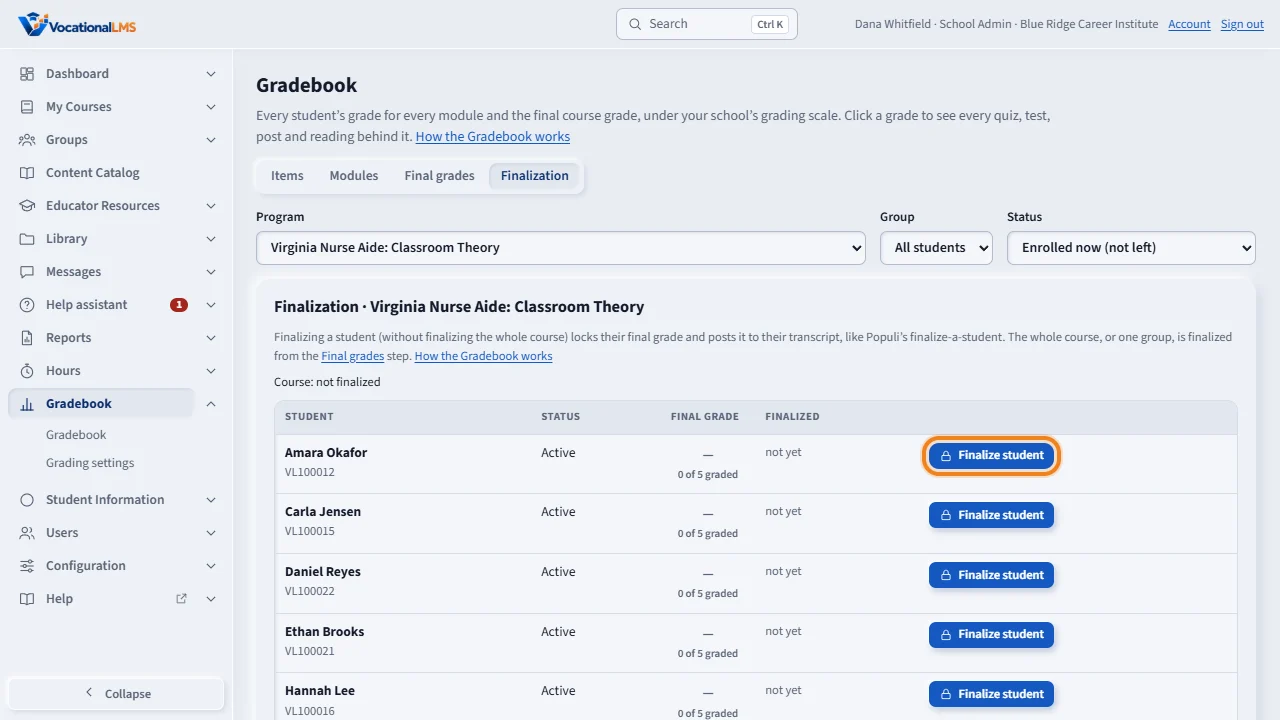
Finalization lists who is locked. You can finalize one student without the whole course, and the School Admin can unfinalize with a reason.
Open this in VocationalLMSGradebook > Items
What it is for
Gradebook in your menu shows the programs you teach and only your own students. The Items grid has one column per graded item with the group's share; quizzes and tests are graded by themselves, and you can type a score for a post, a document or a reading, or override an automatic score with a reason. E excuses a student from an item. Modules shows the module grades and the final; Final grades shows the proposed final grades, where you can enter a grade or a status with a reason. Finalizing is for the School Admin and Directors unless your school allows instructors to.
Steps
- Open Gradebook. Choose the Program and, if you want, one Group.
- Type a score in a cell and press Enter or Tab; it saves by itself. E = excused. Undo puts your last change back.
- Click the ✎ beside a student to write a roster note for staff. The student never sees it.
- Click a student's name for their course summary with Print; click Modules for the module grades.
What happens next
Students see their scores when they are released (right away unless the school set a date or chose “not until finalization”), their module grades, and In progress until the course is finalized.
Common problems
| # | Problem | What to do |
|---|---|---|
| 1 | A student is missing from the grid. | You see the students of your groups and programs, and students who have you as their own instructor (I-03). |
| 2 | The cells have no boxes. | The course or that student is finalized and locked. |