
A-80For School Admins and Directors
The Gradebook: items, modules, final grades and finalizing
Every student's grade for every item and every module, the final course grade, scores typed by hand, excuses, class statistics, final grades with statuses, and finalizing a course.
How-to video A-80 · 1:18
Read the words of this video
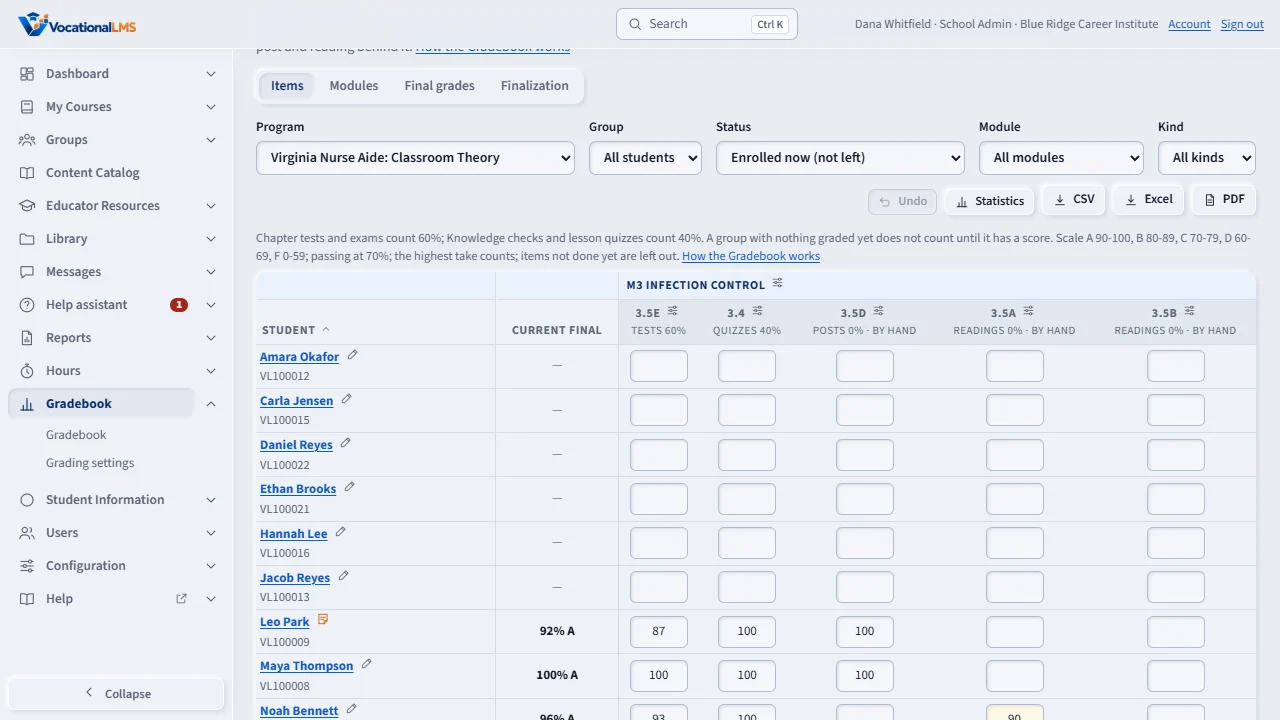
The Gradebook opens on the Items grid: one row per student, the current final grade right after the name, and a column for every graded item, with its group's share in the heading. Quizzes and tests are graded by themselves. Type a score in a cell for a post or a reading, press Enter or Tab to move on, and type E to excuse a student from an item. Under every column you see the class average, median, high and low.
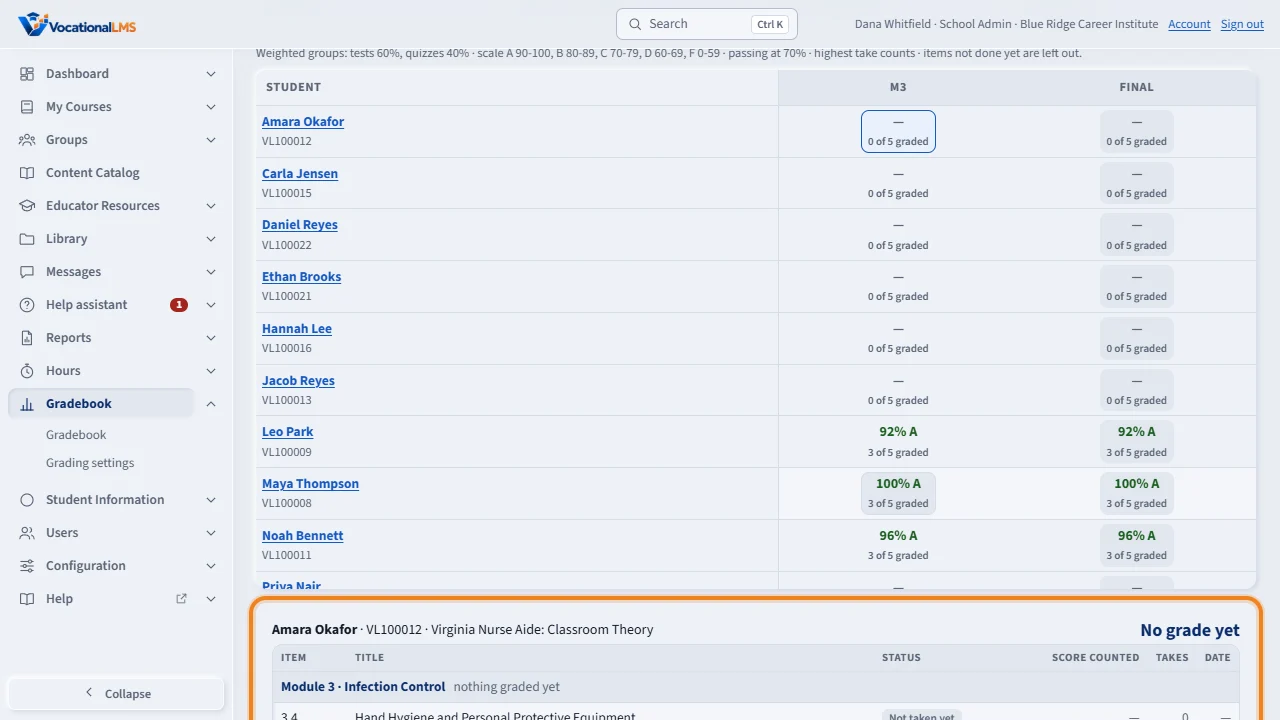
The Modules view shows one column per module and the final course grade. Click any cell to see every quiz, test, post and reading behind it, with the score that counts, the takes and the dates.
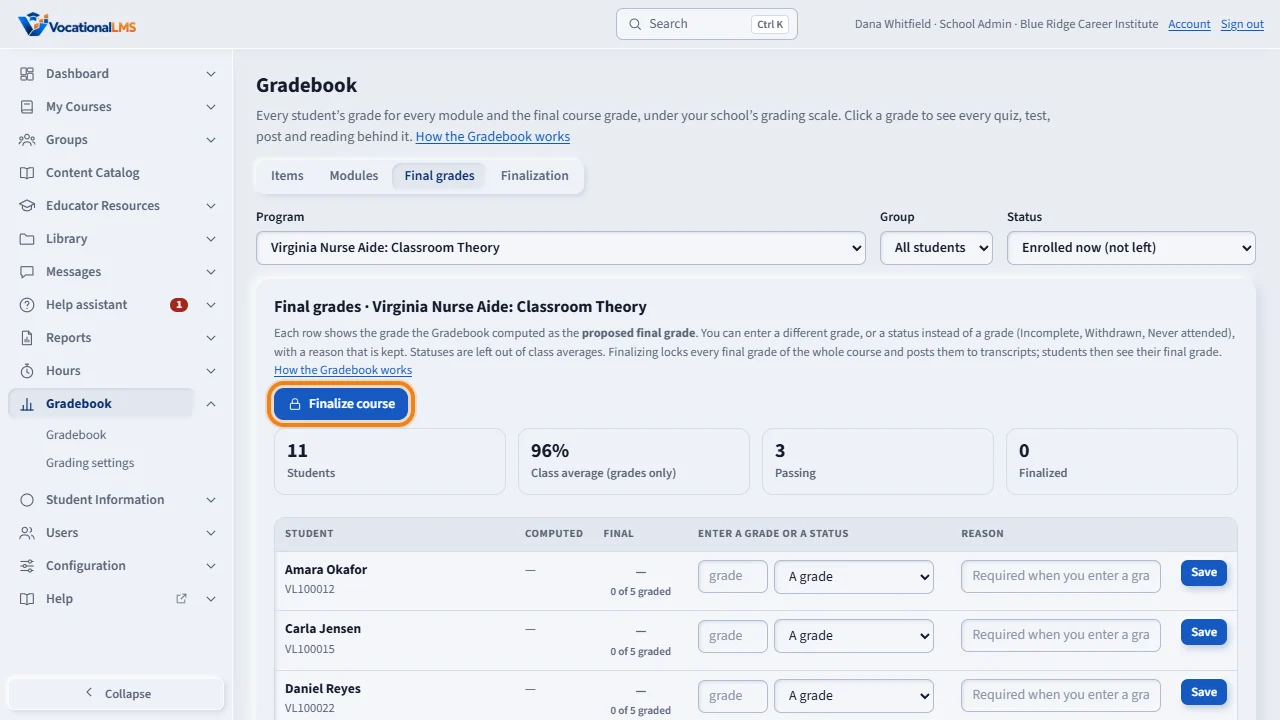
Final grades is the last step. Each row shows the computed grade as the proposed final grade. Enter a different grade, or a status like Incomplete, with a reason. When the course is done, click Finalize course: every final grade is locked, posts to transcripts, and students see it. The audit trail below keeps every change.
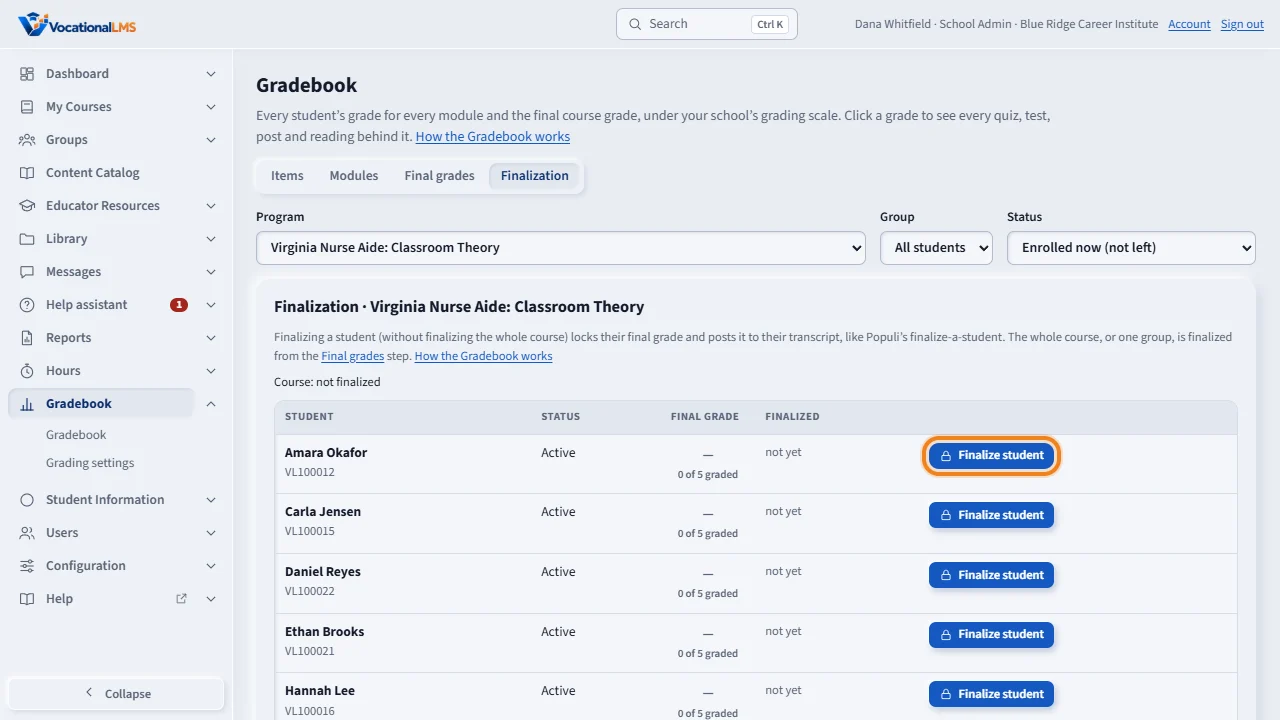
Finalization lists who is locked. You can finalize one student without the whole course, and the School Admin can unfinalize with a reason.
Open this in VocationalLMSGradebook > Items
Who can do this: School Admin, Director and the VocationalLMS Super Admin see the whole school; an instructor sees the students she teaches and can type scores for them. Auditors read only. Only the School Admin can unfinalize.
What it is for
The Gradebook is one page with four views for a program. Items is a grid like Populi's: one row per student, the current final grade right after the name, and one column per graded item, ordered by module and by weight group, with the group's share in the heading. Auto-graded quizzes and tests show the score that counts; you can type a score in any cell (for a post or a reading, or to override an auto-graded score with a reason), type E to excuse a student from an item, and Undo your last change. Under every column: the class average, median, high, low and how many are graded. Modules shows one column per module and the final; click a cell for the item-by-item breakdown. Final grades is where you review each student's proposed final grade, enter a different grade or a status (Incomplete, Withdrawn, Never attended) with a reason, and Finalize the course or a group. Finalization shows who is locked and lets you finalize or reopen one student.
Steps
Read and enter scores
- Open Gradebook in the menu. Choose the Program, and a Group, Status, Module or Kind to narrow the grid.
- Click a column heading to sort by it. The student and Current final columns stay in place while you scroll sideways.
- Type a score (0 to 100) in a cell and press Enter (next student) or Tab (next item). It saves by itself. Type E to excuse the student from that item: it is left out of their grade, never counted as 0. Leave a cell blank for not graded yet.
- When the item was auto-graded from the student's takes, the page asks for a reason before your score replaces it; the automatic score stays visible in the cell's tooltip.
- Click Undo to put back your last change. Every change is in the audit trail on the Final grades view.
- Click the ✎ beside a student to write a roster note for staff (the student never sees it). It shows on the Final grades view too.
- Statistics shows or hides the class average, median, high, low and the number graded under every column.
- The gear on a column or a module sets extra credit and when students see the score: right away, on a date, or not until the course is finalized.
See the module grades and the breakdown
- Click the Modules tab: one column per module with its grade and letter, and the final.
- Click any cell to see every quiz, test, post and reading behind it with the score counted, the takes and the dates.
Enter final grades and finalize
- Click Final grades. Each row shows the computed grade as the proposed final grade.
- To change it, type a percent under Enter a grade or a status, or choose Incomplete, Withdrawn or Never attended (with its date). Type the Reason and click Save. The computed grade stays beside your entry.
- When the course (or one group) is done, click Finalize course twice. Every final grade is locked as it stands, your name and the time are recorded, the grades post to transcripts, and students now see their final grade. You may finalize while some students are Incomplete.
- Finalization lists who is locked. Finalize student locks one student without the course. The School Admin can Unfinalize the course or one student with a reason; both go to the audit trail.
Export and print
- On Items: CSV, Excel or PDF download the grid with the program, the grading rules and whether the course is finalized. On Modules: Download CSV and Download PDF.
- Open a student's name for their course summary (every item, the module grades and the final), with Print.
What happens next
A module grade is the school's formula over the module's items; the final course grade is the same formula over every item of the course at once (with drop the lowest and attendance, when set), not an average of the module grades. Students see only released scores, their module grades and In progress until you finalize. Finalized grades never change by themselves: a quiz taken after finalization is recorded but does not move the final grade.
Common problems
| # | Problem | What to do |
|---|---|---|
| 1 | A cell has no box to type in. | The student's grades are finalized and locked (🔒), or you are reading as an auditor. Unfinalize first (School Admin). |
| 2 | “Type the reason for overriding the score.” | The student took that quiz or test, so your score replaces an automatic one; a reason is required and kept. |
| 3 | A student has no grade at all. | Nothing is graded yet, or every graded group has 0% share. Check the weights under Configuration > Grading. |
| 4 | The final column shows I, W or NA. | A status was entered on the Final grades view instead of a grade. Statuses are left out of the class average. |
| 5 | I cannot finalize. | Only the School Admin or a Director can, unless the school ticked Instructors may finalize under Configuration > Grading. |