
I-29For instructors
Tell your school when you can work: availability, time off, locations and your calendar
Paint the days and hours you can work, press Notify manager, ask for a date change or time off, add the places you work, and see your own calendar on your phone or computer.
How-to video I-29 · 1:11
Read the words of this video
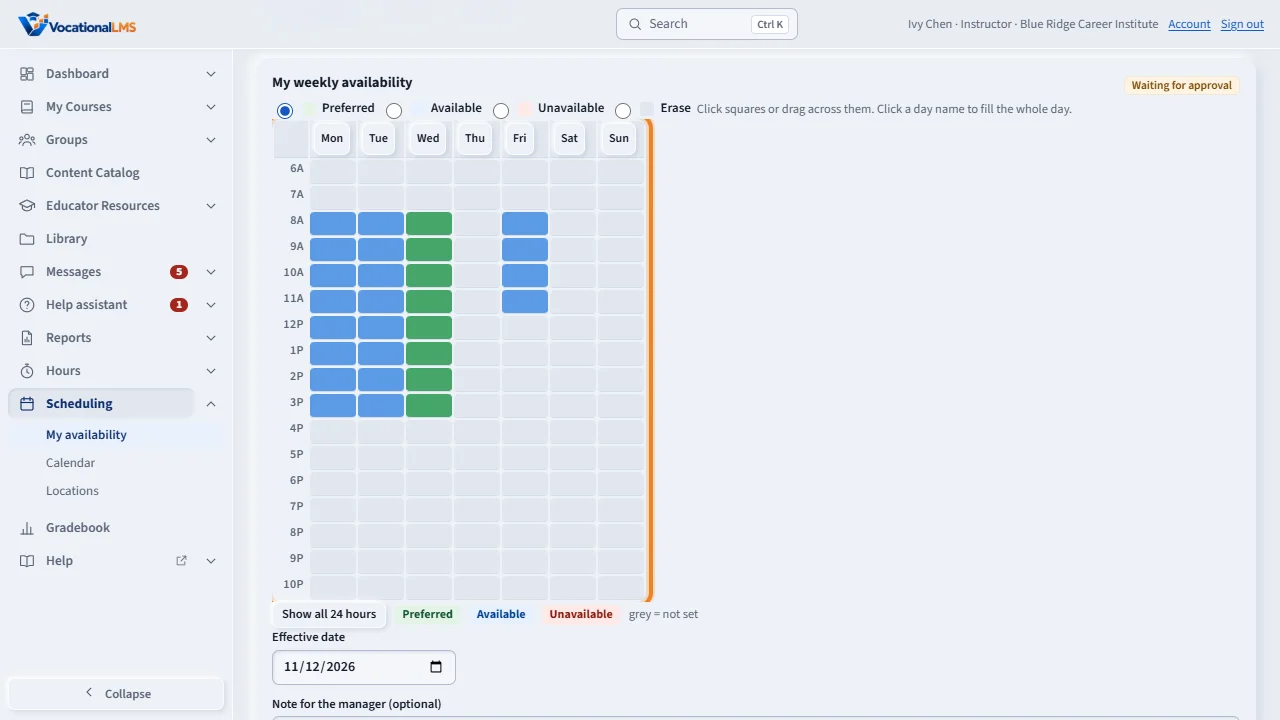
Open Scheduling in your menu. My availability is a grid of days across and hours down. Choose Preferred, Available or Unavailable, then click squares or drag across them. Click a day name to fill the whole day.
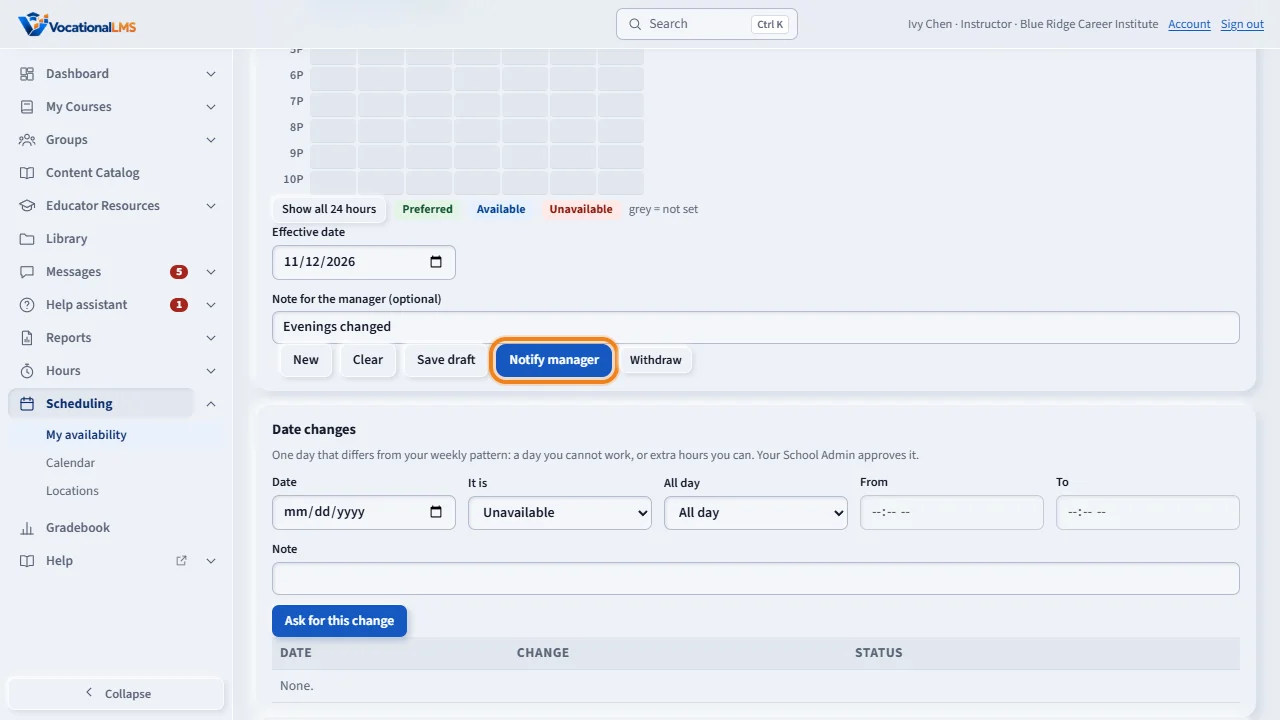
Choose the effective date, add a note if you like, and click Notify manager. Your School Admin gets an email and a notice, and approves or declines. Until then your school keeps the availability it already has.
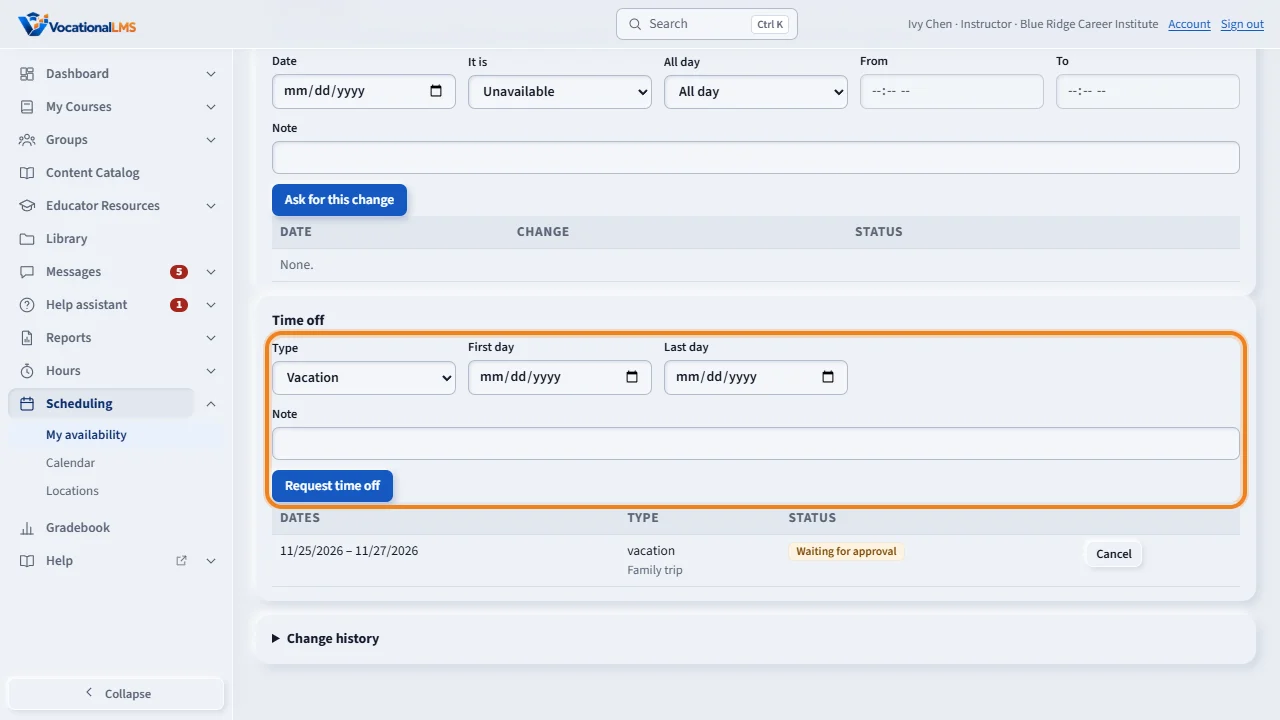
For one different day use Date changes. For vacation or sick days use Time off: choose the type and the first and last day, and send the request. You will see Waiting for approval, then Approved or Declined.
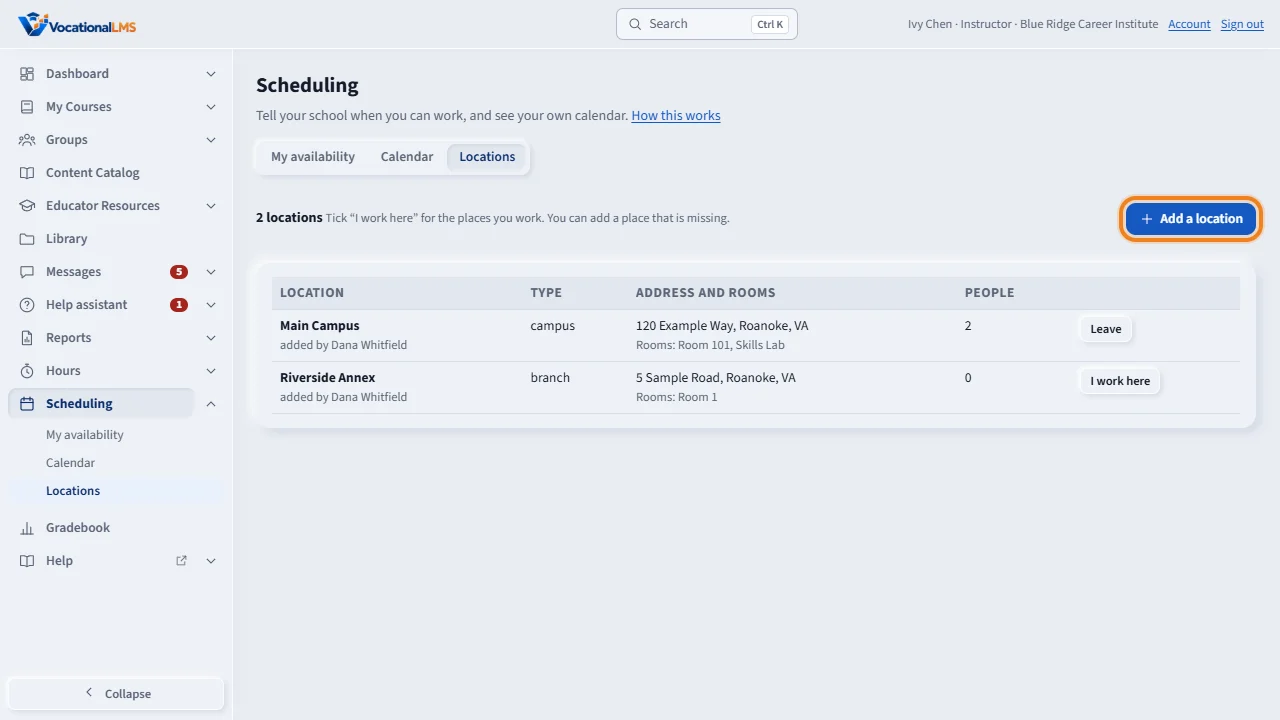
Under Locations, tick I work here for your places. If yours is missing, add it. It appears at once, with no approval.
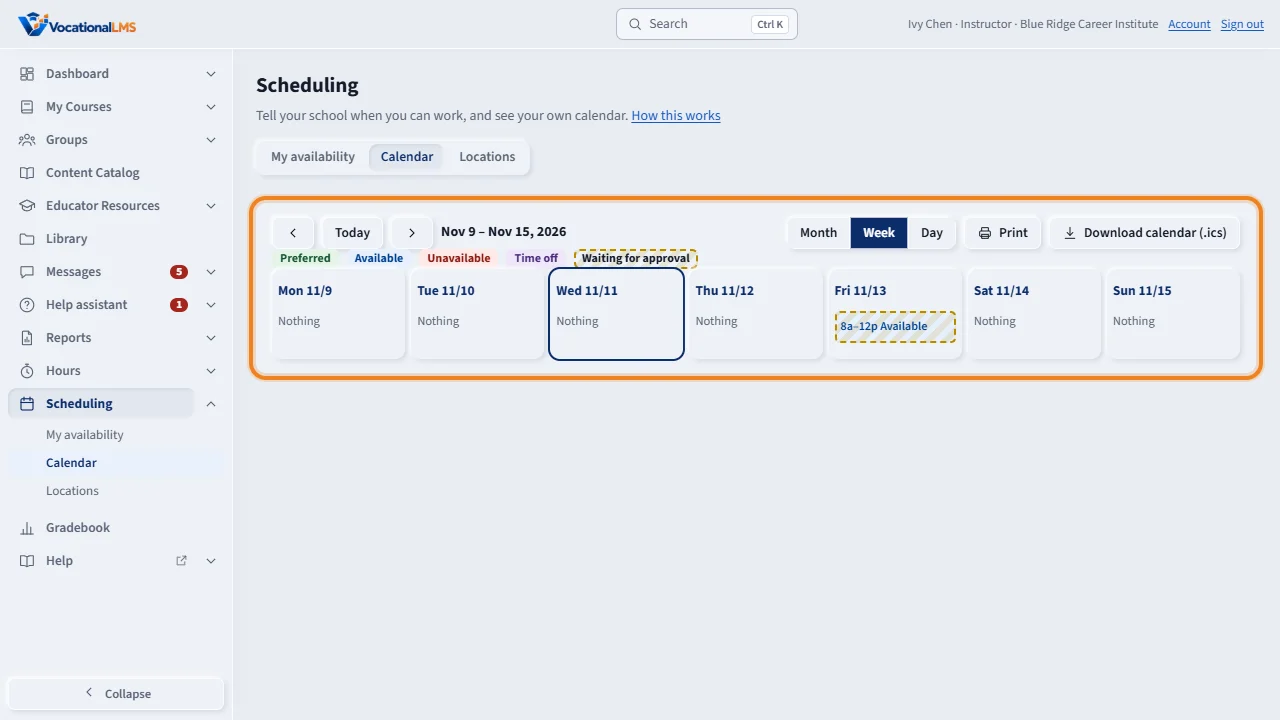
The Calendar shows your availability and approved time off by month, week or day. Print it, or download it as an I C S file to add to Google Calendar, Outlook or Apple Calendar.
Open this in VocationalLMSScheduling > My availability
What it is for
Open Scheduling in your menu. My availability is a grid of days across and hours down. Choose Preferred (you would most like to work), Available (you can work) or Unavailable, then click squares or drag across them; click a day name to fill the whole day. Pick the effective date (the first day the pattern applies), add a note if you like, and click Notify manager. Your School Admin gets an email and a notice and approves or declines; you are told which. Until it is approved, the availability your school already has stays in force. Save draft keeps your work without telling anyone.
Steps
Set your weekly availability
- Open Scheduling › My availability. The grid starts with what is in force now. New starts again from it, Clear empties the grid.
- Paint the grid, choose the effective date, then Notify manager. The badge at the top says Waiting for approval, then Approved or Declined with the reason. Withdraw takes a request back.
A day that is different, and time off
- Under Date changes choose the date, whether you are unavailable or available (extra hours), all day or some hours, then Ask for this change.
- Under Time off choose the type (vacation, sick, personal, other), the first and last day, then Request time off. Both wait for your School Admin. Cancel withdraws a request.
Locations
- Open Locations. Click I work here on the places you work. If your place is missing, click Add a location: it appears at once for everyone, and you can edit the ones you added.
Your calendar
- Open Calendar: your availability and approved time off by month, week or day. Items waiting for approval have a dashed outline. Click an item for details. Print prints it; Download calendar (.ics) lets you add it to Google Calendar, Outlook or Apple Calendar.
What happens next
Everything you change is kept in Change history at the bottom of My availability. Later your class sessions and clock-in entries will appear on the same calendar.
Common problems
| # | Problem | What to do |
|---|---|---|
| 1 | Notify manager is not clickable. | Only a saved draft can be sent. Click Save draft first, or just click Notify manager, which saves and sends. |
| 2 | My change says Declined. | Read the reason under the badge, change the grid, and send it again. |
| 3 | I cannot choose a past date. | The effective date is today or later. Ask your School Admin to enter an earlier one. |
| 4 | I cannot see another instructor's schedule. | You see only your own. Your School Admin sees the whole team. |