
A-74For School Admins and Directors
Student Information: your school's own student records, and the Orbund pull
Keep one record for each person your school serves, with the tabs and fields your school chooses, a history of every change, protected fields, and a pull from your Orbund report.
How-to video A-74 · 2:40
Read the words of this video
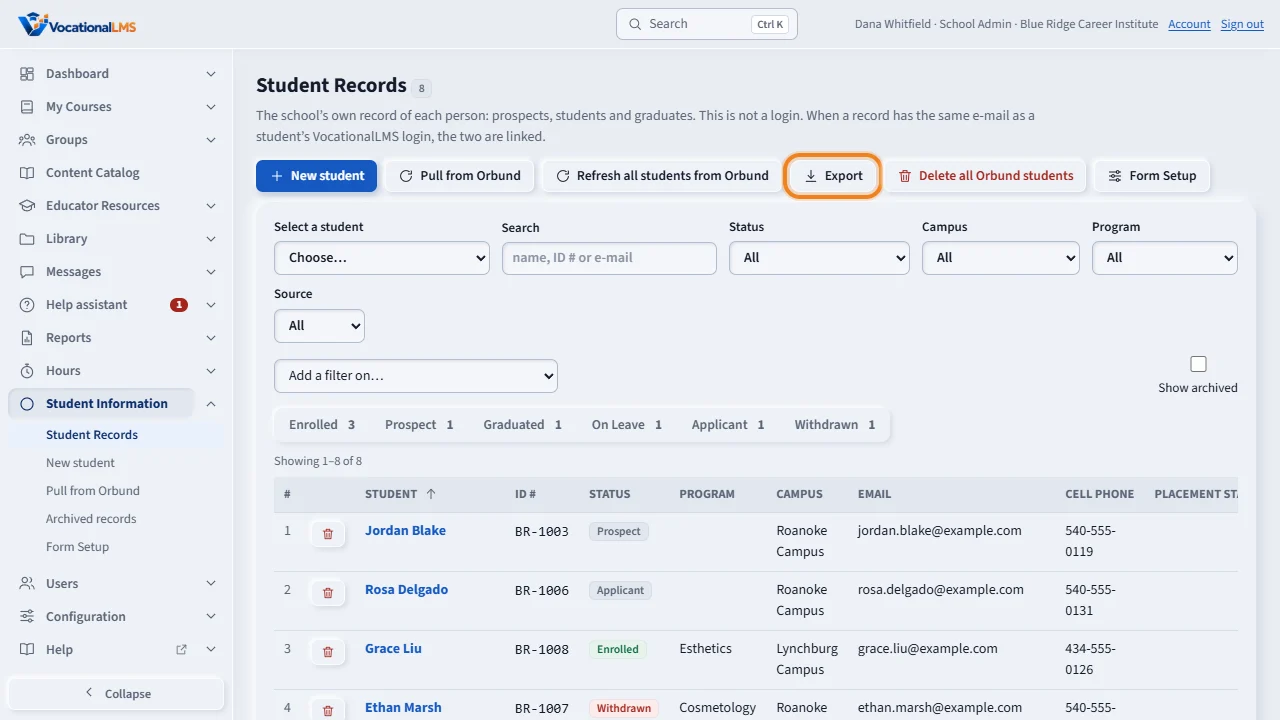
Student Information is your school's own record of each person: prospects, students and graduates. It is not a login. Open it from the menu on the left. Student Records lists the records, with a count for each status. Search by name, I D number or e-mail, choose a status, a campus or a program, or add a filter on any field. Export downloads what you see as a spreadsheet.
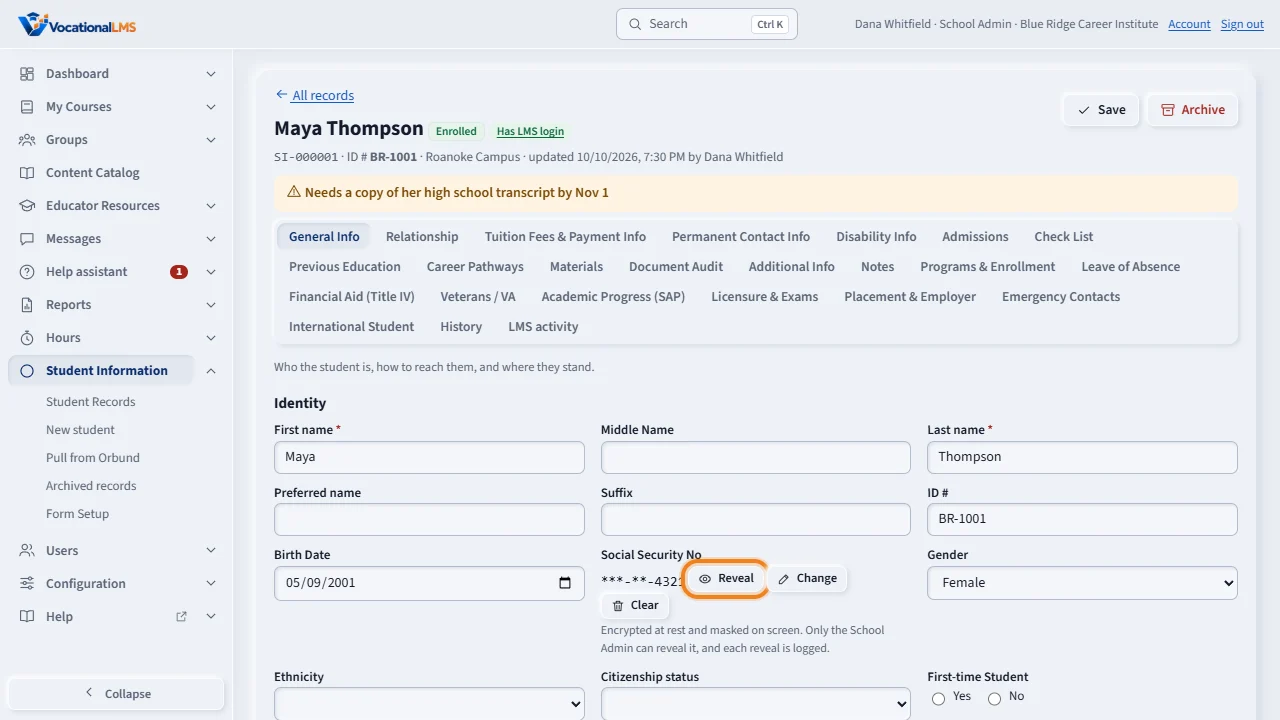
Click a name to open the record. The tabs are the ones on Orbund's Student Record screen, and more, such as Financial Aid, Veterans, Licensure and Placement. A Social Security number, and any other protected field, shows masked. Only the School Admin can click Reveal, and each reveal is written to the audit trail. This student also has a Vocational L M S login, because the e-mail matches, so a badge links to her student page.
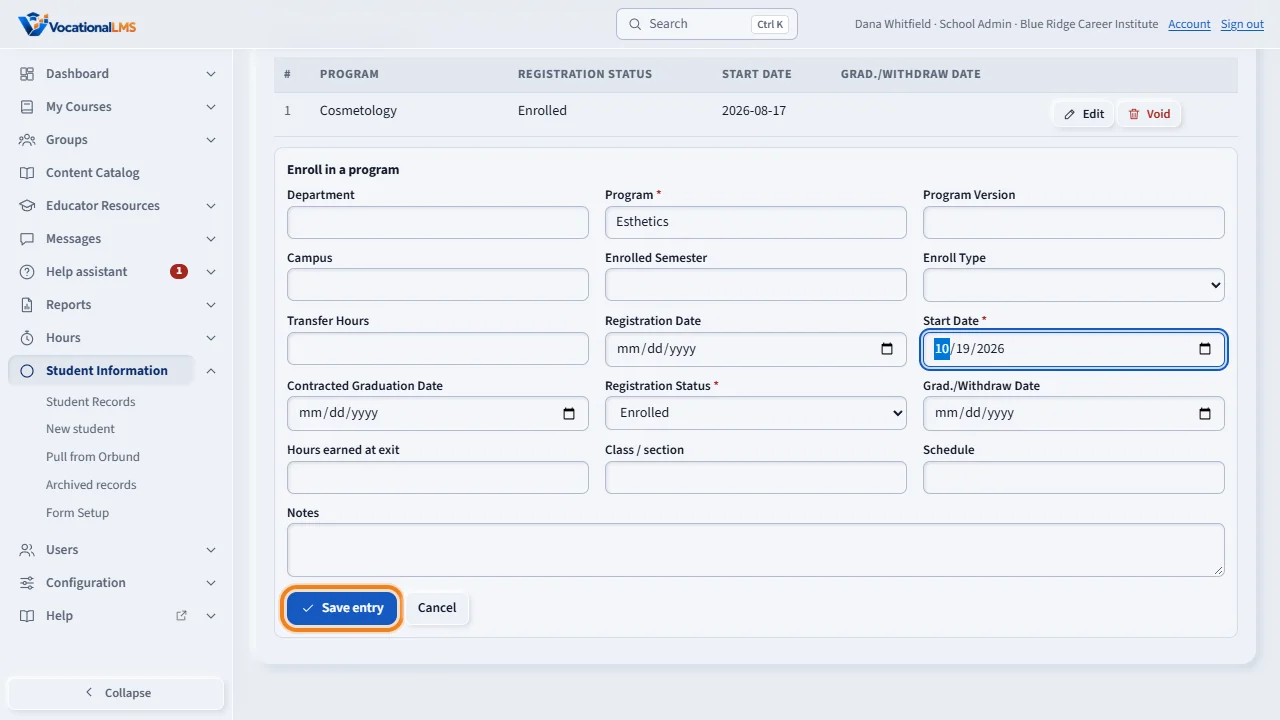
Programs and Enrollment, and Leave of Absence, are lists. Click Enroll in a program, type the program and the start date, choose the status, and click Save entry. A graduation or a leave moves the student's status for you. A wrong entry is never deleted. Click Void, give the reason, and it stays on the record, struck out.
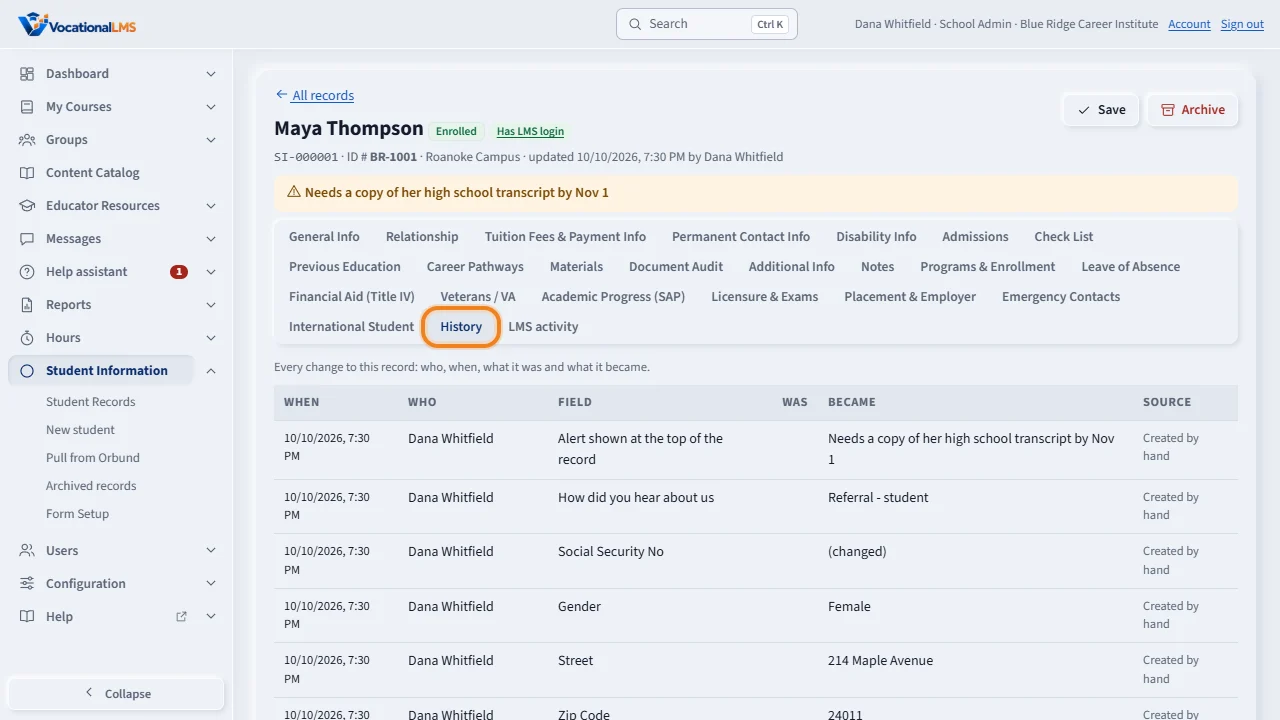
The History tab shows every change to the record: who made it, when, what it was and what it became. A protected value is never written there.
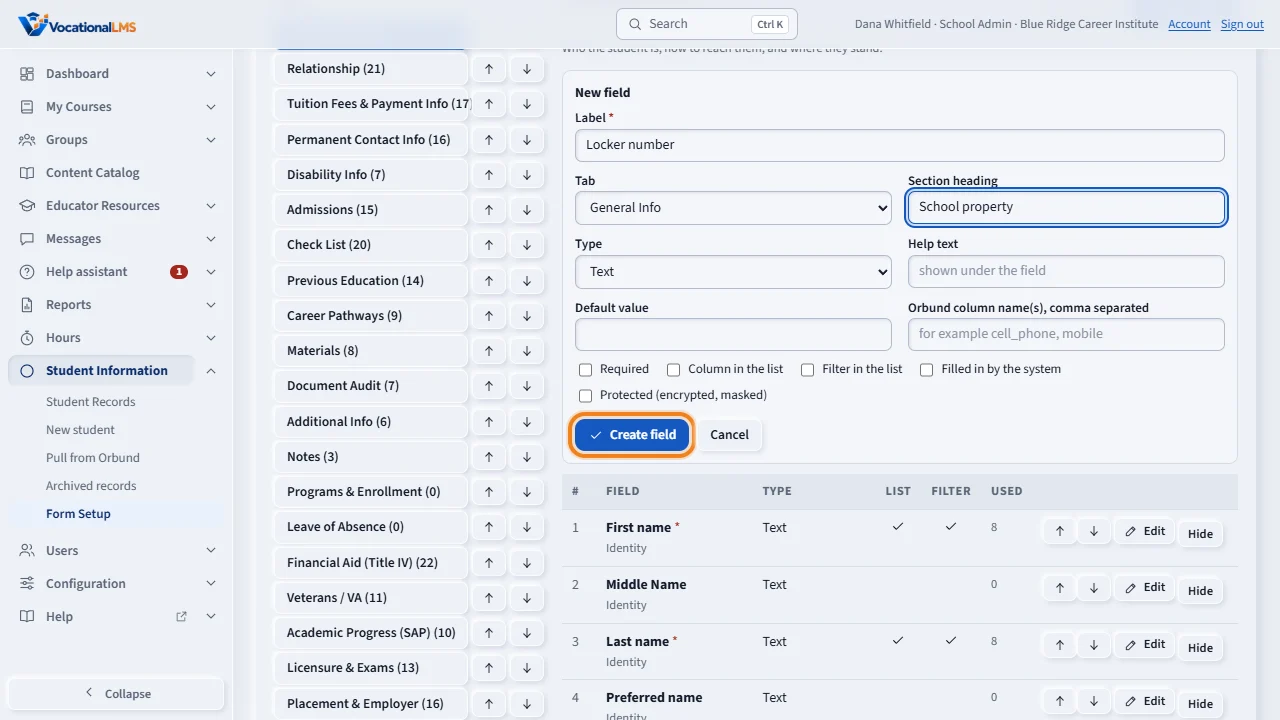
Form Setup is where your school makes the form its own. Rename, reorder, hide or require any tab or field. Click Add a field, give it a label, choose its tab and its type, such as a date or a drop-down list, and save. A standard field can be hidden but not deleted, so pulls from Orbund keep landing in the right place.
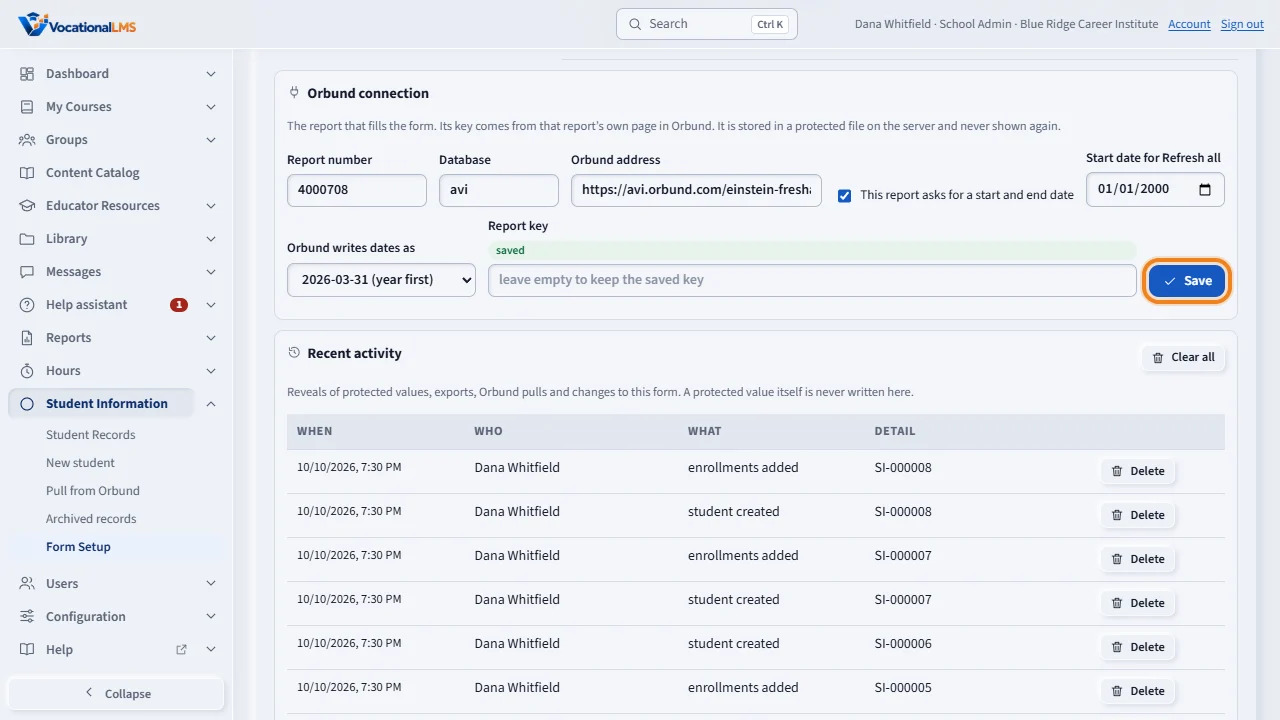
Under Orbund connection, save the number of your Orbund report, the name of your Orbund database, and the report key. The key is kept in a protected file and is never shown again. Here you also choose the start date for Refresh all, and how Orbund writes dates.
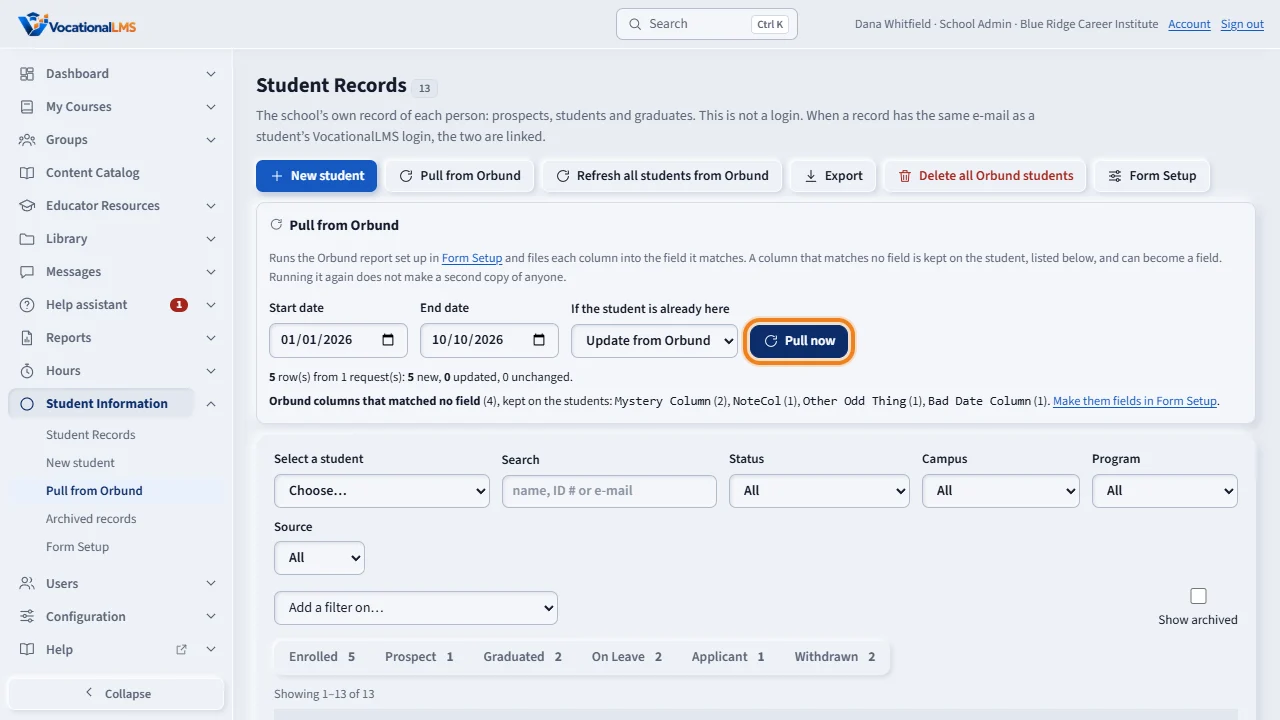
On Student Records, click Pull from Orbund, choose a start date and an end date, and click Pull now. Each Orbund column goes to the field it matches. A student who is already on file is updated, not copied. Columns that match no field are kept on the student and listed, so you can turn them into fields. Refresh all students from Orbund does the same for everyone, from your start date up to today.
Open this in VocationalLMSStudent Information > Student Records
Who can do this: The School Admin makes every change. A Director and an auditor can read the records, the History and Form Setup, and can export; they never see a protected value and cannot reveal one. Instructors and students do not see Student Information. Each school sees only its own records and its own form.
What it is for
Student Information is your school's own record of each person: prospects, applicants, students and graduates. It is not a login. A person can have a record and no login (a prospect, a graduate, a student pulled from Orbund), or both: when the e-mail on the record is the same as a student's VocationalLMS login at your school, the two are linked, and the record shows a Has LMS login badge. VocationalLMS never makes a login, sends an invitation or shows a password from this page. The form is yours to set up: every tab of Orbund's Student Record screen is there to start with, plus Financial Aid (Title IV), Veterans / VA, Academic Progress (SAP), Licensure and Exams, Placement and Employer, Emergency Contacts and International Student.
Steps
Find and open a record
- In the menu on the left click Student Information. Student Records opens, with a count for each status.
- Type part of a name, an ID # or an e-mail in Search, or choose a Status, Campus, Program or Source. Add a filter on narrows the list by any field your school marked as a filter. Show archived shows the records that were put away. The list shows 100 students at a time (choose 50, 100, 250, 500 or 1000 under Per page); Showing 101–200 of 781 tells you where you are, and Previous and Next move between pages. A new search or filter goes back to page 1. Click a column heading (Student, ID #, Status, Program, Campus or any other column) to sort all the students by it: the first click sorts ascending, the second reverses it, and an arrow shows which. Empty values always come last, numbers sort as numbers, and protected fields cannot be sorted. Select a student lists every student that matches your filters, by last name, as Last, First — ID #.
- Click a name, or choose one in Select a student, to open the record. The tabs are across the top. History shows every change, and Other Orbund columns appears when a pull sent columns that match no field.
- Export downloads the list you see as a spreadsheet. Protected fields are never in it.
Add a student and fill in the tabs
- Click New student. Type the first name and the last name; they are required. The status starts as Enrolled.
- Fill in any tab, then click Create student. The record gets a key such as SI-000012. Later, click Save to keep changes made on any tab.
- Protected fields, such as Social Security No, show a masked value. Click Change to type a new one, Clear to remove it, and Reveal to see it. Each reveal is written to the audit trail, which is in Form Setup under Recent activity.
- To put a record away, click Archive and give the reason. Nothing is deleted, and Restore brings it back. To remove a record for good (for example one pulled by mistake), click the red Delete (on the record, or the small red trash button at the left of its row in the list, which does not open the record), give the reason and confirm: the record, its programs, leaves and history are erased, the reason is written to the audit trail, and the person's VocationalLMS login is not touched. On Student Records the red Delete all Orbund students removes every student that came from Orbund, after you type DELETE ALL ORBUND STUDENTS; students you typed in by hand stay, and a later pull or Refresh all creates them again. Only the School Admin can delete, and not while a pull is running.
Programs and leaves of absence
- Open the Programs & Enrollment tab and click Enroll in a program. Type the program, the start date and the registration status, then click Save entry. A graduation or withdrawal needs its date.
- Open Leave of Absence and click New leave of absence to record a leave and, later, the return or the drop. The student's status follows the newest entry, and the History says so.
- A wrong entry is never deleted. Click Void and give the reason: it stays on the record, struck out.
Make the form your own
- Click Form Setup. Choose a tab on the left. Use the arrows to move tabs and fields, Hide or Show a field, and Edit to change its label, help text, choices, default value and Orbund column names.
- Tick Required, Column in the list or Filter in the list as you like. Click Add a field to make your own: choose its tab and its type (text, long text, number, date, e-mail, phone, Social Security No, drop-down list, choose-one buttons, Yes / No / Not selected, tick box or web link). Tick Protected to encrypt it; that choice is made when the field is created.
- Click Add a tab for a tab of your own. A standard tab or field can be hidden but not deleted, and the first and last name stay on and required. Your own field can be deleted only while no record holds a value in it.
Pull students from Orbund
- In Form Setup, under Orbund connection, type the Report number and the Database name, paste the Report key from that report's page in Orbund, and click Save. The key is kept in a protected file and is never shown again. The same panel has Start date for Refresh all (2000-01-01 unless you change it) and Orbund writes dates as: 2026-03-31 (year first) or 03/31/2026 (month first). If your report has no date prompts (AVI's report 4000709, ALL STUDENTS LIST (API), is one), untick This report asks for a start and end date: the Pull panel then says no dates are needed, and both Pull now and Refresh all ask Orbund once with no dates at all.
- On Student Records click Pull from Orbund. Your Orbund report takes a date range. Choose the Start date and the End date (both are needed, and the start cannot be after the end), choose what to do for a student already on file, Update from Orbund or Fill blanks only, and click Pull now. Orbund is asked once, with the two dates in that order. (With a report that has no date prompts there are no date boxes: just click Pull now.)
- To update every record at once, click Refresh all students from Orbund and confirm. It asks Orbund once, from the Start date for Refresh all in Form Setup (2000-01-01 unless you change it) up to today, and updates each student from the answer. Only one pull can run at a time for your school.
- The answer says how many rows came, how many students are new, updated or unchanged, and lists the Orbund columns that matched no field. In Form Setup click one of those columns to turn it into a field; from then on a pull files it there. At the bottom of Form Setup, Recent activity lists reveals, exports, pulls and form changes. Click Delete on a line to remove it, or Clear all to empty the list. Clearing leaves one line saying who cleared it, and removing a reveal line leaves a note that one was removed.
What happens next
Every field, tab and list column is the school's own choice, and a school's choices are never changed by an update of VocationalLMS: new standard fields are only added. A pull files each Orbund column into the field whose Orbund column names or label match it (numbers Orbund uses for a status, such as 1 for Enrolled, 3 for Graduated, 4 for Program Transferred, 11 for ISIR Import, 128 for Withdrawn, and for sex, are turned into words; Orbund's own studentId goes to the read-only field Orbund student key and its idNumber is the ID #). The attendance columns fill read-only fields on General Info: Hours Attended (the hours Orbund counted; it also fills the enrollment's hours) and Last Attended, which goes to LDA, the last date of attendance. The graduation date fills the enrollment's end date. The LMS activity tab shows the hours VocationalLMS itself counted, which are a separate thing (capital letters and punctuation are ignored), makes a program enrollment from a Program column, and finds a student already on file by ID # first, so pulling again does not make a second copy. Two different ID #s are always two students, even with the same name and birth date; name and birth date, e-mail, or a bare name are used only for a row, or a record typed by hand, that has no ID #. Protected values are encrypted with a key kept for your school only, shown masked everywhere, and left out of exports and of the History; only the School Admin can reveal one. A linked record has an LMS activity tab: the courses and credited hours of that student, read only.
Common problems
| # | Problem | What to do |
|---|---|---|
| 1 | Student Information is not in my menu. | It is for School Admins and Directors, and an auditor can read it. Instructors and students do not see it. A Super Admin opens a school first (Schools, then View as School Admin). |
| 2 | There is no Reveal button. | Only the School Admin can reveal a protected value. A Director and an auditor always see it masked. |
| 3 | The pull says the report needs a start date and an end date. | Choose both dates and run it again. The start date cannot be after the end date. |
| 4 | The pull finds nobody, but you know there are students. | Orbund may want its dates written the other way. In Form Setup, under Orbund connection, change Orbund writes dates as to the other choice, save, and pull again. Also check that the range covers the students' dates. A report with no date prompts needs the box in Form Setup unticked, or Orbund is asked for dates it ignores. |
| 5 | The pull says Orbund did not accept the key or the database name. | Open Form Setup, then Orbund connection, and paste the key from that report's own page in Orbund again. Check the database name too. |
| 6 | The pull says it could not reach Orbund. | Check the Orbund address in Form Setup and try again in a few minutes. The address must start with https:// and be on orbund.com. |
| 7 | I cannot delete a standard field or change its type. | A standard field keeps its identity so pulls keep landing in the right place. Hide it instead. For your own field, the type cannot change once a record holds a value; add a new field. |
| 8 | The badge Has LMS login is missing. | The e-mail on the record must be exactly the e-mail of a student's login at your school. Fix the e-mail on the record, save, and open the record again. |
| 9 | Two records for the same person. | Click Archive on the extra one and give the reason, for example duplicate of SI-000012. Nothing is lost. |