
S-25For students
Clock in at school with the app
Sign in to the VocationalLMS app on your phone, tap Clock in when you arrive and Clock out when you leave. What the app shows while it finds your location.
How-to video S-25 · 1:36
Read the words of this video
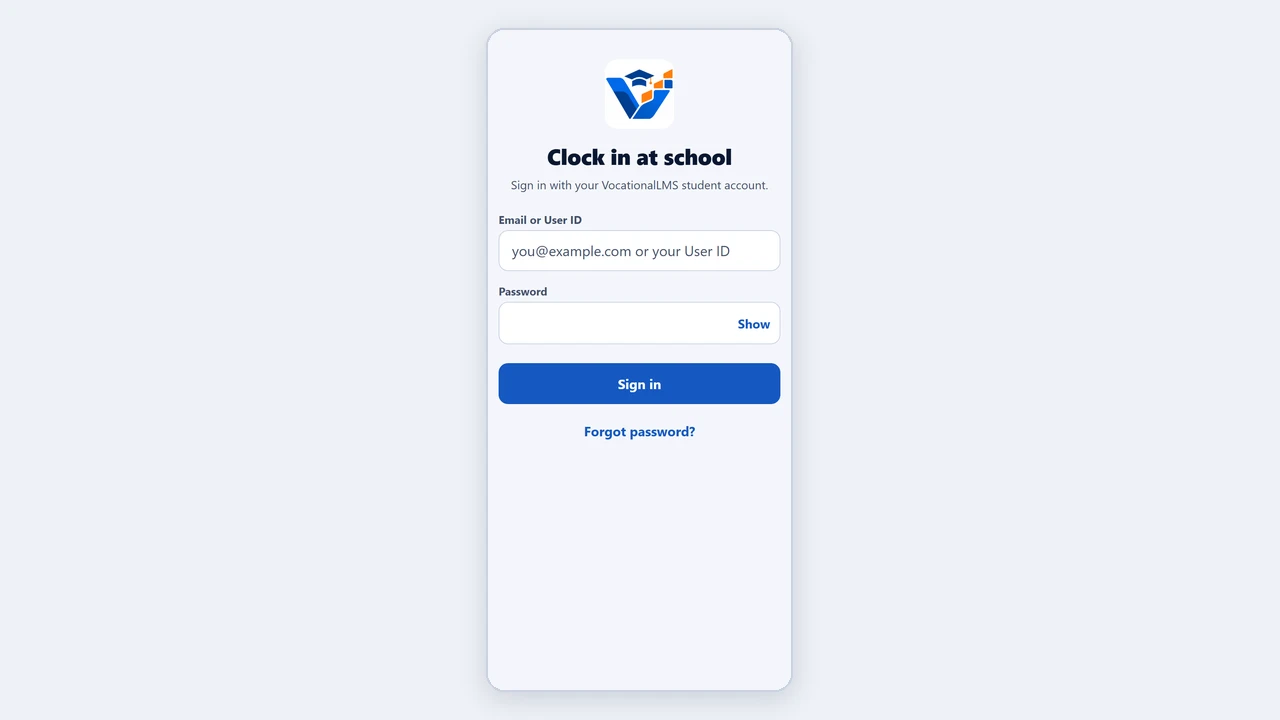
If your school uses clock-in, you record your time at school with the VocationalLMS app on your phone. Type the same email or User ID and password you use for your lessons, and tap Sign in. This phone becomes your phone for clock-in.
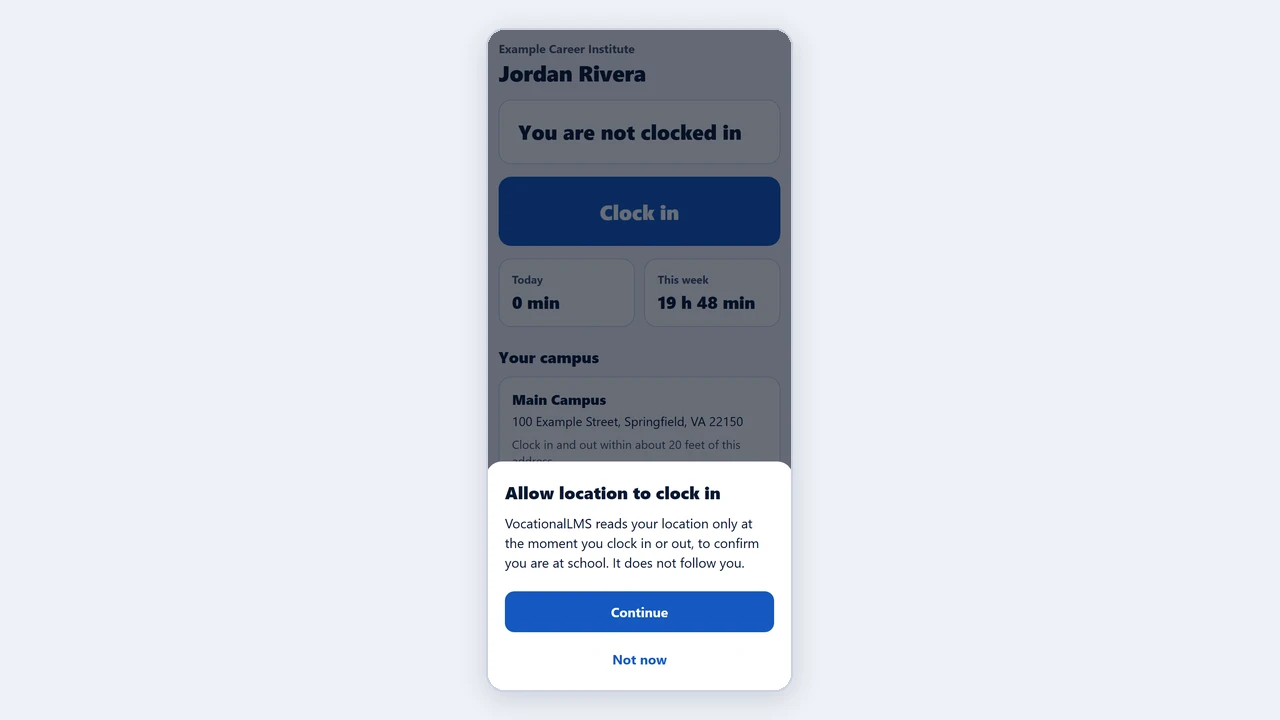
The first time, tap Continue, and allow location while you use the app. The app reads your location only at the moment you tap. It does not follow you.
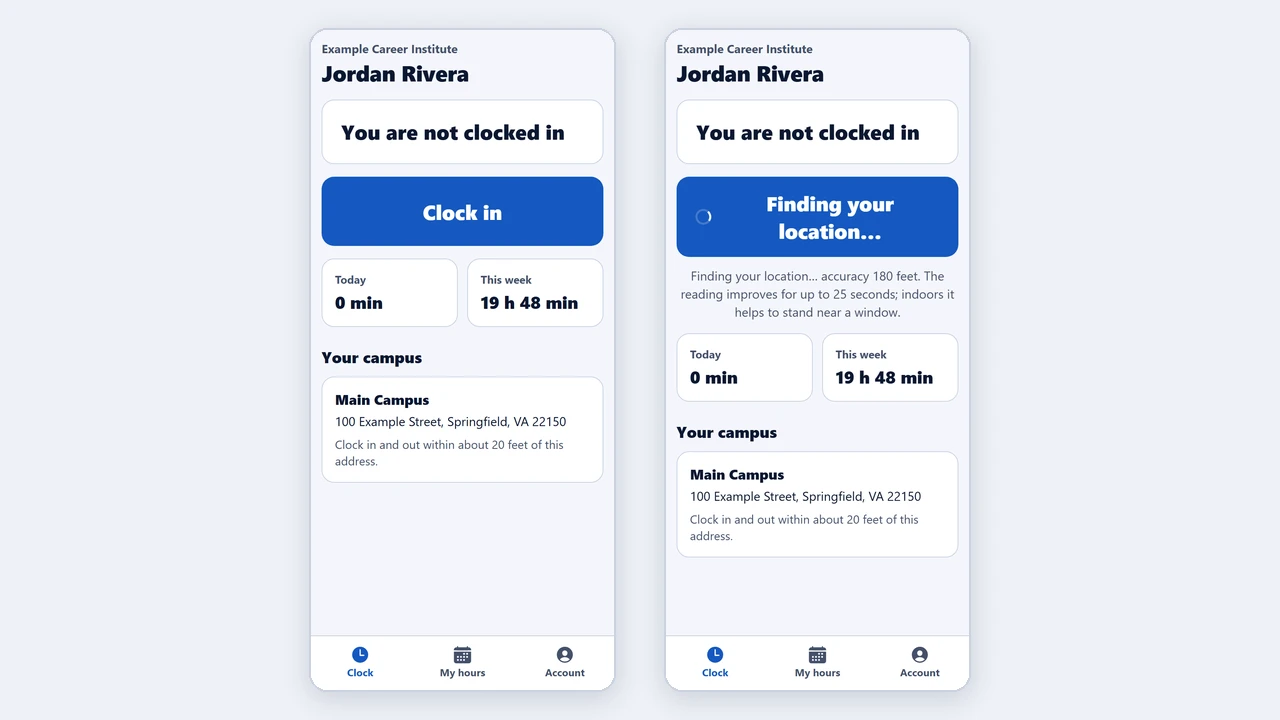
At school, open the app and tap Clock in. The button says Finding your location, and the line under it shows how accurate the reading is, for example accuracy 180 feet. The number gets smaller as the phone settles, for up to 25 seconds. Indoors, stand near a window. You do not need to tap again.
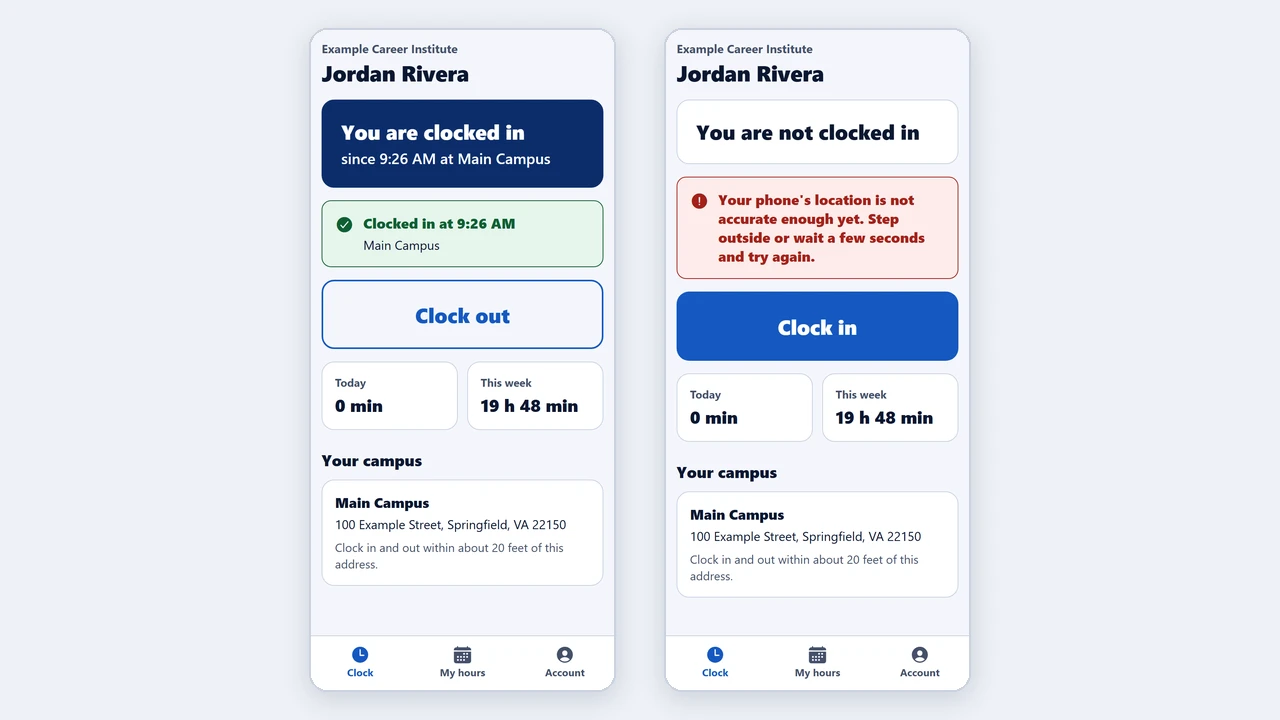
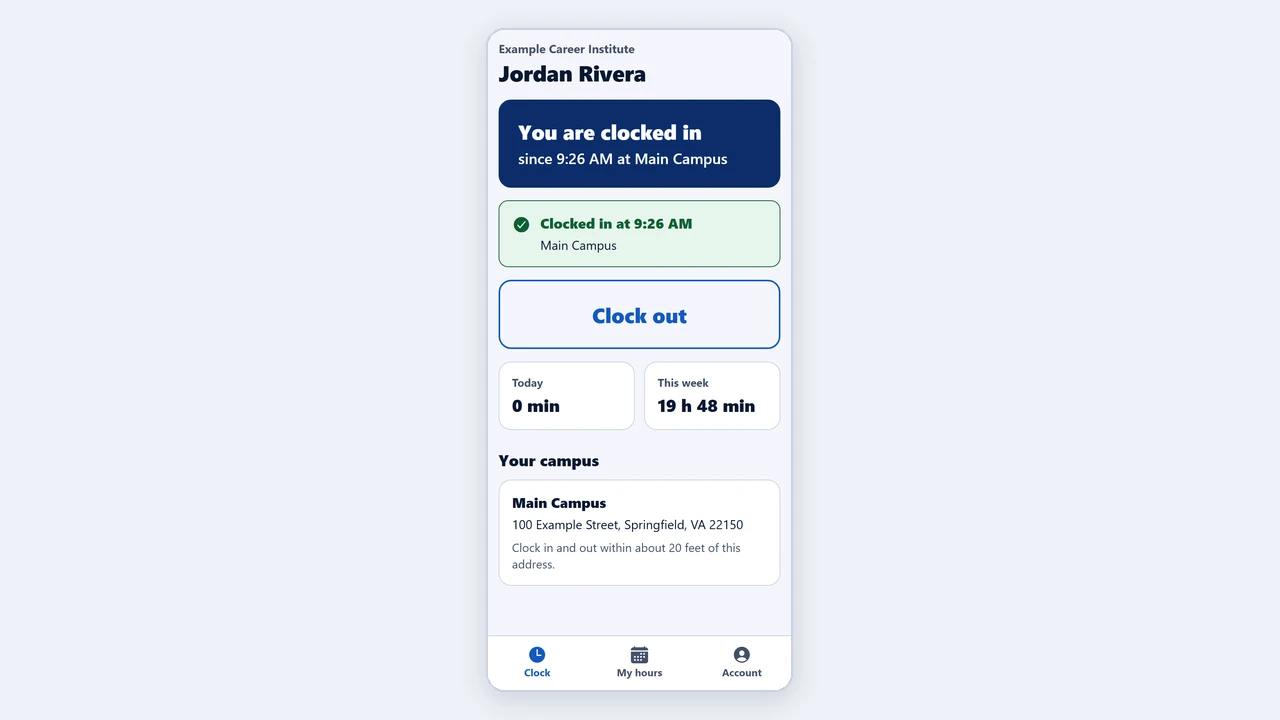
As soon as the reading is good enough, the app sends it and shows a green check with the time. If the phone is still unsure after 25 seconds, the app sends its best reading and your school's server decides. If it says not accurate enough yet, step outside or stand near a window, and tap again.
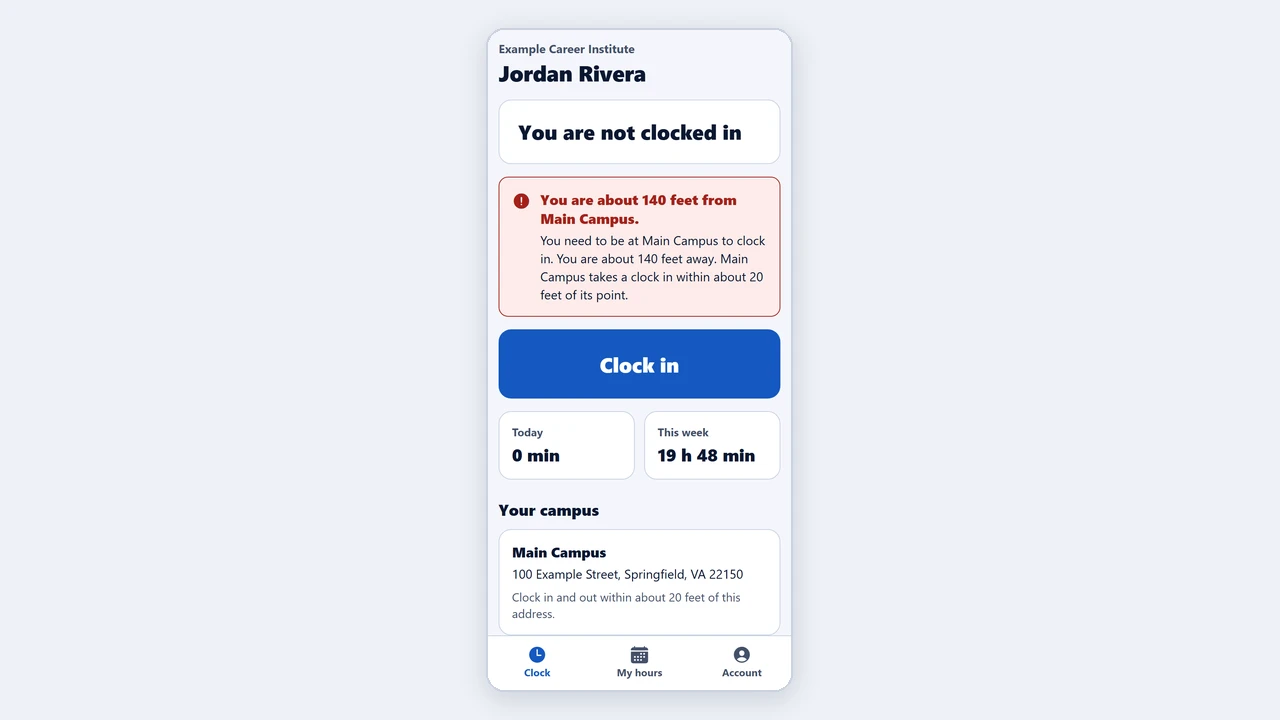
If you are too far from your campus, the app says how far you are and how big the fence is, and does not clock you in. Go to the school entrance and try again.
When you leave, tap Clock out while you are still at school. If you forget, tell your instructor or the school office.
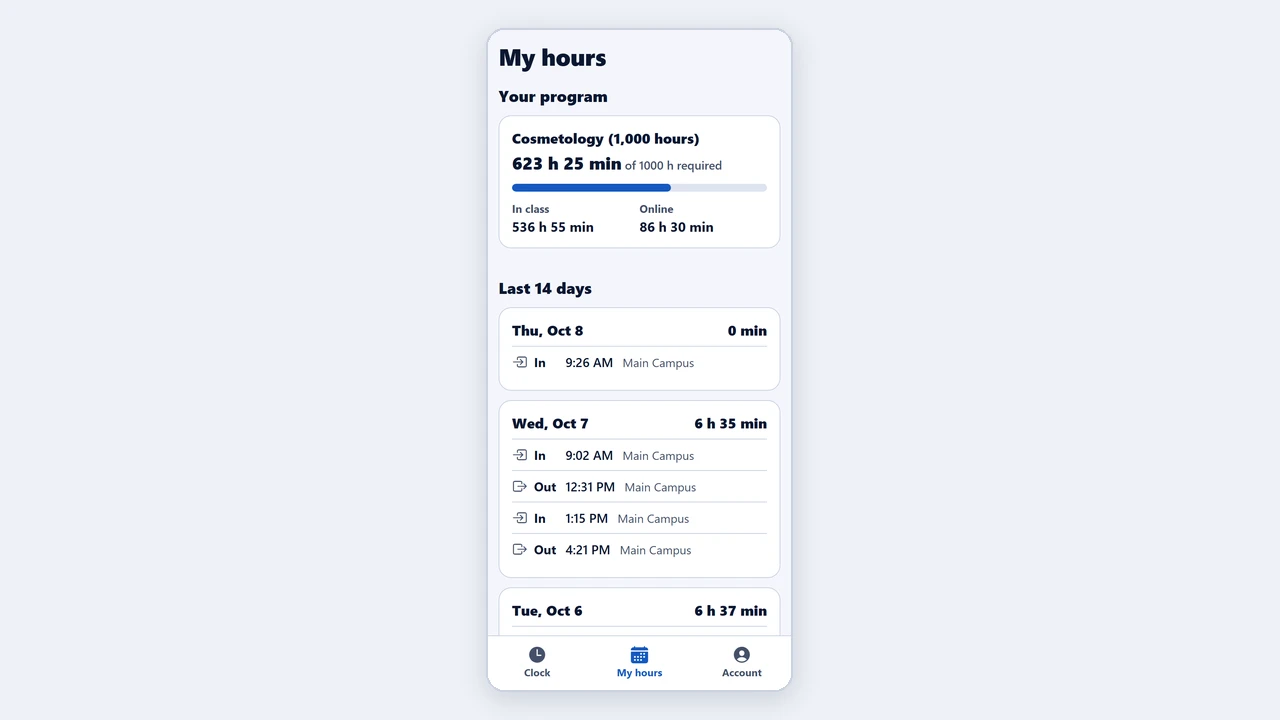
Tap My hours to see your punches day by day, and your hours toward the hours your program requires.
What it is for
If your school uses clock-in, you record the time you are at school with the VocationalLMS app on your own phone. You tap Clock in when you arrive and Clock out when you leave. The app works only at your school: it checks that your phone is at your campus at that moment. It does not follow you; it reads your location only when you tap.
Steps
Sign in the first time
- Open the VocationalLMS app. Type the same email or User ID and password you use for your lessons, and tap Sign in.
- When the phone asks, allow the app to use your location while you use the app, and choose Precise if the phone offers Precise or Approximate (Android). With approximate location only, the app cannot see that you are at school; it tells you so, with an Open settings button.
- The first phone you sign in with becomes your phone for clock-in.
Clock in and out
- At school, open the app. The first screen shows whether you are clocked in, your school and your hours.
- Tap Clock in. The button says Finding your location… and a line under it shows how accurate the reading is, for example accuracy 180 feet. The number gets smaller as the phone settles, for up to 25 seconds. Indoors it helps to stand near a window. You do not need to tap again.
- As soon as the reading is good enough, the app sends it and shows a green check with the time. If the phone is still unsure after 25 seconds, the app sends the best reading it has and your school's server decides.
- If you are in more than one program, the app asks which program this visit is for.
- When you leave, open the app and tap Clock out, still at school.
- The My hours screen shows your punches day by day and your hours.
What happens next
The time of a punch is the time of the VocationalLMS server, not your phone's clock. Your hours at school are added to your online hours on My hours (S-26). If you forget to clock out, the punch stays open: tell your instructor or the school office, and they close it with the time you really left.
Common problems
| # | Problem | What to do |
|---|---|---|
| 1 | “Your phone's location is not accurate enough yet.” | Your school's server refused the reading because the phone was too unsure of its place, even after 25 seconds. Step outside or stand near a window, then tap again. |
| 2 | “You are about … feet from …” | You are outside your school's fence. The message also says how big the fence is (for example, within about 150 feet of the campus point). Go to the school entrance and try again. |
| 3 | “Precise location is turned off.” | Tap Open settings, choose Location for the VocationalLMS app, and turn on Precise location (Android: “Use precise location”; iPhone: “Precise Location”). Then tap Clock in again. |
| 4 | “This phone is not approved for your account yet.” | You signed in on a different phone. Ask the school office to approve it, then tap Try again. |
| 5 | “Clock-in is not turned on for your school.” | Your school does not use the app, or has it switched off. Ask the school office. |
| 6 | I forgot to clock in. | Tell your instructor or the school office. They can add the punch with a reason. |
| 7 | I have a new phone. | Ask the school office to reset your phone. Then sign in on the new one. |