
I-15For instructors
Educator Resources: lesson plans and teaching slides for your class
Find the teaching guide, the chapter plan and each lesson's plan, present the slides, print, and keep your own notes.
How-to video I-15 · 1:18
Read the words of this video
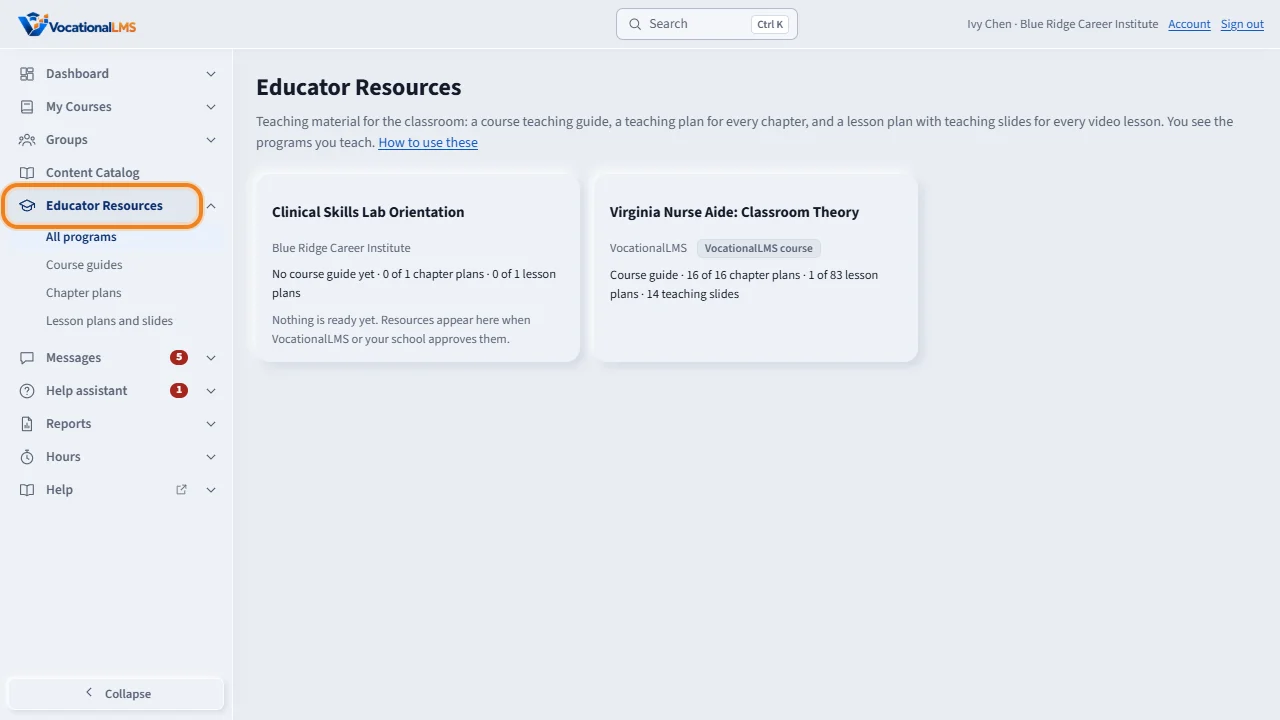
Educator Resources gives every instructor a teaching plan for the classroom. Open Educator Resources in the menu on the left and choose your program. You see only the programs you teach.
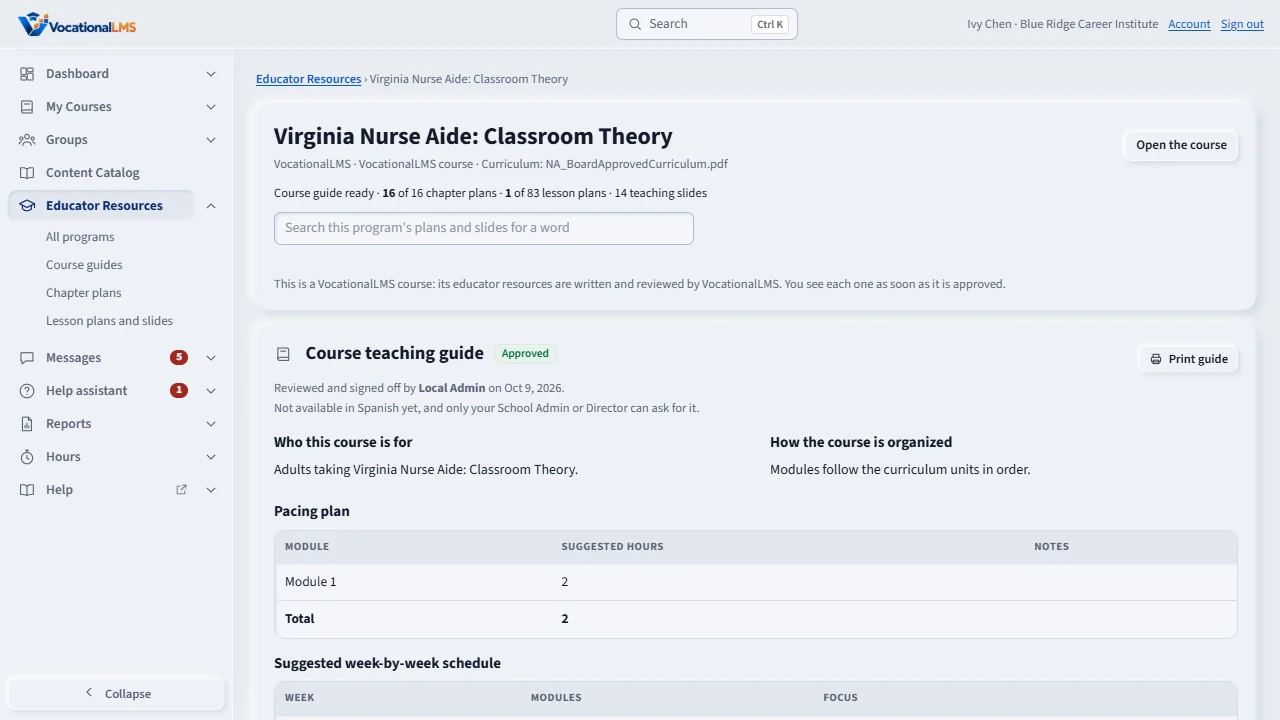
At the top is the course teaching guide, with pacing and teaching methods. Below are the chapters and lessons. Open a chapter for its teaching plan, or a lesson for its lesson plan.
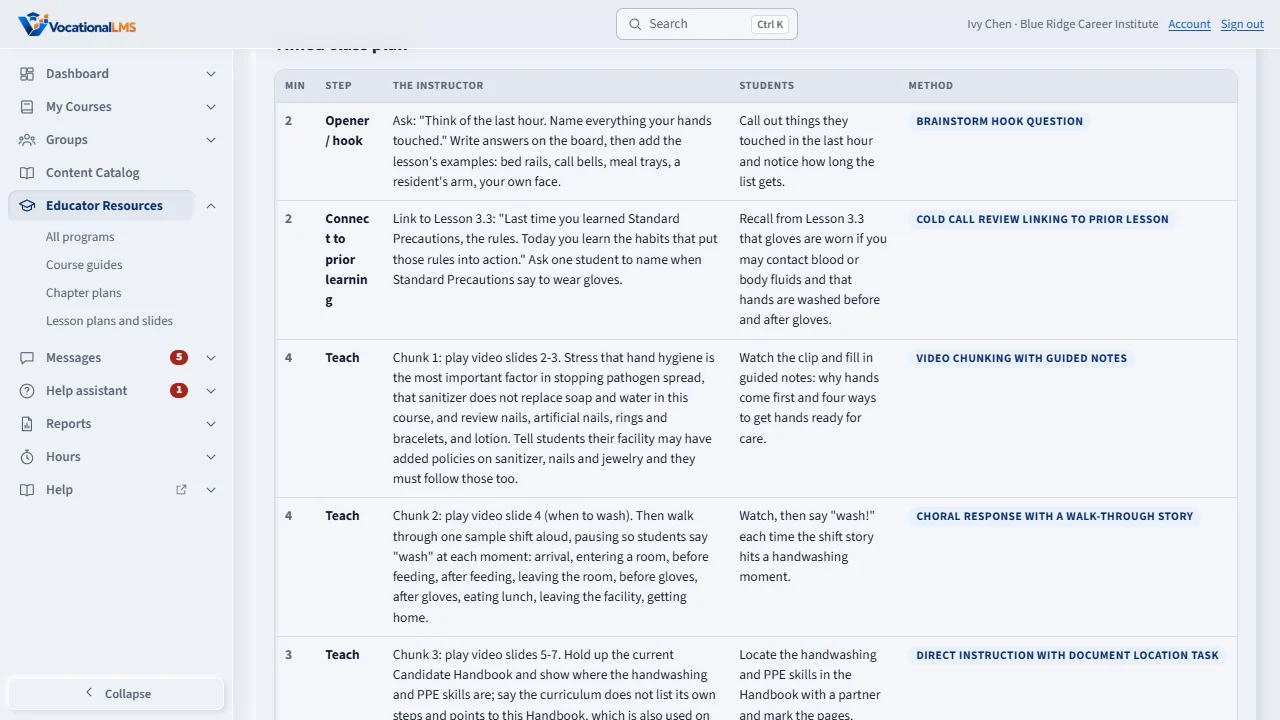
A lesson plan has a timed class plan, teaching techniques with the steps to run them, questions to ask with the answers, an activity, and an exit ticket. The times are suggestions for planning your class.
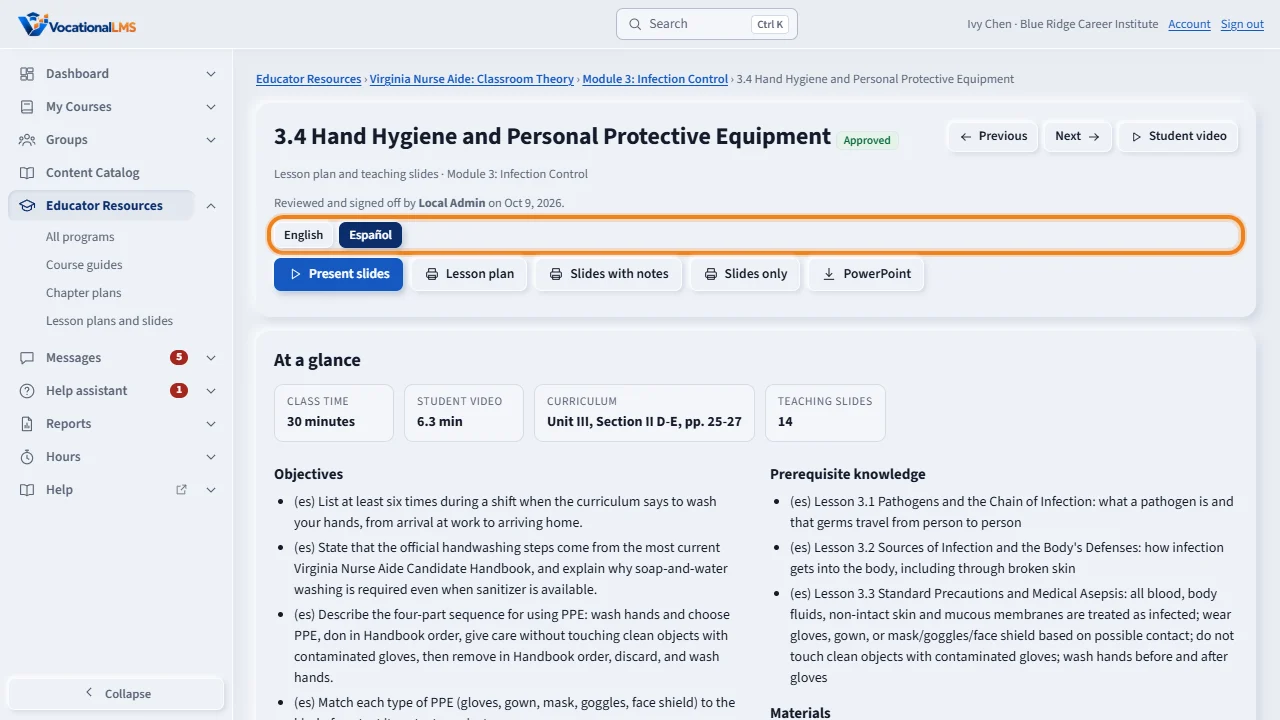
When a Spanish version is ready, click Español at the top of the plan to read it in Spanish, with Spanish teaching slides too. Click English to switch back. If you do not see the switch, ask your School Admin or Director to translate it.
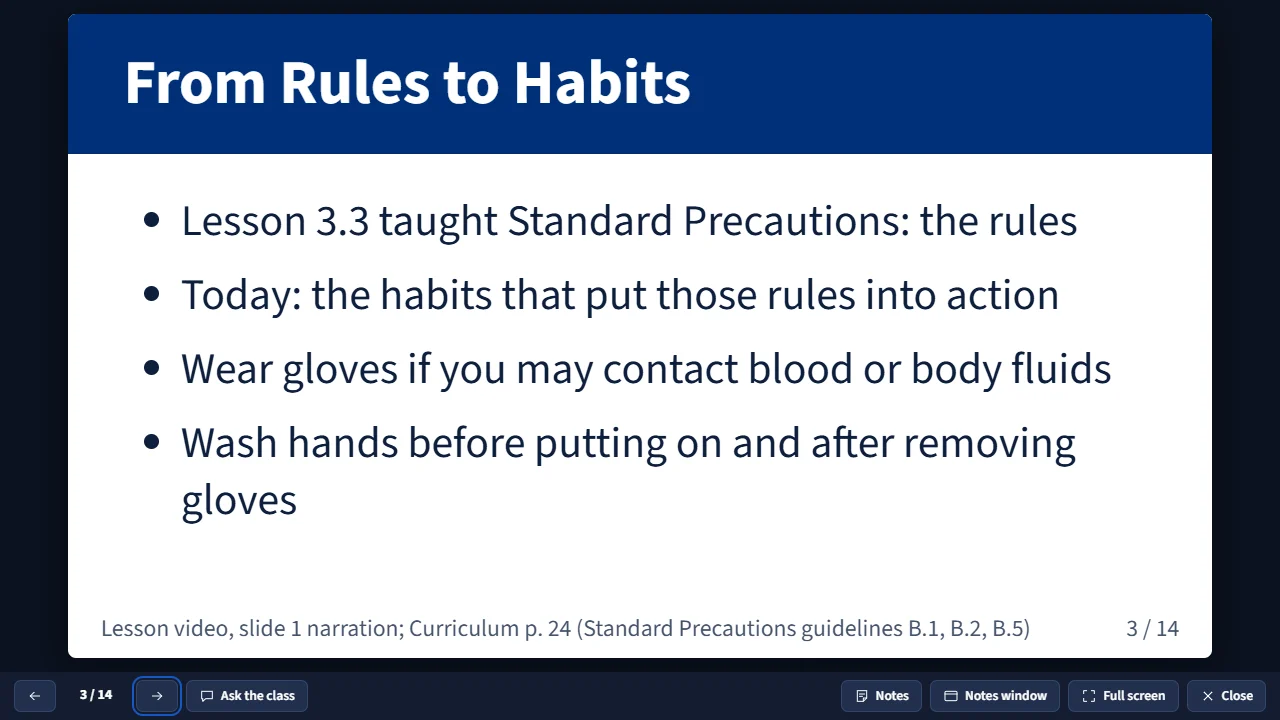
Click Present slides to show the teaching slides to your class, in whichever language you were reading. Use the arrow keys to move, and press N when you want your own notes. You can print the plan or the slides, or download them as PowerPoint. My notes for this plan are yours alone.
Open this in VocationalLMSEducator Resources
What it is for
Educator Resources gives you a teaching plan for the classroom, for every program you teach: a course teaching guide, a teaching plan for each chapter, and for each video lesson a timed lesson plan with teaching methods, questions to ask, an activity, an exit ticket, and teaching slides with your notes. When a Spanish version is ready, an English / Español switch appears at the top of the guide, the chapter plan or the lesson plan: click it to read that one in Spanish.
Steps
- Click Educator Resources in the menu on the left. You see the programs you teach.
- Open a program. The course teaching guide is at the top; chapters and lessons are below.
- Click a lesson to open its plan: the timed class plan, the techniques, the questions to ask, the activity, the exit ticket and the teaching slides.
- If it has a Spanish version, click Español at the top to read it in Spanish; click English to switch back. If you do not see the switch, it is not translated yet; only your School Admin or Director can ask for that.
- Click Present slides. Use the arrow keys to move, A for Ask the class, N to show or hide your notes, F for full screen, and Esc to close. On a phone, turn it sideways.
- With a projector, click Notes window to keep your notes on your own screen.
- Print with Lesson plan, Slides with notes or Slides only, or download PowerPoint: whichever language you are reading prints and downloads in that language.
- Type in My notes for this plan and click Save my notes. Only you see them.
- Use the search box on the program page to find a word in any plan or slide.
What happens next
Everything is written from this course's own lessons and curriculum, and a reviewer signs off each resource before you see it, in each language separately. The times in a plan are suggestions for planning a class, not required hours. Files your school uploaded as lesson plans appear on the same pages.
Common problems
| # | Problem | What to do |
|---|---|---|
| 1 | “Nothing is ready yet.” | The resources are still drafts. They appear when a reviewer approves them. |
| 2 | A program is missing. | You see only the programs you teach. Ask your School Admin to add you to the program (A-03). |
| 3 | The notes window does not open. | The browser blocked the pop-up. Allow pop-ups for the site, or press N to show notes on the same screen. |
| 4 | A lesson has no plan. | Plans are written for video lessons. Readings, handouts and tests are covered in the chapter plan. |
| 5 | There is no English / Español switch. | A Spanish version has not been made yet, or it has not been approved. Ask your School Admin or Director; only they can ask for a translation. |