
A-23For School Admins and Directors
School settings: email from your own domain, and student sharing
Send invitations from your school's address with Google Workspace, Resend or your mail server. Switch student sharing on or off.
How-to video A-23 · 1:12
Read the words of this video
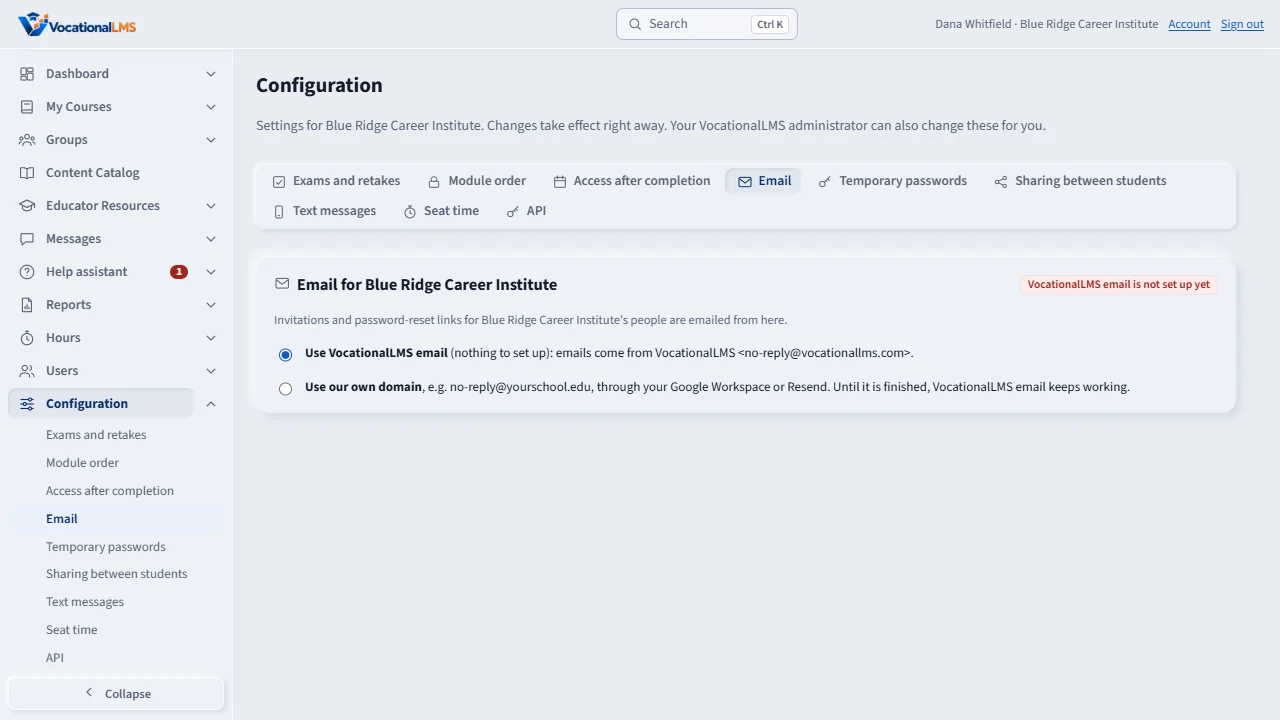
Configuration is in the menu on the left for School Admins. Open its Email tab. Invitations and password-reset links are emailed from VocationalLMS until you set up your own domain. Nothing needs to be set up for that.
To send from your school's own address, choose Use our own domain. Type the From address, for example no reply at your school dot e d u, and save it.
Then choose how to send. Google Workspace is free: you connect a Google account. Resend needs a key and a verified domain. Your email server works with cPanel, GoDaddy, Microsoft 365 and Zoho: enter the outgoing mail settings and click Check connection. Then send a test email. Until it works, VocationalLMS email keeps going.
Sharing between students has its own tab on the Configuration page. Tick or untick Students may share their own documents with other students. When it is off, students no longer see the Share button.
Open this in VocationalLMSConfiguration > Email
What it is for
Configuration has a tab for each group of your school's settings. This article covers two of them. Email: invitations and reset links come from VocationalLMS until you set up your own domain. Sharing between students: whether students may share their own documents with classmates.
Steps
Email from your own domain
- Click Configuration, then the Email tab. Under Email for your school choose Use our own domain.
- Type the From address, for example no-reply@yourschool.edu, and save it.
- Choose how to send: Google Workspace (free; connect a Google account), Resend (paste a key and verify your domain), or Your email server (cPanel, GoDaddy, Microsoft 365, Zoho: enter the outgoing mail settings and click Check connection).
- Click Send test email.
Student sharing
- On the tab Sharing between students, tick or untick Students may share their own documents with other students.
What happens next
Until your own email is finished and tested, emails keep going out through VocationalLMS email, so nothing stops working. Switching back to Use VocationalLMS email works at once. With sharing off, students no longer see the Share button.
Common problems
| # | Problem | What to do |
|---|---|---|
| 1 | Check connection fails. | It says why in plain words: a wrong password (some providers need an app password), a wrong server or port, or the wrong security setting. |
| 2 | Links still appear on screen instead of being emailed. | Email is not set up yet for VocationalLMS or your school. Copy the link and send it yourself. |
| 3 | Where are the keys kept? | On the server in protected files, never shown again. |