
A-17For School Admins and Directors
Choose your school's seat-time idle rule
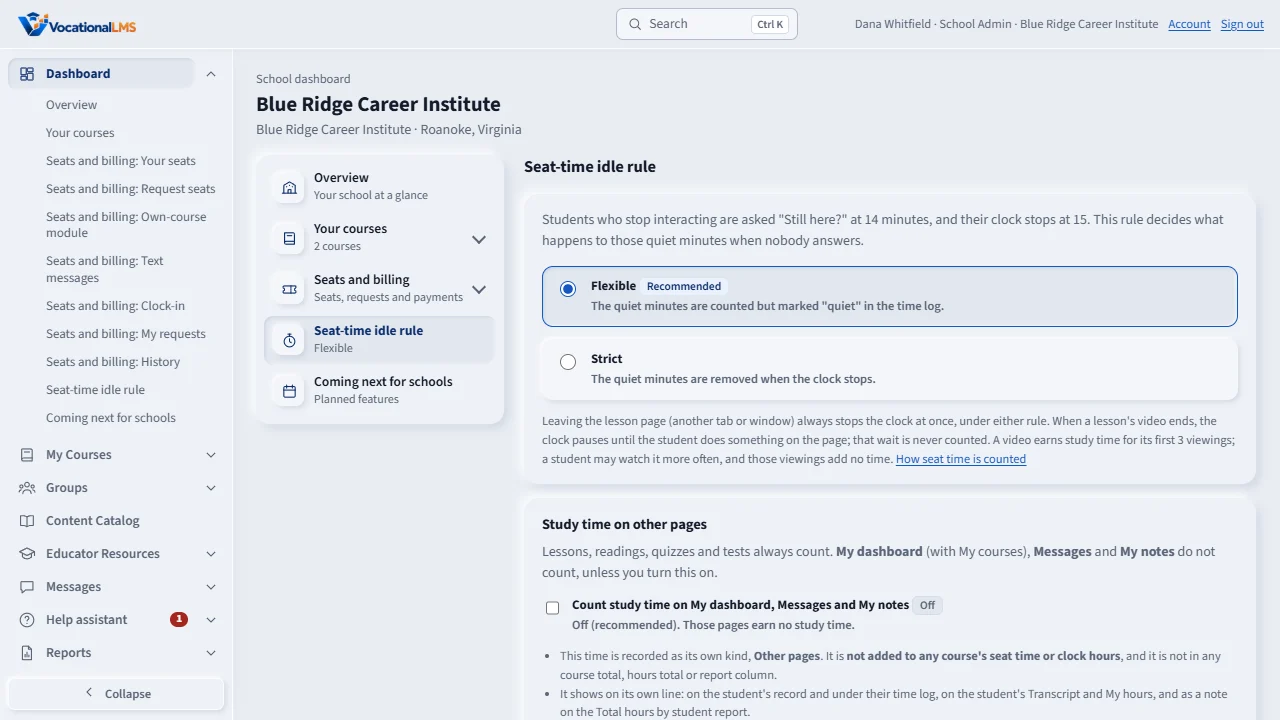
Flexible keeps the quiet minutes (marked quiet). Strict removes them when the clock stops. Under both, the clock pauses when a video ends and a video earns time for three viewings. Below it: the switch for study time on My dashboard, Messages and My notes, and the switch to ask a student every 5 minutes that they are watching a video.
How-to video A-17 · 2:32
Read the words of this video
The server counts each student's time second by second. A student who stops interacting is asked Still here at fourteen minutes, and the clock stops at fifteen. The idle rule decides what happens to those quiet minutes when nobody answers.
Open the Dashboard and click Seat-time idle rule. Flexible is recommended. The quiet minutes are counted, but they are marked quiet in the student's time log.
Strict removes the quiet minutes when the clock stops. The choice saves when you click it, and the menu shows the rule in use. Only a School Admin can change it.
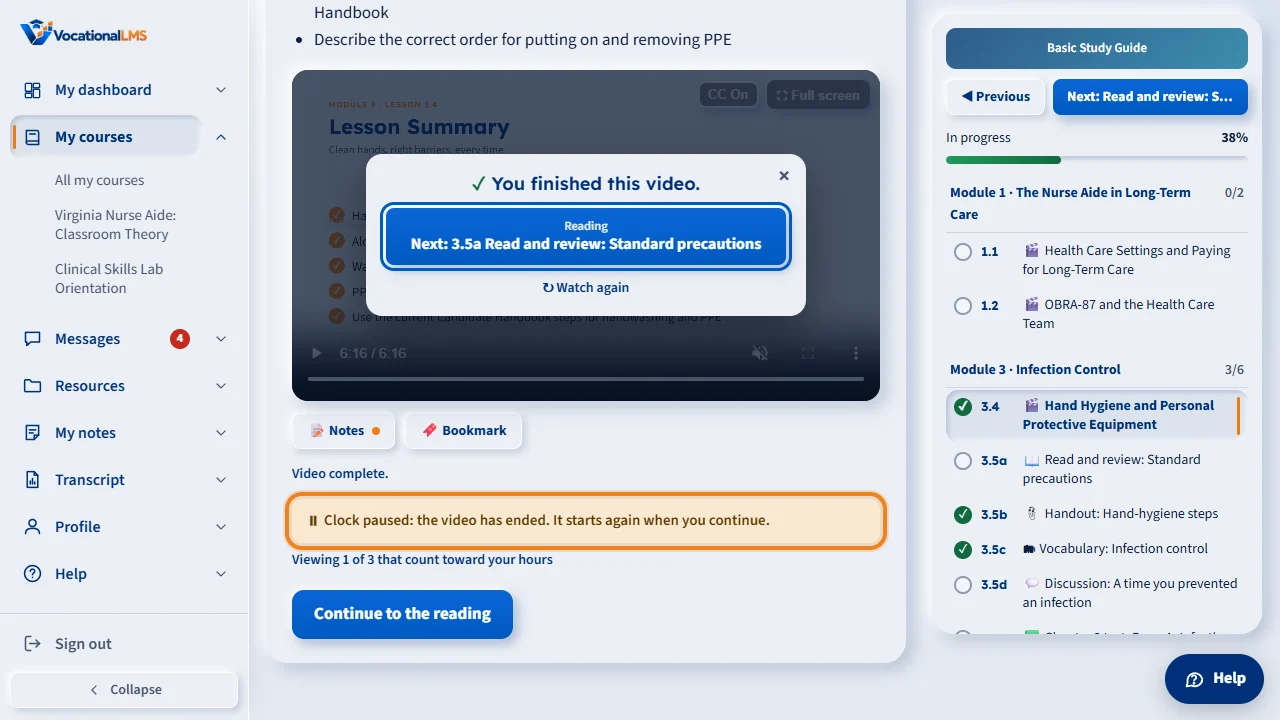
Under either rule, the clock pauses the moment a lesson's video ends, and the student's page says so. Nothing is counted while the student does nothing. The clock counts again when the student presses a key, clicks or taps a button, scrolls the page, plays the video again, or opens the next item. Moving the mouse does not count.
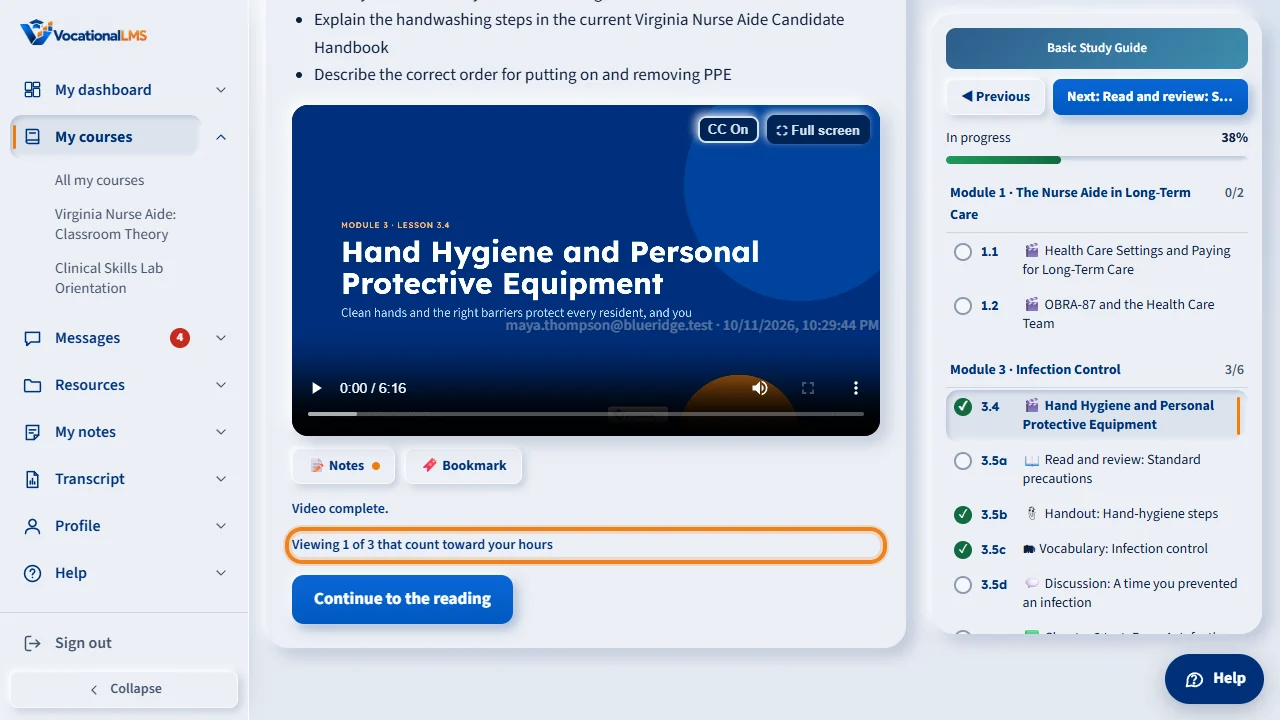
A video earns study time for its first three viewings. The student's page shows which viewing it is. After the third, the student can still watch, but the playing time is not counted, and the time log says so. The reading, quizzes and notes count as before.
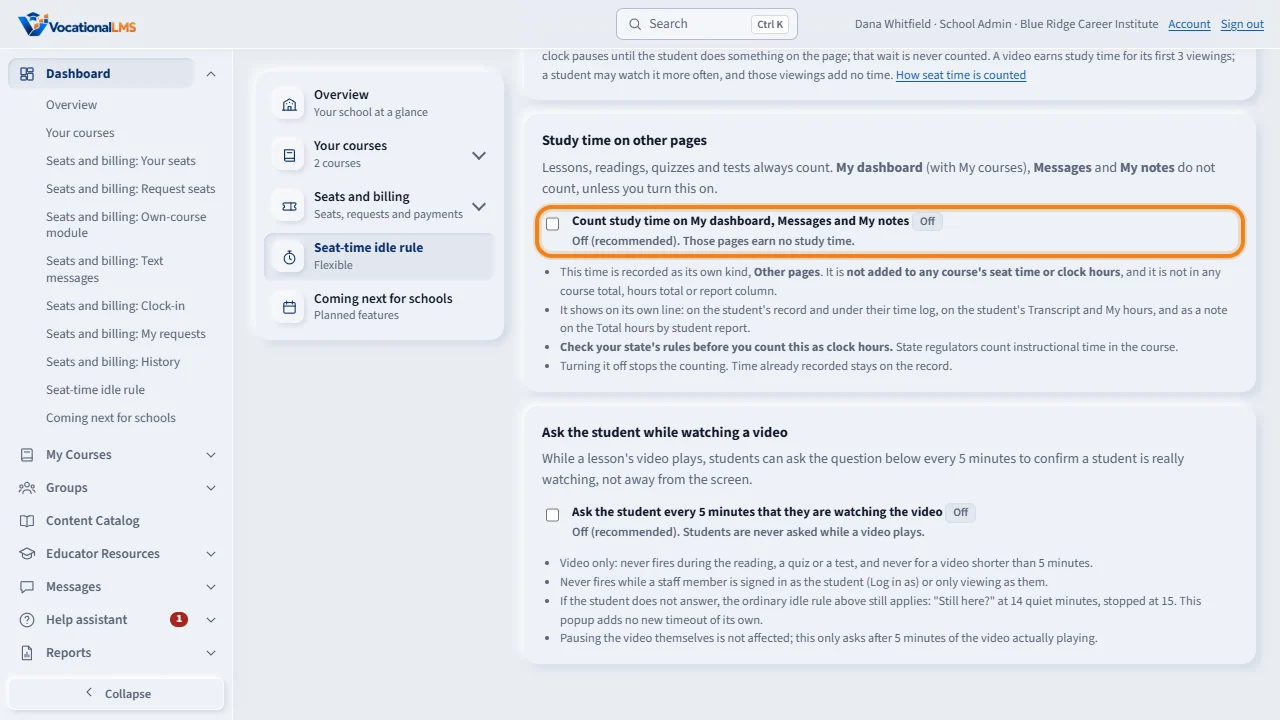
Under the idle rule there is one more switch: Count study time on My dashboard, Messages and My notes. It is off unless you turn it on. When it is on, time on those three pages is recorded separately, as Other pages. It is never added to a course's seat time or clock hours. Check your state's rules before you count it as clock hours.
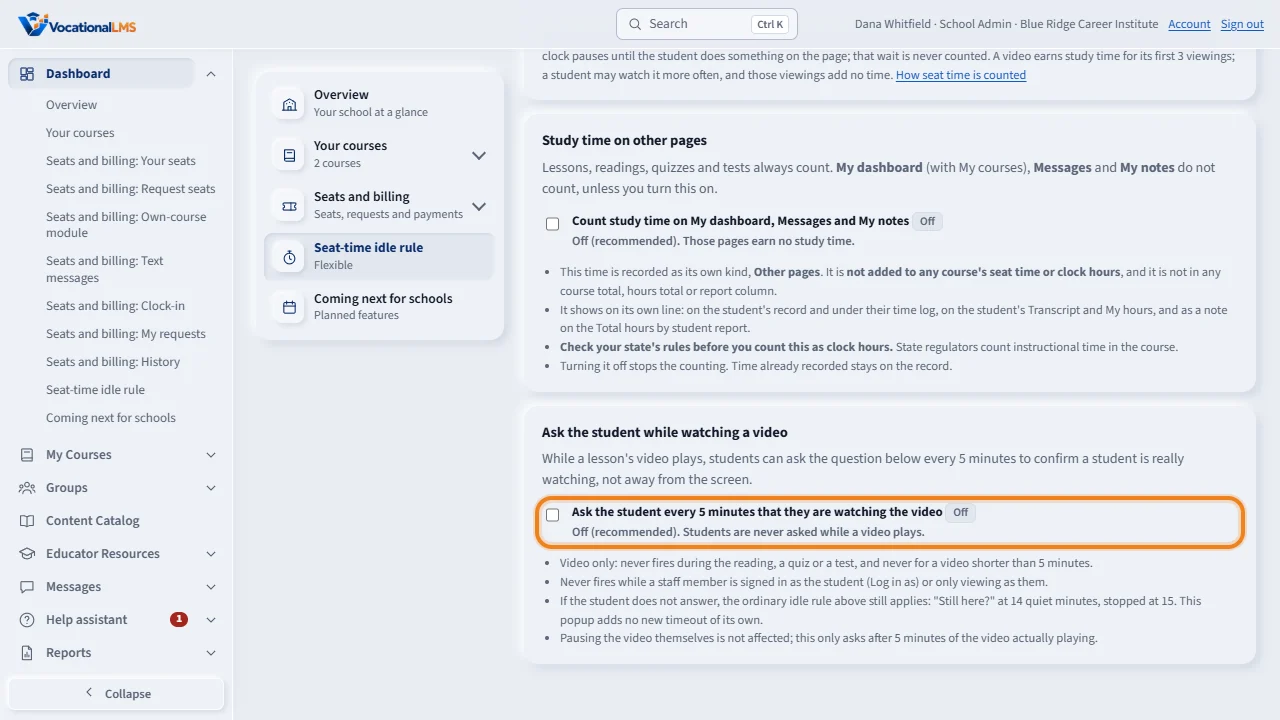
Below that is one more switch: Ask the student every 5 minutes that they are watching the video. It is on unless you turn it off. While it is on, every 5 minutes of real playing time on a lesson's video, a card asks the student Are you still watching? The video and the clock both pause until the student clicks Yes, I'm here. It never asks during the reading, a quiz or a test, and never for a video shorter than 5 minutes.
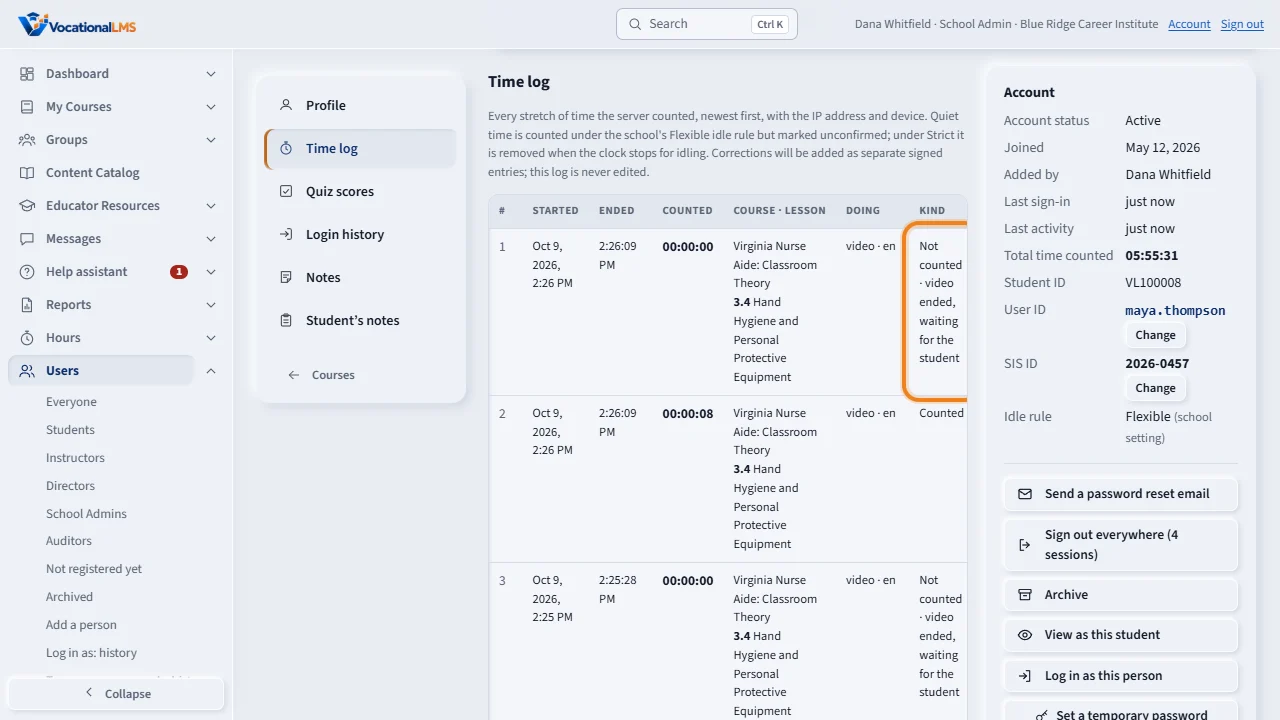
Under either rule, if the student answers Still here, the minutes count normally. And leaving the lesson page stops the clock at once (unless the school keeps it running on other tabs: A-107). The time log shows each stretch and how it was counted. The wait after a video shows as Not counted, video ended.
Open this in VocationalLMSDashboard > Seat-time idle rule
What it is for
Students who stop interacting are asked “Still here?” at 14 minutes, and the clock stops at 15. The idle rule decides what happens to those quiet minutes when nobody answers.
Steps
Choose the idle rule
- Open Dashboard and click Seat-time idle rule in the left menu.
- Choose Flexible (recommended): the quiet minutes are counted, but marked quiet in the time log.
- Or choose Strict: the quiet minutes are removed when the clock stops.
- The choice saves when you click it. The menu shows the rule in use.
Count study time on other pages (off unless you turn it on)
- On the same page, find Study time on other pages, under the idle rule.
- Leave Count study time on My dashboard, Messages and My notes unchecked (recommended): those pages earn no study time.
- Check the box only if your school wants that time recorded. It saves when you click it, and the label beside it changes to On.
- Check your state's rules before you count this as clock hours. The time is recorded as its own kind, Other pages. It is never added to a course's seat time or clock hours.
Ask the student while watching a video (on unless you turn it off)
- Below Study time on other pages, find Ask the student every 5 minutes that they are watching the video. It is on for every school unless a School Admin turns it off.
- While it is on, every 5 minutes of real playing time on a lesson's video, a card asks the student Are you still watching? The video pauses and the clock stops counting until the student clicks Yes, I'm here; the video and the clock then both resume, and the 5-minute count starts over.
- Uncheck it if this is too much for your students, and they are never asked while a video plays.
- This never asks during the reading, a quiz or a test, and never for a video shorter than 5 minutes. It saves when you click it, with your name and the time beside it.
What happens next
If the student answers “Still here?”, the quiet minutes count normally under either rule. Leaving the lesson page (another tab or window) stops the clock at once, under either rule, unless your school turned on Keep the clock running when the student opens another browser tab to research the topic (A-107).
When a video ends
Under either rule, the clock pauses the moment a lesson's video plays to its end, and the student's page says so. Nothing is counted while the student does nothing. The clock counts again from the student's next real activity on the page:
- a key pressed or text typed (notes, a discussion post, an answer);
- a click or tap on a control: a button, a link, a tab, an answer, a text box, the video;
- the page scrolled by the student;
- the video playing again;
- the next step of the lesson, or another item, opened.
Moving the mouse does not start it. The server decides: after the page reports that the video ended, it credits nothing until the page reports one of these. In the time log the wait is its own stretch, Not counted · video ended, waiting for the student. From the first activity the usual rules apply, including the 15-minute idle limit and your Flexible or Strict choice.
While a video is playing, watching is the activity: a student who watches a long video without touching anything is not asked “Still here?” when it ends. Pausing a video in the middle does not pause the clock; the idle limit runs from that moment.
A video earns time for its first 3 viewings
Under either rule, a video earns study time for the first 3 times a student watches it to the end. The count is kept for each student and each lesson, by the server.
- A viewing is counted when the video plays to its end. A student who watches most of a video, leaves and finishes it later has used one viewing, not two.
- Jumping to the last seconds of a video is not a viewing: at least half of the video's length must have been played since the last counted viewing.
- A student who replays a video without ever letting it end does not earn time forever: once the playing time in one viewing reaches twice the video's length, that viewing is counted.
- After the third viewing the student can still watch. The time while the video plays is not counted, and the time log shows it as Not counted · video already watched 3 times.
- The reading, the quiz, tests and notes count as before. The 95% rule, completion and scores are not changed.
- The count started on the day this rule arrived: viewings before that day are not counted against a student, because how many times a video was watched was not recorded before.
Study time on other pages
Lessons, readings, quizzes and tests always count. My dashboard (with My courses), Messages and My notes earn no study time unless you turn the switch on.
- When it is on, time on those three pages is counted by the same rules as a lesson: check-ins every 15 seconds, quiet minutes, “Still here?”, leaving the page, your Flexible or Strict choice, and one clock for each student.
- The time is recorded as its own kind, Other pages. It is not added to any course's seat time or clock hours, and it is not in any course total, hours total or report column.
- You see it on its own line: on the student's record (Other pages, not in course hours), in a list of its own under the student's time log, on the student's Transcript and My hours, and as a note on the Total hours by student report.
- State regulators count instructional time in the course. Check your state's rules before you count this as clock hours.
- Turning it off stops the counting. Time already recorded stays on the record. Resources, Transcript, Profile and Help never count.
Ask the student while watching a video
On unless you turn it off. While a lesson's video is really playing, a card asks the student every 5 minutes of real playing time to confirm they are watching.
- The video pauses and the card appears: Are you still watching? (in Spanish, ¿Sigues aquí?) with one button, Yes, I'm here (Sí, estoy aquí).
- The clock stops counting the moment the card appears, and the time log shows it as its own kind, Not counted · presence check. It counts again the moment the student clicks Yes, and the 5-minute count starts over.
- This adds no new timeout. If the student never clicks Yes, your idle rule above still applies on its own: Still here? at 14 quiet minutes, stopped at 15.
- Video only: it never asks during the reading, a quiz or a test, and never for a video shorter than 5 minutes.
- It never asks while a staff member is signed in as the student (Log in as) or is only viewing as them.
- The 5-minute interval is not a setting; only turning it on or off is.
Common problems
| # | Problem | What to do |
|---|---|---|
| 1 | An auditor asks how hours are counted. | Open How seat time is counted under the choices; it explains the server clock, the 15-second check-ins and the rules. |
| 2 | The time log shows “Not counted · video ended, waiting for the student”. | The video played to its end and the student did nothing on the page for that long. That wait is never counted, under either rule. |
| 3 | The time log shows “Not counted · video already watched 3 times”. | The student played a video again after three counted viewings. That playing time is never counted. Their reading, quiz and notes time is. |
| 4 | The time log shows “Not counted · presence check”. | The student had not yet clicked Yes, I'm here on the Are you still watching? card. The wait is never counted; it counts again from the click. |
| 5 | An auditor asks whether dashboard or Messages time is in the clock hours. | No. It is recorded only if you turned the switch on, always as Other pages, and it is not in any course total or hours total. |
| 6 | You changed the rule; what about old time? | The rule applies from now on. Time already recorded keeps its marks. |