
S-05For students
Take a quiz or a chapter test
Answer, submit, find questions you skipped, see the correct answers, retake the test, and see your latest try whenever you come back.
How-to video S-05 · 1:31
Read the words of this video
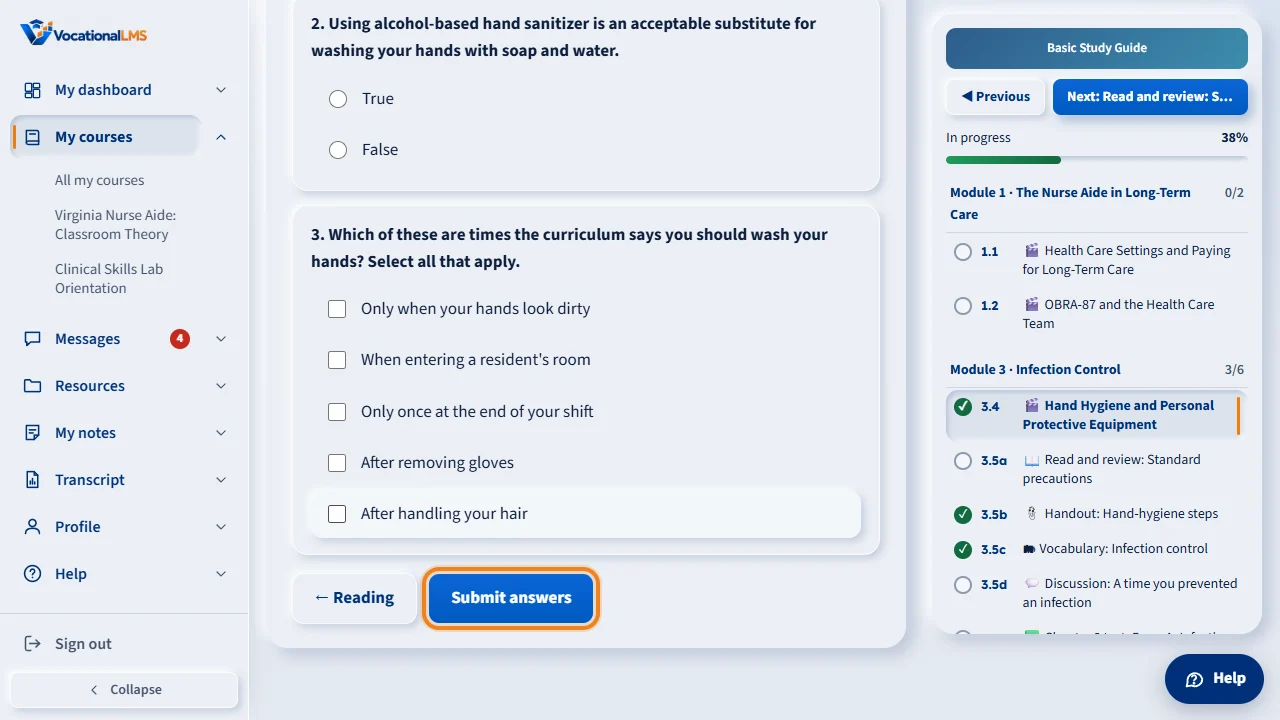
Open the Quiz tab of a lesson, or open a chapter test. Pick an answer for every question. A question that says Select all that apply can have more than one answer. Then click Submit answers. The server grades the test, and every attempt is saved.
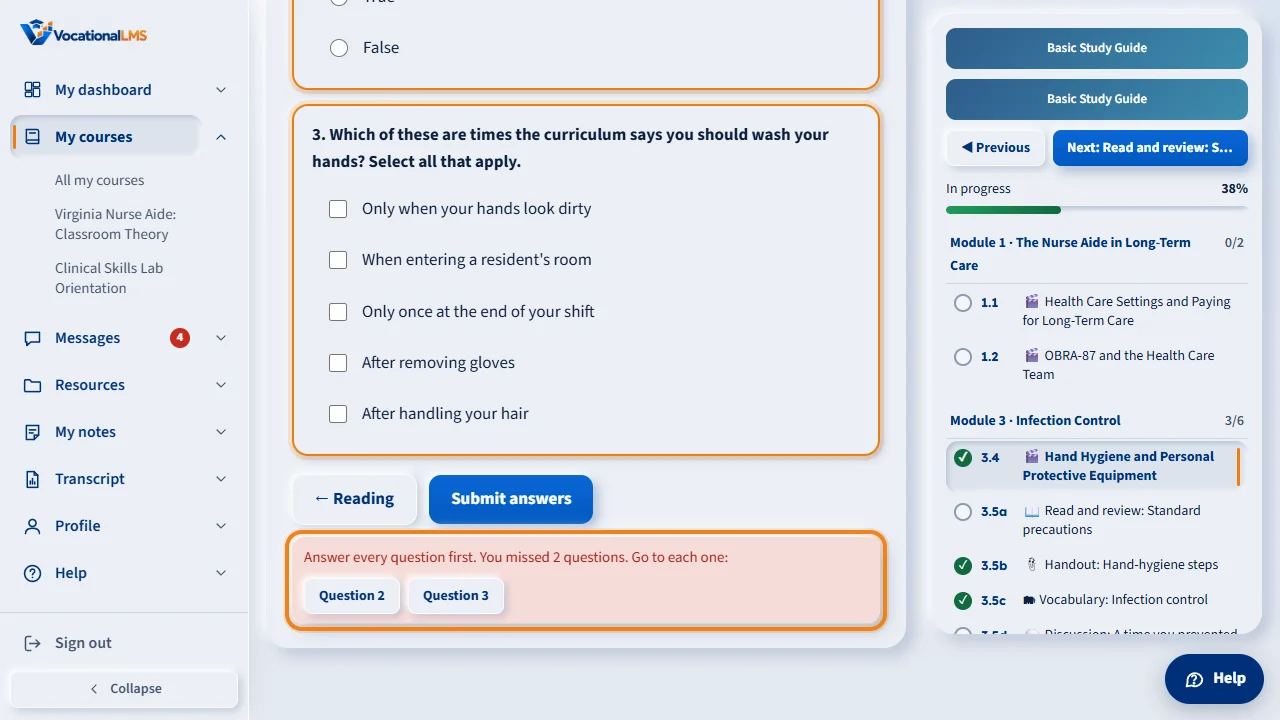
If you leave questions blank, nothing is graded yet. The blank questions are outlined, and a message lists a link to each one you missed. Click a link to jump to that question, answer it, and click Submit answers again.
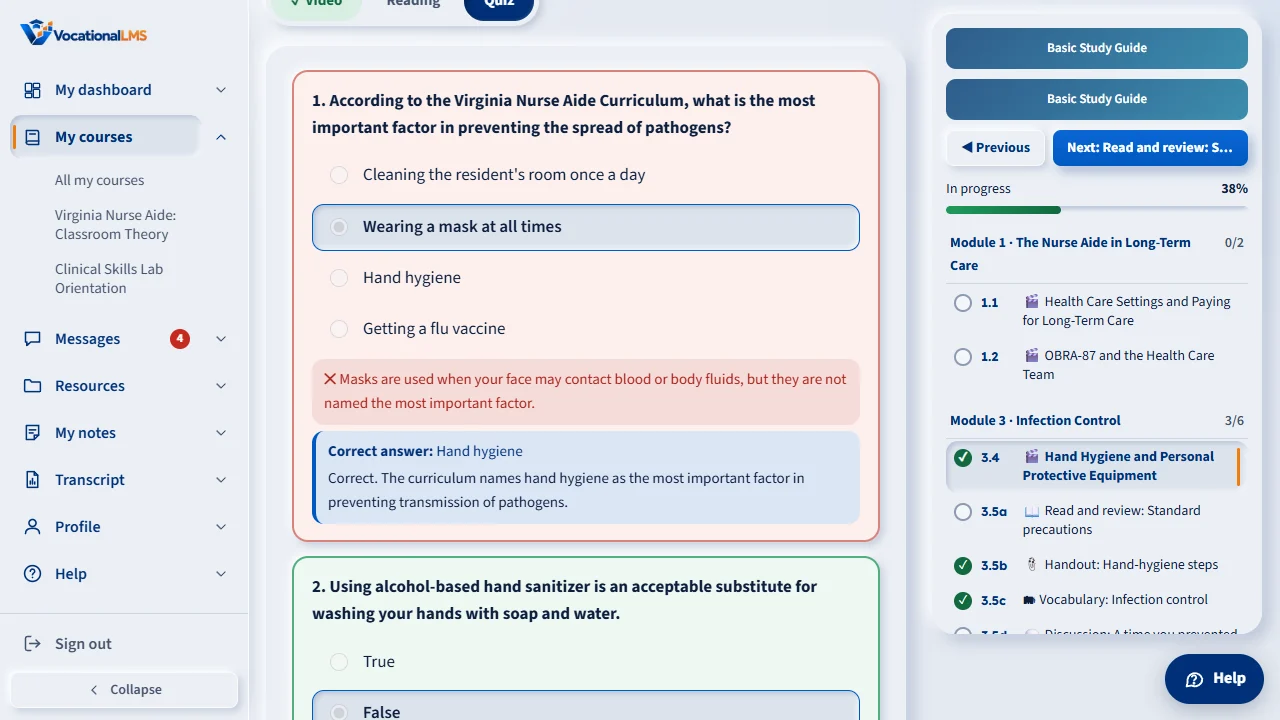
Your score shows at once. Each question you got wrong shows Correct answer, with the right answer and the reason. Read these before you try again. Answers are shown only after you submit, never before.
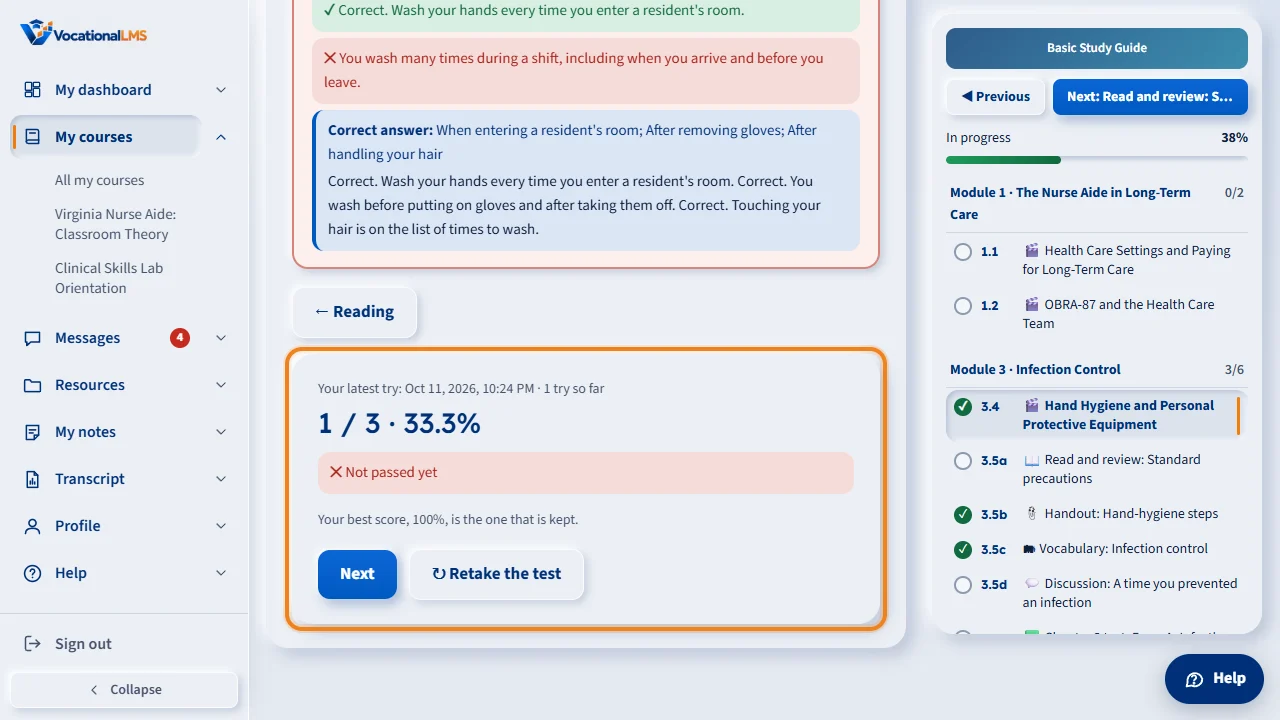
Click Retake the test to try again, whether you passed or not. Your best score is kept, and a pass is never lost by a later try. If your school set a limit on tries, the test stops at that limit until you pass.
You can leave and come back at any time. When you open the quiz again, it shows your latest try: the answers you chose, the correct answer under each one you got wrong, your score, and how many tries you have made. Retake the test is right there when you are ready.
A chapter test works the same way. It has more questions, about fifteen to thirty-five, written from the lessons of that chapter, and you need eighty percent to pass.
Open this in VocationalLMSMy courses > a lesson > Quiz
What it is for
Quizzes and chapter tests are graded by the server as soon as you submit. You see your score right away, the correct answer to anything you got wrong, and you can take the test again.
Steps
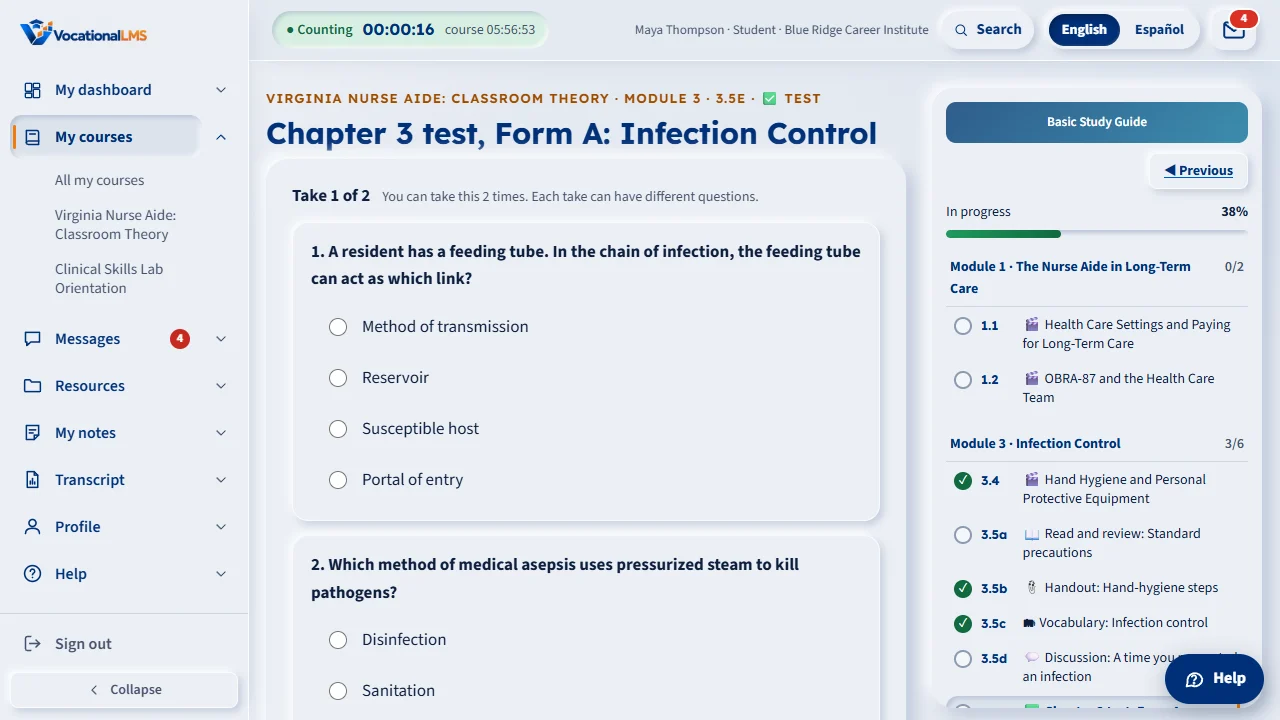
- Open the Quiz tab of a lesson, or open a test item such as Chapter 3 test, Form A.
- Pick an answer for every question. A question that says Select all that apply can have more than one answer.
- Click Submit answers.
- If you left questions blank, they are outlined and a message says You missed 2 questions with a link to each one. Click a link, answer, then click Submit answers again.
- Read your score. Each question you got wrong shows Correct answer: with the explanation.
- Above the questions you may see Take 1 of 2: that is how many times your school lets you send in answers for this test. Opening the test does not use a take; Submit answers does.
- Click Retake the test to try again, or Next to go on. A retake can bring different questions.
- Come back any time: the quiz opens on Your latest try, with your answers, the correct answer under each one you got wrong, your score and the number of tries so far. Retake the test is right there.
What happens next
Your best score is kept, and a pass is never lost by a later try. Every attempt is saved for your school's records. A chapter test has about 15 to 35 questions; the pass mark is shown by your school (80% for chapter tests).
Common problems
| # | Problem | What to do |
|---|---|---|
| 1 | There is no Retake button. | You have used all your takes for this test. The page says so. Message your instructor (S-11); they can give you one more take. |
| 2 | You left the page and want to see your answers again. | Open the quiz again. Your latest try is shown with the correct answers. Nothing is lost when you change tabs or close the browser. |
| 3 | Your latest try shows a score but not your answers. | The quiz is open in another language than the one you took it in, or your school changed its questions since. Submit your answers to see the correct ones. |
| 4 | You want the answers before the test. | Answers are shown only after you submit. The Help assistant will not give quiz answers either. |
| 5 | The questions are in a different order this time. | Your school can shuffle questions and answers. The links to missed questions still match the numbers on your screen. |